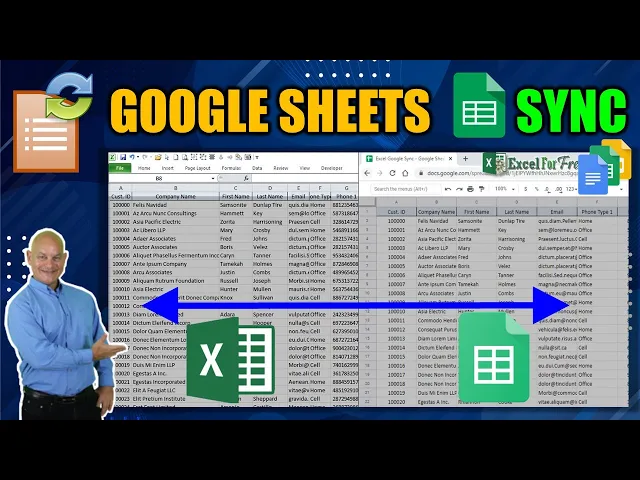
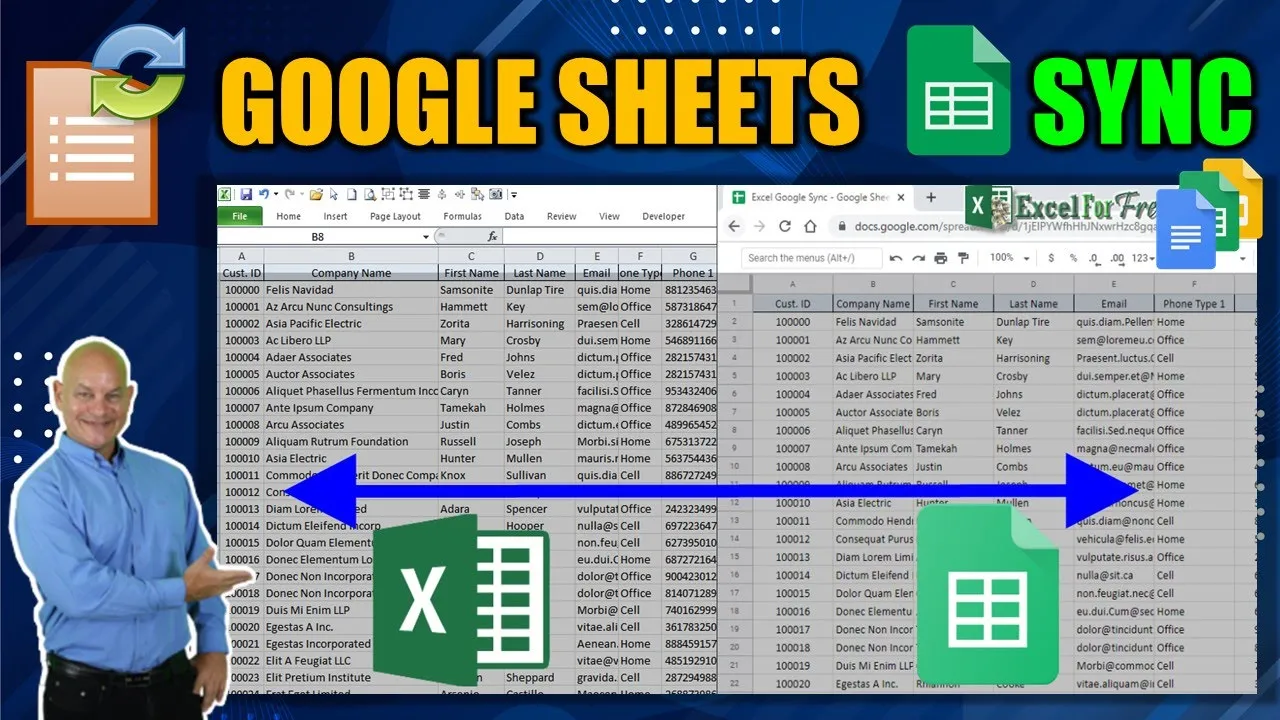
hello this is randy with excel for freelancers and welcome to the google sheets sync in this week's training i'm going to show you how you can create your own sync to google sheets and google sheets back into excel without any excel add-ins it's going to be an amazing training i can't wait so let's get started all right thanks so much for joining me today i've got a ton to cover however it is not a lot of code it's going to be relatively simple training it's going to be some brand new unique third-party software which we're
going to use which is free to try free to use and so we've got a lot to go over this week i want to make sure that you do get subscribed because i create these trainings each and every tuesday for you absolutely free always with a free download that'll be in the link in the description there using your facebook or email so also make sure you subscribe and click that notification icon bill that'll alert you to that i want to really make you successful with excel that's why i create these trainings not just to teach
you excel but to see you get successful with excel reaching your dreams and goals the best way to do that is with these videos and trainings if you do like these a great way to support us will be to purchase the excel 150 workbook zip pack those are 150 of my best workbooks i've got it right now for just 56 that's only 37 cents per workbook it's a great deal it includes a complete library so you can single click to access any single workbook or single click to access the tr associated training video that was
with that so it's a great investment hundreds of people are really enjoying that so i think you will too all right let's get started right away so basically what i want to do i've got a completely blank workbook there's no code nothing on here other than titling the sheets and making a macro enabled xlsm workbook that's it that's all i have nothing this one we're going to focus on nothing pretty oh no no formatting no fonts nothing we're just going to keep it real basic in the workbook because i want to focus on the core
and that is getting data from excel into google sheets and from google sheets back into excel once you learn this training once we go over once i show you this technique you can use it for anything in fact it'll be great to use google sheets as a database because it syncs almost immediately both directions and it's not a lot of code to write so i really want to get started so we're going to jump right into it the first thing we want to do is let google sheets know when we make a change so when
i make a change in any cell here we've got to tell google sheets now we're going to use a third party it's hard to get authentication for google but there's so many great third-party products that allow us to authenticate google so we're going to do that so what we want to do is we want to write a little bit of code and send information to google sheets or to a third party and that third party is going to send it to google sheets for us then we're going to bring it back so we're going to
go over every single step from the start so the first thing what we want to do is want to change effect that means when we make a change to any cell let's say on just to say on this sheet or any sheet i want that change to be sent basically to that third party and from that third party into google so we're going to go over that right now so how do we do that well that is a change event it's called worksheet change event we can get that into vba if you don't have the
developers tab here to get into vba you can just go into the options and then just make sure you select the customize ribbon and make sure developers is selected there you can also use a shortcut alt f11 or use visual basic what we're going to be doing is we're going to focus on the code on sheet so we're going to start writing some code right on the sheet now this what we want to do is we want something to happen when we make a change to the sheet so that's change event so when you go
in here in worksheet and then what you want to look at is not selection change but worksheet change event you're looking for change so this is what i want to do i want to write some code here so that when we make a change something happens so how do we do that well first of all i'm going to write if not so what that's going to do is i'm using auto hotkey i covered that last week if you want to see last week's training autohotkey to help me automate my typing that's great you can check
that out okay so what i want to do is let's just go over from a1 all the way to let's just use z100 okay you can create your range any any range it really doesn't matter just make sure it's big enough to cover everything you could cover the entire sheet of course then we want to do something so if the user makes a change then i want to do something what do i want to do well the first thing i want to do is dimension some information we're going to be sending some information to google
so we need to mention we need to make a call http call and send that information making a post there so how do we do that so the best way to do that actually we're going to use patch here the best way to do that is dimension an object so we're going to dimension the object http as an object that's going to be late binding meaning we're just defining that as an object as of now and later on in the code we will define them more so that we need that as an object and we
also want to dimension a bunch of strings because i need to know the sheet name i need to know the uh row the row number and the column and all that so let's dimension also the url we're going to be sending something to that and it's going to be in the form of the url so dim url as a string and also in the format we're going to be setting it as a json format so let's dimension json as a string i also need to know the column letter what is the column right is it
column a b or c so we're going to dimension that as a string so column letter as string and what else i want to know the cell value what is the value what is the text inside the cell that was changed that's going to be a string as well regardless of whether it's a number or anything it's going to be considered a string at this point cell value as a string a few more when we need to know the sheet name what sheet name are we sending it from that's important sheet name as a string
okay so we got that what else and now i want i want to know the row number that we're sending it from dimension the row number as long okay that's it for the dimension let's go ahead and determine the call letter now the target that's the change that was made that's the cell so target address would be the cell address and so on and so forth so let's get that column letter so the column letter we're going to use split for that equals split basically what i want to do is i want to get the
address and i want to split it i just want to extract only the column letter a b c whatever so split is what is the cells and it's one we can use any row it doesn't really matter any row because we just want to determine the column and so what is the column it's the target target.column now the target column is a number if i wanted to keep the number that would be fine i would just use that number but i want the letter so i want to get the address of that so that's going
to that's going to give us the address a1 including the dollar sign so it's going to be absolute so it's going to be absolute and the cells address so what else do i need so what i want is i need now we need the delimiter what is the delimiter i'm going to use the dollar sign because since it's absolute we're going to use the dollar sign there and also in this case i want one just one in this case so that is going to get us our column letter great what about the row number that's
a lot easier row number it's going to be equal because it's a number target dot row okay that's going to give us a row number let's write in this row number and then i'm going to write the column letter column letter here okay so we know what's going on there so the sheet name is going to be equal to just a name that's easy okay so now what we want to do now what i want to do is i also want to define the cell value what is the cell value the cell value is equal
to the target value that's the text that the user just made the change whatever change was named so let's put this sheet name and then the cell value obvious that's kind of common sense there okay so what else the level we're going to do is i want to set the object remember we've only defined it here's an object here so we really want to set it so let's go ahead and set that object i want to create an object so the set is going to equal the object h ttp is going to equal we're creating
an object what kind of object are we creating well i want to create a server http request so let's type that in it's going to be m msxml2 that's the type msxml2.serverxmlhttp okay that's the request that we want to make so create object ms xml2 dot server xml http and now now that we've defined that what we want to do is we want to set the url so we're going to set the url is going to be equal to now i'm just not going to put it in right away i'm just going to put in
some brackets i'm going to put that url in just a moment we have to get that url from somewhere so we'll we'll focus on getting that url but and then we're going to put the question mark in there so the url will go in place of that in just a moment so what else do we need now now i need all the i want to put all the information that we just have one put the sheet name the row number the cell value and everything else in there so let's do that right now let's add
that in there so what's the first thing let's put in the sheet name we can put any words in here sheet name equals and right so this is the name so this is the name that we're signing and this is the variable this is the actual data the actual sheet name which is here sheet name okay so we have that and what else we need to add more we need to add column letters so let's do that right now the column we can put in and sign right because it's joined that's the next column equals
and quotation marks and then we want to put the variable so column letter in this case okay that's the variable that contains our actual column letter and what else and then another and sign we have to do more and this time i want the row number wanna put the row number in here because we also need the column then the row and row number equals end quotation and again now the variable row number okay so another variable and then we need one more which is the servable so and again then again and again and inside
the quotation marks and then we'll kind of call this cell value equals quotation marks and again cell value okay that's it that's all we have to do that builds our url so the only other thing that we need to do shortly once we obtain that url is placed in here and replace this so this won't stay here we're going to replace it but we have to get that url from somewhere and i'm going to go over that but we need to do everything in order okay so now that we've built the url we need to
send that we need to send that information here so let's do that so we're going to again we're going to focus on the object http dot i want to open it and this time open it and i want to write in the patch that's with the type we're going to use a patch and then url and then false okay now what we want to do is we've built that up and now let's go ahead and set the request header so the object http dot set request header and what is it it's going to be content
type content type that's the type of content that we're setting and then it's going to be how what type of sentence can application json so that's the type that we're sending okay and then one more then we actually need to send it so that just builds it up then we send it so the object http dot send and then of course the send type is again in parentheses json and now what that's going to do is to send the information that's it that's all we have to type in all we need to do is build
that url and that's what we're going to focus on right now okay so let's just go over this real quick because i want to double check my typing as well dimension the object http as an object we're going to bind a little bit later dimension the url string json is string the column letter string cell value and the sheet name is all strings the row number is long that's the only long variable we have column letter we're going to split that we're going to take the cell address the absolute cell address break it down and
determine just the first part of it which is the a or whatever column that was selected that's going to extract our column letter from the cell address the target the row number is pretty simple it's the row number the sheet name is the name of the sheet cell value is the target value so everything's pretty straightforward here again we're going to create this object now we're ready to create it and we're going to bind it now to ms xml we went over that three times url we're going to build it we just need to paste
in that that's all we need to do we're going to get that now patchouli is false object hb send request the header content type application json send json okay that's all the code we need that's it to send everything to google but now what we do is we need to build this url where are we going to get that url well i've discovered a really really cool zapier alternative you know i found i found some obstacles in in xavier especially with the free version they don't we need multiple steps and zapier the free version only
allows two steps so i found a very very cool alternative and we're going to call it it's called integra matte interest card pronounced for me integra matte i guess that's how you call it and so what this does is it's pretty similar to zapier but i really like it's got a really nice ui it's got a you know larger free service meaning that you can do more with the free version before it goes into the pricing so there's a lot like let's go into the pricing just so you can kind of see it right now
so the free version which we're using allows a thousand operations uh zapier allows 100 100 megabytes of data transfer that's not a minimum intervals 15 minutes that's not going to be an issue for us the only issue is would be 1 000 but we're going to cover that plenty so it's really amazing so what i've already signed up just sign in i'm going to sign in right here and then i'm going to go ahead and sign in so you'll want to sign up you can sign up using anything and now we have a so we
can get out of the pricing we're going to go to the main screen here okay and what we're going to want to do is like in zapier you want to create scenarios or they call them scripts or whatever you want to call them so we're going to create a scenario basically what i want to do is we're going to start out with a web hook now we've used those before and that's just what we've built in excel this is this is called a web hook the only difference is we don't have the hook yet we're
going to get that web hook directly from integra mat so i'm going to show you exactly how to do that so once we do that we're going to create a brand new scenario so i'm going to click create so we're into the home there's nothing in our dashboard now i don't have any scripts created they'll be here this is just from some tests that i ran so we can create a new scenario that's what you want to do once you get all signed in create a new scenario and you'll have to connect two things you'll
have to connect dropbox of course you want to make sure you have a dropbox account we're going to use dropbox for a few different versions so dropbox is great but right now what i want to do is i basically want to send from webhook to dropbox is going to help us bring the information back from google sheets to excel so you want that to make sure you have a dropbox account of course you want to have a google a google sheets account google you know make sure you have google docs account that's important okay so
let's do so what are the things that we need for this all i need is two things for this i need web hook so i'm going to type in web hook and that's right here i'm going to check that i need one more thing what else do i need i need to have a google sheets google sheets so we need that so google sheets so i'm going to select that so we have those two selected that's all we need for this that's for sending from excel to google sheets so that's all we need so we're
going to continue now in the next steps in this step what we're going to do is we're now going to build that what they call scenario so when you select google sheets it's going to ask you to sign up it's going to ask you it's going to create a pop-up and you're going to have to link your own google account with that i've already done that but that's the step that you'll need to take so here's what i want to do the first thing what i want to do is i want to do a web
hook that's the first step because from excel it's going to listen for a web book so we're going to create a web hook and we want triggers when the web hook receives data so that's what we're going to focus on click on there and let's give it a name okay we'll just call it excel sync okay any name is fine we're going to save that as soon as we save it we're going to get this link right here that's the link we're looking for all i need to do is copy that to the clipboard and
then we're going to do is we're going to go in and you see where this url is i'm going to take out including the brackets and i'm going to paste it right in here okay and then of course we got to save our work let's go ahead and save it okay now what i'm going to do is i'm going to run this code now the way this code runs is any change all i need to do is is make a change to any cell between a1 and z100 so let's just do that on let's just
say a1 test i'm going to run test okay now theoretically that should have run the hook i didn't see any bug so that means it ran so let's go back into integral now we're going to check it notice it says it says successfully determined that means it read the hook so we're going to click that means yes everything worked good that means the information got sent so let's click ok and now what we want to do is i want to add google sheets so we're going to click add and i'm going to click google sheets
here and what i want to do i want to update a cell updated cells what we're focused on so let's click update the cell now what it's going to do is going to pull all that information in so what we're going to do is we're going to excel test we can just add a new name let's just call it sync to sheets that's fine any names fine continue so again let's go ahead and now it's going to want to know but now it's looking for a sheet so what i need to do is create a
brand new sheet so let's do that i'm going to go into my sheet and i'm going to create a brand new sheet into google sheets and then we're going to call it it's called excel google think okay that's fine that's enough for a title okay so that's all i need to do so now what we're going to do it's waiting for this let's go back into that pop-up because it's going to need to know which account i'm using this account okay so it's going to set up it's going to allow us so now i'm just
going to click allow that's going to allow make sure that it's a now it's found so now it's going to load all the spreadsheets in now we need to find the spreadsheet we just created so let's scroll down here and we'll call we're looking for it's an excel google sync that's the one i'm looking for that's the sheet i just created so what is the sheet now the sheets dynamic right because we just want to make sure that notice that our sheet name sheet1 we're just going to focus on sheet1 the name is important the
name of this excel google sheet must be the name of the same excel sheet okay that's really important because we're going to use dynamic make sure your sheets are the same so ours are the same so that's fine okay so next up what do we need to do next up let's go back into here and set that as dynamic so what is the sheet it is in this case i want to map it right so what do i want to map it to this notice these four things those are the same four things that came
in from our web hook did you notice that look those are the same names sheet name column column letter right and let's bring this we don't need this here column letter row number and cell value so that means all the information was sent there so this is the same information that's why we ran this code first so that it could get all the information now we all we need to do is map it so the sheet name we're just going to drag this over sheet name what is the cell the cell is going to be
equal to what two things the column in the row the column and the row right column in the row so that's the cell and what is the value super simple right cell value okay that's it that's all i need to do and click ok that's it so now we're good now let's now let's run this once and we're going to run it now let's make a change and as soon as we make that change let's go ahead and test two and let's take a look at that and let's go back into there and i'm gonna
i'm gonna show both of these things one issue let's take a look at sheet 1b1 there's a space there should not be a space that was a mistake that i made so all we need to do is click here it's going to load it all we need to do is we just can't have a space between these it'll add the space automatically but we really don't want a space right column letter okay click ok and now we're good i think let's just take a look go back here run once again let's make sure that test
is again let's go ahead and make the change in excel call this let's you go here test three and let's just take a look at that now because i think we certainly didn't need that space okay that looks good the request was separated waiting for data take a look in here test three awesome now we're syncing now let me shrink this down a little bit i want you to be able to see both i'm gonna move this over here and now let's take a look and i'm gonna scroll this up here i'm gonna bring this
over here now we can see it okay that worked out really well so before we do that let's just run once so we have to actually we have to actually make it run all the time so we're good i want it exactly as i don't need any changes so we can zoom that out so let's turn it on right let's turn it on actually i need to bring out this screen a little bit more here what i want to do is turn it on so now it's off and run and activate so now we're going
to activate it so now it's running now if we go into our scenarios here we can see that it's on okay so go back into excel now let's go ahead and now what we're going to do is just what i'm going to do is i'm going to double click on this double click on this and make sure that those updates come now it came automatically to google you see that let's just run that test type in hello boom now you can see comes right awesome see how easy that is now let's write something else now
i want any change that i make in google sheets i wanted to come back to excel we're going to use the same type of integration but a little bit different and this one's going to involve just a little bit of code and dropbox so first thing what i want to do is i want to create a brand new scenario here and what i want to do is i want to take it this time from google sheets and i want to put it into dropbox and then i want to have my application look excel i want
to write a little bit of code that's going to check a specific folder see if there's any changes in that folder take that ever so every cell change that we make is going to go into that folder and then i'm going to have it constantly look in that folder if there's been any change i want to update that folder with the changes and put that in here i'm going to put it in small text files so basically any change that i make here in google sheets i wanted to send to dropbox in a small text
file and i'm going to use again i want to use the sheet name and i want to use the cell address as the text file name why do i want to do that why do i want to use the same name because this way any change i make again any change i make again to the same cell on the same sheet i want her to replace that text file automatically replace so how do we do that again let's use let's expand this and let's create another new scenario so i'm going to create a new scenario
here and this time we're going to focus on google sheets so let's create that and again let's go again let's search for google sheets and click that and this time we're going to use dropbox to help us so let's also find dropbox and it's right here okay so just those two those are the only two we're going to use now we're going to continue and so what's the first step the first step is google sheets what do i want to do i want to watch changes i'm going to look for when triggers when a cell
is updated watch only changes made in google sheets app notice sheets add-on required sheets add-on required okay that's a little add-on for google sheets simple free quick no worries we got that covered so i'm going to click that that's the first thing we want to do now i want to write a web hook this is a web hook so what is it let's create a web hook on this and we'll call it sync to excel okay we're syncing to any name is fine it doesn't matter now it's going to create a web hook now again
let's copy this address to the clipboard now we're going to go into google sheets and i actually have this add-on before but notice it says let's click it's intermittent but all you have to do is click get add-ons right and type in the words integra matter into integramat so you just type in into gramat right here click that i already have it and then all you do notice it's installed already for me but for you you'll just install it so good all you need to do is click here to install it okay so now that
we're done so let's close that out so you have it then what you want to do is go into add-ons intramats click on the settings and it's going to pop out this little slide panel here all you need to do is that url that you pasted just going to paste that right in here integra map so then we're going to save that okay save and successfully okay great so let's just write in another test right here let's call in test four okay so that what that's going to do is going to trigger that automatically now
when we go back into it we can click ok and then we're going to click add another rule so let's click add what i want to do is i want to add dropbox so we're going to click dropbox now what do i want to do i want to create a text file a small text file create overwrite now overwrites important because if they make the same change to the same sheet the same cells we do want it overwritten so i'm going to click on that now what do i want to do i want to select
create in this case i want to overwrite in case it's not and i want to select a path i want to do a map a file path and what is that path now we have all this information from that it got from google sheets so that's part of it what do we want well the first thing i want the sheet name i want to put that in here and this is the actually this is the file path so this is the name so we want the sheet name then i'm going to put it dash and
then i'm going to put the a1 notation that of course is the actual range so so for example it'll be a1 for example so then i want to do dot txt that is the file name so the file name is going to be whatever the sheet name is and then dash and then whatever the range that they've selected a1 b1 c3 or whatever it is text so this is the name of our file now what's in our file all i want to do is put the what's in our file is the value so i'm going
to drag that over here the value sheet name dash range so that's it that click okay that's all i need to do click ok and now let's go ahead and take a look at that now our dropbox is connected notice but you'll have to connect yours it'll just give you a pop-up and it'll connect and just say okay on that okay so let's just take a quick look now now let's write in test five and i want to write in that now let's going to take a look at that so where is it going to
be mapped but now i want it mapped to single there's one more step that i actually forgot to do i have i created a specific folder i want to do it in a specific folder let's go back into the dropbox here and just want to i want to map it to a specific folder because it's easier so let's write in that just as they say and then i've created another folder let's take a look here i've created a folder in my dropbox specific for this so that's going to help us out it's called excel sync
called excel sync so this is what i want all i need is excel sync so we're going to paste that in here i'm just going to paste it right here excel sync that's the one that i want it's actually a forward slash that's what i want make sure the slashes are right we're looking forward slashes not backslashes okay excel sync the sheet name so that's where i want it to go and i'll click okay that's important step okay so that's it so now we're good to go bring it back down here and click run once
so we're just going to run it once to check and look at it then actually now we can make now we can make another test test six here and now go back into here let's watch it let's see what's going on perfect so you see one and one now if we take a look at that we'll see everything else let's go to google sheets first see what that is so we have the output the spreadsheet the sheet name sheet1 a1 notation d2 value test 6. notice that okay this is the the range is d2 the
test is 6. that's the way i want that looks good what about this part let's take a look at what happened here bundle content file path excel sync sheet1 d2 that's what i want it's created the file path is right we're overwriting it we're mapping it the path is sheet1 d2 text looks good the content everything looks good now let's take a look inside our dropbox and we see this little text file here if we open it up it's going to be exactly the contents perfect so notice how it send it to our dropbox now
all we need to do is tell excel look at sheet 1 d2 and whatever's in put that put test 6 inside it that's it that's all i need to do so let's go ahead and write that code everything looks good i'm going to turn this on run it immediately activate that now we have our two scenarios double check them they're both on they're both running we're done with internet everything else is based in excel so let's go ahead and open excel and just write a little bit of code that's going to help us out so
we'll create a module for that insert module and then we'll give it a name and the properties and we'll just call it sync from google sheets okay now we'll create a sub to close this out sub sync from google okay so now all we know we need to mention a few things because we need to pull it from the dropbox place it inside our whatever sheet whatever cell and then what we need to do is delete the file so we're going to mention the file name as a string and then the folder path as a
string and then file path i was into the file path the full file path as string a cell value is going to also be a string cell value as string okay and what else i also need the cell address that's important cell add as string and the sheet name the sheet name as string okay good now we're going to set up let's set the folder path i want to set that already folder path is going to be equal to okay and so here's my folder here's my folder i'm just going to copy that path i'm
going to put it right in here and then quotation marks so we're going to make sure you put the last backslash okay that's important and then there we go there we go now we've got the folder path now let's get the file name the file name we need to set that it's going to be nothing initially is going to be the directory of the folder path and it could be any particular file that ends in txt and asterisk because we're looking for anything the wild across just dot txt because we're gonna look for anything like
that okay so that's the directory now what we want to do is i want to write a loop because i want to do i want to do this for every single file that matches the txt in that specific folder so how do we do that do while the length of the file name is greater than zero and that's the start of the loop okay so inside that loop we're going to check so the file path is equal to the folder path and the file name okay that's the full file path so we want to do
is we want to open it extract the value and then close it so we can do that with just this line of code open file path for input as number one just the one line that's all i need to know because there's just one line in it so line input it's going to be one line of code input number one we're going to assign that called the cell value that's going to be this the line the only line that exists and then we're done so we've assigned that cell value to the line input cell value
and now we just need to close it so we're closing number one that's it that's all we need to do the rest now what let's define the sheet name remember what is the sheet name right here is our file here sheet our sheet is sheet1 what i need to do is notice that this sheet one is separated by a dash so i need to extract from the sheet name i need to pull the sheet name out of that and i need to pull the sheet cell reference d2 sheeted the cell address d2 out of that
so let's do that let's parse that let's extract that information from the name of the file we do that with just a few lines of code so let's do that the sheet name is going to be equal right i want the left i want the left of that whatever's on the left or in the left the file name then all we need to do is determine how many characters we're going to use in string to determine how many characters of the file name and what are we looking for i'm looking for that dash that's the
dash so i want to the left of whatever is that and then i want to subtract one because i don't want to include the dash that's it that's going to assign us that's going to give us our sheet name now we have the sheet name left of the file name right you want the left portion of that entire flip how many characters we want we want to know wherever this dash is found and we want to exclude exclude the dash so we're subtracting one that's going to give us our sheet name what about the cell
address the cell address is going to be equal we're going to use the mid function the mid because it's in the middle we got the txt on the end we got the sheet name on the left so we want the mid function so we're going to use that the mid of the file name in this case it's going to be we're going to use in string again in string file name we're looking for that dash here so once we found the dash this time we're going to add one right because i want to whatever is
right of the dash on the right side of the dash so this time not to the left the right comma okay so that is our first point position but what is our last point position we're going to use in string again this time in string file name again we're going to look this time i want to look for the period right in this game we could use in-string reverse tier 2. so let's go ahead we want the period but we're never going to have a period in the file name so it doesn't matter if you
did it would you would have to use in-stream reverse file name and this time we're going to look for the period here okay and then subtracting again we're going to look for the dash extracting whatever's in the dash so in this case we're going to extract whatever is here so this case we're going to extract the same thing right here in string file name but this time it's going to be minus 1. so subtract the in string again wherever this is found minus 1 because we don't want to exclude that okay so that's it let's
go over that again the cell address we're looking for the midway point the midway point between the left position of the dash right the left position moved over to the right one actually one character to the right to the right of the dash all the way until wherever this point is found one to the left of that i went to the left of that subtracting that that's going to get us our cell address basically again it's going to extract that d2 d2 from this so we're getting the mid we're finding this point we're moving over
to the right we're finding the point of this decimal and we're moving over to the left that's going to get us our d2 that's all i want to do is extract that d2 okay so once we have the cell address it's easy now what we want to do is we just need to make the update to the to the cell this workbook dot sheets sheet name dot range and what is the cell address cell address we know the cell address dot value is equal to what is equal to the cell value that's it now we're
done now what we want to do since we just replaced it we can then remove that text file we don't need that text file anymore so kill file path now all we need to do is set the file name to empty so we can do that with file name equals directory and then open and close parenthesis that clears out the current file name as it loops through okay so that's it that's it all we need to do all right let's take a look at that so that's it that's all we need to do so let's
run that check for any errors and let's bring this over here and we're going to run that notice let's see what we have we have again we have d2 and we want to replace that with test 6. so in d2 when we run it it should replace the tech 6 here so let's go ahead and run that code run it and update the i need two ls in there not one okay then run it again and d2 perfect so notice how it changes great so that's it so now let's make sure now the file's gone
it killed the file that's exactly what i want to happen so good so now what we need to do but now we can't run this sync i don't want to run it every single time right i want to run this macro regularly so how do we do that we can write another sub so what i want to do is write sub run sync so let's write another mac that's going to run it at a specific time application let's run it every let's say a few seconds for now but on yours you might want to do
application dot i'm going to click on time and what is the time let's try date add i'm going to add seconds on to that i want to add seconds and how many seconds let's just say let's just say three seconds or something short and then now so i want to start it now and that's and then what do i want to run at that point i want to run the macro sync from google so that's what i want to run that's all i want to run and when this finishes up when this finishes what i
want to do is i want to run it again in other words when this macro finishes i'm going to run the macro here so run again okay so now when i run it's going to run automatically it's going to keep looping through so now let's take a look so let's reduce this code let's bring in our google sheets here there now we can see both we can close this out we don't need that anymore so let's say sync test into that and we're going to wait for that to come in excel there it is sync
test so now we can bring this up so it looks a little bit similar so now let's test that again test again now it brought it right back in and then we're going to sync again now sync to google sheets and a perfect great i'm super glad i got to show that to you this is how you sync from excel to google sheets and from google sheets back to excel i hope you enjoyed this training i'm gonna include this in the download so you can get it for absolutely free through your email or facebook thank
you so much for joining us if you have not yet check out the excel mentorship program i'm going to teach you how to create your own applications and sell them for passive income that's from myexcel mentor.com i hope you've liked this training and thanks so much we'll see you next week you