in this video I'm going to show you how I create a Pinterest pin and put it on an automatic loop with Tailwind now the reason why this is so powerful is because take a look here this is uh my analytics account for right this moment okay so right now today I can see who has been on my website this morning it's very early but I just wanted to give you a quick idea so here's a Blog they're coming from Google and it's another country here's a Blog coming from Google another country just kind of a
quick so that you get an idea of where they're coming from right so the flag is is America so that's kind of a cool quick thing this is the page that they were actually on this is how many actions they took when they were there did they go to other pages that type of thing but over here on the right hand side is the source of where they're coming from this is gold this is gold this is by the way this analytics program I put a link below in the description box this do called clicky
and you can just sign up add your code to your website and you'll get all these stats so here I'm looking at okay this one's coming from Pinterest this one's coming from Pinterest this one's coming from Pinterest but as I'm scanning this I was like ooh Pinterest AI images coming from Bing let me go look at that blog and see what I've done with this for Pinterest because that might also draw some interest from Pinterest so I I'm just going to open that page here and I'm looking at it and I'm like okay let me
make a pin for this page and try to get some traffic also from Pinterest so here's how I do it I have this Chrome extension up here called harpa I pay for harpa I know that there's a free version but as soon as you start doing things that you need you're going to have to pay that's just how these little premium tools kind of work now harpa is powered by AI technology so it could be Chad PT it could be Claude you get to go in and set up whatever AI integration you want to plug
in I have chat GPT I pay for the chat GPT 40 or 41 or whatever it is right now subscription at $20 a month I'm just letting you know so that when you go ask them questions like how did you set Yours up that's that's what it is now in here I have these preset prompts these are called gpts is what they call these any of these automated commands if this then that they're those are called gpts so they're like little saved commands for your AI technology so I have saved one for each of my
blogs and this one is called the Lori Balon blog so I'm just going to open this and it's called FM Lori balance so I've already preset up you can watch one of my other videos where I show you how to set this up but I preet up this prompt and now watch what it does when it runs it's basically scanning the page page and it's giving me an image prompt and then it's giving me Pinterest titles and descriptions so if I want to make multiple pins so what do I what do I do I take
this prompt and I'm going to go over to a software that I use called idea here was the I just made a YouTube thumb thumbnail a minute ago using IDE now if I click on this homepage what you're going to see is a whole bunch of Graphics that were created by other people that are kind of just sharing their Graphics me I'm going to paste my command right here and I'm going to say create a 916 image and it's going to give us a pin now if you've already seen all my other videos where I
show you how to make this pin you can skip forward but I'm going to show you how I actually set this up to loop on to boards for an entire year using uh software and that way it'll keep circulating on Pinterest so some days I'm writing new blog some days I'm making new pins sometimes I'm just recirculating and looping other pins right so now I have four options here so I go through all four and I do a quick look at them what I'm looking for are are there any typos is there anything weird in
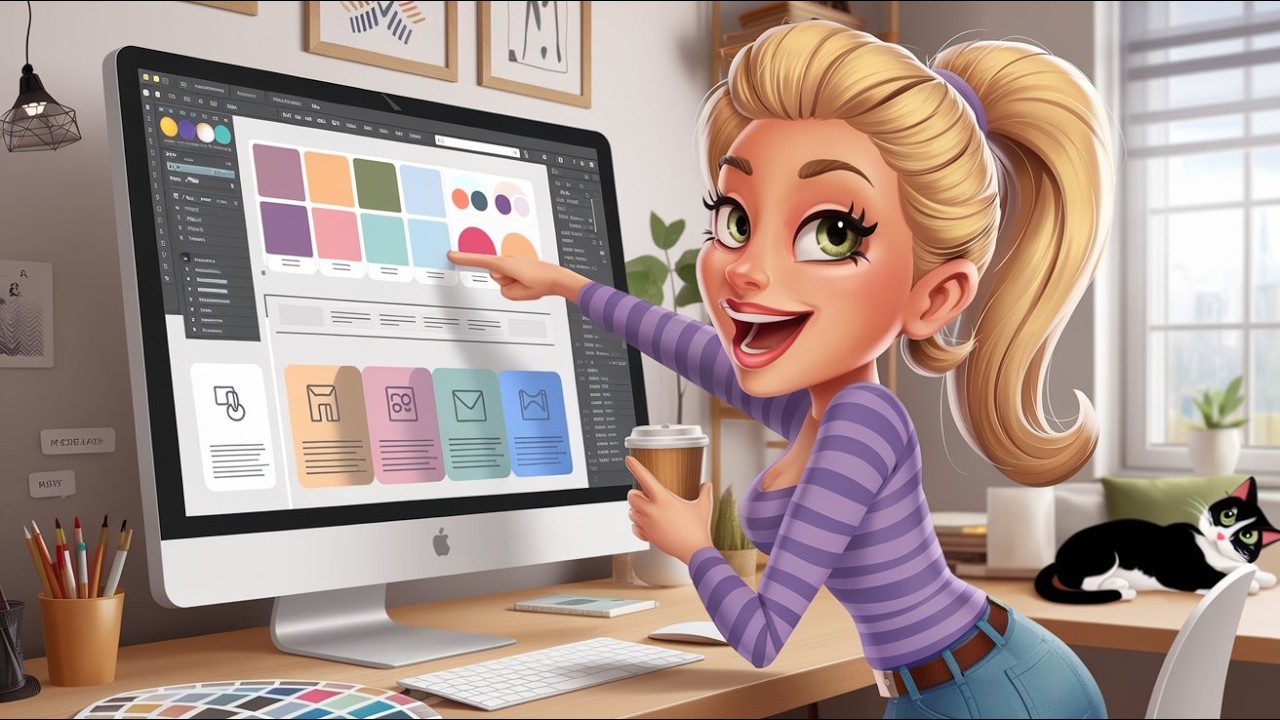
the background that looks like it shouldn't belong there okay so there's one let's look at the second one I like the second one better so far create stunning Pinterest images with AI tools let's look at the third one my favorite even still wow they even got the Apple logo on there all right so I like number three the best let's see number four all of them are good so if I wanted to I could save all four and use them and schedule them out on Pinterest but for the sake of today I'm just going to
take this one so I'm going to rightclick I'm going to download this and I'm going to save it as AI Pinterest images giving me the idea of what the blog is called okay then I'm going to go to edit my WordPress website now I did just post a video on how to build your own WordPress website as well so hopefully you'll check that out if you don't already have one of these okay now where do I want to put this pin I may already have a pin on here that's fine I'm going to put another
one so I'm just going to put it here click the little block I'm going to add an image I'm going to click upload and I'm going to add this AI Pinterest images now once that's fully loaded on the right side I'm going to make that a fullsize image and a 9 by6 and if I wanted to update the blog date I can but since all I did is add an image I'm not going to do that okay so now we saved it now watch where we go from here this is different than just straight pinning
on Pinterest so I'm going to click view post I just kind of wanted to show people this is where Tailwind comes in for me there's other places but this is one of them so what I do is I'm going to scroll down to my new pin down here at the bottom there is a Tailwind little option I do need to make sure I'm on the right account so let me pop that open now Below in the description of the YouTube video where I put that clicky analytics link there's also a link to check out Tailwind
I do pay for these software I also have affiliate relationships which means if you sign up using my link I benefit no extra cost to you all right I'm in the right account I'm in Lori Bal and pinest which is where I want to be then I have create stunning Pinterest images with AI tools now what board do I want to put that on and then here do I want to improve that description I do want to improve that description so what I'm going to do is I'm going to go back over here to my
blog and remember how it gave us harpa gave us all of these Pinterest titles so I'm going to take one of these AI powered Pinterest images made easy so all we have to do is go down here and open that Tailwind box back up and I'm going to change that title so each time I go in here make a new PIN I'm probably going to go change that title and that description then once a pin is really circulating well I just want to keep that PIN going for a while right so I'm going to do
this okay now I'm going to circulate it to boards so if you don't know how Pinterest works when you're posting on Pinterest you it's kind of like a bulletin board you're going to kind of walk it's like you're walking over that bulletin board and you're sticking this clipping to that bulletin board but your bulletin boards are all different let's just say categories as if you were building a Blog they're all different categories a lot of times these categories will be very similar and you can have all of these boards that are similar but Pinterest uses
a tiny bit different title or different tag so you could have 10 boards that are all about digital marketing or 10 boards that are all about Pinterest or 10 boards that are all about AI images for example and then what you can do is you can repin this same pin to each one of those boards so that this pin keeps circulating in the Pinterest feed without looking spammy I'll show you what I mean in just a second so here I'm I've already created all these boards so let me see what I have I have Pinterest
so what what Pinterest ones do I have so I have learned Pinterest make money with Pinterest Pinterest affiliate marketing Pinterest marketing Pinterest boards Pinterest for business Pinterest growth Pinterest tools so I have 1 two 3 four five six 7even eight it looks like so I might want to add uh let me see do I have any other Pinterest ones I didn't already put in there looks like those are all in there do I have anything regarding AI images o that might be one I want to go play with do I have any on graphic designs
it could be there's graphic design tips and then maybe I'll put one on my digital marketing board all right so now I I I think Tailwind has a max set of 10 boards anyway but basically what I do now is I go to use interval and I post one of these pins every 30 days to one of those boards so there spaced out so much that Pinterest is not going to look at those as spammy St strategies repinning the same pin multiple times it'll pin the first one tonight at 6:07 p.m. or tomorrow it says
6:07 p.m. and and I can change that starting date I can have that be earlier or something but let's just say I'm going to leave it alone and then every month you can see here it's got a different time and a different date so what I'm able to do now I'm going to set that interval and then I'm going to click schedule now and now I do not have to think about it for the next 10 months this pin is going to recirculate in the feed and let me show you what I mean by feed
so if I were to go over to Pinterest and I were to go to my home feed as a Pinterest user so this is this is not as a digital marketer this is pretending I'm using Pinterest as a Pinterest user this is the the feed so if I'm on a mobile device these are all going to be stacked one on top of the other what Pinterest is doing is it's showing me pins based on other things that I've looked at on Pinterest so it's a beautiful uh pile of topics that I'm already interested in and
it knows that based on my past interaction with Pinterest so this feed is going to change so when somebody publishes a new PIN for example let's say I'm looking at fall outfits somebody publishes a new PIN for fall outfits even though their pin isn't maybe ranking in a certain position on the Pinterest search which I'll show you in a second instead it's showing up on people's feeds and by recirculating that pin there's a good chance that it will show up on that person's feet so I want to keep it circulating now if I was doing
Pinterest search let's just say today I'm like you know I'm really kind of in the market to study more about Pinterest growth and I click Pinterest growth now this is a search generated feed so it might still change but it's probably going to be a little more a fixed based on where these pins rank but still if somebody rolls out a new pin on Pinterest GR growth and Pinterest feels it's relative to me it will show up on my feed now if I'm not logged in Pinterest have ranking positions very similar to um very similar
to Google or let's just say I'm logged in but I do a search I've never searched for anything before like let's just say I'm going to search for um how to set goals all right see see these suggestions this is kind of like Google how to set goals how to set goals and Achieve them how to set goals for yourself how to set goals for 2024 what this tells me is I could create a board called how to set goals and each one of these could be a separate blog topic right that would be spinning
on that blog but anyway let's just say I go to how to set goals here's the feed so Pinterest may show me pins of users I've been on their blog before but if I haven't been on any of these before and there's no personalized search instead it's going to show me where these pins rank organically in their positions on the board so you have your personalized search and you have your search engine search right so we want to keep our pins recirculating while we're creating new blogs new pins for old blogs and re circulating pins
that do well already so once I spin that PIN out for 10 months then I'm going to go over to the Pinterest analytics up here oh I'm going to go over here so then I would go to Pinterest analytics or I also could go to my Tailwind analytics but let's just say we go look at Pinterest analytics we go down here and we look at let's see which pins are bringing us the most outbound clicks and then I'm going to look for Pins that are doing well and I'm going to do the same thing with
those so here's an example this one's doing well right now for outbound clicks 10 budget 10 ways to boho a room on a budget so what I might want to do is go Loop this one on Tailwind to any board that I have any type of Boho on so for example it would look like this I'm going to click on that little Tailwind icon so we know this pin's doing well now that pin may already be circulating for 10 months I don't know yet until I check in to see if I've already scheduled it out
on all those boards but let me just take a quick look here at my boho bedroom I have a list boho living room where is my list oh this is the wrong account sorry this would be for a different account anyway I would now do the same thing this pin is working if I have not already put it on all these boho boards and how would I know if I've already put it on that board a little it it gets highlighted in yellow and there will be a little warning sign that says you've already pinned
this to this board but if they stay blue I've not ever pinned those to the board now I can go down here I can use the interval I can set interval and I can schedule that now I forgot I put Boho on the wrong account but it's working so I'm just going to go ahead and keep rotating it there's a good example of you don't always have to have your website in a particular Niche for your pins in a different Niche to work just fine but I will save that for another video anyway check out
Tailwind below and I will also put a link to the WordPress class in case you want to build I mean the WordPress video in case you want to build a website I do have a coaching program blueprint coaching love to have you we have two monthly calls a group call and a formal training plus a Facebook group plus free resources plus you get access to all of my courses love to have you in there talk soon