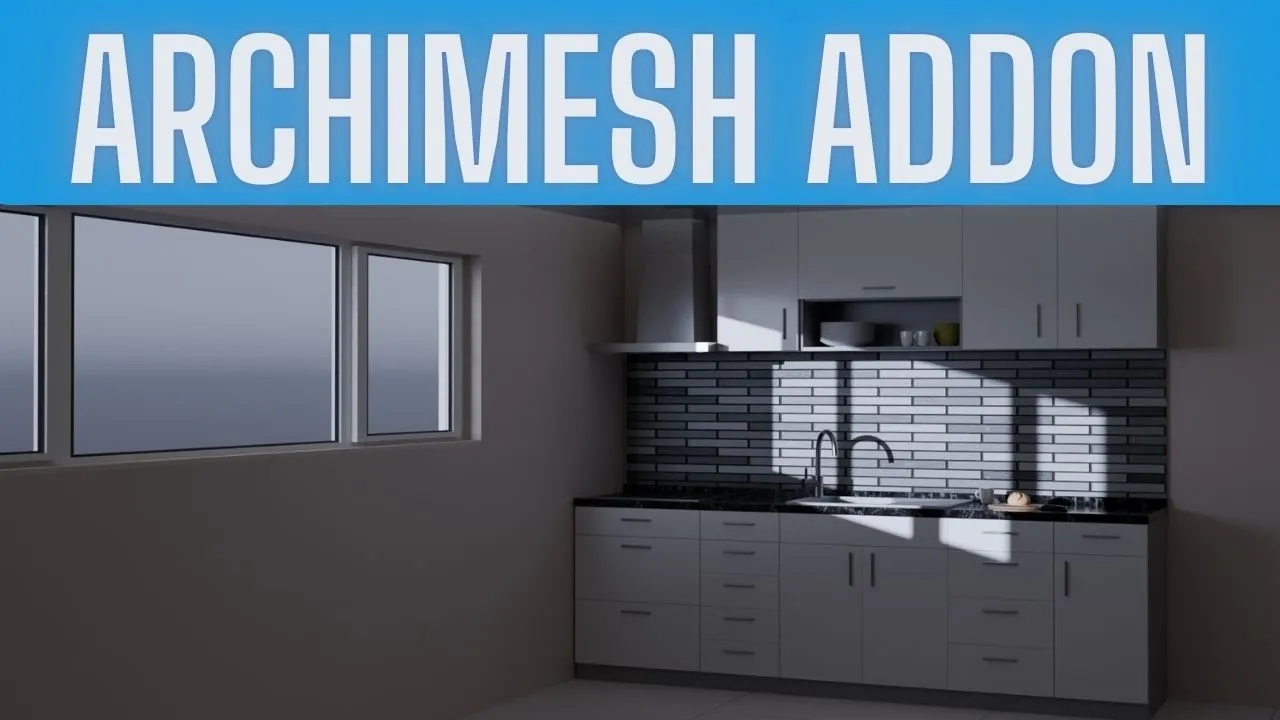
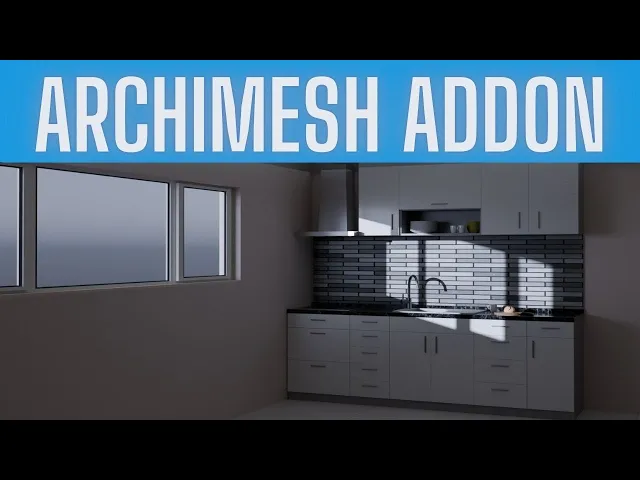
this is an intro kind of on top of my next intro this will be the end result that we come up with we're going to go through this specific add-on aramesh and we're going to get some results with it I'm going to show you how to use it to create a room and we're going to check out the lighting and different things we'll put a black body intensity on at the end to get a little more realistic look on the lighting and this will kind of cover the basics on how to erate a procedural non-destructive
room and put some light in it let's go all right this is going to be a more in-depth tutorial on the aramesh okay so I did a short um just showing a basic Cube and then snapping a panel window in and cutting it out with a bullion it was very rudimentary but it was just meant to be a quick example cuz you really can't do a lot in shorts so here we go if you hide this the window object you'll be able to actually see is scaling uh using a special feature which is an automatic
hole cutter designed for a selected object on the aramesh and so it's pretty cool so we're going to start a fresh copy of blender to go over this and we'll just design a room and we'll make it custom you can do this any way you want or you can follow along exact the first thing you're going to want to do is go to edit preferences add-ons type in Arc you get the Arcam mesh there's a little bit of online documentation if you want to go over that press n on the end panel and we're going
to go to create and then aramesh and just to kind of start this off we'll just start up the top here and we'll type in room and you're going to instantly get a wall panel and the wall panel is going to be procedural non-destructive so what you can do is you can add a number of Walls to this and I'm just going to add four walls for now and you can take up a top view if this makes sense to you and down here at the bottom there's going to be a tool tips for measurements
names so you can turn that on if you want or you can turn it off now over in the item tab take a look the dimensions of this and we'll see that the height is 2.4 M if by chance you switch this to Imperial cuz that's what you need that is 7.87 Ft which is about the average height of a wall so it comes in like it should now going back over to the create tab we have an option to put a floor in put in a ceiling and close the walls for now I'm not
going to put a ceiling but I will put a floor and I will not close the walls just yet until I actually get this kind of lined up now we'll have controls for each one of these walls 1 through four the length of the walls can be changed but if you click Advanced you will also get an angle and the angle can be curved and so now you can add a different look to the room and each one of these can be ticked on if you want the option so I'll go to wall two and
you see you kind of play with the length just a little bit and wall three kind of make this like maybe a longer hallway and then wall four can be brought out to a greater distance whatever you want and architecturally speaking I do not have architectural training I'm just going to go over the functionality so I'm sure some other things will kick in for you guys and if there are any things that I miss I do apologize for that but I'm not an architect I'm just a troubleshooter type because I work in the HVAC field
predominantly working with heat load calculations thermodynamics and the overall functionality of air conditioning systems in uh commercial buildings so I do have some knowledge of it but it's more about running the duct work for me so let's jump into this and like I said you can just kind of play around with these if you want this to be curved you can I'm not going to do that I'm going to go ahead and close the wall at this point so now I've got an enclosure and I'll be able to change all right I'm going to remove
the curve from wall one and I'm going to straighten this out it's all kind of working off of the world origin so I want to bring the angle back to 90 and just kind of straighten that out this is a quick adjustment I'm just want to add a little bit of video here in the middle of the tutorial before I post this so if by chance you wanted this to be flat along the line here you're able to do that by grabbing whatever wall you made but for me wall three if I bring that to
zero I can snap that over and then I could actually uh remove the curve here or extend it out and do a bunch of different things but just to give you guys an idea I'm leaving the room shaped like this you know because it's just what I want right now and this is good enough for the example so let's go ahead and throw a window in here and it doesn't really matter where you go I'm just going to throw a window in here and I want to grab a face in shift s and I want
to bring the cursor to selected and now you can move this around anywhere you want later now that cursor is there it's going to pend in where I want it so I'm going to grab a panel window and snap it in and I'll just grab gra the empty scale it down just a little bit and in order for this to work I'm going to actually need some thickness on the wall so over here I want to just increase the thickness a touch something like that is good and I'll collapse that back now I can grab
the window with this selected and I want to click only selected and auto hole okay and so now at this point I'm going to have the ability to move this around with a bullion that is updating automatically so your measurements will be very precise and more exact and if I take the window and hide it and grab the empty you can see that's kind of what's controlling it and that's how it's going to move around so now if this was going to be a say very large window I could grab that empty scale it out
on the X G and x and kind of move that over and then with all those tool tips on I've now got all the exact measurements like I want and so that'll kind of give you an idea of how to function and go through you know just putting in different objects cutting in holes and using the add-on as intended now from here I'm just going to take the window and line it up just a little bit better I'll take up this top view and I'm on the Y AIS so wherever you ended up it's going
to to scale this on the y a little bit and move it in come back out G and Y and whatever area you're actually going to have the camera in is much more important so just have that kind of lined up nice like that looks kind of good maybe it's not Flawless out here but that looks pretty good too now as far as dropping in assets and things like that um I wouldn't use this I I use blender kit a lot so if you guys haven't used this then you can grab models materials scenes H
your eyes brushes all kinds of stuff and you do have the option in here to click on free first so I'll just type in kitchen and I don't want to model out a kitchen it's kind of ridiculous so maybe I just want something to throw in and maybe I want to throw it in like right about here and I can play with it once it comes in now I just want to rotate this and let's see 90 de or so looks kind of good take up a um top view move that around just a touch
doesn't have to be too amazing but this is just a quick overview to give you guys a little bit of a heads up on how to use that room generator let's throw an area light in here and we can turn that power up just just a touch and I want to be on Cycles not Eevee and this does come with some materials so if you were to select down here near the bottom let's grab this wall uh all the way down here you'll see create default Cycles material so it will actually have some materials for
you to work with so that will be a little bit easier for you I'm going to go kind of old school here and what we can do is throw a sunlamp in and I'm just going to point it towards the window in fact I don't actually want to do that I like using the World Properties color and the sky texture just for some basic prototyping if you will and create a save point because sometimes Sky texture was a little crashy before and we can throw a ceiling on this now so I'll go ahead and throw
a ceiling in and then we'll set up a little camera right here that way I can just have a nice view of the room and I can snap in here looks pretty good that's about ey level and now I'm going to go back out and let's see pull up the World Properties here and I'm using the Nisha just what it comes with I like the elevation somewhere around 7 and I'll snap back in here and we'll have a better view of what's going on I want to bring that area light back down because it's kind
of not where I want it that looks pretty good make sure I'm on GPU compute and something like 50 samples it's fine so back over here at the world we will rotate this until that light is coming in directly into the window that looks kind of nice and so now we get this View and maybe rotate it back just a touch kind of like that that's why I use the elevation at about seven just kind of bring it down just so you can throw stuff in there now from here if you wanted to you could
um go ahead and play with the exposure I'm not going to really get into lighting and all that stuff uh but you can play around with the exposure just a touch and make this look really nice and then render that out so that is one way of putting light through a window which doesn't look too shabby and then of course you know you're playing with the exposure not necessarily with the world property strength um you can do that if you want and if I wanted to just enhance this a touch more for realism I could
go down and let's pull up the Shader editor go from object to world and for this Sky texture here we actually drop this down into the strength that's kind of neat now you've got this funkiness but what we're going to do is we're going to fix that so let's type in Black for black body and we will connect this to the color now you're going to get the real realistic World stuff here let's see if I have light magic Studio installed I don't let's install that real quick it'll be worth it I promise so I'm
going to look for LM Studio 7 if you guys don't have this add-on it does animated Goos and a bunch of really cool stuff give it a second it's a big add-on may take three or 4 seconds to load there's quite a bit going on so now in LM Studio 7 we can drop down the select lighting area here and if I hit recycle you'll see now the sunset okay this is this is the black body intensity Spectrum it goes from a match flame to street light to Sunset fluorescent midday and these are all uh
rated if you look at the the tool tip that pops up this is 4,000k this one is 5500 and I didn't make this chart I just inputed this and made it make sense in the add-on 6,000 cloudy day 7500 clear sky is 10,000 I use that one a lot and I do have pre set studios in here Goos animated Goos and a ton of other stuff so you could uh check that out there's quite a few things you know for projecting things into lights which is pretty cool so I don't even have to have the
the window there I could completely fake it uh with light magic studi so it's just one of those things so we'll put 10,000 in here and when I put in 10,000 woohoo look at that you got a clear sky it's a black body intensity looks a lot more realistic I really like the result I know there's a bunch of guys could do better but uh I'm better at designing duct work heat load calculations for big buildings and homes but not too shabby I hope you guys enjoyed the tutorial um you know I did it that
rudimentary very quick kind of a um just a generic like just to give beginners the idea for that one short with the cube in the window but hey you know whatever I hope this helps everybody out see you guys I got 30% off all of my add-ons right now too so if you go over to blender market and check this out I've got one click proxy this is a really cool thing it iterates through every object in the scene and gives you a proxy instance for each one it also has a batch decimate so you
can do it with the decimate modifier as well with controls uh then for the hard service toolbox and mirror machine if you haven't seen that thing in action it's actually pretty powerful for a hard surface modeling program and then here's light magic studio and then there's some other things you can kind of play around with there's a free beginners tutorial it's old it's pretty old it's from like 3.1 but it's just teaching the interface that's all is teaching so it's still very relevant all right that's it see you guys in the next one
![Step-by-Step Floor Plan Guide for Blender [Updated 2024]](https://i.ytimg.com/vi_webp/u2Ywe1vbl30/mqdefault.webp)


![Making a Procedural Material [Stream]](https://i.ytimg.com/vi_webp/0aE-pzOPmb0/mqdefault.webp)