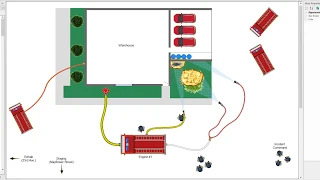
vRigger helps you design, test, and teach rigging. This short video will give you just enough information to start using vRigger, . .
. . .
. but be sure to visit vRigger. com/videos .
. . .
. . and visit the vRigger Learning Center.
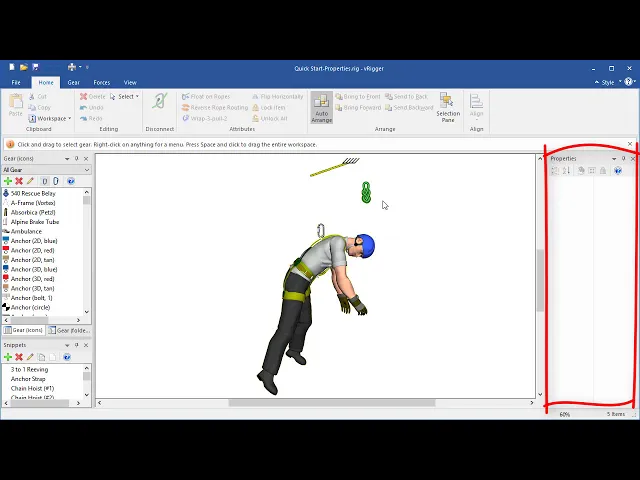
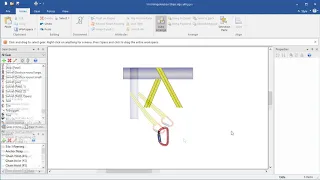
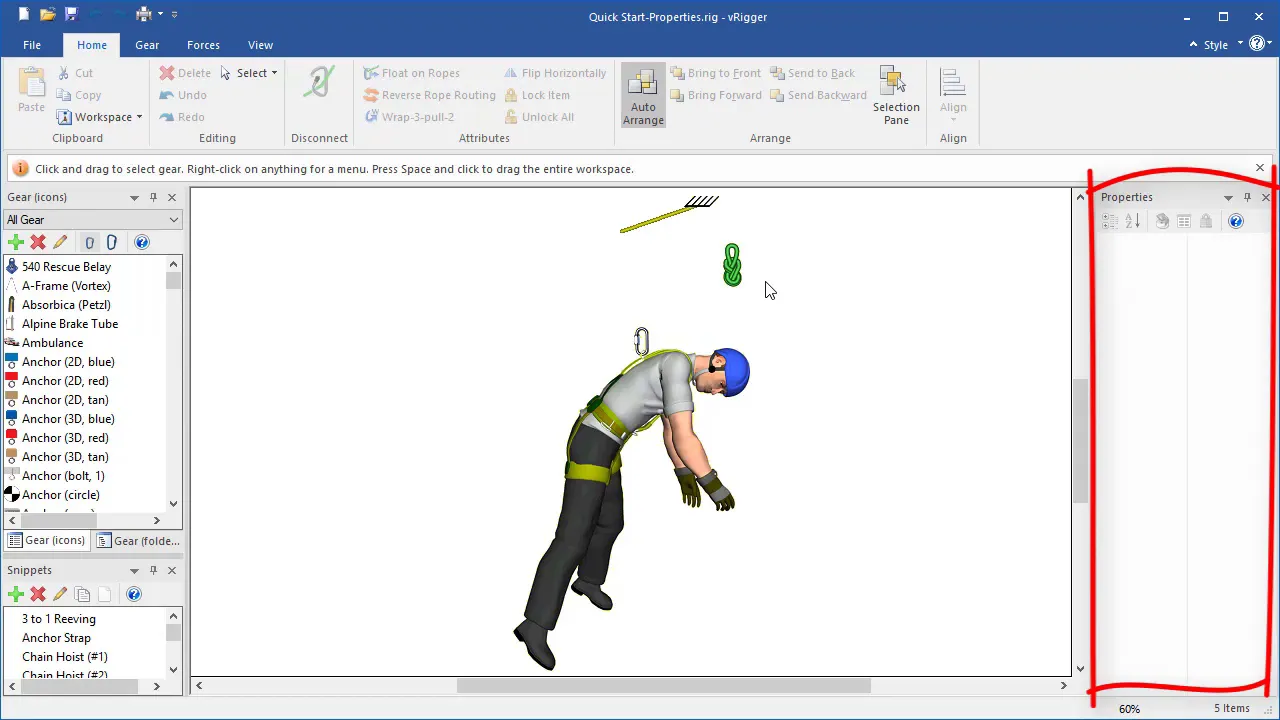
vRigger is divided into several areas. The center of the screen is called the workspace. That's where you'll create your rigging systems.
The toolbar at the top of the screen uses tabs to group commands. The "message bar" is displayed just below the toolbar. It displays helpful instructions as you interact with gear.
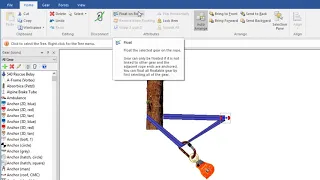
The gear panes are displayed on the left side of the screen. They provide one method of adding gear to the workspace. The properties pane is displayed on the right.
It lets you modify gear that is on the workspace. You can add gear to the workspace by dragging it from a gear pane . .
. . .
. by selecting it on the Gear toolbar . .
. . .
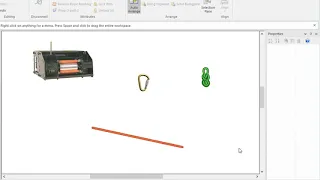
. or by using the gear finder. To use the gear finder, simply type a portion of an item's name .
. . .
. . and then drag the gear on to the workspace.
Three separate videos explain these three methods of adding gear to the workspace, but the gear finder is definitely the fastest. To connect gear, you drag it with your mouse, . .
. . .
. line up the blue connection dots, . .
. . .
. and drop it. If you drag an item that is connected to other gear .
. . .
. . only that item will move.
However, if you press the Control key and then drag the item . . .
. . .
the connected gear will also move. To connect ropes to other gear, you simply drop the rope on the gear. Note that you can't drop gear on ropes to connect them.
vRigger can calculate the forces in a wide variety of systems. To calculate forces, click on the Forces toolbar . .
. . .
. and then click on the Calculate Forces button. You can see there are many options in the Forces toolbar.
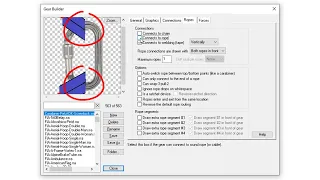
The properties pane lets you modify the selected item. For example, if I select this knot I can change its size . .
. . .
. its rotation . .
. . .
. its weight . .
. . .
. and its strength. You can also change an item's size using your mouse.
And you can rotate it with your mouse. It is best to use the Zoom commands on the View toolbar to change . .
. . .
. the visual size of all of the gear, and to only use the size commands in the properties pane . .
. . .
. to change the relative size of an individual piece of gear. When a rope is selected, you can change its properties including its color and strength.
There are several commands in the View toolbar that deal with ropes. One of these commands is "rope benders. " Rope benders let you curve a rope and create the appearance of slack.
As with most windows-based software, you can click your right mouse button on objects to display commands . . .
. . .
that are relevant to that item. If I right-click on the rope, I see commands that are relevant to ropes. I can even right-click on our unfortunate man.
I can click on the workspace for workspace relevant commands . . .
. . .
on gear within a gear pane . . .
. . .
and on commands on the toolbars. I can even right-click on the status bar to choose what it displays. The advantage of using right-click shortcut menus, in any software, .
. . .
. . is they provide quick access to commands specifically relevant to the item you click.
There is a LOT more to vRigger than was shown in this short video. If you ever have a question when using vRigger, be sure to press the F1 key . .
. . .
. and search the vRigger Learning Center.