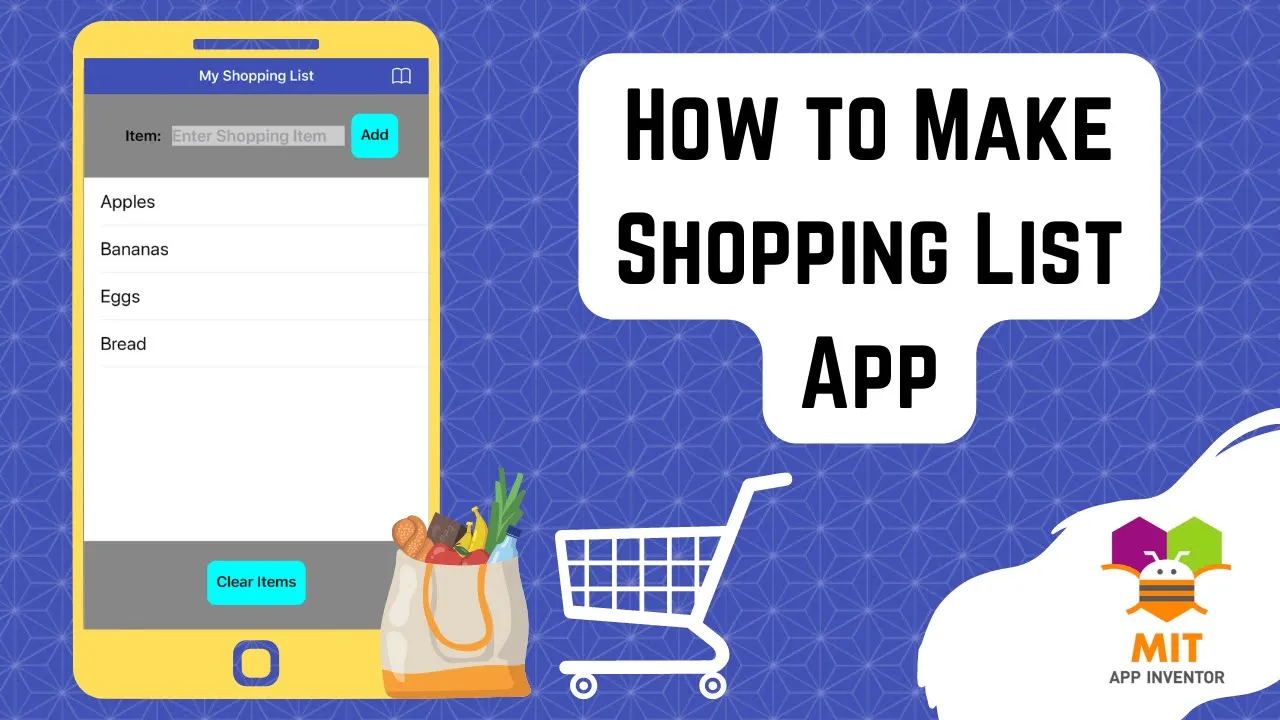
foreign [Applause] [Music] soft in today's class I will teach you how to make an app that we can use to make a shopping list or a to-do list we will just have one screen in this app so let's have a look at the demo of the app that we will be creating today we can add a shopping list item or a to-do task by writing in a text box and pressing add button a list will start forming below as we keep on adding items these items will be stored in a database on our phone storage
so you will also be learning about databases in this tutorial if you want to delete a task or a shopping list item we can tap on it and it will be removed we can also delete all the items in our list by pressing on a clear button so let's begin click on start new project let's name it shopping list app change the screen Title by going down to my shopping list and make the screen orientation portrait and make the screen background color Gray okay let's add some layouts so add a horizontal Arrangement and a vertical
Arrangement below it make the horizontal Arrangement align horizontal Center and align vertical Center make it 15 percent in height and make the width fill parent let's add our label here so go to user interface drag and drop a label here rename it to item label make font bold font size 18 and the text is item colon and make the text alignment center okay now add the text box so drag from user interface rename it to item text make background color light gray make font bold font size 20 make the width 50 percent and the hint
is enter shopping item so I'm making this app keeping a shopping list app in my mind but you can change it very easily and just change the the labels and the name here to make it a to-do tasks app now let's add a button for adding so drag and drop a button here rename it to add item button I always stress on renaming because it's easier to program that is work in the blog section if you have renamed your components make the background color cyan make font bold font size 18 shape is rounded and the
text on it says add okay for the vertical Arrangement make a line horizontal Center and align vertical Center Height again is 15 percent and width is fill parent drag and drop a button inside it make the background color cyan font is bold font size is 18 makes shape rounded and the text on it is clear items okay last but not the least we will be putting a list view between these two Arrangements make its background color white make height 65 percent and the text color now this is important the text color is black now we
need to add a non-visible component that is a database component a tiny DB a database is used for storing information we can't use variables here because the data inside variables is lost when the app is closed and the variables are re-initialized when the app is started again so we need a way of storing data permanently because this is a shopping list or our to-do tasks list so we don't want to lose it when we close the app we want to keep on adding items to it whenever we remember something that has to be purchased okay
so we need a database which we can retrieve when we open the app again so that we don't lose our shopping list when we close the app makes sense doesn't it so you will be learning something new in this tutorial that is how to use databases specifically the tiny DB component in MIT App Inventor so just go down to storage and drag this tiny DB and you can see that it has been added it's a non-visible component so our screen design is done so let's go to the block section so click on blocks to add
items to the tiny DB component we still need a list variable so we are going to go to variables and initialize global and make it EMS and go to list and assign it create empty list now we need to write code for our add item button so click on it and choose its on click event first we will add whatever has been entered in the text box to our list of items that we had created here okay so go to lists and get this add items to list block plug it in here and if I
hover over it I will get my list and what will go inside the item so that is whatever the user has entered inside this text box the item text so come here and get this block which will give us the text inside item text the next thing that we need to do when user presses the add button is to add that item to our actual DB that is our tiny DB so go to Tiny DB and get this block the procedure block called tiny DB dot store value okay and plug it here now this requires
a tag and a value to store the tag is a way of identifying what we are adding to the tiny DB so in our case we can name it from text blocks items in DB so this is something similar to a variable name and it is a way of differentiating the information inside a database so I've given it a meaningful name that is these are our items in DB but what will come here so remember I said earlier that the way of storing data inside a tiny DB is that we have to give it the
entire data that is the current state of our list so just duplicate get Global items and plug it in here so this entire items list will be stored inside a tiny DB under the tag items in TV the next thing that we need to do is update our list view because remember we have this list view here so that our new item is added to it and the change is reflected on the screen for that we just get the set list view dot elements block and again give it this items list the current state of
it whatever is inside the items will be provided to the list view elements and as the new item has already been added to it so it will be added to our list viewer too last but not the least we should empty the item text because it will be tedious for the user to delete the previously written text inside the text box every time he wants to add a new item so just go to item text and get the set item text Dot text block and give it an empty text log okay now we're done with
the add item button code and this is what it looks like at the end okay now how to remove the data from the tiny DB so let's add the code for removing item now how to know that the user has selected something from our list okay this list view he has tapped on the list and chosen some item on it so if I go to list View you will see that we have this block when list view dot after picking okay so we are going to use this block and do the remove part here now
we are going to follow the same order that we followed while adding items that is we are going to change our list a global list item then we will change our DB and then we will change our list view Okay so how to remove items from our lists okay so if I go to lists I have this blog remove list item and you have to provide it a list and an index that is the position of that item in that list okay list as you know is our items list so I can duplicate here but
what will come in the index okay if we check our list view blocks you will see that I have a block list view.selection index so remember that our list view has the same items as a global list okay so the item that has been selected it will have the same position inside our Global list as the selection index that is inside a list view okay so if I just plug this in our job will be done okay now we need to remove from our DB so for that the code is simple we will just store
the current state of our items list inside our DB so just duplicate this block and plug it in here and so is the case for our list view elements so just update it so that it reflects the new Global items list in which an item has been removed okay so what next we have a clear button which I forgot to rename so let me rename it that it is the clear button get the click event for it and what we're going to do is that we are going to make a list empty we have to
get the center for it just go to variables get a set block choose items go to lists make it empties now remember we have to clear our entire db2 so just go to Tiny DB and get this call tiny DB dot clear all and just reflect the change by resetting the elements to the item list which is now empty so our list view will be automatically cleared the last thing is that we want to show our already stored shopping list when the app is started because this is why we use tiny DB in the first
place so how to load data from a tiny DB so if I go to my screen one I have this event which is called when the app is started that is when screen one is initialized and just get the setter again I can go to variables get the set block choose Global items here and we have to now give it whatever is inside a tiny DB so if I go to Tiny DB I have this lock called tinydb dot get value plug it here now my tag will be the same because this is the way
of identifying our data inside our tiny DB so just duplicate the name has to be exactly the same so just duplicate it and what is this value if that not there so this is the case if there's nothing inside a tiny DB when we use the app for the first time so this should not be an empty text log this should be an empty list so just bring it here and we have to reflect the change in our list views so just duplicate this block and set list view dot elements to get Global items okay
so this is done and have fun coding this chopping list uh or you can change it to to do tasks app and install it on your Android devices and use it actually and it is a very easy to use app very convenient you can make your shopping list and use it whenever you go shopping and it is so simple to delete items from your shopping list so you can really impress your friends and family with this app that you have created yourself if you haven't subscribed to my channel so far kindly do so so that
you don't miss any of the great things that I have planned for you do share my Channel with your friends and family because I teach coding mental maths app development 100 free and all my tutorials are very detailed and easy to follow I hope you like this class thank you for watching have a good day and goodbye


![[Tutorial Mit App Inventor] ✨ Cara Membuat APLIKASI Mirip TALKING TOM 💻🕹](https://i.ytimg.com/vi_webp/dlqpW9wi3Ew/mqdefault.webp)