<b>Now that we've set up Flow-wise, we can</b> <b>finally go ahead and</b> <b>create our first chat flow. </b> <b>We can create a new chat flow by clicking</b> <b>on "Add New" from the dashboard. </b> <b>The first thing I recommend we do is to</b> <b>save this chat flow</b> <b>and let's give it a name.
</b> <b>I'll just call mine "My First Chat Flow"</b> <b>and let's save this. </b> <b>After saving the chat flow, you would</b> <b>have noticed that we now</b> <b>have two additional options</b> <b>available. </b> <b>Let's have a look at</b> <b>this API endpoint button.
</b> <b>On this popup, we can see all the</b> <b>different ways in which we</b> <b>can integrate our Flow-wise</b> <b>chat flow to external applications. </b> <b>Within this embed function, we can see</b> <b>this example piece of</b> <b>code that we can use to add</b> <b>this chat flow to a website. </b> <b>And let me show you an example of what</b> <b>that looks like on an actual website.
</b> <b>After adding that piece of code to your</b> <b>website, you will notice</b> <b>this little chat bubble show</b> <b>up and users can then interact with our</b> <b>Flow-wise application. </b> <b>We will have a look at this embedding</b> <b>function in detail in this series. </b> <b>We can also see example Python code for</b> <b>calling this chat flow as</b> <b>well as on JavaScript code.
</b> <b>And under curl, we can see the API</b> <b>endpoint for calling this chat flow. </b> <b>Under authorization, we can also set an</b> <b>API key to protect this API endpoint. </b> <b>And under configuration, we can also set</b> <b>things like the rate</b> <b>limit and a message that</b> <b>will be displayed once</b> <b>the limit is reached.
</b> <b>Then we can also see</b> <b>this settings button. </b> <b>And from settings, we can view the past</b> <b>conversations that we</b> <b>had with our application. </b> <b>We can duplicate this chat flow.
</b> <b>We can load an existing</b> <b>chat flow from a file. </b> <b>We can also export our chat flow. </b> <b>And we can delete our chat flow.
</b> <b>And very important is we can analyze our</b> <b>chat flow by</b> <b>integrating tools like Langsmith. </b> <b>Then on the canvas, we can see this</b> <b>button to add nodes. </b> <b>And we can also see this chat button,</b> <b>which we can use to</b> <b>interact with this chat flow.
</b> <b>And at the bottom of the screen, we have</b> <b>buttons to zoom into the</b> <b>canvas, zoom out, fit all</b> <b>the nodes into view. </b> <b>And we can also lock the nodes in place</b> <b>so that we can't</b> <b>accidentally move nodes around. </b> <b>Now where do we get started?
</b> <b>The first step is to</b> <b>add a node to the canvas. </b> <b>But which nodes should we add? </b> <b>As a rule of thumb, all chat flows should</b> <b>contain at least one agent or one chain.
</b> <b>Agents are a bit more advanced and we</b> <b>will have a look at</b> <b>those in the next few videos. </b> <b>But let's start off by</b> <b>adding a chain to our canvas. </b> <b>And in this list, you will notice a few</b> <b>different types of chains.
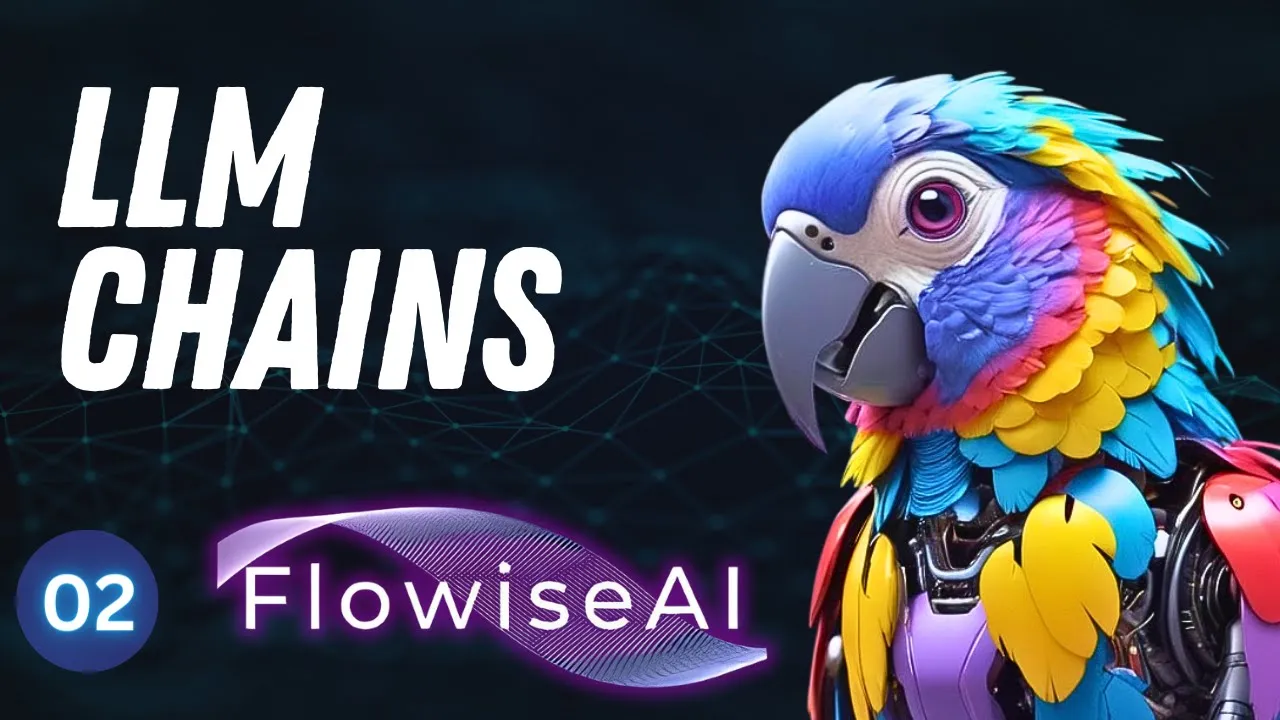
</b> <b>Let's add the most simplest chain to our</b> <b>canvas and that's called the LLM chain. </b> <b>And this stands for</b> <b>Large Language Model Chain. </b> <b>So on this chain node, we can see all the</b> <b>inputs that it expects</b> <b>on the left hand side</b> <b>of the node and the inputs with this</b> <b>little red star indicate that these</b> <b>inputs are mandatory.
</b> <b>So in this example, we need to provide a</b> <b>language model as well as a prompt. </b> <b>And the output parser and input</b> <b>moderation is optional. </b> <b>We can also give our chain a name.
</b> <b>And finally, we can also see the output</b> <b>that this node will produce. </b> <b>We can simply leave it on LLM chain, but</b> <b>we will have a look at</b> <b>the output prediction</b> <b>in this video. </b> <b>You will also notice that when we hover</b> <b>over the nodes, a</b> <b>little pop-up might show up</b> <b>on the right hand side of the node.
</b> <b>Here you can duplicate this node, you can</b> <b>delete this node, or</b> <b>you can click on Info</b> <b>to see some more</b> <b>information about this node. </b> <b>And here we can see that we can use this</b> <b>node to run queries</b> <b>against large language models. </b> <b>Now let's go ahead and add a large</b> <b>language model to this chain.
</b> <b>So let's click on Add Nodes. </b> <b>Then we can see a list of all the large</b> <b>language models in</b> <b>this section over here. </b> <b>And let's simply scroll down to OpenAI</b> <b>and let's add the</b> <b>OpenAI node to the canvas.
</b> <b>We can now connect this OpenAI node to</b> <b>our chain by dragging</b> <b>from this output into the</b> <b>large language input</b> <b>on the chain, like so. </b> <b>Now this OpenAI node requires the</b> <b>credentials to connect to OpenAI. </b> <b>So in order to create this credential,</b> <b>click on this dropdown</b> <b>and then click on Create</b> <b>New.
</b> <b>To give our credential a name, I'll just</b> <b>call mine Flow-wise</b> <b>Tutorial and now we need</b> <b>to enter our OpenAI API key. </b> <b>So in order to get this key, we need to</b> <b>go to</b> <b>platform. openai.
com slash API keys and</b> <b>then click on Create New Secret Key. </b> <b>We can give our key a name, again I'll</b> <b>just call it Flow-wise</b> <b>Tutorial and then click</b> <b>on Create Secret Key. </b> <b>Go ahead and copy this key value and</b> <b>paste it into this field</b> <b>on Flow-wise and then click</b> <b>on Add.
</b> <b>I do want to point out that you can view</b> <b>all of your credentials by</b> <b>going back to the Flow-wise</b> <b>dashboard. </b> <b>In fact, let's have a look at that now. </b> <b>Let's save this chat flow so that we</b> <b>don't lose our changes.
</b> <b>Let's go back to the dashboard, then go</b> <b>to Credentials and here</b> <b>you can view that credential</b> <b>that you just created. </b> <b>What's great about this is that you can</b> <b>now reuse this</b> <b>credential in all your different</b> <b>chat flows so you don't have to specify</b> <b>the API key for each and every flow. </b> <b>Let's go back to our chat flow by</b> <b>clicking on Chat Flows</b> <b>and then let's click on our</b> <b>chat flow.
</b> <b>Right, now we can change the AI model</b> <b>that we want to use in</b> <b>this node by clicking on</b> <b>this drop-down and for the OpenAI node,</b> <b>we have access to three different models. </b> <b>All of these offer different benchmarks</b> <b>in terms of</b> <b>performance and intelligence and</b> <b>I will show you how to get access to the</b> <b>more intelligent GPT 3. 5</b> <b>and GPT 4 models as well.
</b> <b>We can also set a temperature and the</b> <b>temperature is a value between 0 and 1. </b> <b>0 means that the responses should be</b> <b>accurate and factual and 1</b> <b>means that the model will</b> <b>have full creative control. </b> <b>So it's always advisable to set a value</b> <b>between 0 and 1 and I want</b> <b>my responses to be slightly</b> <b>creative.
</b> <b>We can also set additional parameters</b> <b>like the maximum amount</b> <b>of tokens that we would</b> <b>like to spend and some</b> <b>other parameters as well. </b> <b>Now let's add the last node to get this</b> <b>chain to work and that is the prompt. </b> <b>Let's click on Add Nodes, then let's open</b> <b>up the Prompts menu</b> <b>and let's add a prompt</b> <b>template to our canvas and let's connect</b> <b>this prompt template</b> <b>to our chain like so.
</b> <b>We can use prompt templates to</b> <b>effectively tell our AI</b> <b>application how to behave. </b> <b>So in other words, we can tell our</b> <b>application what type of</b> <b>inputs it will receive and what</b> <b>the kind of output should be that we</b> <b>expect from the model. </b> <b>Let's demonstrate this by</b> <b>adding a prompt template.
</b> <b>We can click on this Expand button to</b> <b>open up a bigger prompt</b> <b>window and let's enter</b> <b>something like "tell me a joke about</b> <b>horses" and let's leave it like that. </b> <b>Let's save this prompt and then let's</b> <b>save our chat flow and</b> <b>always remember to save</b> <b>your chat flow before testing it as your</b> <b>changes won't take</b> <b>effect until you save the chat</b> <b>flow. </b> <b>Now let's test this chain by clicking on</b> <b>this chat bubble and now</b> <b>we get this friendly message</b> <b>saying "Hi there, how can I help you?
"</b> <b>We can now enter a message here or we can</b> <b>expand this chat by</b> <b>clicking on the Expand</b> <b>button. </b> <b>We can say anything at this point, let's</b> <b>just type "hello" and</b> <b>let's save this and we do</b> <b>get a response back from our model which</b> <b>means that everything is</b> <b>working and at this point</b> <b>it doesn't matter what we say to this</b> <b>model, it will always</b> <b>return a joke about horses. </b> <b>Let's say "How are you?
"</b> <b>Let's send this and I instantly get a</b> <b>joke back about horses. </b> <b>So at this stage it doesn't matter what</b> <b>we say to the model,</b> <b>it always returns a joke</b> <b>about horses. </b> <b>But let's say that we actually want to</b> <b>provide the subject of</b> <b>the joke in this chat window</b> <b>and the model should write</b> <b>a joke about our subject.
</b> <b>So let's have a look at how we can inject</b> <b>our input text into this prompt template. </b> <b>Let's open up this prompt again and let's</b> <b>replace horses with</b> <b>opening and closing curly</b> <b>braces and within these braces let's</b> <b>input something like subject. </b> <b>These curly braces represent a dynamic</b> <b>value or a variable</b> <b>that we can inject into the</b> <b>sticks dynamically.
</b> <b>Let's save this and let's now map the</b> <b>input from the chat window</b> <b>to this subject variable. </b> <b>We can do that by clicking on format</b> <b>prompt values and here</b> <b>you will see that variable</b> <b>that we just created called subject and</b> <b>we can click on this</b> <b>little green edit button</b> <b>and in this field we can now specify the</b> <b>value of that subject. </b> <b>We can either hardcode this to something</b> <b>like dog and this will</b> <b>now always give us jokes</b> <b>about dogs or we can map this value from</b> <b>another node or the</b> <b>input box by clicking on this</b> <b>field and you should see this pop up and</b> <b>at the moment I'm</b> <b>able to select the users</b> <b>question or the chat history.
</b> <b>Let's map this to the user question. </b> <b>This is the users question from the chat</b> <b>box and let's close this pop up. </b> <b>Now we can go ahead and save this chat</b> <b>flow and let's test this in the chat.
</b> <b>Let's expand this and let's now enter the</b> <b>subject of the joke. </b> <b>Let's enter cat and now</b> <b>we get a joke about cats. </b> <b>Let's change this to dog and indeed we</b> <b>now get a joke about a dog.