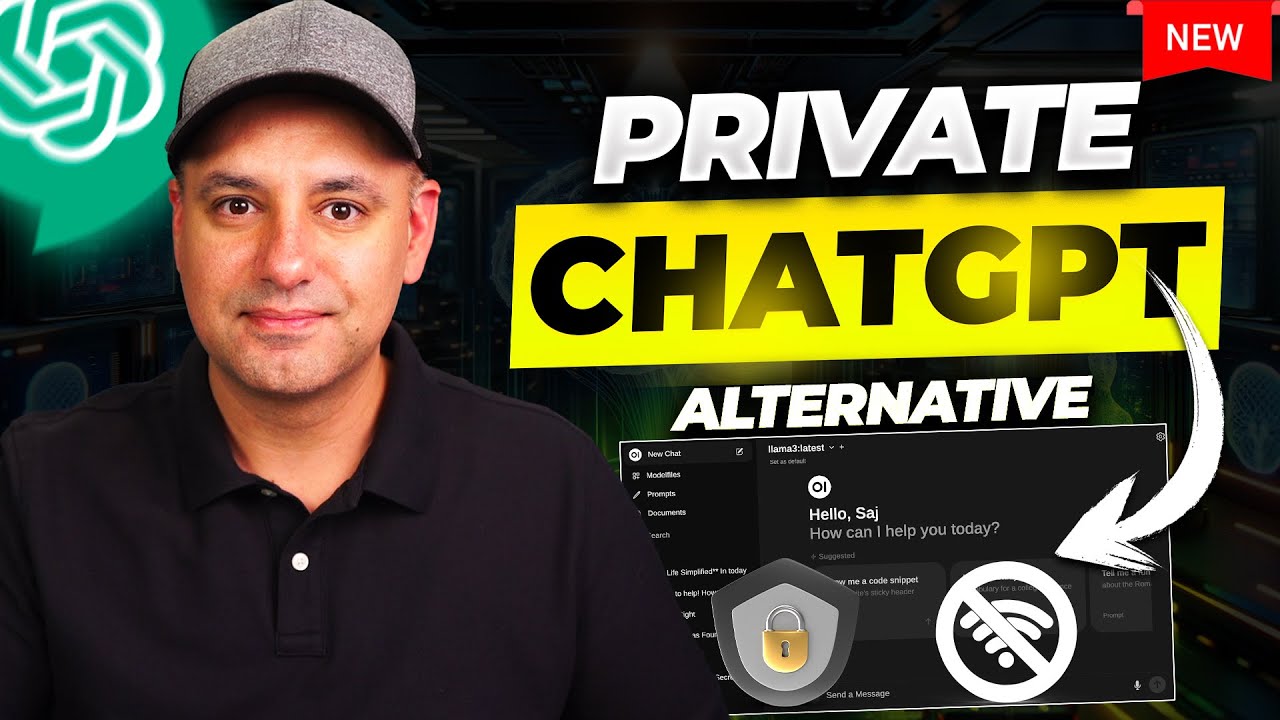
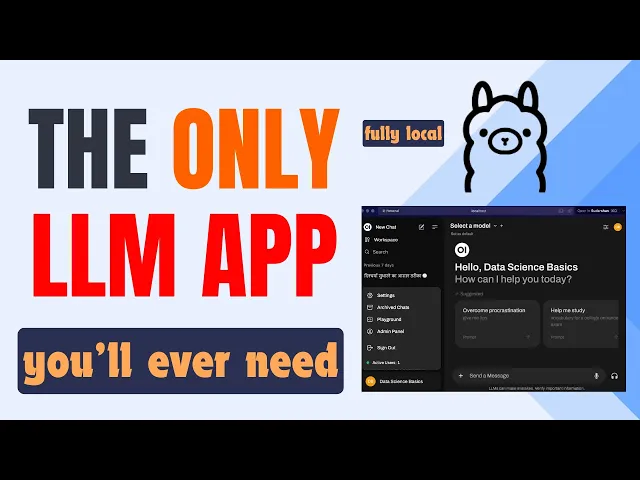
Hello guys welcome back let's talk about open wave UI I created two different videos 7 months and 6 months before about open wave UI and it was in the beginning phase at that point of time but this video will be deep dive into the open w UI right so this is the thing that I'm going to explain you in this in this video let me show you what we will be covering first I will show you how you can run this via Ama so that is what We will be doing before it was called AMA
wave UI and now it is open wave UI right so we will be using the AMA and there is two ways how you can install this one is with the pep install if you don't want to use Docker we will be creating a virtual environment and installing it there next one is with Docker we need to install Docker and with just one command our wave UI will be ready so once the installation part is completed uh this part I will walk You through the open wave UI one thing to notice is that once you first
go into the open wave UI that will be your admin portal I will also show you how you can create users so that you can collaborate between your team members and in the admin panel itself I will walk you through different features of it here you can see the features there is the adding the user admin panel all the different things what is there web search basic chart embedding what kind Of embedding models you can use and image I will show you one image exploration via lava model which we can download from AMA and another
one is the image Generations using open AI model there are different ways how you can do this but I will show you one example with uh D 3 this will be the feature exploration part and now there is also the work space and this is only for the admin from here what we can do is we can create the prompt snippet I will show You how we can do that you can have the rag with URLs via the chat these two things also users can do and also the rag with tax meaning that we can
upload the documents already and then we can use based on the tax which document we want to query this is rag in action once we create these things users can also use it I will show you how we can do that and also there is things called functions as well as the tools so I will show you what those uh two things are I Will show you one simple example with translate and the weather for this so yeah this will be a deep dive video it will be a long video I will provide the time
stamp within the video so you can go to the specific parts let's get started okay first thing first let me bring this in my new window here so I know which part I need to go first right so first thing first let me go to the weave UI website here so this is the web UI open web UI if you go here you can Get open wave UI and it will take you to the GitHub so these two things is the main official documentations so again from here it takes you back to the website you
can go through this and read all the informations what is is being provided but let me go to the main website this is docs. openweb ui.com this is where you will find all the information necessary in order to go through different functionality of it right so this is the high level overview For you so you can see how how to install it is shown here and also installation with the peep and so on first thing first we need to install AMA I will provide you the link it is straightforward to download the AMA you you
just need to go to the ama's website and just download it if you can download it via CLI also command line interface but the easiest way to do is just go here and download click different things once you download this it will also ask You to download the CLI just download that also and if you are confused you can go to my playlist here I have already created 10 videos in ama before so you can just go there and uh take reference if needed so that is the AMA part the first one is completed right
now the second one is let me show you how to download it via Docker this is the docker website doer. come go here and download the docker for your particular machine and then download it Once you download it and you have the AMA I will open the terminal so this is the terminal I hope you also have some of the terminals uh installed already in your machine if you go here and just write and if it shows something like this then we know that ama is installed in your machine and you can see all the
different available commands that you can use you need to pull some models I have already pulled here so if I do AMA list you can see that it is not showing Here now probably let me see okay it is shown here so here is Lama 3.1 7v three latest and by the way it took some time here to list this because the lamb AMA was not running under the hood and when I run this on the top I can quit ama if I quit the AMA and do here AMA list when I run this it
automatically runs on in in the background and it is showing there but if you don't open the AMA it will not show here right I will quit the AMA for now because I want to show you How you can do this from the terminal also so if you want to pull some some models from the AMA itself you can do from the terminal itself but I will show you from the open wave UI so it's easier for you to just pull the models from there right so here what we need to do is we can
just say say amaama right in order to run the AMA it will be listening in Port 1 14 3 4 but before doing this I will show you what happens if we don't solve this in the Open wave UI portal so how to do that first make sure you open your Docker which is uh installed before right for that you can use that if you are in the Mac uh you can already use here for example open Docker I have set up in this way so it opens Docker for you you can just open the
Ducker once Docker is installed I will go to the dashboard so it's easier to navigate also so right now there is no images no containers no volumes I have Cleaned all the things here right now let me go to the official documentation so here how to install part you can see quick start with Docker and that is the recommended uh one here so if you go a little bit down it says before you begin in installing the docker and all the different things is also shown here you can follow this link where the data is
being stored in Docker if AMA is on your computer use this command by the way you can do AMA and uh wave UI together also But it's up to you but this is the recommended way and easiest way because you might face some issues if you go with the next part so this one you can just copy this here go to the terminal and here I will yeah I I have already opened the new terminal I will just control V so I will just paste this here right so then I will run enter so it
will first look if there is something locally it does not find anything locally and then now It starts pulling if I just show you now the docker it is empty here right there is no images no containers no volumes and so on but once the installation in the terminal is completed I will show you side by side so you will just show here okay let's wait once this is completed it is taking some time uh to install all the things as you can see here and it's easier also to just view side by side right
let's wait once this is done it's almost done and it should Pop up here in the docker UI I'm showing you because many of you want to use from the UI also from the docker desktop so it's easier also to stop the container on it as you can see here once this is completed there is the volume mounted already there is the image and there is the container also here now it is running in Port 3000 you might be running some else some another application in Port 3000 so if you want to avoid that what
you could do is when You install this Docker run- d-p 3000 just provide these two different port which you haven't used in your local machine so it will be listening in that particular Port so yeah now once this is done just click this it's already running here just click this you can see this is the local host and it is taking my email address from for it just autoc completing things but you need to first sign up right just go to the sign up and I will give here name Data Basics and here you can
just give any name any email address you want it does not need to be the actual email address let me just give here admin at the admin.com and then some password right so I will just give some password and I will create the account okay I can save or no no I don't want to save so you can see it just shows you the what's new in the open wave UI and all the different things there is noted okay let's go so this is the open wave UI so Before going uh into this and exploring
this this is how you can install from uh Docker right now let's say you don't want to use the docker so how do you install use via peip right if you go on the side here you can see there is this installation with Peep and that is in the beta phase so what you can do is just peep install open wave UI so what we can do I will go to the terminal right here I will create a folder Mkdir Ama or let's see I can give web UI Peep and let me go inside this
I will first create the virtual environment so what I will do is python 3- MV uh env. VNV and activate the virtual environment once the virtual environment is being uh activated just let's wait for that and then I can just do pip install okay I will just copy this so it's easier right I'll just go here let me bring this up Here I will just do control V pep install wave UI so it say that it is uh no matching distribution found either the following versions that require requires python less than 3.12 okay so my
python version what is my python version It's python 3.12 right so I need to let me see what person of python I have what I can do let me see what are the different Pi En V not pi and V let me see Pi E andv I might have different versions of python here versions okay P EnV versions so I have different and my default is 3.12 so I need to have the lower one right so what I can do is I can say p EnV Global and I will use 3.11 that's fine and now
maybe if I install wave UI it is still not a new release of this is released IGN note the following Version that require a different python less than 3.12 greater than [Music] 3.11 okay versions do I have so there PB okay what I can do now is before let me let me deactivate this one and I will remove the venv and I will again say here Global 3 point let's say I will create the virtual environment then it will use 3.11 once this is done it should Be okay these are the things that you need
to be careful also using the virtual environments because it might need certain versions of python and you might have different versions and I'm using p EnV to manage different versions of python so well now it is uh running here right but once when that is running I can just go because this is the same as what it is shown here it is just running and it will take some time to install all the different things once That is done what we can do is we can just use open wave solve and then we will have
the uh UI once this is running I will go to this admin portal let me see the things that I will be explaining you now installation of p is done Docker installation and the installation is now done so now once you are here let me first walk you through the UI right on the top left corner there is this new chat which will open this new UI there is the workpace where there is the Models the prompts the documents tools functions I will explain you later and there is the sorts if you have different charts
on the down there is this main icon here and this is the admin uh panel you can click here and go to the admin panel there's the settings from where you can set all the different things and there is this playground if you want to just go here and uh see different things with the different models the next one is archive charts if You have some archive charts it will be shown here that is the settings from where you can change different languages notifications on of theme what kind of theme you want to have and
so on so it's up to you uh which you want to decide and then on this one it's just bigger and smaller as you can see if I go to the new chart from here you can choose different models but I haven't solved my AMA hence there is no model being shown here once I start my olama all the Models that I have there in the AMA list will be populated here and from here we can ask the questions as you can see send a message you can record The Voice you can listen it call
and then from here here you can upload the files and so on I will show you how to do that on the top uh this is the settings archive charts which we saw down here also all the same things and this icon controls right this controls is just for the particular chart that you will be going Through for example if you go here you can have system prompt for this particular conversation you can just provide let's say you want to have in certain tone or certain language whatever you want to do you can provide the
uh system prompt and then here are the advanced parameters for example seed you can change the seeds subsequences top K top P so this is the UI right now let's do a basic chart in order to do the basic chart we need to solve the AMA Let me go to the terminal you can see the peep install wave UI is completed it's done we can also use the open wave UI from this just to show show you how it works let me stop this first let me go to the docker I will stop this because
I want to show you from two different things now this is stopped right so now I will copy this command I will go to the terminal here you need to be inside this virtual environment we have installed Here right I will just do control+ V now you can see that it's loading all the all the different things will be loaded from here and once it is completed okay it's done and it says here okay background on this let me open what it says here there is some error SQL Alchemy SQL Alchemy there is some issue
here let me see what is the issue so it says here no config file it seems that there Is a issue when you run the latest version of this open wave UI I went to the official your GitHub and many people are also finding the same issue so what recommended and the easiest one recommended is if you install this then it will be okay right we will copy this one we'll go back to our terminal here then we will do is contrl V install let's install this particular package after installing this particular package everything is
already installed before So it should work and also this is also good way to debug also because if you install something thing and don't find it working go to the official page and use here just search if you go to the issues there are the open ISU and there are the closed isue and so on just go here and SS because here there is the isue with SQL light right what I did here was just right here SQ light and you can see there are some installation problem here and you can just go inside It
and read what others have commented it it might work for you let's see if it works for us the installation process is still ongoing here you can see found existing installation because we have previously installed also this one let's see if it gets installed or not once this is installed what we can do is we can just solve the open UI as we did before right but now let us go to our container the GitHub and then maybe we can go again here now let's go and run Our AMA right uh in order to show
the model part here so I will go here in the terminal so you can see here this is the peep things but let us go there later now I can do AMA SB once I do the AMA SB now you can see the AMA is being sbed and if I go here first refresh the page uh because I noticed that you need to refresh it and then if you go down here you can see all the models that I have downloaded myself each here so I can just choose or Lama 3.1 and if I say
Here hi submit then you can uh see that it will reply Hi how are you doing to and the answer it takes time because of your machine powerful enough your machine is right from here you can go and choose different models and now let's see that you want to compare between the two model I just want to show you this one also because it's quite easy if you click this plus icon here you can choose another model let me choose uh Lama 3 so This is Lama 3 lat this is Lama 3.1 latest and I
want to ask the same prompt right what I will do here is I will say hello how are you and if I submit this you can see now here is Lama 3.1 and here is Lama 3 so side by side uh comparison you can download different models and see which one performs the best so this is uh really good way to see which one performs the best for your particular task right this is the main part this is the UI part Right so now once this is running I will also want to show you the
part so that you know uh it works if I go to the documentation I can just copy this go back to the terminal and do control V now it should work let's see yeah it's uh user agent environment variable as set consider yeah this is working and let's see if it works or not if it again shows some issue then we need to find the way how how we can make it Working okay run time warning environment variable not set consider setting it okay we don't need to set the environment variables okay I need to
allow this because I have this okay now you can see it is downloading all the Transformers things meaning that you need to do the embedding parts right so because everything is set up by default under the hood so everything will be downloaded once you solve this from the PIP so now it says open w by and it is Is listening in port 8080 so I can just go here 8080 so yeah you can see this is the uh weave UI and it the same as before when we started because the next one we are starting
in Port 3,000 so you can now follow same as what I am explaining in the docker one so I can close this and this I don't need I will see contrl C it's it's gone I can even cancel this so it does not confuse me what is the next uh thing I want to show you let us go and create create the user This is the admin panel and we are the admin you can go to the admin panel and add the user if you go here you can see there is option to add users
if you don't want to add the user by yourself you can copy your link here I will just contrl C you need to provide this to someone else in in your same network for example here I'm just running the Local Host but you need to provide your local IP address for others but for this one what I can can do is open in incognito Window right and I will do control V again I am providing Local Host here but if you want to share this with your colleagues in the same Wi-Fi network you need to
provide your local IP address if I enter this you can see this is the new UI being popped up here and now you need to sign up again right so here I will do test user and I will just give here test uh test.com and I will say create account so now as you can see here your account Is being created but your admin needs to confirm it so now if I go to the next uh UI here you can see there is a test user being created and it is in the pending phase if
I click this one it is the user if you want to make this user some other for example if you go here there is option if you want to make this user admin for example here we make the admin it's pending I will click here it's the user now if I go to the next one and check again you can see now I am the User here I don't have the workpace and I don't have all the functionalities that the admin has this is a good way to control the functionalities if you go up here
we have all the models being shown here right now I think the best way before I just explain you in the admin part is how to restrict the models that is being shown here so that is the model white listing part I will explain that first we are in the admin panel remember that you need to be in the admin panel Go to the settings go to users and here there is this model white listing make this on and now just if you just make this on and save this if you go to the users
tab now and if you refresh this we need to refresh all the time and now you don't see any models here you can see that we made the model white listing and then we don't provide any asss to the models but if you go back here and maybe choose one model from here we want to provide Lama 3.1 save it go again to the Users if you go here you don't see it meaning that you need to refresh again and now there should be a model Lama 3.1 so that is how you can control what
model you want to uh provide to your users and now you can just go here you can just say hi same as the admin the users can also have conversation with this particular model so that is how it works now let me go to the new chart the next thing that I want to show you now is the model white listing let me go to The admin panel in the settings here you can see on the on the on the left menu here there is the users that I just went through right and you can
have user permission allow chat deletion chat editing so they they don't have that facility to allow right this is the admin you can configure all the different things you can manage the models from here and this is the model white listing and so on for example now we are just using this Docker right if You provide the open AI API key here you will have all the models from the open wave open AI models also being shown here I think it's better to demonstrate right so what I can do is I can go to this
open AI website I'll create the API key just for oabi I will create this one I will copy this so no need to say in the chat that I need to delete it I will just go here in the API key crl V and then I can save it so once this is saved now we have access to all the Models from the open AI into our chat for example now if I go to the new chat here you can see here we have all the models along with this AMA models we have all the
models from open AI also but if you notice here the users don't have it if I go here still they just have one because we haven't provided or we haven't wi listed the model same as before if you go to the admin panel you go to the settings you go to the users and maybe from here you can click this Plus icon and here you can choose one um open AI model and that will be reflected in the in the users that's how it works also in the models just this is the part where you
can uh say Okay manage AMA models pull a model from the ama.com right that is what I also wanted to show you what we can do now is for example let me go to the main page into the AMA into the models let's say I want to download the f i go to 53 and I go inside this you Can see 53 right I will just uh control C I will go to my UI I will just write here the model because it says example model so I will just say 53 and I will download
it so pulling the Manifest you can see here the model from the AMA website is being downloaded already from this UI itself so this is same as ola pool 53 right it's easier to manage everything from the UI if you prefer so yeah this is one functionality so now you can see delete a model if you want To delete uh some of the models you can just click here and then delete the models that you want better way from rather than the uh than the CLI itself if you don't prefer so yeah you can see
here it is downloaded so that we can just ignore now and yeah that is one what is the next thing that I want to show you the next thing is about the documents here you can see this embedding part by default when I install this there was the downloading of the Sentence Transformer right so this is the sentence Transformer if you go here that is open AI if you click the open AI it will ask you the open AI key so that you can use the embedding models from the open AI also but let's just
use it with the sentence Transformer this is the embedding model you can download others if you want and this is the this is this one the maximum upload size and the maximum upload count you can control from here and then also the query Parameters these are the normal rag things top K how many top K you want maybe you want three only and then the rag template you can just play from here chunk parameters so what is the chunk size you want to have maybe, 1500 or 1,000 we can change from here what is the
chunk overlap I have explained this in my other videos about this chunking and splitting things then you can just say Okay 100 or something then the PDF extraction image ocrs right all the Different things I can just say save here so now it is being saved and if I go to the models part and select the models I think the fee model is not downloaded for some reason it says issue if I say Fe three let me see if it downloads again pulling has been successful okay it is downloaded successfully if I go here it's
already here 53 latest 2GB so that means we can use this one right and the documents I just went through this one web search This is the next functionality if you go to the Chart here and here in the plus we just have the upload files right web sear just to give you already the hint it is the tool that is already implemented in the web UI itself so if I go to the admin panel settings web search I need to on this right now you can s uh select a engine so here there are
different engines that you can go through it I can go with dog do go I have been using this for some time now It's really good SCE results how many you want three concurrent request I don't need to change the language for the YouTube loader settings you can save this once this is saved if you go to the new chart and here you can see there is this web search function ality you can just on this one off this one let's give a try right I will just choose one model let's not go with the
open AI things right now but what I can do is I I will Remove the open AI things because it's distracting here I will go to the settings to the models is it connection this is the API key I just want to have from this AMA save this one and if I go now to the chat I can now just select from this llama models let's say that I want to go with this okay V3 right latest one and I will ask here who is the let's say president Finland right let me see what The
answer will be it says the present of f as of my knowledge cut off in ear 2023 is s okay it says nto it's spelling mistake again here but now I want to have this web sarch enabled into it and I will copy the same prompt control V now it is searching this is the tool functionality meaning we provided some additional tool into it and then it it goes and find the answer okay the current the president of Finland currently serving in office since April 1st last year no it is not correct you mean the
fee is not providing the correct answer right but what I can choose I can now choose the different model I have the option of choosing different models and now I can ask the same question again if it goes from the Lama 3 now it should provide the correct answer let's see it is sourcing three websites and the the good part what we just uh saw here is the current head of his of Finland is President repic woman This this this but it's not providing the answer still who is the president let me ask again right
who is the president Lama 3.1 I was just saying something because we can choose different mod models and which provides the answer it says that okay the context does not because it went through the web Source but what I noticed is if you continue in the same UI it just hallucinates things but if you now go to this new chart select the Lama 3.1 or Whatever you want and then if you say the same question I will do control V who is the president of Finland right and if I submit this it is doing the
wave sorts now and probably it will provide the answer okay the current head of state of is known as the president I don't know what it is saying I will again say okay who is the current press it needs to be in this format let's see let's see if it provides the answer okay now it provides the answer meaning That it want me to ask which the current president so Alexander esto is the current president and then you can see there are the two sources it took from so this is also the good idea for
you also because we as a natural we speak natural language and we just want llm to understand our way of thinking but sometimes we need to be specific in asking the question we can just see from this demonstration also that we need to be specific to that right so yeah that Is the basic chart we did we did the web search we add the user admin panel and let us now go to the image generation part right again let me go to the admin panel and from here in the settings now I will show you
this image part right for image part also you need to First enable this open AI API key is required because we choose open Ai and then there is automatic 111 or comy UI you can go with that one but I will show you from this open AI for that it says I need to Have the API key let me go back to the website I think I have the API keyy I already have the API key in this model part it's the connection part I already have it here I can just contrl C I can
go to the image and here I will paste it and then I can on it right and then once I use the open AI you can choose the models you can see there is d 2 and D 3 and you can choose any of these but if you choose the D three then this 512 512 it will throw us the error saying that the image size is wrong so what you need to do is 1,24 so24 * 1024 you can just play around with this number and save this now we can ask the thing to
generate the image uh for us if I go to this image tab there is nothing here because we need to provide some kind of prompt this is particularly for this Ama I also noticed this from the documentation I can show you the Documentation itself so you know what I am talking about started if you go to this tutorials there is somewhere image generation is here if you go down there is one example using the image generation you need to write this repeat this back and then provide something so what I can do and I will
show you why it is here I will say here okay repeat this text and I want futuristic city with flying Cars that's all I want right and then what I can do is I can submit this and I'm seeing here repeat this text and now you can see it repeats this text so why am I doing this is because if you see here now in the down here there was copy there was this read alloud what is the tokens and so on and thumbs up thumbs down and this is the continue response if you want
and again regenerate if you notice once we have this Del 3 enabled there is this generate image icon if I Click this generate image now it is going to use the Del 3 model from the uh open wave open AI it's confusing open we UI and open AI but you get the idea it is now going to generate the image you you can see here this is the image that is being generated and this image icon is just when you have this enabled what happens if I disable that I will go here I will go
to the image part I will disable this I will save it I will go back here and I will refresh the Page and you can see there is no image icon being shown meaning that once you enable some of the functionality in the back end it will be reflected in the UI also so I did this image generation part but what if we want the model to explain what this image is all about right so let me copy this or or I can just go ahead and say Let me let me say that okay explain
this image if it knows or not images what you didn't provide any image okay I get your point I'll go here I have copied the image I will paste it here right and I will say explain this image I'm just showing you here two things it comes with open AI for some reason it seems that I need to disable it again from the connections okay it is enabled here I will disable that I will save it I will again go to the UI great and then I will paste the image here and say okay Allow
explain this image to me right and I will choose the model Lama 3 let's see what happens does Lama 3 explains us it shouldn't be but let's see if it explains I apolog okay because it didn't understand that it is not multimodel for the multimodel I have the lava 3 Model downloaded just to show you if you go to the ama's website just search for lava lava is Noble into in Trend large multimodel model if you want to download just to AMA pool lava or run lava I already have that being installed if you go
to this drop down and if you see here there is lava 7B I will choose this one and now I will ask the same thing I think I need to upload the image again it should know that I have the image there let's see if it explains the image or not to provide an explanation I would need to send a description or details about image I will copy this image I will open a new Chat one thing that I noticed after running it many times is it's better if you open a new chat again and
ask the questions so that it provides you the better answer I will just contrl V and I will say explain this model is not selected good lava and then I will submit it let's see if it provides the answer the image you can see now it explains the image meaning that we now have the model running locally that explains the image Now let us go to this workpace part right part from the models you can see all the different models from here you can uh share export hide model delete Model and so on that's all
the things that you can do and also you can create a different model out of it for example if you want to create the model you can give the model name choose the base uh model from here and then provide additional system prompt into it and so on and then the new model is being Created that's great and it will be uh appearing here in the list and you can have that model I will show you one example with the function implemented into it so you get the idea but before that what is prompts we
know prompt is something that we provide into the model by the way if you want to discover the prompts what you can do is download and explore the custom prompts in the official documentation uh of the open web UI you can see there are different Ways how you can search for example here you can see this icon there is the functions that you can search there is the tools that you can search there is the prompts that you can search and there are other models that people have created so you can download and use this
in your open wave UI portal itself so this is one thing that you can go there and se but we'll be just trying with some simple example I will go here and then and then I will say here maybe LinkedIn post right what I will do here is I will say write me a sort LinkedIn post for this topic and then I will just provide a placeholder and I will save and create it so now once this is created if I go to the Chart how to assess that prompt right in open wave UI how
it works first you need to choose the model then if you press this slash you can see all the prompt snippers you have selected or created Just click this one a short LinkedIn post for the topic and this topic you can just write okay say Ai and now it will write us now this was just one sentence prompt but imagine that you have uh very long prompt and you want to save this somewhere and the good idea of saving this is also that it can be reused by different persons maybe you have some wave crawling
prompt or or something like that you can create it shared with with your colleagues and all Of you can uh utilize it that is one part of the prompts right and the next one is the documents before going through the documents I will first show you from here you can also upload the documents right I will upload the document I will say GPT for all right it is being uploaded then I can ask here what is this paper about right so this is one way model is not selected I always forget that and now I
can ask This meaning that if you follow this one you need to again and again Ask the upload the thing right you can see here this paper appears to be discussing the development and evaluation of large language models and so on it explains clearly once you go out of this you you need to upload this you upload the document you ask the question and it provides you the answer and another Another Part of doing the rag also I want as I said in this diagram you rag Uh with chat this is what I just showed
you and this is rag with TX I will show you later and rag with URLs right and the prompts we just went through it we are almost there just just a few more minutes left now so let me go and grab one URL maybe lava let's go here let me just copy this I will go to the UI of open wave UI and here what I can do is I can do control V I just had this exclamation not exclamation what is this exclamation is this one hashtag Okay I I'll just do hashtag and then
uh provide the URL and I will say what is the page let's see if it provides me the answer unfortunately I don't have information on the specific page can you please provide more context it's still going with the GPT for all PDF again so again what I recommend you to do is go here new tab this is one thing that is little bit frustrating but we need to bear with it so I will go again here crl V Right this is the wave that is is shown here I think we need to do like that
I need to click I forget to click it what is the page about meaning that you can see now we are having the rag with the uh web URL itself right so if I submit this the page appears to be about a platform or a website called lava and it is providing us the same page meaning that if you want to go with the prompt snippits you need to go with the Slash and it will show you the prompt Snippets If you want to upload the document upload file and you can have the conversation with
it if you want to have the conversation with the web pages I will explain again because I missed the first part you need to press contrl V once you do that you need to click this part and then it will see this start things and now we can ask the questions that's what I did here right the two parts of how you can do the rag already here now the third part and this can be Quite challenging or let's say quite frustrating to upload each and every time right what if we can upload all the
things in one particular document in the back end and ask the question again and again that would be interesting right let's do that workpace and here there is the documents that's what I am going to explain in the documents you can import document mappings you can export the document mappings now we are going to create it here I will upload the things Again the GPT for all for the Simplicity and the good part is you can have multiple documents with the TX so you can ask based on the tax that is really good if I
go here add the TX right and here what I can do is I can say this is uh GPT for all right and now I have the tag for GPT for all for this particular paper I will say save now you can see I have one document being uploaded now I can ask the question for this particular Thing how I will go here if I press again the hash now you can see there is GPT for all PDF there is all documents there is GPT for all collection so we we can go with this particular
thing I will go with this collection and I can say what is this Pap about model selection always again I forget that now I submit so you can see I go with that collection the paper repe for all snoi and so on so meaning that it went through this particular Collection and provides the answer for us I will refresh the pce time and now because there might be some lagging things happening there I will again go to the workpace documents now I will I think there was this two but what we can do is I
will just go here and I will upload this attention all you need and in the Tex I will write here what is the tag I can say attention right and I will save it now this is for the attention right and if I go Here refresh so now you can see so attention all you need and this is the attention if I click this attention you can see only this particular thing is there if I glue with this GPT for all and then this is the GPT for all and if I go all then all
the things are being selected here now I want to ask just the question with the attention how can I do it I can just go here hashtag and you can see all the Different collections is being shown here here I will go here and I can say okay what is this paper about enter again the model selection part now I can submit it then it will provide us the answer based on this particular thing so you can just use these things and then you can have the document being uploaded on behind the scene and then
you can ask the question Based on the collection itself some of you asked in my previous video is it possible to do these kind of things and yes you can see now the open wave UI helps us to do exactly that so yeah that is all is it possible now with the users let us try you can see there is the test user I can go here everything that we created in the admin portal now can be utilized by the test user I can say what is this paper about and now the user can also
do the conversation with this Particular document meaning that you can imagine now in the company scenario you have one admin or the people who are admins they go through this admin portal this is the admin portal they have all the rights for whom they want to uh assign admin or user they can upload the documents they can restrict the models that they want to use for the users the users can have the rag applications already in their local machine without connec to the internet also it works Because it's running locally just to show you you
can just go and turn off the internet I will turn off the internet and because this is running locally it should run as it is and again I can just press has I can go to this attention explain this paper it's working fine because we are running it locally in our machine so we don't need the Internet we need the internet for the downloading part and setting up the part but we don't need need it uh to run This again right so that is one uh one good part I want to have the internet on
because I need to also show you other other uh things continue anyway okay I need the Internet for recording also but then the next thing I want to show you is about the functions now right workpace now there is this functions and the tools let us go with the tools I said you before also it is same as the web SS that I already showed you in the UI Itself right this is the web Source this is a tool being implemented but now let's create one for the tools I have already used this uh website
so what does this do get the weather for a specific city does not require an API key you can get it also or you can just copy this I can copy this and then I can go here the plus icon is here and this is the default things I will just do crl a crl v B now I past by the way be careful in taking the tools and the Functions from the website because it might contain any quotes and they are not uh going to monitor that so you need to be careful in choosing
the right tools or you can create your own so now here I can say get weather right I need to provide description uh tool to get the weather okay spelling mistake here oh three okay I can save this and it says here exactly what I said you before please Carefully review the following warnings tools have a function calling system that have arbitary code execution do not install tools from sources you do not fully trust for me I will do confirm only alpha numeric characters and underscores are okay so that means I need to pass the
underscore confirm now we have the tool and there is these things where you can delete this tool export this tool clone share edit Whatever you want to do now how to use this tool right now there is two ways how to use this one you can already assign this to a particular model or the next one is if you go here if you go to this plus icon now you can see there is now get weather tool being shown here I said you before web sarch is also a tool so that is by default uh
comes when we install this but now we have this get weather also and one thing is by the wave Source also you can get the weather Right just to test it now if it works or not I will ask here I will choose the model uh okay 3.1 the latest one I will say here what is the current weather of hinky so let's see let's see if it provides or not the answer I don't know that is okay it does not know the real time SS right so it provides something but it does not know
the answer there is two way now to use this you can use the web sarch also to get the current weather of elsen key but then get Weather because that's what we created the tool right now we enable the tool and I will just copy this and crol V enter now it has this tool use also and it should show here that it is using the tool as you can see here the current weather in hink is mainly clear this this this that's it 230 p.m es today around this for night so you can see
that the tool is being used that's the reason it is showing here and also you can if you Have the web search also it will do the thing and it will provide you the answer right I can just copy this go here control V enter and now it will use the web Source tool but the the idea of getting you the tool is you can have some tools and you can pass that to the llm and it will use that tool to provide the answer now it goes through this and you can see that it
went through three different websites and provided the answer that is how the tools we can use The tools now the functions is kind of same but then functions is when you ask the tools you need to this is there is little bit confusion between the tools and the functions you can actually go through the official uh documentation in the open wave UI let me go to the open wave UI yes here you can see there are the functions what is the function and so and in the functions what are functions it is saying here tools
are script Something something because tools and functions kind of interchangeably uh used but there is a thing called pipelines which I will not cover in this video maybe in the future I will create the video about pipelines inside the pipelines there is Filters pipes functions tools actions and so on but just remember uh one thing that if you go to the functions they are you they are the filters or the middle weights for example if you ask something if you Enable the functions when you ask the question it will be directly used under the hood
but for tools you need to enable the tools and so on so that is my understanding and I will show you another example how to use the functions now right for the functions again same as before you can go to the open wave UI website and get one example I I will do the same I will just go here and create the function I have chosen one function here called translate and you can see This is the function right Google translate and uses the Google Translation API to translate from a users's native language remember this
and then to the llm native language llm native language and back again to the users meaning that if I ask let's say the llm native language English if I ask in Finnish it will convert that into the English does the answer and provides me back into the Finnish that's how uh it is done so what I will do is I will copy This one I will go back to the portal crl a contrl v I saved that again be conscious on saving or taking the codes from the UI and I will say here Google Translate
that's it this is simple translation just for now and I will save this okay confirm function is now being saved so how to use this function right so what I will show you is in the model itself we will create a new model and have that function enabled inside it Already so how to do that I will click this create a model I will give a name here okay translate for example why not and choose the base model I want to use Lama 3 or I can use 3.1 also and I will give the description
OKAY model to do the translation just simple example here right so I I will not do any system prompts and anything here but you can see here if you want to provide the Knowledge for this model already also to add documents here you can just select the documents and we have the collections right already we you can just select it so by default it has the knowledge of that particular document uh and the tools you can have this get weather tools already being integrated with this particular model so you have it already there and also
these filters and there is this Google translate that is what I want to show you if you click This one and save and create now our new model is being created here that is the translate and this is only for the admin and if you want to provide this to your users what you can do is just go here admin panel settings models uh not models but the users and from here you can do plus and translate and then you can save this and the same thing can be now used by the users this is
how you can create new fine-tuned version of That particular model and provide that to the users also that's really good right now what we will do we'll go here select the model now our new model will be appearing here called translate and it says here model to do the translation that is the description that we provided right I will click this translate but before that it says it it it will detect our native language and then go back right it is in English now but before that I will show you one thing and I Will
test this I will go to the settings here I will change the default language to finish for example different or you can even do Indian Hindi right I will go to Hindi you can see now all the things is in Hindi and I can save this because I am nepales and I know Hindi little bit so now what I can do you can see here it says Namaste so I will just copy this go here And and paste it and I need to choose the model first I will show you without the translate right which
we have that function let me go with the Lama 3 right I'm not going with 3.1 uh that's deliberate because I will show you what happens with the latest model and now if I ask this one it will answer in English I think you are trying to ask if I can help with something special today if that is okay okay okay because it didn't know that right But one thing is now if I go and change that to the translate meaning that it has this Google translate feature or the function enabled right I will just
copy this go here contrl V and send it it should answer me in the Hindi language now because it takes the Hindi it goes into it translate the into the English and when it replies us it will answer in the Hindi so this is really easy way to do it and many of you now have the question maybe llm can do it by Itself yes it can do but not all llms can do it I'm just showing you as an example and now if I select the Lama 3.1 what will happen right if I copy
this now for some time I will go to the English again I will change it to the English just to show you I will go to the Engish English save I will go back and then I will refresh once I will go to the new chat I will go 3.1 before I was three and it didn't work I need to choose the translate and It works but Lama 3.1 is already capable of doing that so we don't need to have that translation thing so choosing the right model for your application is also crucial so now
if I go here Lama 3.18 billion I will just go here and do Hindi and I will ask it it will answer me in Hindi meaning that if I had used the previous uh model I need to use the functions and allow that uh model to go and do something for me but now the new models are already capable of providing You in different languages so you can see now you can ask in Hindi it givs you in Hindi and you can ask in some other language for example I can say maulu let's see if
it understands or not you can can see it it is know that this is uh Finnish and then it understands and it replies me in Finnish language meaning that it's not good in all the languages but then it is capable of answering and detecting and answering you in different Languages okay so one more thing that I want to cover is also that let's say that now you want to stop this because it will be running behind the scene so you just go to this Stocker desktop and here is this uh container there is image Imes
volumes right it is all there but go to the containers and there is this thing called stop if you just stop this then it is going to be stopped so in the future if you want to again run this uh in the Local Host just come here and Then start so once you stop this your users will also be not able to use this right for example if I go to this uh user part so you can see the test user now if I refresh this then it will not run because we stopped that uh
from the docker desktop itself and also uh with the admin also now you are not able to uh run this and if you want to run this again you need to go back again to this Docker desktop and then just go here and then start this and also one thing is if You go to this terminal here you can see the AMA is sving right you need to also uh cancel this so now it is cancelled and if you want want to have the AMA models being populated into the open wave UI you need to
again run this AMA solve and then it will be soled there so yeah I think I covered many things here and the video is over 1 hour but now let me bring back the thing that I showed you in the beginning so yeah let's summarize now what we covered in this Particular video so first I showed you how to install the AMA PP install install the open wave UI and we did some uh things in the peip so you need to have the latest version and you can follow the video which version you need to
install as of today 31 August and then this part is covered right all of these things and then we talked about the workpace rag with URLs tags models um rag with chat translation function tools and so on I Hope you find this video helpful please let me know in the comment section I I don't know how many of you will watch because this is quite long video but I will provide the time stamp as I said you before also so that's all for this video thank you for watching and see you in the next one
![I Replaced ALL my ADOBE APPS with these [free or cheaper] Alternatives!](https://img.youtube.com/vi/5EfqHg49kMk/maxresdefault.jpg)