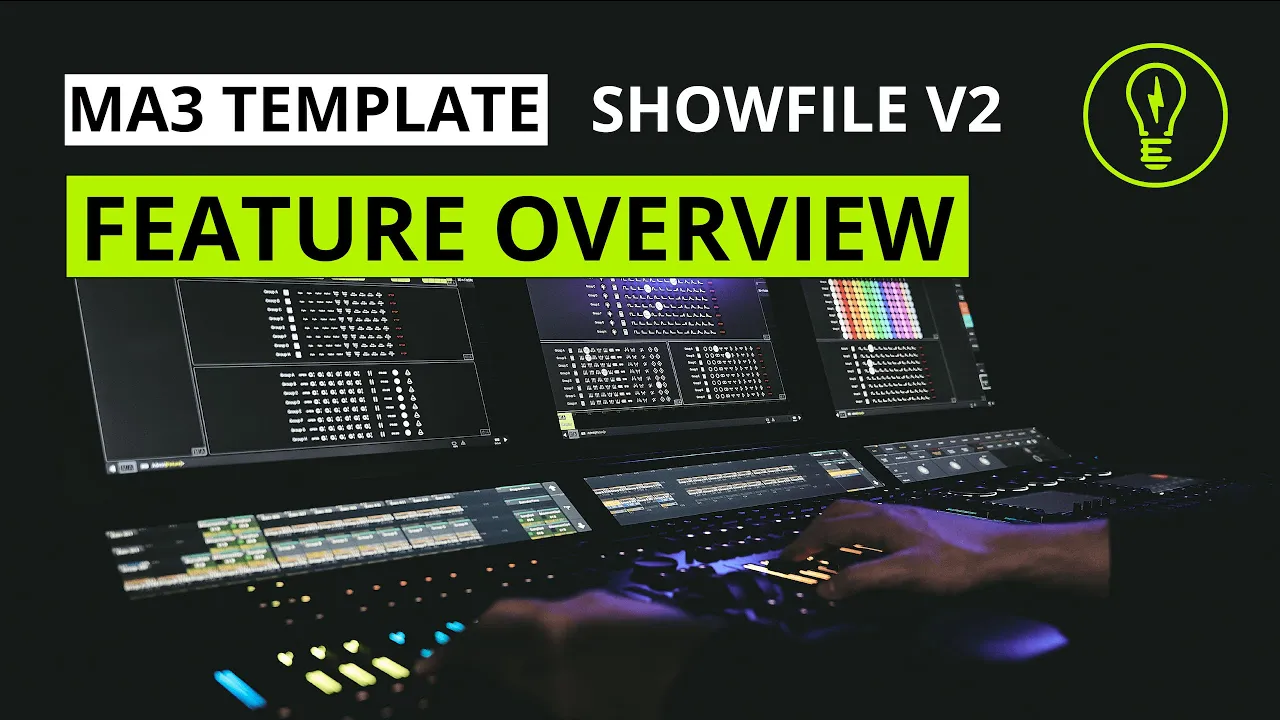
welcome ma3 Community with this video we want to introduce the brand new version of our ma3 template show file wi2 it is fully based on ma3 Q recipes and comes with everything thing you need to run a show on ma3 so let's jump right into it and take a closer look at all the main features and the structure of the file one main element of the show file are its layout views as you can see already in the background there are quite a lot of them you will basically find a layout view for every function
of the show file for example for intensity control and corresponding intensity FX for color control in general and corresponding color ofx for positions movements optic features of your fixtures and also some other special things the cool thing about those layout views is that you can really use them to customize the control surface of the show file with them so for example you can easily resize or rearrange them by selecting a different content for sure we have also pre-built some uh few configs uh to match the different screen array Arrangements of ma3 for example for a
full size or a light console a compact or non-pc system beside this great possibility of customization layout views have another power function you can not only use them to playback content directly from your screen in our show file but you can also use them to pick content from the screen for your Hardware layout therefore just hit an assign key or type the assign keyword hit the corresponding content that you want to put on your Hardware layout and afterwards just hit an Executor this will then give you control in my case with this fader over the
corresponding sequence in here and the cool thing is that the show file and all those interactive layouts view are still fully functional so I can also choose a different effect form in here or switch back by hitting this executor one of the most power ful tools in the show file is the effect section the show file comes pre-equipped with a bunch of nice looking effects and you can now easily customize and adapt them to your needs let me give you an example first select an effect form for example this one here and as you can
see we have already applied uh for example a Wings to for you here so that you get a nice symmetrical starting point to fine-tune this effect simply hit this little calculator icon and hit the effect afterwards this will then bring in our brand new FX designer plugin which is a live tool to modify FX so if you don't like this Wings 2 simply remove it and as you can see you will directly design and influence this effect so just play around with it uh be creative and design the effect uh until you're satisfied close this
dialogue and that's basically it there's no need to save things you can just use another effect and as soon as you switch back to the modified one you will get your beautiful designed FX bag another new core element of the show file is our bump section the bump section is a quick assign tool for a variety of predefined and predesigned bumps which are intelligently built based on your rig size that is embedded in your selection Grid in your groups to make use of those bumps simply click screen icon of the desired bump and hit an
Executor afterwards in my case I have now assigned the left and right bump to my 2x Keys here those executors will then directly work as uh temp keys and will also give you a nice off fade Behavior you can further modify this by raising up and down our bump rate master and determine uh the length of this fade out so you can choose between a super long Fade Out time here or or a fast fleshing Behavior some of those basic bumps are already pre-assigned to the hardware layout together with other useful tools so you will
find a fully equipped preconfigured Hardware layout in the show file this Hardware layout basically consists of a front lighting Master to control your overall front lighting intensity and some other playback options here for example to choose your current uh front lighting queue a brake sequence uh as a temp fader to stop all running FX some raate Masters for your bumps the movement speed and the global song Speed which is for example influencing your iFix in the show file playback Masters for every group in the show file to control their intensity individually along with that some
special tools uh for each group for example those speed multipliers up there which will allow you to set a special ratio for a single group between its uh intensity FX speed and your Global song Speed iFix size faders to control the size um of FX in terms of intensity and the same also for your position effect so for the movements and for sure there is also a page two which give you some more access to your front lighting uh house lights and other things like hazel levels and so on the show file can handle up
to eight individual groups and it will then provide each feature that we've seen for those different groups and the cool thing with the new version is that you can modify it further therefore enter our show file menu and you can now customize which feature set for example iFix positions multi fix or other things like Optics should be there for which fixture group in this example we have six groups but in the end there will be up to eight groups available and you can configure those feature sets so for example if you have a stage setup
containing of two moving light groups A and B and a third group uh with for example sunstrips you can adjust this here easily uh and adapt it to your needs so in this scenario we would have uh two groups fully featured and a third group only with intensity features because sunstrips won't have any color or position things normally and after that we just hit gen layouts and wait some seconds to make the magic happen because in the back end of the show file it will adapt now all those layout elements in your show views to
save you some space and to give you a nice overview on the actual feature sets that you've got for your different fixture groups to get an even better overview in the show file you can for sure also name those groups just move over to the group View and name those main groups As You Wish For example test for the the group a and this will result in the name showing up in all layout views in the show file in the future we will try to optimize this further and also expand this naming to the presets
and sequences in the background of the show file to make this show file a really versatile tool it does not follow any clone show concept or so on so you can simply delete the entire patch and start from scratch here there are only three steps that you have to follow to make it run again first thing is patch your fixture groups second one is adapt the fixture groups in our group structure here the most important group is our Sim group a which always has a representation in the selection grid but no worries we will explain
this in a future tutorial video and afterwards adapt your presets here we have a nice uh navigation concept to make sure that you will find all the presets well structured in the show file without any search afterwards just move over to our chofa menu and hit the region all button this will then ensure that everything works quite fine even if you delete the entire patch so that's it for our first video on the new ma3 template show file we2 we hope you enjoyed this first insight and if you're interested in this show file make sure
to subscribe to our channels and check our website on our website you will find an overview on our current product range and you can easily access our new online support form where you can get support request new features or report bugs for sure you can also get your personal version of our brand new template Chile we2 here uh on this product page make sure to check all the details listed on this uh product page and especially the FAQ section and the release notes Down Below in the future we will extend the section even further to
make sure that you find ANW to your questions quite easily and we will also list all our tutorials on YouTube here uh which are available or planned for the Future Okay so thanks for watching and if you have any further questions don't hesitate to get in touch with us directly [Music] oh [Music]