hey everyone in today's video I'm going to show you how to use Leonardo ai's image and video Generations but to do it at scale using automations on make. com so a quick look at the image generation there's some great scenes here of kind of sceneries on a lake there's some nice Marketplace scenes here so then we've taken those images and we've generated some videos off the back of it so we've used Leonardo's capabilities to add motion they work quite well and then finally we'll be using the upscale capability where I upload an image that I took years ago that I only have a very lowr version of it and it's able to generate quite a realistic highrise version of that so that's very impressive so all of that we'll be going through in this video if you want access to These make. com Blueprints so you can import them at the click of a button check out the link in the description to our community where you'll get access to these as well as lots of others so there's a lot of tech packed into Leonardo ai's platform and unlike a lot of its competitors you can access it via an official API so by clicking on developer API on their homepage it gives you rund down of what's available and you can see the various plans and how many credits you get per plan for the moment I've signed up to the API basic plan so to get started you just pick a plan fill out the form and then you'll get an API key that you can start integrating with when you're logged into the web app you can see a lot of the tools that are available and most of these are also available via the API I'll also be showing you how you can use the web hooks as well as just using a wait facility to wait for the generation to take place on the server so when you sign up to your API plan if you click on API access here you'll be able to to create keys so there's two different types of production API keys and the first one is where you don't include a callback URL and then if that's the case it just triggers the response based off the request whereas if you do include a web hook call back then that response will just complete and then it'll hit this URL when it's finished processing I'll show you both in a couple of minutes okay so first up let's look at the image creation or the image generation so as I mentioned I'm using make.
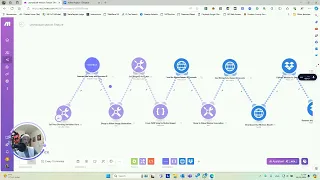
com for this so I've got a number of scenarios here that I'm going to go through so the first one is the image generation using the Phoenix model and the scenario works as follows okay so firstly we just set an API key in a variable then we're going to go to Chachi and we're just going to get it to generate a random image prompt so I'm just saying you know following best practices I'll put a rich image prompt make sure to mention the camera angle as well as the image style we're going to get it to outputting Json using this structure just because we want a highly structured output and we're we're just looking for a random image and then you just need to make sure you set response format as Json object and then that will spit out what you need so next up then we need to use a parse Json module which parses the kind of text response we get back from open Ai and it brings it into kind of a structure that we can use within make. com so next up then we're getting it to trigger an image so let me jump in here so we're using a make a basic alt request module in make it requires you to set credentials but you can just set empty credentials so this is what I have set for my basic go key we're setting the API key here in the header so we don't need it as part of these credentials so for then for image generation we're going to hit the generations endpoint we're going to pulse to it we've set the authorization which is barrier space API key and we're going to accept application Json so then in terms of the the body that we're sending it's a raw Json and this is the content now this is based on the documentation so if we just jump in here to the getting started docs if you click on image generation the first one here is generate images using Leonardo's Phoenix model and it gives us you know a sample structure that we can use and that I've literally just copied and pasted this into into this request contact area but I've I'm I'm dynamically injecting the prompt that I'm getting back from Chachi obviously you could set this up differently you know however way you want to to integrate it into your workflows so I'm looking for four Images here you can change widths and Heights and contrast Etc and that's it we're going to par the respon once we get back so we can click okay to that so I mentioned web hooks a minute ago so for this one we're not going to use a web hook so what we're going to do is we're just going to sleep for 60 seconds so the process is going to wait until a minute and then the response should have generated on the server this isn't foolproof if there was delays on the server it might go past 60 seconds and it might not return anything so the web Hook is definitely a better solution but this works for for the vast majority of cases cool so after the minute then we're going to fetch the result which is hitting this end point so rest slv1 SL generations and then we're injecting the generation ID that we've set here in this module again we're we're passing authentication headers also this is a get method we don't need to send a body for this we're just hitting this Endo with the the authorization headers and then from there again we're going to parse what we get back and because we're looking for four Images we need to work through an iterator so we're going to work through four different images for each we're going to download them which is simply just hitting that URL that we're getting while the iterator is is extracting from the Json so that's set at the iterator level so I'll show you this when I run it in a second and then once we download it we're then just going to upload it to Google Drve and I have a test folder set up here testing Leonardo image and I believe I have a few of them already so these are the ones you saw a minute ago in the Leonardo console okay let's trigger it and let's see how it runs so save that and click Run Okay so we've generated a prompt and let's jump in and have a look at it candid Street Scene depict in a vibrant Marketplace from a low angle so that's what open AI has suggested so then that has again we're just getting back text from open AI but because we were looking for that Json mode and that Json format we can parse it into a into a structure like like so and then we can reference this using prompt as a variable so then trigger image generation we have passed that prompt so you can see the request content here and there is the prompt and we're looking for four images and all we're getting back from this is a generation ID so it's just responding straight away with a generation ID so then we're going to wait for 60 seconds as those four Images generate on the server again web hooks are probably a better solution here but this works most of the time okay that's that's finish the Sleep Cycle let's look at the result click on data and yeah there's lots of data there so now all of this again this is just text so that's why we're going to parse it so that is parsed there and it's now in know kind of a a structured format for make. com to use and there's an array here of generated images that we're now going to iterate over so that's what's happening here and you can see then you have you know we we're in a single execution cycle here so we have one one one but the minute we we trigger this iterator we're now into four because it's four Images so this ran four times operations for each so then we were downloading the file so you can see in the first operation we downloaded it and what it's doing is it's downloading it to make.
com in binary format and then we're just going to upload that straight away without really doing anything with it into Google Drve so that has been successful and we have our images uploaded and let's have a look at them just refresh there and there are the four images of the market scene and yeah not too bad some of the faces are a little bit messed up but not too bad cool so that is the image generation workflow and as you can see that that works pretty well you can of course change you know you could tie this into your own kind of you know air tables or Google Sheets to generate images or whatever your your kind of automation is then the other thing is you can also mess around with the the parameters when generating the image to kind of change Dimensions or contrast or or whatever else so yeah that's the first scenario then so the second one then is we're going to use a web hook so as I mentioned sleep isn't necessarily kind of the the the best approach if there are delays on the server and also something might only Take 5 Seconds to generate you know so there's no point in in waiting around for a minute so for this one we're going to create a web hook so let me just jump out of that and then jump into integration web Hooks and let's have a look at the first one so here we've created a web hook and this is as simple as just Addam module web hooks custom web hook and then once you click okay that will create your custom web hook so this is very simple once you create a new scenario on on make. com let me just do it very quickly here if you have a web hook set as your first module set in a custom web hook all you need to do is click the create a web hook button and it'll give you the URL so it really couldn't be simpler and it's it's a very powerful kind of solution so I've done that and it's given me this URL and then what I did was I copied it to my clipboard and then on Leonardo AI when I was creating my API key somewhere here yeah so when I was creating my API key so let's call this the web hook key you just drop in that URL there and click generate and then that gives you an API key that you can then inject into the request to Leonardo apis and once you pass that specific API key into the request it will always hit your web hook in response as as opposed to you needing to pull the service to to fetch the results so the only trick then with the web hook kind of approach to this is that you need two scenarios I so the first scenario is we need to send the request and the second scenario is we need to catch the response so we can see here in the the web hook version again we're setting an API key we're we're still doing our open AI you know create a random image prompt and then we're still sending that into the image generator but this time we're passing an API key that has that web hook URL set so let's just run that and now that's generating The Prompt and it's going to it's going to send it to Leonardo Ai and then on the second scenario I'm just running it and now I'm waiting for Leonardo AI server to hit this web hook and follow down the the the path to allow me to download the file and upload it to Google Drve that's great so that job has finished so that's pretty much the same thing as the first version except we're using web hooks so we have two scenarios one to send the request and one to receive the response and if we just refresh here we should have our new images and that looks great actually yeah very nice and Hyper realistic that is brilliant really nice great so that is the web hook version so then let's get out of that so we've done image generation using the Phoenix model in kind of the standard method where we pull for a response or wait for a response we've now done the two where we send it and then receive it as a web hook so next let's look at image upscaling so this is a nice feature on Leonardo's platform if I just launched the app here and if you come into Universal upscale yeah it's possible to upload kind of low res images and then it it's able to multiply out the resolution by up to two there's also kind of variations of this so there's one that kind of is a background remover there's one that kind of has a zoom out feature which is quite cool so there's there's a few different settings for this kind of variation API so let's get back in make and jump into this image upscaling so this is a slightly more complex scenario so first thing is we're going to upload an image so there's a few ways of actually approaching image upscaling so let me go to the API docs and then variation generation two things to note here as well there's a lot of detail under guides but there's even more detail under API reference but your main options when it comes to upscaling is you can upscale with generated images on the Leonard platform or you upload your own images which follows along with with this script so let's come back in here so first things first I've uploaded a test image so let's go into upscale so this is an image that I took like 20 years years ago in San Francisco on on a a really old camera and I only have this really lowrise version of this image so what I want to do is via the API I want to upscale this so that it's twice the resolution that it is so for that I've set up a Google drive module where I'm I'm simply just searching for this image and I download this image to to make. com so then I'm going to set a variable which again is just going to be my API key so the first step to this process is I need to get a preon URL that I can forward my image to so it's quite complicated but and you need to post your API key to it which is what I've done there and all I'm doing is I'm looking for an upload URL so that I can upload a JPEG as you can see there and that's it all I'm doing is hitting this kind of initialization image or init image endpoint passing my API key and I'm just saying give me a URL so that I can upload a JPEG so I'm I'm triggering that I get a response which I parse because again it's just going to be a string that I need to pass into Json object and then from there I then have the URL the pre-signed URL or the secure URL that I can then post my image to so this is a bit different this is a a multiart form data body as opposed to a Json body but what I'm doing is I'm setting all of the fields that I get in the response to this URL as the header in this request it's the only way of doing it with the make and then as well as all of those fields that we got from you know module 3 here that I'm passing in as headers I'm also then passing in the file which is the body essentially and then that's the binary of the file that I got from Google Drve so then that's how you upload the image so then at this point my low reses image is now uploaded to Leonardo AI servers but I haven't done anything yet so I now need to trigger the generation of the upscaled image so I'm hitting this Universal scaler API and I'm passing again the headers to authenticate and then in terms of the body I'm passing the image ID that I get as a response to this as well as kind of some in some some parameters around the type of image I want to kind of to retrieve so I want this upscaling to reflect a kind of a cinematic style creativity strength at level six so you could play around with that and I want an upscale multiplier of two so I want to double the resolution so that's the trigger upscale generation it's following the universal upscaler endpoint which you can access on on the documentation so then we wait for 60 seconds again I'm not using the web hook here um so I'm just waiting for 60 seconds for the the image uh variation to be created and then I'm fetching the result this is hitting the variations endpoint as opposed to the generations endpoint so that's that one parse the Json and then I download the file and I upload it to Google Drve so that's it I'm only looking for a single image here so there's no iterator there's there's no need for that so so that's it let's run it and let's see how it goes have I retriev the upload URL I sure have and there it is so URL is yeah it's an S3 Amazon AWS bucket with a a very specific subdomain a whole host of fields here as well you can see them there Fields so that's that's essentially what we're passing then in the header that you see here so you can see headers nope not that one yeah all of these headers essentially is what I'm passing okay the other thing is I'm not getting any response from this but it has uploaded so if you're getting a status code 204 it means it's a successful request so you don't need anything else so then I'm triggering the upscale which you can see there and I'm getting an ID for that job waiting 60 seconds and then I am passing that ID in the URL which you can see there and I'm getting this data back so the job has been complete I am then paring it so this is all of the information that I'm getting back and now I have a URL to hit to download to upload to Google Drve so let's refresh and see how it looks so this is the i i triggered this a few minutes ago and that is a 1.
5 zoom and this is 2x so that's the original image so that's pretty impressive actually that's that's quite a nice upscaled image now I'm sure you could upscale it by 2x again I see how that looks but that that that's pretty good I think originally it's around 400 pixels wide that's now 8 or 900 pixels wide great so that's the image upscaler as I mentioned copies of All of These Blueprints are available in our community so you can quickly and easily download them and then just import them at the the click of a button so check out the links below so finally let's look at the image to video feature which is the motion feature within Leonardo API platform so for image to video where we upload images it's very similar to the upscale inversion I just went through so we're going to Google Drve and we're searching for input images that we want to turn into videos and what we're doing is we're loading those images up we're then again setting the variable which is just the API key and then for each of those images we're getting upload URLs for each exactly the same as what we did in the upscale scenario so the init image endpoint has been hit just passing the API keys and we're looking for again request content we're looking for a URL to upload a JPEG and then from there we upload the image based off the URL that we're getting back from this module and again we're setting all of those headers that we're getting back as the feels in this response and then in terms of the file we're uploading the Google drive file then we're triggering the video generation so the endpoint here is Generations D motion dsvd so that is if we go to the API docs motion create SVD motion generation so this is the end point and the other thing is if you're struggling with make.