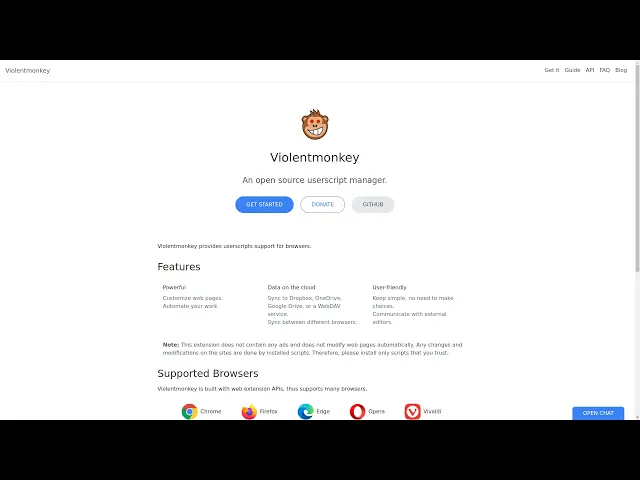
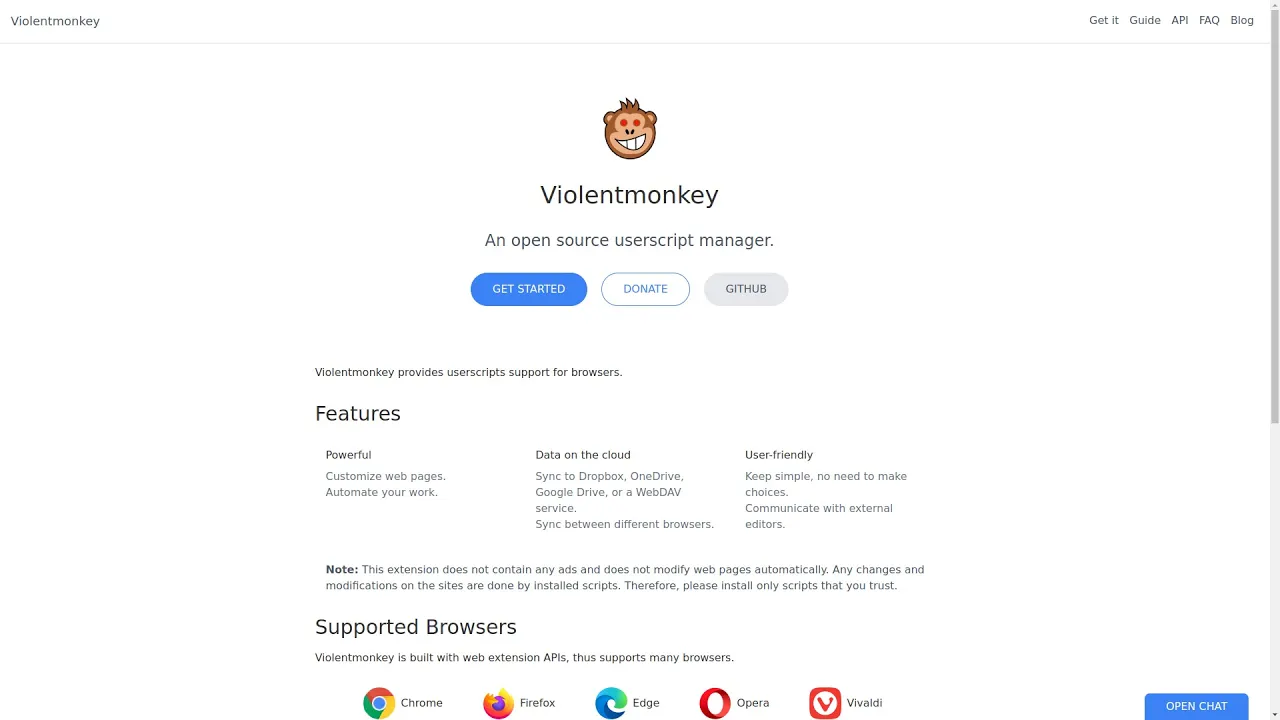
hi in today's video I'm going to be taking a look at violent monkey which is an open source alternative to tampermonkey that are featured in a previous video basically what this will allow you to do is inject JavaScript into the web page so that you can do things like bypass cookies bot and pop-ups so what I'm going to do is show you um violent monkey and bypassing the Google and YouTube pop-ups that you get in the EU and also bypassing the tiny URL redirect shorteners that you get on some sites that you click a link and it says tinyurl and you know it says wait three seconds and then you can click a button to go onto the next page so first of all what we're going to do is come across to this site which is violent monkey and this will tell you about it and it's available for all these browsers like Chrome Firefox Edge Opera Etc and it's basically an alternative to Grease Monkey which was the original version of this that but hasn't been updated in a couple of years I think and tampermonkey that I covered in a previous video but that's actually closed Source um it also has Google analytics built in which aren't actually enabled by default um so violent monkey is an open source alternative to tampermonkin it does the same thing so if I come across here this is the Firefox add-on page you basically come across here and you know click add to install it so what I'm going to do is actually come across to the extensions dashboard here because what I found is I tried using the scripts I was using in tampermonkey and they weren't working and what I found is I actually had to enable something to get them to work and there were two things that I enabled that weren't enabled by default and that was reload the current tab after switching on and off a script on the menu um I think that might just be turning on and off there but I'm going to enable that but the main one I enabled here was synchronous page mode and basically this is enable only if you have a script that needs to run before the page starts loading and it's currently loading too late um so what I found was trying to bypass the YouTube and Google pop-ups for cookies wasn't working but after enabling this um it did actually work so what we need to do is actually install the scripts so this is the settings and this is where you install scripts and what you can do is just click this little plus button and it'll give you a couple of options new that will open a um little text area where you can add in some code you can install from openjs open user Js from greasy bought oil from a URL so you could use you know install from URL to install a script from grit and GitHub for example so these are the three scripts that I've got enabled and if I just come back here and these are my notes and these are the actual um Scripts so what I have here is a folder with these scripts and I just made a few changes to the tamper monkey scripts to get them working so all you need to do is come across click Raw on each one of these and you might be on you might be able to install these via the actual URL we can just copy these and you come across and click new you could try install from URL I've already got these set up but basically what you do is you click new and you just paste it in there and click save once you've you know made the changes and that will come up um listed here so what I'm going to do is actually demo this bypassing the pop-up you get for YouTube for Google and also for a tiny URL shorteners that make you wait a couple of seconds before you can go into the um the next page so I'll just close these for a moment and come across to YouTube then just give it a second it does a free theme refresh and as you can see there's no do you want to allow pop-ups allow cookies what it does is it actually I think what it does is um it just actually bypasses the pop-up it sort of Auto accepts the cookies basically so you don't have to click the button so it's not blocking the cookies so you can still actually sign in um it's just dismissing that message now if I come across to Google one thing I did notice um was as you can see here it's there's no pop-up I don't know if it as you can see here I can't actually scroll in the page so what seems to happen uh with this particular script for Google that um bypasses the um except cookies pop-up is it it accepts the cookies um and even though you've got um Auto reload the page enabled what you have to do is come up here and just refresh the page once um once you've done that you can see you can now scroll so there seems to be a little glitch um with the Google one but as you can see it did actually work and the next thing to notice is it hasn't automatically picked up the page the the dark mode I've got dark mode enabled by default and you can see it was also detected by YouTube but not by Google but if you just refresh the page once um the dart mode will kick in and you'll be able to scroll um but as I said I do think this does um accept the cookies so it doesn't block the cookies it just sort of bypasses the pop-up and now the next thing that I wanted to show you was Tiny URL shorteners so what I'm going to do is um if I just come across and grab a URL so this is basically an example of a site that uses URL shorteners so this is purely just to show URL shorteners and how you can actually sort of bypass them so if I come across to there's something that's just playing but it does it gives you a load of links so if I just click on one of these links I'm not going to play anything I'm just purely showing you this um how it um automatically redirects see your links are loading in three seconds and from it's automatically loaded the page so that's basically what that script does is instead of making you wait three seconds every time you click one of those tiny URLs um so if I do it again oops please wait three seconds bang it's automatically loaded um okay this one's actually did actually take a couple of seconds should okay it's not click kicking in as quickly as it was first time funny enough as you can see it's actually seems to be failing there so this was a script that I found okay now it's working there um yeah it's a script I found actually on GitHub so if I come across and come to my notes I think okay yeah tiny URL so this was the original um script by um Luke I'm not looking mispronouncing surname and this was done for tampermonkey about two years ago and what it basically does is it sort of gets this element by class name so it automatically selects an element on the web page and sort of clicks it um and selects and sort of sets the document state to complete or something and sort of you can set the time out here so it's kind of resets the timer or something um well basically what it does is it just means you don't have to wait three seconds every time you click one of those links so you've got a page with a load of those tiny URLs um it's really annoying every time you want to um switch to another link I'd have to wait three seconds um because they will add up so 10 links you need until you've got to wait 30 seconds um you know while they load so this basically um skips this annoying um redirect so these those were the couple of things I wanted to show you with violent monkey and again the one thing I did find was you click the little icon up here and this enables and disables it and you can actually find grips for and this particular site either on greasy fork or open user. js I think it is I'm not sure what this plus button does um this opens the settings and your script page so this is the installed Scripts and again this is the settings and I enabled that and I think that's just if you're switching from the menu um but I enable the synchronous page um mode which seemed to fix an issue on Firefox it might not be needed on chromium-based browsers but I think there's a difference between the how the browsers handle stuff so um a section here learn more about injection modes and injecting you into different contexts um they've got page context and content and Auto so you can read about that and you've got a UI theme Here um exposed install versions on user script catalog sites I'm not sure exactly what that is probably explained there you can stuff where I think you can change how the editor is the actual script template here so every time you come into the install scripts and create a new script um which I'll just remind you of this is the default that's going to come up um you've got a blacklist here um and Customs CSS so when you come to install Scripts and you click the new button so you can install from open user. js greasy Fork URL or just click new this is the default code that um the boilerplate code for every time you click the new script option and you can change that in the settings down here so that's what that little section is so this is a good alternative to tampermonkey um but as a the only thing I found was I needed to enable this uh to actually get it to run those tamper monkey scripts and I think the other thing if I come into here what you have is a section here is like namespace and on time for monkey scripts I think it's actually like a URL to something like tampermonkey.
net or something um but on violent monkey scripts you need to have Violet monkey scripts in that section here and basically the way it works is you have like a name a namespace match and that's the domain that the script is actually going to run on uh you have like a version a user um an author other description you also have this thing like run at start which was included in the Amper monkey scripts and one thing I noticed is what you've got here is this is the code book section here where you can actually see the code there's also a settings section here which I actually missed first of all and you've actually got some um settings here so you can actually set some of these settings in in here as well as in the code so it's a bit confusing that um but I've got this set to run at document star I haven't changed anything else here but that's just another tab you should be aware of and here's the values which I haven't really looked into but that's where you add your code use another redditor there may be um a section here so that it will actually launch [Music] um the script in your favorite editor so you might want to look at that so it may be a way to actually pop up your favorite editor instead of actually editing the code in this sort of uh web browser UI here but once you've made your changes click save save and close or close and you'll see all your blocks of code here and you can edit them you can enable them I think this is like refresh and so if there's any updates so if you've installed other people's scripts you can actually sort of Run update you can um check check all these for updates basically um so what I think the other thing that you may need to do is actually I think there's a section you could probably put in the URL um from where if you've got this on GitHub or something you have your own scripts there may be a way you you can put in the actual URL and when you do that you should be able to you know do a refresh here and it'll pull down the latest changes so that might be useful for example if you've got two machines and you want to wait to sync the scripts you could keep the scripts on GitHub and then you know just do a do do a refresh in Firefox on the second machine it will just pull the changes down from GitHub so that's another thing to look into uh but this is where you can sort of disable them enable them and I think these are sort of like probably links to the actual file or something um so I think I'm not sure what these do I think maybe if you've got something actually in the script um that shows you know a description or gives a URL it will probably jump to that URL and here's where you can actually remove the script from so that's violent monkey it's an open source user script manager basically it's like um grease monkey and tampermonkey and the main difference is I think Grease Monkey hasn't been updated a couple of years actually uh if I come across to add-ons and themes and search for monkey uh Grease Monkey I'm sure it said it last updated two years ago um it says um even though it says Germany 28 2021 um about two years um so that's the three main ones that we listed here and there's tampermonkey which is sort of newer than this violent monkey I think there's one down here as well fire fire monkey that some people mentioned on Reddit uh but there's not that many there's no big user base for that um so violent monkey seems to be the main alternative to Grease Monkey and tamper monkey which is actually um closed source is not an open source app and I've got tampermonkey installed here so if I just enable this for a second and come across to the preferences so this is tampermonkey I'll show you in a previous video and if I come across to the settings here you'll see there's a section Anonymous statistics and this is um allowing tampermonkey to collect and on the statistics via Google analytics and I think this was enabled by default um originally but it's now been changed um to an optional a requirement and the the thing about tampermonkey is I think that originally it was open source um and now it's closed source of according to sort of people and some Reddit threads um that I read so that's tampermonkey so what I'll be doing is uninstalling tampermonkey so when it's time for monkey so remove so I've moved tank and tampermonkey and let me just open my box fresh just to show you bypassing YouTube and Google and the redirects again the YouTube kicks in and the themes refreshed to dark mode everything's loaded up see I can scroll and but as I said with Google seem to get it's not to get stuck for some reason just do a refresh um and then you can see the buttons come up and I can scroll around and finally oh okay this is just demoing something with on the URLs oops you can see it was saying wait three seconds and um that's basically sort of reset the timer and bypass that uh redirect so that's violent monkey you can see that's that's um that's a little icon up there and what you can do is you can come down here and click customize toolbar and then you can drag these icons around so you need to click customize toolbar then you can drag those icons around and click done and you'll see it'll give you a little notification when there's a script running on this domain basically and you'll see here the match scripts and you'll give you a little toggle you can toggle on and off and also a little check a little um code block icon here that you can click to actually edit the script and whatever you'll exclude and remove so it will actually show you the scripts being matched and you can also change the uh the badge colors here so as you can see you're getting all purple badge coming up over the icon so that's one option you can change um open pop editor and pop-up menu and you've got sort of options for the execution of the scripts and the pop-up menu and stuff like that and anything else yeah you can also Import and Export the violent monkey settings so you can also export script data settings and yeah basically it will explore everything to a zip so if I just do that uh you should see it will exported something to eat violent monkey so the fire monkey desktop let's have a look at that oops okay I'll switch to okay so what you'll see is I've extracted the um the zip there so this is obviously all the data so these are the the actual script so what it's done is actually exported all the scripts as JS files which are really nice um and it's also giving you here's the original zip and then what you have here is um like a configuration file for a violent monkey it seems to be Jason or something so I guess you can just import this into another violent monkey set up to the same setup as the original machine but it's really nice that it actually exports all your scripts so that's a really useful way to actually export your scripts rather than because what I was doing before to actually um I was testing stuff and what I was doing was to back stuff up I was just coming in here clicking edit you know and then copying and pasting uh but obviously just coming across to the settings here and going export to zip that will export everything including all your scripts so rather than going through and mainly copying and pasting the script out just export them unzip the backup and you'll have all your scripts listed there to put on GitHub or anything like that so I'll put links to all this um under the video and I hope that helps sort of bypass the pop-ups for um YouTube and Google in the EU for cookies and also for sites that use tiny URL redirect shorteners that make you wait several seconds for each link and as I said if you've got a page with a load of links and they will go to tinyurl shorteners it's gonna you're gonna get really annoyed really quickly if you have to wait three seconds before every page will actually load onto the site you want to go to so violent monkey is an alternative to Tamper monkey which as I said um although it's nice is actually closed Source apparently um if I come across to Tamper monkey Reddit uh it'll give you like is it a safe browser extension um to do open source yeah there were I think that was it it's been close to us for 10 years apparently um I wasn't even aware of it um so that's why people uh generally recommend violent monkey out of all the Alternatives Grease Monkey hasn't been updated for about two years uh according to the Firefox add-on site um Tampa monkeys clothes source and I think the other one fire monkey and he has about 863 users so might not be as well developed as um violent monkeys so violent monkey seems to do job um but it said on Firefox the one thing I did seem to need to change was um enable synchronous page mode and you can read more like page modes here and the differences between Firefox and chromium-based browsers um the other thing was a Reload and of course back up to zip um which will back up everything all your data and all your scripts so that's a really nice feature also the other thing you can do here is it's got a sync option so you can sync to Drpbox OneDrve Google Drve webadav so if you don't use GitHub that sort of thing um but you use you know um Drpbox one you know Google Drve that sort of thing you can sync all your settings up um buy that and to another machine so that's another option that you could use and again this was these custom script template that appears every time you add a new script so again you have the option here to go new um new and that will actually create the boilerplate for a new script using um that default and again the other options you've got is installed from open user JS greasy fork or installed from a URL and I think you could probably be able to use that with a URL from GitHub and of course it would have to be the raw URL um you have to click on the RAW button in GitHub so you get the page about any formatting um to use the URL and you should then just be able to do a check for all updates so that's something I'll look into is how you add add in the URL of where the JS file is stored on GitHub um so that you can just do a Refresh on your second machine to pull down the changes um because obviously you can't you can't I don't think you can easily integrate this with your doc file so you can't have the your dot file and your these JavaScript files and your dot files and sort of add them into violent monkey you actually have to import them from the interface so if you if you made changes to you know the script you stored on GitHub um it'd be really helpful to have them auto update and I think you probably um you can probably set this to automatically update I think I think there was something here where you could set it to Jet for the script update every day so you can actually um set this to automatically check for script updates or you can disable um script updates completely so hopefully that's everything in the user interface and again the one thing I did um Miss at first was when you're in the code settings here and the code block is you've got this settings block here and these are the sort of seem to be the sort of settings for that particular script and you can set some options here and you can see it pulling in the name okay so this is the home page URL so and the download URL and the update URL so that was what I was talking about this is where you need to put in the URLs for the actual update so putting in the GitHub links should actually get that to update I guess so let's give that a go so if I come across to what I want to try and do is put in the urls okay so what I've got is the scripts that I've I've got set up in violent monkey I've got set up in here Island monkey there we go okay all right so which one should we try out with let's try it with the let's try it with this one so what we want is the actual raw URL so this is the actual URL to the JS file not the web page the JS file was being displayed in so if I take that um and let's just close some of these tabs okay I haven't page URL update URL down your url um use download URL okay so we only need to fill this one in here so this is the download URL and we put the let's put the home page URL is the same one so what I'm going to do is make a change to this file just by adding like a comment or something pushing the changes up to GitHub and then tried running the update so okay so I did a save and close there so close that again so I've made a change to this script here so what I'm going to do is come across and edit that file and see if we can actually get it to sync and what I'm going to do is um actually I'll put a comment just up here so okay right so I made a change to this one so where can I do the updates I don't know found that they found no I'm sure I set the or did I put it in the right I've put the thing in the wrong the wrong thing I think um I think yeah that's odd floor right that's why it wasn't working yeah so what I did was I actually didn't put the link in the wrong thing so now update found I'm gonna push the wrong the right one let me just yeah this is the skip URL that should be the light that's the right link Now updates use global settings okay let's try changing it to on rather than global settings and now we're getting an update button check for updates no updates found there should be a way to get it to work but I just thought I'd have a look while I had it open so let's try reopening Firefox and seeing if maybe just be something I'm missing but I added in a comment um about this function and push the GitHub um Maybe you actually need to have the this section in the code what happens if I'm try moving this section to the um to the code down here I'm just wondering if it was not working because it wasn't in the code block or something and that's still not working well I'll keep having a look at that but there should be a way to actually put in an update URL in the code block or in the settings for the code block so that you can run this sort of um check for all updates and then have it pull in the latest bit of code from here um it doesn't seem to be working so let's check I've got that correct yep comments we've got the settings there now update then notify off use global settings let's have a look at the global settings notify script updates just to see what see if that does anything I was just wondering if there's a combination of uh set it of settings you need to toggle on and off no updates no updates download URL in there function maybe you need to put in the update URL um let's go back to the then try and quite really update URL no by adding in the update URL to the code block I'm just going through all the different permutations of what what it might be um reopen Firefox one last time if it works and I may just be missing something completely obvious no um oh do you know what it might be that's what it is the version number okay that's what it is um so what I think the reason the reason why it's not been updating um is because I haven't changed the version number so what I'm doing what I'm guessing is it basically it's using when it checks for an update it's checking for the version number so if you make a change into the script you actually need to change the version number as well so let's see if that works okay version let's apply version 1. 1 hang on I know I know it is foreign script updated and there we go and now if we edit it yeah comments okay so what I did was I came across to the settings and I put it I put in probably wasn't needed um I think you can just put in the download URL as you can see what I did was put in the complete link to the JS file on GitHub so what I mean by that is instead of the web page displaying the script when you're on that when you're on that page so if I come across to um let me just come across so you know what I'm talking about foreign monkey okay so when you go to a script or a bit of code on GitHub this is not the URL you want here and you can see even though it ends with DOT JS what you need to click is the RAW button here and that gives you the actual bit of code so if you view the source here you can see the source is the same as the code whereas if you view the source on this page you can see it's loaded by HTML so which you don't obviously want to stick in the um the add-on so that's how it works um what you need to do I guess I could put it in the actual the actual code here you can actually put in the URL so thing is what you've got is you've got the code here and you've got the settings and the some of these you can see at run these things here it'd be more convenient to have those actually set in the script because otherwise what you've got to do is actually come across into the settings so what I want to do is actually put in the put these into the actual script and remove them and I'll do another update and see see if we can get it to auto update without having to put in the settings here so what I'll do is right so I want home page you are I want um download URL download the URL um where's that I'm going to do is I'll put all three in just for should we just try it with one let's just try it with one first of all so that we don't have to have them out so right what I'm gonna do is delete these and then upgrade the version number so I'm going to call this version 1. 2 and 0.
2 it doesn't download URL and what you could do is actually put in the put in this page as well so let's put in this Pages the home page URL so the options we've got is update URL and download URL um so let's put yeah let's put in the update URL and the home page URL and set that to this if you see what I mean so I don't have to put the same bit of code in twice actually if it's going to use it um but I want to put in the home page URL because you might want to put something in there that's got some sort of information you know about the script okay okay and make changes okay so what I want to try and do is actually do an update uh I've won the update um it should bring in the changes and bring in those options in the code so script updated okay so you can now see the those bits of code are in there so what I want to do now is either moving can I remove all this actually what let's try adding this script by the URL now so what we've got here is um the actual script so what I'm going to do is actually come across let me just uh and let me just save that close that what I'll do is I'll remove that what I'll do is try adding this via the URL so what we're going to do is come across to Raw which is this link here they do add a custom URL we're going to install from URL okay confirm the installation control enter uh clothes off since amazing yeah okay so that's now you can see version 1. 2 so okay you can see that's when I came into the settings now for that you can see it's automatically filled in those settings in um this section here so by adding in these two links the download URL on the home page URL what it's done is it's automatically added those to for the homepage URL which will give you all the documentation and then the download URL you see the update URL is the same as the download URL and what that means is you can now just run a check for updates so what we did was we hosted a Javascript file on GitHub we come across here we've added it from the URL and with those code blocks it's now able to be you can now update it so what this means is on a second machine you can come through and you can go Okay add put in the URLs for your scripts on GitHub and when you make a change and push them to them um it will actually automatically check every day updates and just update it automatically or you can just come across here and do check for all updates so sorry it took me a while to figure out what um the issue was but there's two things well two things really um having the download URL on the homepage URL but the most important thing is when you actually make a change you need to increment the version number so if you edit the script and push it to GitHub if you don't edit the version number and increment it select version 1. 3 um Violet monkey isn't gonna if you're running version 1.
2 and you haven't changed the version number it's still 1. 2 you're not going to get an update so that's why you need to update the script so again let me come across to here and let's remove this comments line and call this uh version 1. 3 and come across okay there we go now if I come across here um ah don't forget to uh 1.
3 okay they're not I thought I had it on yeah this should be all right so oh do you want to do that oh what would I just do I just delete everything oh sake okay hang on do I just delete everything um yeah I did yeah of course I did um did I just now come back mad what did I do there all right okay let me let me try incrementing this to 1. 5 and um pushing that to GitHub okay foreign 1. 2 okay we first now it's on 1.
5 if I edit the code you'll see it's removed that code block so if I refresh this page here you see the code blocks gone and you'll also see that it's gone in violent monkey so that's what I was talking about is you need to basically increment the version number here and the things that we've got set here we've got the name um the namespace we've got to be violent monkey scripts the version the description the author um the match this is important this is the match for the domain the script is going to run on you can see here tinyurl.