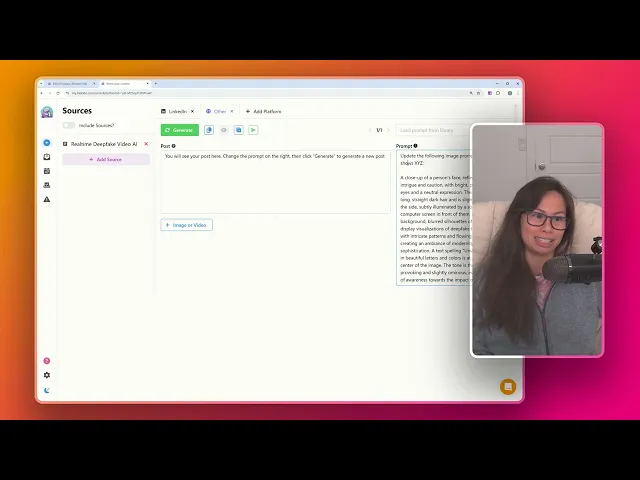
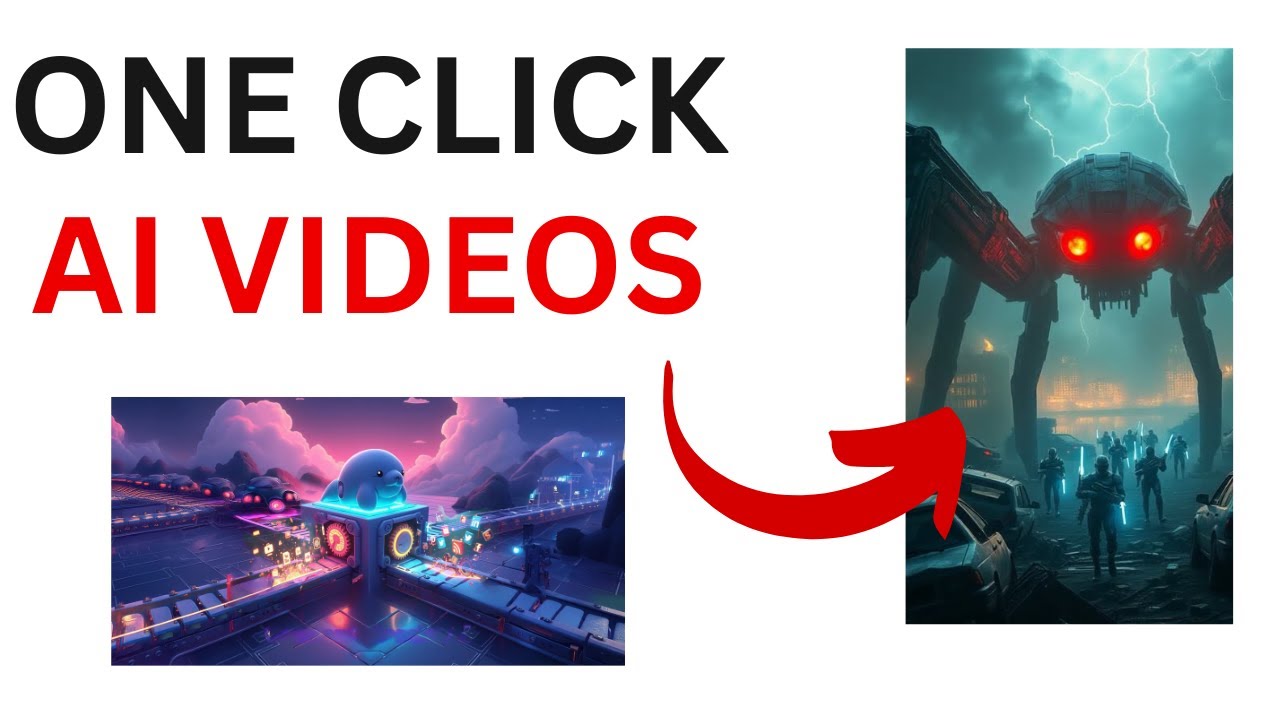
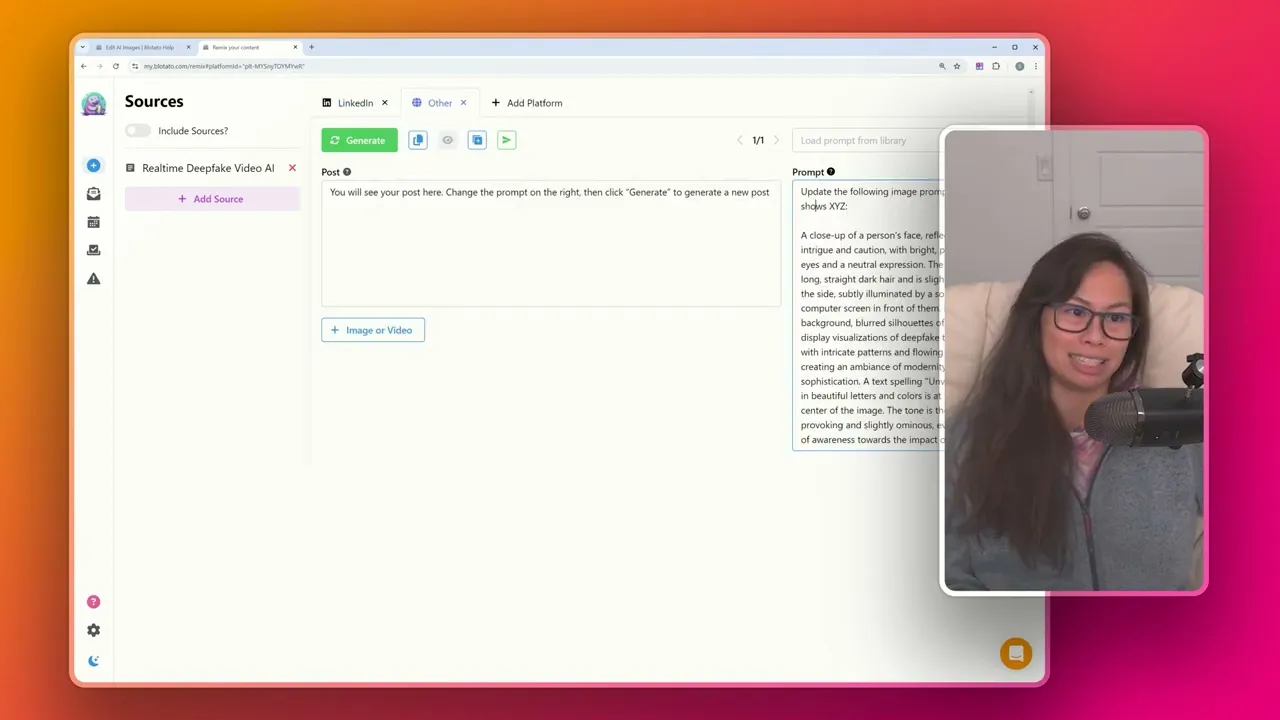
in this video I'm going to show you how to use blow's AI image generator and most importantly how to edit the images because you're probably not going to choose the first image you get so first let's go to Blue potato go ahead and create a draft post it can be about anything here I already have a sample post about real-time deep fake video now click Plus image your video okay when you hover over it you have two options you can generate an AI image which uses the open source model flux or you can upload an
image or video file to attach to the post go ahead and click generate AI image okay and on this first pass blow is going to take your post analyze it and create a detailed image prompt to pass to flux okay so here's the image you can see some of the typos and misspelling so we're not going to want to use this initial image hover over the image and you'll see two options you can regenerate directly or edit prompt go ahead and click edit prompt and this will bring up the window where you can see exactly
what prompt is being used so here is the original post that created this image and then blot runs it through it's called a magic prompt so it analyzes your post and then generates a detailed image prompt which is what's passed to flux go ahead and copy this magic prompt we're going to paste it into this field at the top and then turn off this magic prompt toggle so what this means is Plato is no longer going to try to enhance the image prompt it's it's just going to use this prompt as is and now what
you can do is edit the prompt however you want let's say we want to change the person's hair say it has long straight dark hair okay that's the only thing we've changed go ahead and click regenerate now you can see the person has changed and now has long straight dark hair because we changed the prompt now what if you want to change the demographic of the person in the image altogether okay so go ahead and copy this image prompt we have so far click save if you like this image what I like to do is
open a scratch pad I usually open other scratch pad in the prompt box on the right hand side go ahead and type this update the following image prompt so that it shows XYZ and then paste The Prompt that we have okay and then replace XYZ with how you want to change the image so that it let's say I want to show a 50-year-old Filipina mom Okay click generate and now chat GPT is going to take your image prompt and update the demographic so it shows a 50-year-old Filipino woman's face okay so now copy paste this
let's go back to the image generator Okay click edit I'm going to paste our new prompt here with a 50-year-old Filipino woman and click regenerate okay so now we've totally changed the demographic of the image and we have text that works as well uh one note here if you are having a lot of trouble generating text with a correct spelling I recommending using as few words as possible so instead of typing out a whole sentence just use a couple words a short phrase and you'll usually have much better luck now what's cool is you can
apply the same technique okay going back to where we updated the image prompt you can pretty much change any aspect of the prompt if you want to change the entire scenery the location the demographic of the person like we just did anything else that you want to change you can simply type it here so let's say update the following image prompt so that the background is a beautiful Switzerland Ski Resort okay go ahead and click generate okay and then let's copy and paste this prompt over here edit prompt okay I'm going to copy paste that
we don't really need to turn the magic prompt on since we already have a really detailed image prompt okay go ahead and click generate all right and there we have a Switzerland ski resort in the background now you can see some of the text is not spelled correctly anymore so in my case I would usually just click regenerate until it gets the spelling that I want okay perfect and there's our Switzerland ski resort in the background so click save once you find an image that you like and that's pretty much it so within blow potato
it's super easy to generate AI images you don't have to go to a separate tool and to recap we use this technique where initially blot generates a detailed image prompt but now we want to change it so copy paste The Prompt create a little scratch Pad is what I call it and then you want to type something like this update the following image prompt so that blah blah blah whatever it is you want to change whether it's the person in the image the background of the image if you want to add certain objects to the
image you can pretty much change anything in the image and then chat GPT will generate the updated image prompt okay then you just go back here edit the prompt paste your new prompt in here and regenerate the image until the text looks good