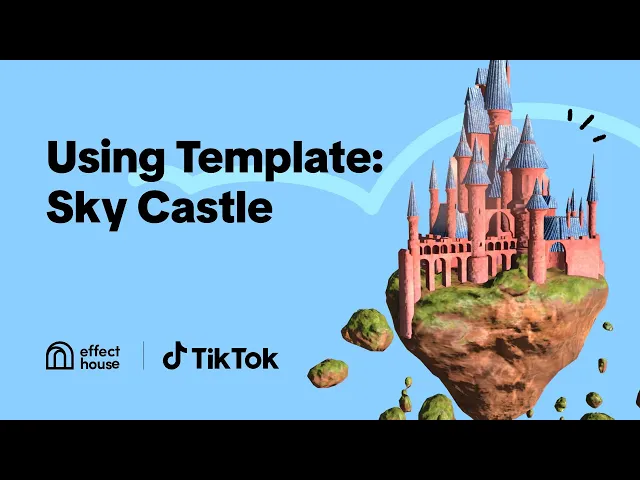
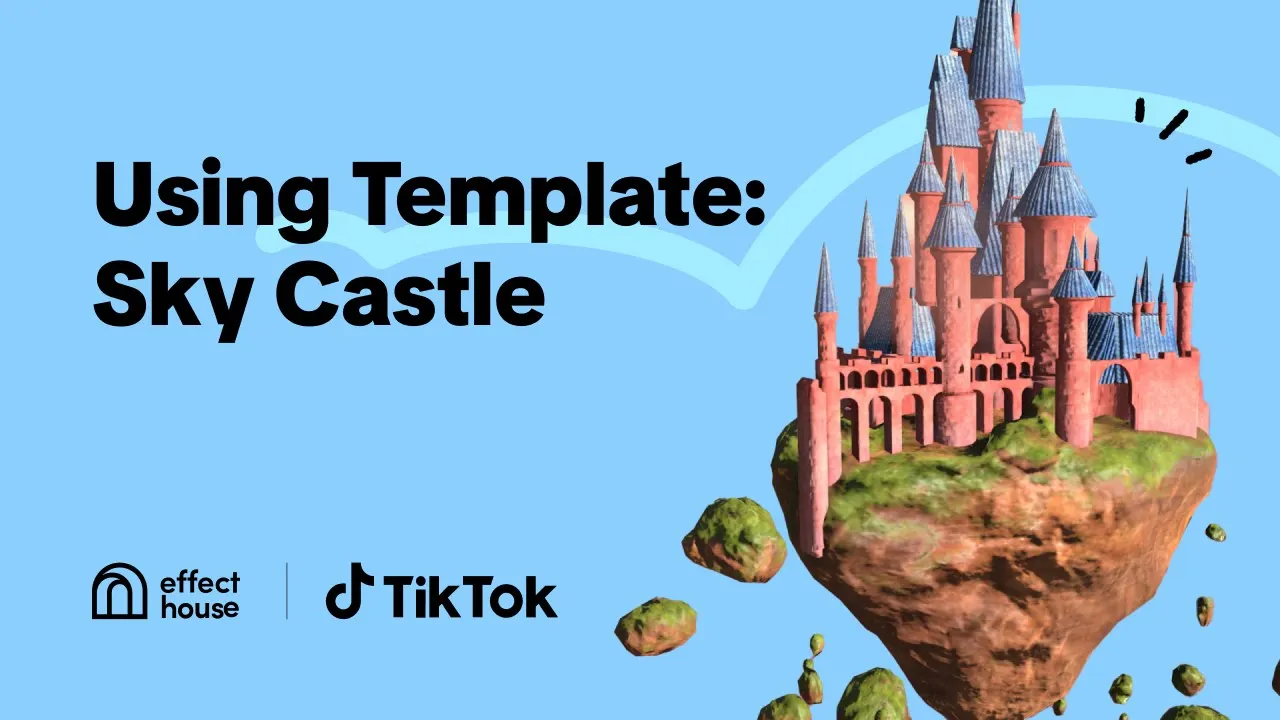
act like you know [Music] hey everyone today we're going to go over how to use the sky castle template in effect house so you can learn how to make a virtual Sky effect a lot of you have asked for an in-depth explanation of how to create Sky effects and the sky castle template is a great place to start first we'll explore how the template actually works and then we'll demonstrate how to customize it so you can create your own Sky effect let's jump right into it to access the sky castle template go to templates click
on the world category and find sky castle [Music] alright so now that we've opened up this template we'll see some pre-loaded objects and assets but before we can play around with the template we've got to select the appropriate preview media since the sky castle environment is activated when you point your device into the sky so we can change the preview media by clicking on the preview menu going up here to environment and then selecting sky now we'll see this beautiful castle floating in the sky now let's take a closer look at the hierarchy panel where
you'll see the general and 2D foreground effects render groups in this template there are three critical elements that make up the effect Skybox the AR container and the 2D foreground effects let's go over each of them the Skybox is essentially just a cube object with a Skybox material that gets applied to your environment so try unchecking the Skybox in the hierarchy panel to see what it does you'll notice that this Skybox is responsible for the pink background so turning it off will reveal the original Sky environment the next main part is the AR container it
essentially just the scene object that contains the AR objects which in this case are the castle and rocks all objects nested under the AR container are included in the environment as floating objects so if you uncheck the air container in the hierarchy panel the castle and rocks will disappear the last main element in this effect is the 2D foreground effects render Group which houses the sky segmentation object if you take a look at the preview you'll notice the Skybox and AR container fill the sky seamlessly behind the buildings this is because of two things first
the sky segmentation object detects and separates out the sky in the preview allowing for realistic integration with your virtual effect second the 2D foreground effects render group is at the bottom of the hierarchy panel which means that the sky segmentation texture renders after other objects so the buildings will appear in the foreground therefore turning off Sky segmentation causes the buildings to be hidden by the Skybox and AR container objects now that we know how this template Works let's talk about how you can customize it to create your own Sky effect if you want to customize
what the Skybox looks like you can import your own Skybox Cube map by going to the assets panel clicking the add button going to import and then selecting Cube map when preparing your Cube map texture you'll want to make sure that the image ratio is two to one and the file doesn't exceed one megabyte in size for example I'll choose this sample file and then click open once you've imported a cube map texture you can find it in the textures folder next you'll need to assign the newly imported texture to a thing called Skybox matte
which is the material assigned to the Skybox now to access that material you expand the sky castle assets folder then find and expand the Skybox folder next select Skybox map in the inspector panel click the Sky Box texture field select your customized texture and click ok now you have a customized Skybox that's great if you want to add different objects to the environment you can either create your own or browse for 3D objects in the asset library to import a pre-built object from the asset Library all you got to do is click on the asset
Library button up here find an object you like and then click the download button let's download this Sheba the object is uploaded directly into effect house which is great now we can just find the Sheba object in the assets panel it's the one with this little Cube icon then we'll drag the object on top of the AR container in the hierarchy thereby placing it within the AR container so first I'll hide the castle and rocks from view by unchecking them in the hierarchy and then I'll readjust the position of the Sheba object in the scene
panel so we'll be able to see it floating above the buildings and that's it we just used the sky castle template to make our own unique Sky effect you can literally put anything in the sky the sky's the limit you see what I did there we can't wait to see what you make for more information about the sky castle template be sure to check out our documentation at effecthouse.ticktock.com