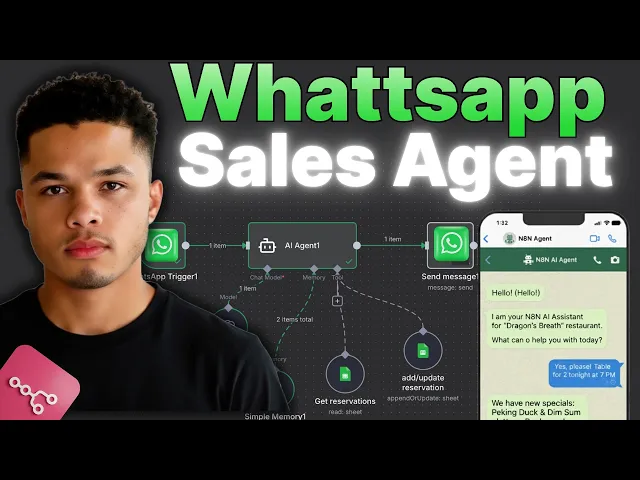
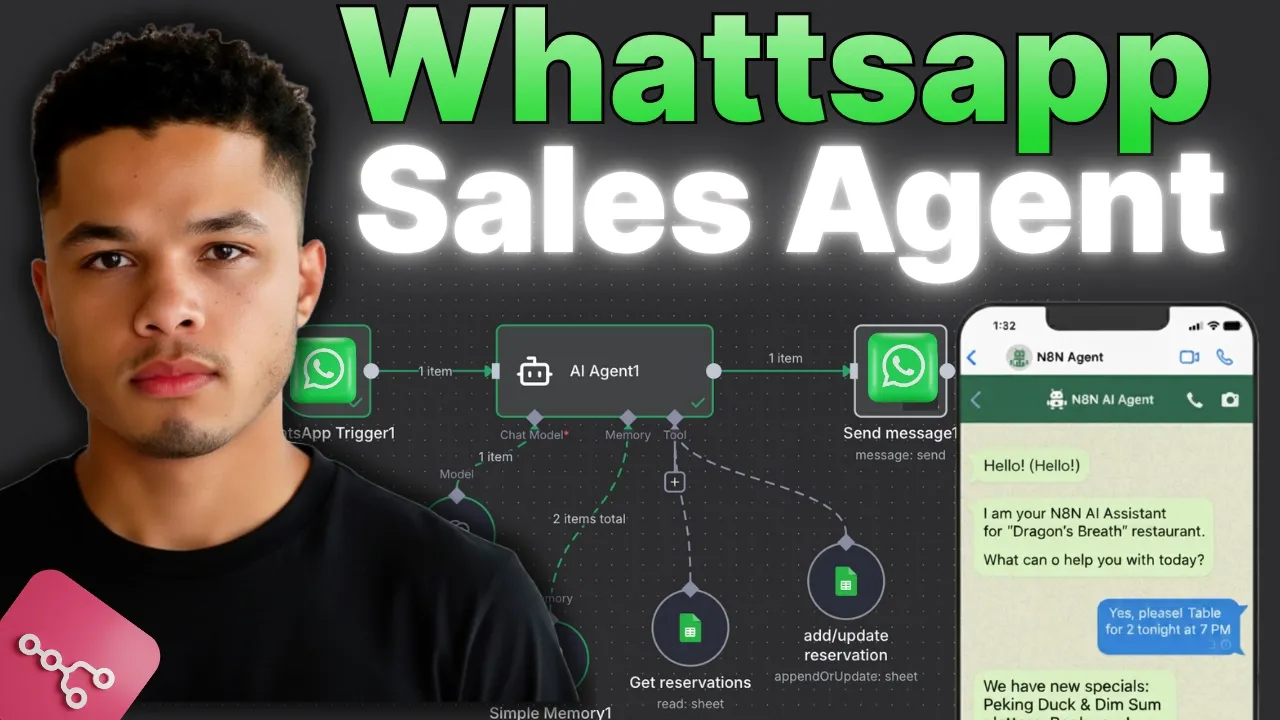
Okay, so in this video I'm going to show you step by step exactly how to set up a WhatsApp AI agent completely from the beginning. So I'm going to show you over here we have it set up for a restaurant. I'm going to say hi.
Can I book a table? Send that over. It should respond back to me now very shortly with yes.
So you can see it responds back to me. Sure, happy to book it. I just need a few details.
Name of the booking, the person's phone number for the booking, date and time, and how many guests. It's optional. You can add notes to your booking if you're a vegan preference or anybody's birthday or it also says if you're flexible, I can suggest time slots from 6:00 p.
m. 7:30 or 9:00 p. m.
What would you like? I'm going to say actually, can you tell me if there is any vegan options on the menu? Should go find the menu and see if there's any vegan options and return it back as a message.
So, you can see here it says, "Yep, vegan options are doable. Quick picks from our menu. steamed jasmine, steamed jasmine rice, mixed veg, we have aubberine with garlic, etc.
So, you can read more where we have mango pudding, egg fried rice, etc. I'm going to say, okay, can you use the number I am texting you on for the booking and put it under the name photo and let the staff know it is my son's birthday. Now, when we send that over, it's going to book us in and we should see an update to the viewing over here, which as you can see, we already have one in, but let's go back over here and we can see got it.
I'll use your number for the booking and add a note. It's my son's birthday under the name Folu. Um, to finalize, it needs date, time, and how many guests.
I'm going to say there is going to be six people and we want to book it for tomorrow at 900 p. m. Okay.
So, you can see it says all set folio table is booked for tomorrow 2nd of November 2025 at 9:00 p. m. Table is for six people, duration 1 hour 30 minutes, the number on file.
They give me my so my number and then it also has some notes here and it asks me would you want me to add any vegan note or any seating preference etc. You can see over here on a Google sheets we sta save that um you can see over here in a Google sheets we save that reservation and we have folu the number the amount of people the date which is tomorrow we have 9:00 p. m.
and we save the note as son's birthday. Now I can also come in here and say can I cancel my latest reservation please? Okay.
So you can see it responds back with cancellation complete. Cancellation complete. Your reservation has been cancelled.
Name, folu, number, address, date, cancel, cancel, cancel. Okay. So everything is done.
It has canceled that. And if we come over here, you can see it has removed the date and time and it has added the note now as canled for this reservation, which is perfect. Now to get into exactly how to build this, we firstly need to come over here to N10.
And this is the exact workflow we're going to build. So to help you understand how we build this, I'm going to build it again down here. The first thing we need to do is come over here to the plus section.
You need to look at WhatsApp and use this one here, which is WhatsApp business cloud. Now we need to come down here to the triggers and we want to use on messages. So whenever we receive a message, it should trigger this node right here.
Now when we are connecting to this, you can see I already have a connection, but when you are connecting, you're going to need a client ID and a client secret. Now bear with me because for the next two or three minutes we're going to show you exactly how to connect up which is the longest and most technical part but I'm going to take you through it step by step so you know exactly how to do it without any issues. So to to get a client ID and a client secret we first need to come over here to a place called business.
fas. com and this is essentially how we're going to connect up WhatsApp. Now as you can see when I come over here I am already connected.
I'm already signed in. But if you are not signed in, then you will be taken to a page like this in which you will have to log in with a Facebook account. So just log in with your actual personal Facebook account.
Doesn't have to be a business account. And after you log in, you'll be met with a page like this. Now when we come to this page, after logging in, we want to come over here and make sure it has already created a business portfolio for us.
Because this is essentially what we're doing when we sign into business. fas. com is we're creating a business portfolio.
But if it doesn't, then just come down here and press create a business portfolio where you can put in your business's name, your name, last name, and the business email. Now, after that's done, we're going to want to come down here to where it says settings. Over here in settings, we're going to come come over here to where it says accounts.
So, this dropown right here, and we're going to select apps. When we come over here to where it says apps, I'm going to press up here, add a new app, and we're going to press create a new app ID. Now, we're going to X out of this.
We're going to give this app a name. Now, don't worry about this name. The client isn't going to see this.
This is more just for back end. Um, and I'm going to give it the name um Chinese. Chinese Chinese restaurant.
And this is mainly just to help you and your developers know which kind of client you're working with. So, I'm going to keep it as this. I'm going to change this to use my work email.
So, that right there. and we're going to click next. Now over here we're going to come down here to where it says order down to the very bottom and select order again and press next.
And then we are going to select business. Press next. And then over here you can see it confirms with us.
Do we want to keep the app as this name? I'm going to keep it as that. Contact email that's fine.
And you can see here we have the business portfolio which I just told you to to create basically in the first step. If you don't create it, then you won't see any business portfolio here and you'll have to go back and create one. So, make sure you do that first where you create a business portfolio and then we can press create app.
Now, after we create that app, we're going to be brought directly to a page like this in which we're going to come down here and select integrate with WhatsApp and we're going to press set this up. So, we're going to set this up and this is how we are going to connect WhatsApp. Now after we press setup it brings us directly to another page like this and you can see here in the big green box we need to start using the API.
So to start using it we need to press here start using the API or you can just come down here and press it on the left hand side. Over here on the left hand side after we press API setup you can see it g WhatsApp gives us a test number in which we can start chatting to um in order to see if this app is working or to connect up our AI agent. If you want to start chatting to it on a test number, WhatsApp gives us a test number.
Now, in order for your test number to work, you actually have to add in your phone number. So, WhatsApp knows that this number is verified and is allowed to message this test account. So, you will come down here and press select a phone recipient.
And you'll come down here to where it says manage phone list. And that's where you will put in your actual phone number. So, you'll press add phone number.
You'll put in your phone number, whatever your phone number is. So, come up here, press add phone number. put in whatever your phone number is and then come down here and press send message.
It will allow you to send a test message to your phone number and you'll receive a me a message like this where it just says hello world. It will directly just say hello world and that will be sent to your WhatsApp account. Um when you send that test message then you know it's working and that WhatsApp is is basically connected to your phone number and you're able to go back and forth by by testing it.
Now, in order to get the two pieces of information that we need for NA10, after we connect up our phone number, I'm going to come up here to where it says app settings, and I'm going to come over to where it says basic. Where it says basic over here. We're going to first copy this app ID.
I'm going to copy that app ID. Come over here to N and I'm going to drop it in here to where it says client ID. Then the next one we need is this app secret right here in which you can press show.
You're going to copy this and then bring it over to NAN. bring it over to NAN, drop it in here, and press save. And then when we press save, you should see your credentials connected and everything should be working.
We can give it a quick test by pressing execute workflow. Come back over here to WhatsApp and saying hello. Send over hello.
Send that message over. And you can see over here now WhatsApp has received that message. And you can see here in body we have the exact message that we just sent over.
So now we know the connection has been made and our N8 can now receive all of the messages that come into that WhatsApp account. Now now that we've successfully created WhatsApp, we want to connect it to an AI agent that it's going to handle all of our business inquiries. So I'm going to select AI agent and in here I'm going to select define below.
And here is where we are going to put a prompt. So, in here, I'm just going to press users message and I'm going to come down here to where it says body and put in the user's message. And also, I'm going to put in users users phone and I'm going to put in the phone number, which is just a WhatsApp ID.
I'm going to drop that in there. Now, we're going to come down here to where it says add option. We're going to select system message.
And this is basically where we're going to give this assistant or we're going to give this AI agent all of the prompts that we wanted to follow and also the menu of this Chinese restaurant. So, I'm going to come up here and copy the one that we have here. I'm just going to copy this, bring it down, and drop it in here.
As you can see here, I already have a prompt in. And the prompt basically says, "You are a helpful assistant for Green Garden Chinese Restaurant. You are a friendly and helpful texting assistant for Green Garden Chinese Restaurant.
You chat with customers naturally. Short, clear, human messages like a real staff member would send on WhatsApp or SMS. Avoid long paragraphs.
Avoid sounding like a robot or brochure. be warm, casual, and real. Now, we give it access to what it actually can do.
And we say you can answer menu questions using the menu at the end of this prompt. You can book, update, or cancel reservations using the Google Sheets reservations node, which we're going to do later. We're going to say, use set, update reservation to add or change a booking.
To cancel a booking, clear the date and write cancelled in the note field. And as you can see over here, when we did it in the demo at the start of this video, it did exactly that where it cleared the date field and added cancelled into this into the note field. Now we come back over here.
We can see use get all reservations to see all of the current bookings. And we give it some reservation rules like each reservation row includes name, number, people date, time and the note for that booking. Then we say the mandatory fields is name, number, people, date and time obviously.
And we say optional note like birthday or window C. We also say before booking always confirm that these four details. Before booking, always confirm these four details.
If something's missing, just ask naturally. For example, what name should I put it? What name should I put it under?
Or would you like me to use the number you're texting on? If the system provides the phone number, you can confirm like this. Should I use the number you're messaging on from the booking?
And as you can see up here in the user message, we give it the user's phone number so it can use that whenever it needs to ask that question. Now, back down here, we say you can use special occasion and add it to the note. Don't mention table sizes or capacity unless asked.
Never sound salesy. Keep it friendly and confident. If a time isn't available, offer the next closest time.
For example, we're full at 7, but I can do 8 if that works. Each booking lasts 1 hour and 30 minutes. Now the booking setup we say this restaurant has five tables large one large table which can fit six plus people and four small four small tables.
And the reason we do this is because let's say over here we have this booking right here which is for six people and we let's say put in a random date like the 11th of the 12th. This AI agent would come in here and if somebody wanted to book on the 11th of the 12th, let's say it's for 6 p. m.
, the AI agent would know that this table is booked for 6 p. m. and there's no other big tables.
So, it would offer the person an extra time. And that's the whole reason of telling the AI agent our tables and how many people we can fit on them. Then we say check table availability before confirming.
If full, suggest a near a nearby time politely. And we give it some tone and price rules. And then we give it the full menu down here, which you can see I just have a random Chinese menu.
Now that's the full AI agent done. Next thing we need to do is we need to add a model to it. So essentially add the brain to it.
I'm going to come in here, press open, open AI chat model. And I'm going to use GBT5 mini or GBT nano. So I'm going to come down here, find GBT5 Nano.
We're gonna use GBT5 Nano right here. And that should be fine. It's the cheapest and quickest model.
Now for memory, I'm going to come in here and select simple memory. And for this, I'm going to get rid of what we have in here. Firstly, change this to define below.
I'm going to press conversation dash ID dash and I'm going to put in the person's phone number. And now this AI agent is going to have access to the previous conversation that is being had within the actual WhatsApp conversation. I'm going to give it the context window, which is basically how many messages we want it to be able to go back.
And I'm going to say it has access to the last 20 messages. And now whenever we send a message over here to this WhatsApp agent, it's going to store that message and the user's messages in here. So it has context for whenever the user sends a next message, it has context to what was said previously.
Now for the tools, you can see we have two tools. Firstly, we have a Google Sheets add or update reservations. And we have get all reservations.
Pretty self-explanatory. We're going to come down here, select Google Sheets, Google Sheets, and we are going to set this to get all rows. So, you can see here, this is the get rows.
And you can see here we need to choose one of our Google Sheets. Now, obviously, we're going to have to come over here to Google Sheets first and create a new table. and just give this table the headers name, number, people, date, time, and note.
That's all you have to do. Pretty straightforward. And you can see here the name of this table is Green Garden Chinese.
And down here, it's called sheet number one. So, if we come over here to NAN, after we create that table, I'm going to select Green Garden Chinese. And for the table, I'm going to choose sheet number one.
Now, over here, we're going to keep all of this the same. And what this is essentially going to do is it's going to get all of the reservations within this table. So if there was maybe let's say six of these like this, it's going to return all of these to the AI agent.
So we're going to come back over here. Let's get rid of these first. We're going to come back over here.
We're going to give this the name as we said in the initial prompt. Get reservations. And now this AI agent has access to the reservations table and they can see who has already booked.
Now the next one we're going to use again is a Google Sheets Google Sheets tool. This time we're going to change it from get rows to append or update row. We're going to choose the same table again which is green garden Chinese.
We're going to choose sheet one. And in here we're going to allow this to map each column manually. In order to find the column that we want to update, we're going to come here, come down here, select number.
And then for all of these, we're going to let AI decide what to do. So if it needs to update a table, then it can update one. If it needs to cancel a booking, then it can use the numbers field to cancel that booking.
Or if it needs to add a new one, it doesn't need to it doesn't need to search for any row. It just needs to add a new a new row to the table for a new booking. then the AI will automatically detect that because we have this selected.
So now we can give this a name called um add slash update reservation. And now this one is ready to go. And that's basically the full build done.
So the next thing we need to come do come over here is select WhatsApp again, WhatsApp business cloud. And we're going to press send a message. And we're going to send a message that this AI agent output.
So in order to get that I need to run a quick test. So firstly I'm going to execute this workflow. Going to come over here and send a test message like hello can I make a reservation.
Send that over and it receives it over here. The AI has come in. It's using its brain to uh check the menu.
You can see down here it automatically saves that into its memory and it outputs something over here and it says sure I can book that for you. Do I just need a few details now? So, we have the AI agent message.
We need to configure this WhatsApp sending message node. And to do to do that, we're going to come in here again. We're going to need to add a new node.
So, I'm going to press create a new credential. And you can see here it asks us for an access token and a business account ID. So, to get both of them, I'm going to come back over here to where we initially were.
I'm going to come up here to where it says access token. As you can see right here, I'm going I'm going to press generate access token. That's going to give me a token.
Firstly, it's going to confirm it with me. I'm going to press continue as folu. I'm going to select all of these.
So, it has access to all of these for you. You won't actually have a phone number here. It would just be the test number.
So, you'll press select all. You'll press continue. And then it will output.
It will output an access token right here in which you're just going to press copy. bring it back over to NAN and drop it in your send a message node. And then for your business account ID, going to come back over here and you can see your business account ID right here in which you're going to press copy, bring it back over to NAN and drop it in there.
And after you do that, then you'll be all connected to WhatsApp. And now you can receive and send messages. Now, in order to send a message back over to this user, you need to put in the recipient's phone number over here, as you can see.
And we're going to do that by coming down here into the WhatsApp trigger, which is the incoming message. And we're going to find their WhatsApp ID, bring it over, and drop it in here. And then after that, we're going to make this message type as text.
And the text body is going to be the output from the AI agent. As you can see here, I'm going to click here, drop the output into here. And now that is the full build completely finished.
From step to step, you have a full WhatsApp sales agent for restaurant. Well, you can change the prompt around to be for car mechanics, for real estate agents. You can do whatever you want with this.
The reason this is so powerful is because email has an open rate of about 20 to 30% and WhatsApp has an open rate of 90 to 98%. Most businesses are still using email. So, to be pitching this to a business is massive changes for their business and could significantly boost revenue and leads in general.
So, if you like that video, leave a thumbs up below and let me know what you want to see next.