you took your video from your camera or your webcam or whatever you got some audio from a lapel mic or some music you downloaded and you want to sync the two together but you only have imovie well let's jump into imovie and see how to do it because it's really easy so get inside your project and the easiest situation is when you have some video clip and it has no audio because you exported audio separately from say obs and then you just need to pull in the video and the audio so see here's my video
here's my audio now i'm going to pull the audio over and it will exactly match up [Music] now my audio and video are synced for this ridiculous video of me and a wig but probably have a video and some other audio that you need to sync together if you're watching this so let's look at that let's look at a video and this video has some crappy audio from my camera and i want the really good audio from wherever you got that your other uh microphone or the audio clip that you downloaded so i need to
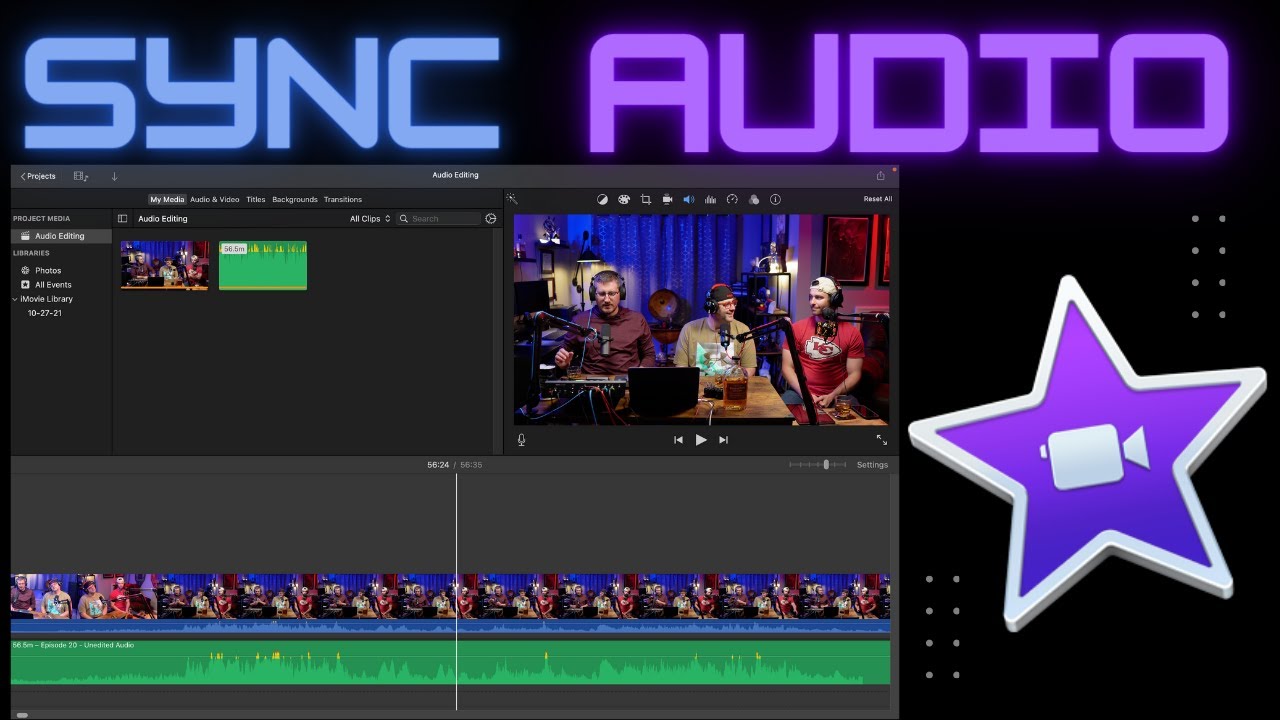
sync this i took this video while playing this audio clip because it's a music video now i need to sync the two audio clips you can see here these in this blue space there's some audio from the camera and we want this audio from the camera to sync up to this audio clip that is nice instead of the crappy camera audio so i'm going to have to trim off this little spot and find where the audio starts so if we zoom in i just use two fingers on the mac to zoom in with the track
pad but if we zoom in you see you can also zoom in here let's zoom in all the way you can see there are peaks here it's like some mountains of audio and here at the beginning are the same mountains of audio so we just need to make this mountain match this mountain so i just do this look at this i just click on the start of the video and i move it over i keep moving keep clipping until i get right to that mountain now i'm going to pull this mountain over okay and oh
look i have just a little bit more to trim so i'm going to try and trim just one or two more frames all right let's see if that matches up okay if the other mountains match up then i know it's good uh it looks like it might be a little bit behind but that's okay because we're all the way zoomed in if it's just a little bit in front or a little bit and fine behind it will look and sound fine so let's see if it syncs up [Music] something else yeah that synced up pretty
good my song is ridiculous i know so if you got it wrong you will know when you listen to the clip let's say i synced up the wrong mountain listen to this yes what the crap oh i didn't sync my audio correctly so go back in and find the correct spot the best thing you can do is put a clap at the beginning of your video because the clap will create a spike so i'll show that next now that it's synced i'm going to get rid of this audio the crappy camera audio by pulling it
down so i only have the good audio down here okay and everything's synced up and now i can go in and make my edits now i can do things like split my clips and do some editing so i want this guy to show up here this guy to show up here all right and both clips are synced with audio all right so now let's look at how to do what most of you are probably doing which is you have a camera video with camera audio that sucks and then you have audio from a lapel mic
or an iphone that you recorded separately so let's go in create a new imovie movie and you download your clips i airdropped this video from my iphone i got these clips from my lapel mic so i labeled the clips so i know which one is the one i use with this video so i know this video is clipped too and i recommend putting a clap in so here's me clapping and you can see when i clap there's this spike right here so i want to sync up the two claps and then my audio will be
synced up so i'm just going to do this thing where i grab the edge of the audio now and trim it so i can move it now i'm just going to drag the audio over and try and sync it up so put this bar here on the peak and then zoom in to make sure that you really are getting um precise here get your bar right on the peak and then drag this over until these two things are synced now the claps are synced this is the easiest way because see it gives you such a
narrow peak to sync together i don't like sinking mountains because it can be hard to find where your audio starts in your video and in your audio track but the clap is really easy that's why they use a clapper in uh hollywood movies so check this out this audio will sound much better than my camera audio hey it's joel i'm going to talk about a thing so now i can zoom out and then do my audio adjustments like i want this to be a little louder so i'm going to pull it up so it's you
know you just see a little bit of yellow that's the best thing to do you know i'm going to trim my video so the claps are going and then i'm going to be done so i split these two see i i did this thing and i went to split clip after selecting both of them and i trim off this clap part and now i have this video