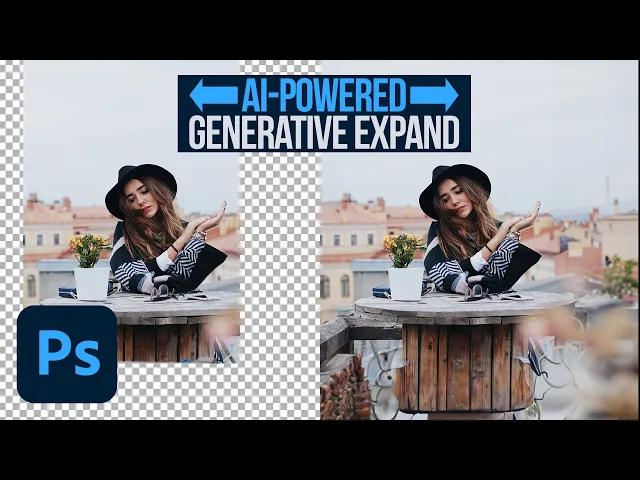
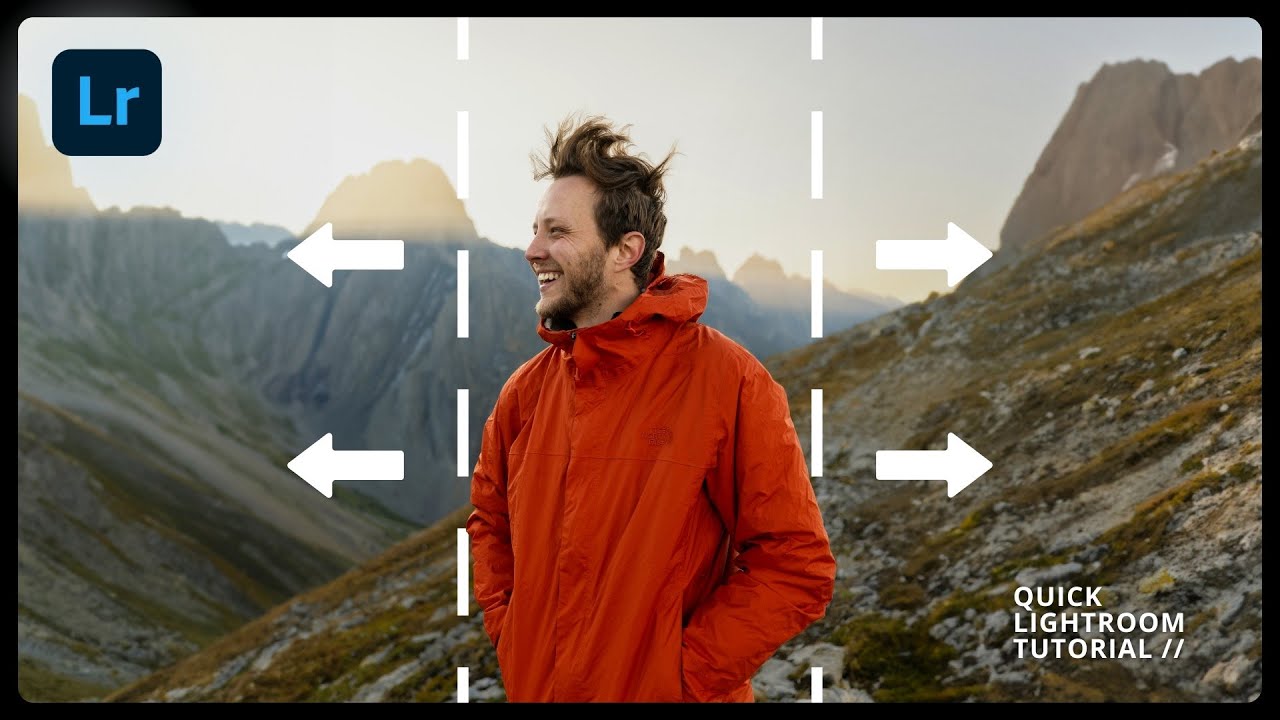
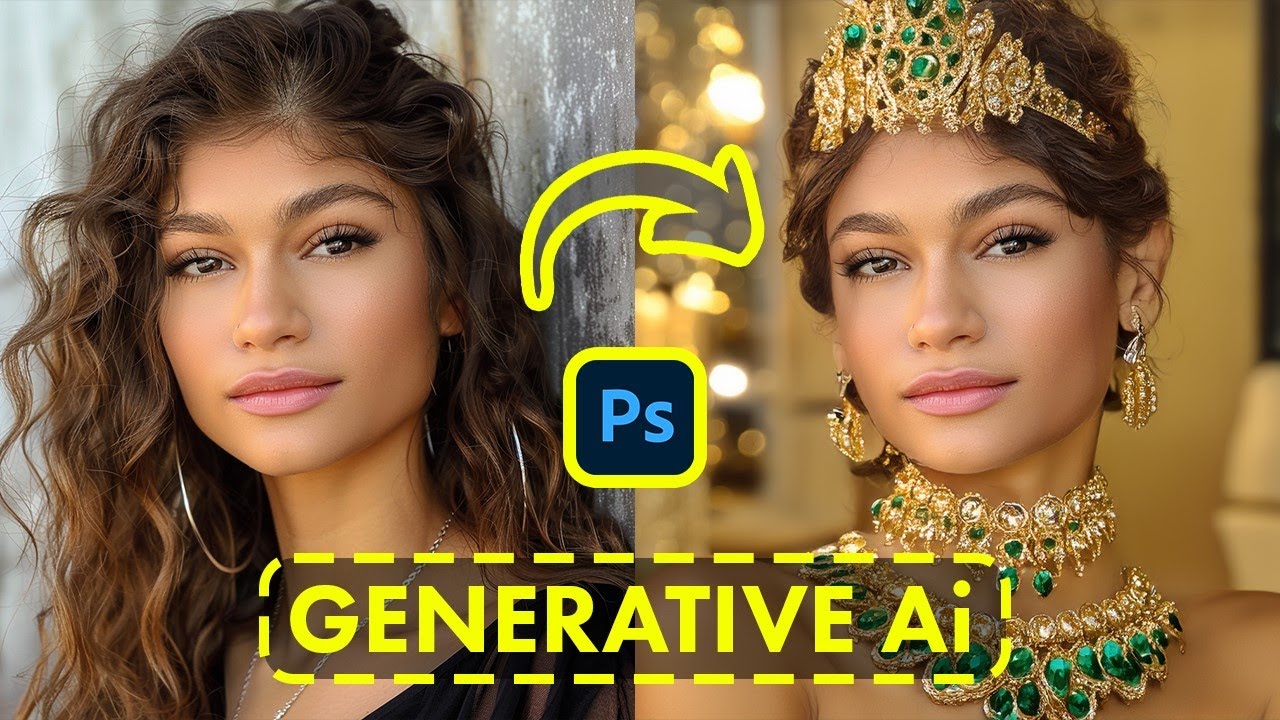
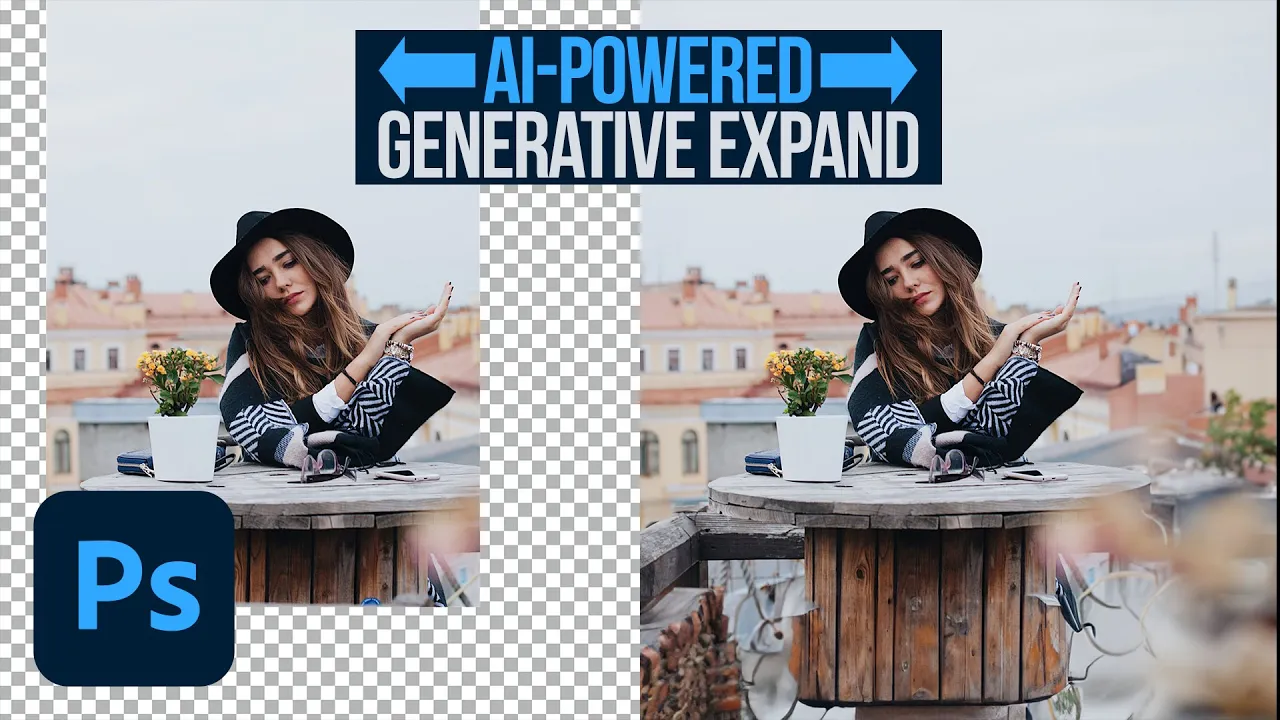
today we're going to show you how to use the brand new generative expand in Photoshop to make your images any Dimension you want hey there and welcome to Flur my name is Aaron nce and today we're going to show you how to use the new generative expand within the crop tool this is the new AI features that are brought into Photoshop now they're completely out of beta and available for public use we're going to show you how to expand your images to any crop you'd like adding more information and giving you the opportunity to completely
recrop your images after they're made we got a great tutorial for you let's jump into Photoshop so here we are with our first image now you can see we've got our subject the background looks pretty good it's just a little bit of a tight crop and honestly it's a portrait style and there's just a lot of information here on the top it's just blank sky and it's not that interesting I want it to be a landscape style image so here's what we're going to do we're going to grab our crop tool you can hit C
for the crop tool now when you hit your crop tool you have this this option for generative expand you can click there or right up here at the top where it says fill by default it's going to say transparent you're going to want to make sure it says generative expand all right so you can click either right here or you can just click on generative expand right here now you first click and drag the canvas to expand so basically I'm just going to click and drag out in this direction and out in this direction there
we go cuz all this space on the top I didn't really need now with this generative expand it's going to ask us what would you like to generate it's totally optional most of the time you just want to click on this generate button and it's just going to add whatever it thinks should be there so let's go ahead and hit generate and see how this looks and it's just going to add buildings in detail to this image it's not going to know the exact buildings that were back there but it's going to add what it
thinks maybe should be back there now with all these new gen this amazing right with all these new tools you're going to have different variations so just be sure you go to your properties window if you don't see it go to window and then down down here to properties make sure that's checked and make sure you go ahead and scroll down because you're going to have a few different variations of your crop I mean look at this it knew let's just go to our layers turn this off you can see there's like an out of
focus like some flowers or something here in the foreground now it added more out of focus elements and then areas in Focus behind that how incredible is that now you can just continue to do this so let's go ahead and click here and then we're just going to go as long as this is set right up here to fill generative expand you can continue to expand it out there we go and now we have a banner style image so I'm sure you can imagine like the possibilities are completely endless with this tool completely doing a
recrop of course like if you needed to be like actually true to the details like if you needed the building in the background to actually be the real building that's there this is not going to work so well cuz it's literally just generating content out of nowhere but if all you need to do is make your crop a little bit wider this is incredibly incredibly powerful so I've got one more example here this is like a one thing that I think actually like is a pretty common use case so I've got like a person here
and a mountainscape what we have over here let's go to our layers I've got like a Mountain Adventure logo so let's take our move tool I'm going to click and drag from one image to another let's hit f for full screen now let's say you're working with a client and they want to put this is their logo or whatever they want to put a couple of different images on the web maybe for a sale or something like that a lot of times you'll have like a WI Banner image and then you also have like a
tall Banner image and for so much time in Photoshop like you know you don't have much more information you want to make the image wide but like there's literally no more information to add so with this tool now we have that option so let's go ahead I'm just going to make this logo invisible real quick and let's hit C for the crop tool I'm just going to go ahead and bring some information here from the top down we don't need all that information but now let's go ahead and create like a banner ad so I'm
just going to stretch this there we go nice and wide fantastic let's make it even a little bit shorter here I've had to do this so many times for so many different projects but I can take the little bit of information that we actually have here crop it out and again as long as Phil up here is set to generative expand you can just set your crop and then it's going to literally generate all of this information all right so with all this information now like it's going to take just a little bit this is
all happening on the cloud you do have to be connected to the internet we've generated all this information there and that's beautiful look at that absolutely incredible let's go back to our layers here and I'm just going to turn this logo on now okay let's just make bring it to the very top there we go we'll go ahead and bring that down and put it out there so now we've got something that works really well for a banner something on the web of course underneath it you can grab let's just grab the brand new gradient
tool let's hit G for the gradient tool up here on the top just make sure it says gradient we're going to to choose our foreground uh we're going to choose our linear gradient and then we're going to go to foreground to transparent so I'm just going to click and drag out like this there we go and of course I can double click on here to choose my color and maybe I'll just choose a color from the actual background of our image maybe we'll get a little bit brighter something like this fantastic so now we've basically
created a banner ad that's really beautiful high resolution using the assets that we have and of course the logo of the company now they might come back and say like okay that's cool but we also need the same thing in a vertical so here's what we're going to do I'm just going to hold controller command I'm going to click on these layers so we're going to click on the logo we're going to click on the gradient and we're going to click on the background I'm going to right click and we're going to say to duplicate
layers okay let's just choose here document we're going to choose new let's choose a new document there we go and now I'm going to hit C for the crop tool let's just make these invisible I'm going to hit C for the crop tool and we're just going to go the other way around okay we're going to create a tall Banner ad let's go ahead and bring this right over here fantastic something like that's going to look really good okay hit enter now it's going to gener generate all of this information again for us using this
exact same asset traditionally in Photoshop this would be a lot of work you'd have to do some high-end compositing get match color and light but now boom look at that we can go ahead and start to bring in our logo again where is it there we go let's hit controller command T there it is let's just bring up up to the very top Mountain Adventures and then we'll bring our gradient tool our gradient as well there we go let's just bring that from the top down also I'm using literally the exact same gradient that we
had before as well fantastic let's just put it in this sky and there we go so now we have a banner ad from the top down really really quick and easy to do that so this is just I mean there's a plethora of uses but you can see here let's just go ahead and show you there we go these two assets sets in Photoshop that we were able to generate from the same photo now we have a very wide Banner ad here and a tall Banner ad here of course you can add text and logos
and things like that but then we also have this example where we started off with a portrait and then cropped it and then as you can see I can come back to this at any time I can change my crop we'll just go in maybe we want it a square crop something like that just crop it again literally see for the crop tool use the crop tool as it's always been used as long as right up here on the top it says generative expand it's just going to fill in all that information and look at
that perfect we have something that's ready to go for Instagram so where we started with you know basically just this as our first image there we go we added and added and added and now we have all this information this is available in the full build of Photoshop AI generative fan generative AI generative expand AI generative fill is out of the beta so it's available right now just make sure you update Photoshop to the brand new version using Adobe Creative Cloud this is one of the biggest updates to come to photoshop in a long long
time let me know what you think in the comments down below what are some use cases that you think you might actually use this for I'm thinking of like older photos or like you know photos a lot of the time like the composition's not great where like maybe the subject is too close to one Edge or the other and you just need to add a little bit more space this is the perfect tool to do it you can download all of these images and follow along on fl.com thanks so much for watching if you enjoyed
this tutorial give us a big thumbs up and hit that subscribe button we'll keep sending you free Photoshop tutorials thanks again I'll flarn you later bye [Music] everyone