Imagine having an AI system that saves you hours by preparing for meetings, summarizing newsletters, and helping you plan strategies, all while you're driving or brushing your teeth. Don't worry, we are going to help you to dissect all of this information so you can wow! Let me show you how Notebook LM can revolutionize your workflow.
What is Notebook LM? It's a Google Labs AI-powered tool using Google Gemini. It’s a personalized research assistant focused on your sources—no hallucinations, only real citations.
Some of the key features include audio overviews, customizable instructions, and synthesis of multiple resources. Why is it incredible for business use? Efficiency!
You can save time by automating summaries and insights. Customization! You can create tailored outputs for specific needs.
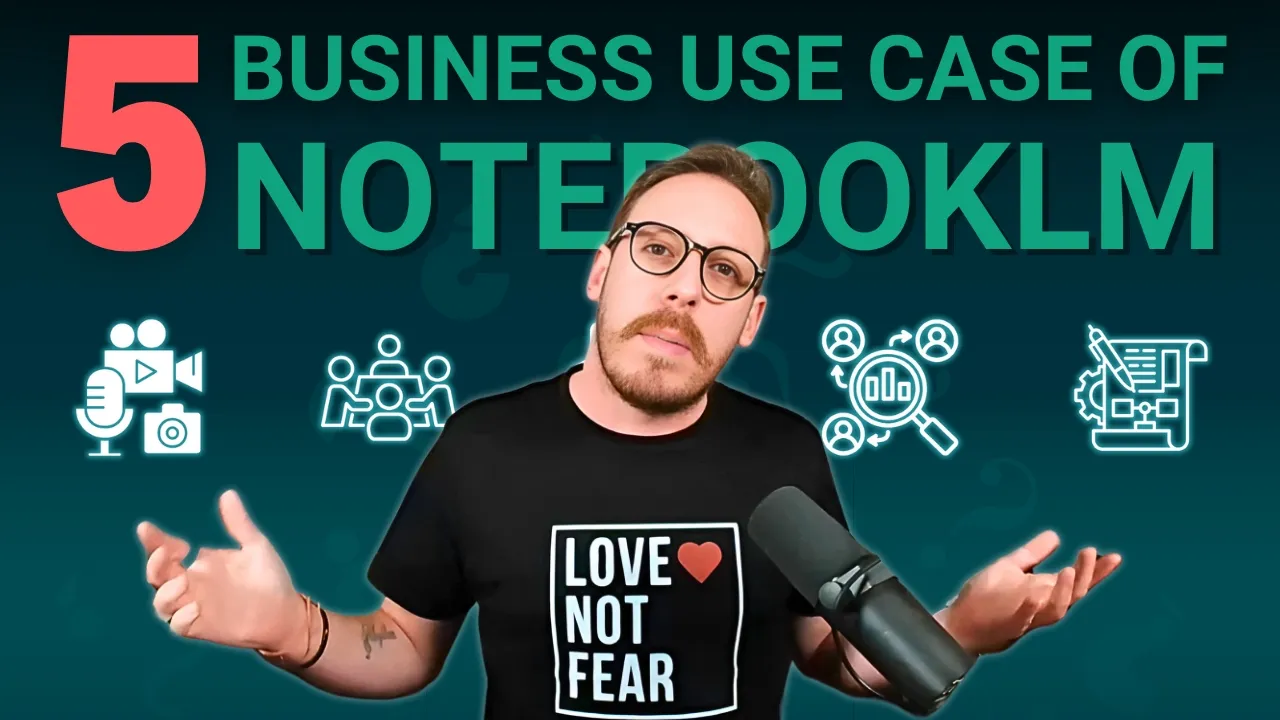
Accessibility! It works with PDFs, spreadsheets, audio, and more. Now, I'd like to show you the top five business use cases that I use almost every day.
Let's dive in! "Think smarter, not harder" is the headline that Notebook LM has on their website, and I would agree with that. Think smarter, not harder—the ultimate tool for understanding the information that matters most to you.
Built with Gemini 1. 5, it's free at the moment, so you can go and try it yourself. It's your personalized AI research assistant.
You can upload your sources—which I'm going to show you in a second—upload PDFs, websites, YouTube videos, audio files, Google Docs, or Google Slides, and Notebook LM will summarize them and make interesting connections between topics, powered by Gemini 1. 5's multimodal understanding capabilities. That’s what it says: instant insights!
With all your sources in place, Notebook LM gets to work and becomes a personalized AI expert in the information that matters most to you. See the source, not just the answer! Gain confidence in every response because Notebook LM provides clear citations for its work, showing you the exact quotes from your sources.
Listen and learn on the go—this is my favorite use case, by the way. Our new audio overview feature can turn your sources into engaging deep-dive discussions with one click. And this is what they say: "We value your privacy and do not use your personal data to train Notebook LM.
" Notebook LM does not use your personal data, including your source uploads, queries, and responses from the model, for training. This is awesome! How people are using Notebook LM: power study, organize your thinking, spark new ideas.
These are great, but I'm going to show you some crazy use cases. Here we are! As soon as you log in, welcome to Notebook.
What you see here are my notebooks. You can create a new one by clicking "Create New. " It will open up right away and allow you to add sources.
This is where you can upload sources; you can drag and drop or choose a file to upload. There are also some other options: Google Drve, Google Doc, Google Slides, directly integrated. You can also bring links like websites or YouTube links, or you can copy and paste text.
You do have a source limit of 50 sources—that's a lot! As you can see here in the examples: marketing plans, course reading, research notes, meeting transcripts, sales documents, etc. But let me dive into my most favorite use cases.
Number one: Prepare for client meetings or projects. For this use case, I prepared four files: three text files that include meeting notes, a proposal, and a quarterly report. The fourth file is an Excel file, but it does not accept Excel files yet.
But there's a trick! So let's first upload the three text files. We will choose file, and I will choose my three files and upload them.
As you can see, the files are now being analyzed. Let me do the workaround to add the Excel file. What I'll do is open the Excel file, copy the whole file as text, select all and just copy.
Then, I'll come to copy text and paste it. It's a small file, but as you can see, you can have a workaround and do this with even big files. I can insert the text, and you can rename your resources.
I’ll rename this "Client Data. " I'll keep the rest, or you can clean them up and rename them properly. So my sources are now ready!
But what do we do next? You’ll click on "Notebook Guide," and you get this guide to help you create an FAQ, a study guide, a table of contents, a timeline, or a briefing document. As you can see, it's already analyzed my files, and it’s given me a summary.
But what's the magic trick? Yes, you can chat about your files and get really good answers, but the magic comes in this audio overview, and the magic button is the generate button. What I love, which is quite a new feature, is the ability to customize it.
It's like custom instructions in custom GPTs in ChatGPT or other tools that have custom instructions. If you click on customize, you get a box asking you what the AI host should focus on. This is two hosts chatting together to create a podcast.
So in here, I would say something like, "You are an amazing AI consultant, and you have these files before going into a client meeting. Analyze them all and make sure to dive deep into the specifics of the client so that I can prepare myself as the consultant. " I’ve given a bit of instructions, and I’ll click generate.
In these instructions, there are great use cases where you can tell the topics, who you are, what you really want to do, what you want the chat to be about, and so on. But I’ll click generate for now with those custom instructions. This may take a.
. . A few minutes, but you do not need to stick around, so you can go now to the bathroom and come back.
All right, our podcast is ready. As you can see here, AI Operator Weekly Strategy Meeting, think about this as well: not just for client meetings, but for those discovery calls. Before you have a call with your lead, you can throw in a bunch of information, even from their website and documents—anything you found—and prepare for that call.
But also, you can prepare for internal calls about projects or reviews of your team. Let's listen to what we got. Okay, so like imagine this: you're this AI consultant, right?
You are about to go into this big meeting with a client, but you've got all these files and data. Yeah, you've got like this huge stack of files to go through to prep—exactly to prep with. But don't worry, we are going to help you to like dissect all of this information so you can wow your clients at AI Operator.
Yeah, at AI Operator, they are doing some really interesting things in the AI space with solutions and automations, and we've got a sneak peek into their operations and financials and even their future plans. Yeah, I absolutely love this. As you can hear, even in the introductions, it tells you what they're going to talk about and how they're going to talk about things.
It's because of the custom instructions that I showed you. But before we look at some other use cases, I'd like to remind you as well that you do have suggested questions that you can continue on, and you could generate new versions of this as well. But don't forget that you could also keep typing and discussing things with these sources.
As you just saw, one of the best use cases we had was an amazing podcast to prepare for our client meeting, AI Operator Weekly Strategy Meeting. You can come and revisit that, you can add new sources to it, and continue that if needed. Don't forget, you've got a 50-source limit, but let's talk about four other incredible use cases.
What I usually do is I click on these three little buttons and I download the audio version. I put it on my phone and listen to it as I drive or as I brush my teeth. Downloading the audio version is incredible because you can do even more than just listen to it, but that could be in another video.
Before a client meeting, I listen to a 10-minute custom podcast summary that refreshes me on all the key details. But here are the other use cases. Number two: summarizing newsletters or technical documents is super useful.
Some newsletters and reports are too lengthy or technical to read in detail. Notebook LM simplifies them into concise, actionable insights or audio overviews. I drop my favorite AI newsletters into Notebook LM to quickly stay updated while handling other tasks.
Number three: market research and competitor analysis. How would that work? Upload customer feedback, market reports, and competitor insights.
Use prompts like: "What are the emerging trends and gaps in this industry? " Another pro tip is to use Notebook LM's synthesis capabilities to identify unique opportunities for your business. I uploaded a market research document and quickly identified an untapped segment you could target.
And don't forget, you could also put customer websites, customer blogs—customer anything that you find available—and have an amazing podcast about it. Number four: create training content or podcasts for your teams. This is super effective.
Upload internal SOPs, guides, manuals to generate engaging training content or podcasts for your team. Perfect for onboarding new employees or updating existing processes. I turned a 20-page operations manual into a 10-minute podcast, making it easier for the team to absorb the key points.
Number five: strategic planning and decision-making. It's so useful for founders! You can upload key resources like business plans, investor presentations, or quoted reports.
You can use Notebook LM to synthesize insights and provide actionable recommendations for decision-making. Before a board meeting, I uploaded our quarterly reports; Notebook LM summarized trends and risks, helping me prepare key talking points in minutes. Here are some pro tips you could use: prompts like "Identify growth opportunities from these metrics," "Summarize operational risks and suggest mitigation strategies.
" So, here are some of the key features: audio overviews, perfect for multitasking; turning content into podcast-style discussions; the custom instructions—you can tailor Notebook LM to focus on specific sources, audiences, or tones; the wide compatibility works with PDFs, MP3s, text, spreadsheets—as you saw, you can copy and paste them—and more. Use ChatGPT to craft advanced prompts for Notebook LM's customization. Always define your audience—beginner, expert—for better results.
Some common pitfalls to avoid: overloading with too many documents. It starts going into too much, so stick to three to five related sources at a time. It could be 50, but if they're all related, it's a bit better.
Don't skip the customization; clear instructions yield always better results. Ignoring the audio summaries would be ridiculous because I think it's the best feature of it. You can use those audio summaries to maximize downtime.
Which of these hacks will you try first? Let me know in the comments. Start with just one of these use cases this week and see how much time you save.
None of these videos are sponsored by the way, so people commenting that these are ads, I'm sorry, they're not! Yet, it's such a nice compliment that you guys think these are sponsored by these massive AI companies, but not yet. I’m doing this from a pure passion as I am the CEO of AI Operator, and my mission is to share everything I know about AI.
That you guys can have a better work, you can manage your companies with ease, and have less stress while focusing on your families. Don't forget to subscribe and hit that notification bell so that you get notified when I publish any new videos. Thank you very much!
This is Tim, the AI operator. See you in the next video!