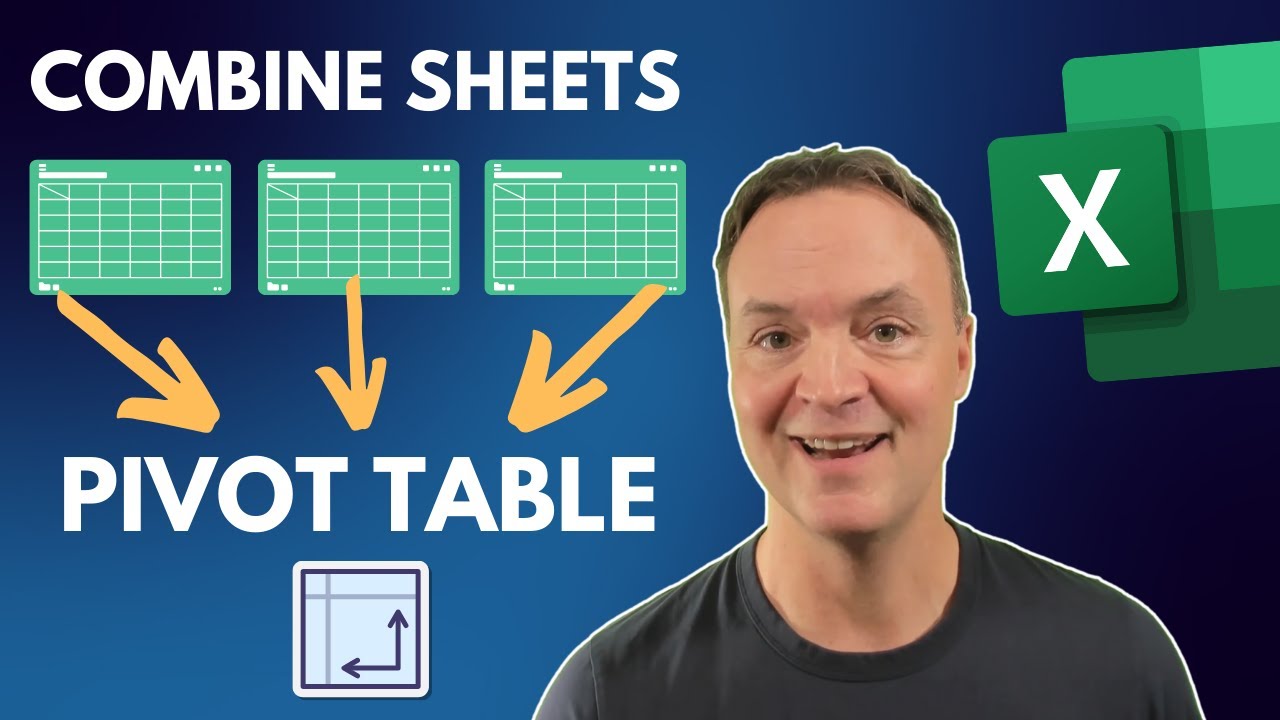
have you ever wanted to create a pivot table based on multiple sheets for example here we have sales data for January February and March by default pivot tables only work with one sheet so you can't really analyze the total sales for these sure you could copy and paste the data into one sheet but what if it updates luckily there is a way to do this so let me show you with three different scenarios first when you have the same column headers just different data like sales for Jan February and other months secondly when you have
completely different data so different headers but there is one column in common for example the ID number and finally when you have entirely separate Excel files instead of just separate Excel sheets so let's get into it in the first scenario suppose we have three different sheets for January February and March you can see they have the same column headers but we would like to combine all of the data so we can analyze it with pivot tables and you can download the same Excel file in the video description to follow along the first step should be
to convert all of your data into Tables by pressing contrl T if you haven't already then we just want to head over to data and under the get data drop down we want to go to launch power query editor this might look a bit new to you but it's actually super easy to use all you need to do is head over to new source and here we want to select the relevant file which is an Excel workbook for us I've saved mine in my desktop and it's called scenario 1 it might be somewhere else for
you but I'm just going to go ahead and import it and here you'll be able to see all of the three different tables and to select more than one we just want to go to select multiple items up top and just select all three here then we're going to click on okay so we have all three tables loaded up and we want to create a combined one that's going to be dynamic for that we can go over to append query here and append queries as new because we have more than two tables we're going to
click on this part here and just double click on each of these that's not there so table 1 two and three we can add an order to them so let's go 1 2 and three in order like so and click on okay now you can see there's this new query called append and if we look within it we have all our January data February and even the month of March so we're ready to apply that into Excel we're going to click on this close and load dropdown and go to close and load to because we
want a pivot table we're going to select on that one and click on okay this might take a while to load but you can see we have all three tables like we did before just the January February and March but we also have this append one which basically has all the information combined so I can select the different dates here let me actually move those to the rows and you can see we have not just the January date data but also the February and March so I can see the breakdown of all of the months
and all of the revenues for each of them with the total two even better if you have any changes to the original data it can also update inside of the pivot table so let's suppose in the month of January I'm just going to add here a very large number like so just so we can clearly see the change after all we need to do is save this so contrl s there and then under table one we're going to refresh all of this data by going to pivot table analyze and clicking on the refresh button and
now that it's refreshed you can see the month of January has a huge number compared to all the other months because of this edit we made here but let's be honest life isn't always that simple what if you have columns that don't have the exact same names then this method no longer works but let me show you an alternative before we do that if you want to learn Excel and other in demand data skills I'd recommend you check out our data analyst program it consists of four individual courses and over 300 lessons first in Excel
you learn best practices for formatting formulas and charts then you'll apply your skills with real life case studies from data cleaning to building a dynamic financial model then in powerbi you'll dive into Data visualization and create interactive dashboards to extract maximum insight from your data thirdly in SQL you'll work with larger databases writing SQL queries and even connecting the databases with applications like Excel and powerbi finally in VBA and macros you learn to automate tasks like generating pivot tables p&l reports and much more so whether you're in or looking for a career as a data
analyst business analyst or financial analyst head over to a link in the Des description below to gain the skills you need to thrive in today's data driven world looking at scenario number two here we have a different Excel file that just has sales data and some information on some stores so it's clearly very different columns but they do have one column in common which is the store ID right here and the store ID over here on this side based on that we want to create a connection for this we can head over to data and
instead of going to get data like before we'll go to the right where we have this icon and click on relationships in this popup we want to create a new relationship that's going to be firstly the table number one and the table number two within it what do we have in common that's going to be the store ID and the store ID from this other side as well they don't necessarily have to have the same column name so this one could be called something else and it would still be able to connect click on okay
okay and now press on close at first it might not look like anything happened but actually when we go to insert and go to the pivot table drop down here we can go to from data model that's what we've just done and we want to create that into a new worksheet within the fields here you can see we have table one data and we also have table two data so for example just using table one I could take the store ID over here and also the quantity sold for each store the problem is just the
store ID really doesn't give us much information on the sales tab that's really all we have about the store details that said on the store tab we have a lot more information like where the store is located or who the manager is luckily because we've combined these two pivot tables we can go ahead and select that data like for example the country and we can see that inside of the store ID same thing with let's say the general manager name even though that was something in a separate sheet the scenarios we've seen so far all
work with one Excel file but what happens when we have multiple Excel files for example over here you can see we have data for just the month of January and in a separate Excel file we have data for the month of February and we would like to combine that into creating one pivot table that we can analyze for this we just want to select any of the files and go to data get data and launch the power query editor once in here under new source instead of just selecting an Excel workbook which we can do
first for number one so the January sales and then we just want to repeat that same process for another source so here I'm just going to select the one table and I can do the same thing with the second one so file again Excel workbook and this time it's going to be my February sales let me select that table over here and click on okay this might be a bit tedious so what happens if you have something like 12 Excel files there is a way to do this faster which under new source file instead of
selecting an Excel workbook if you selected a folder where you had all of your data so for all the 12 months then you could go by folder and it would import every Excel file within that folder in the future if you were to add more Excel files into that folder those would also be included so for now let's suppose we're happy with these two the next steps are much like before so append queries as new and we only have two tables so it's going to be table one and table two click on okay and now
we're ready by pressing close and load close and load to and we want to select a pivot table report click on okay there and once this loads up we can select the different dates and you can see here that we have both the January data and the February data as well we've just learned how to combine multiple Excel sheets into one pivot table but it's also very important to know how to split one Excel file into several sheets and for that you can watch this video over here to learn more about it or take our
Excel course over here hit that like and that subscribe and I'll catch you in the next one