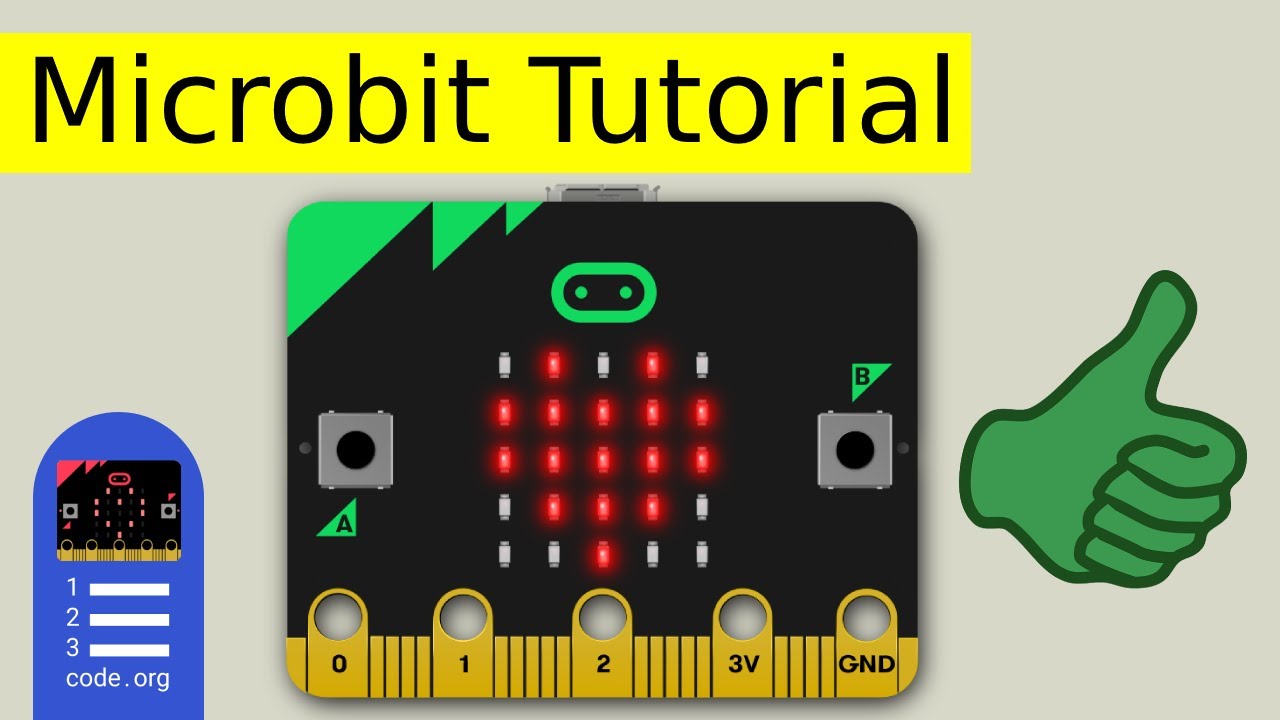
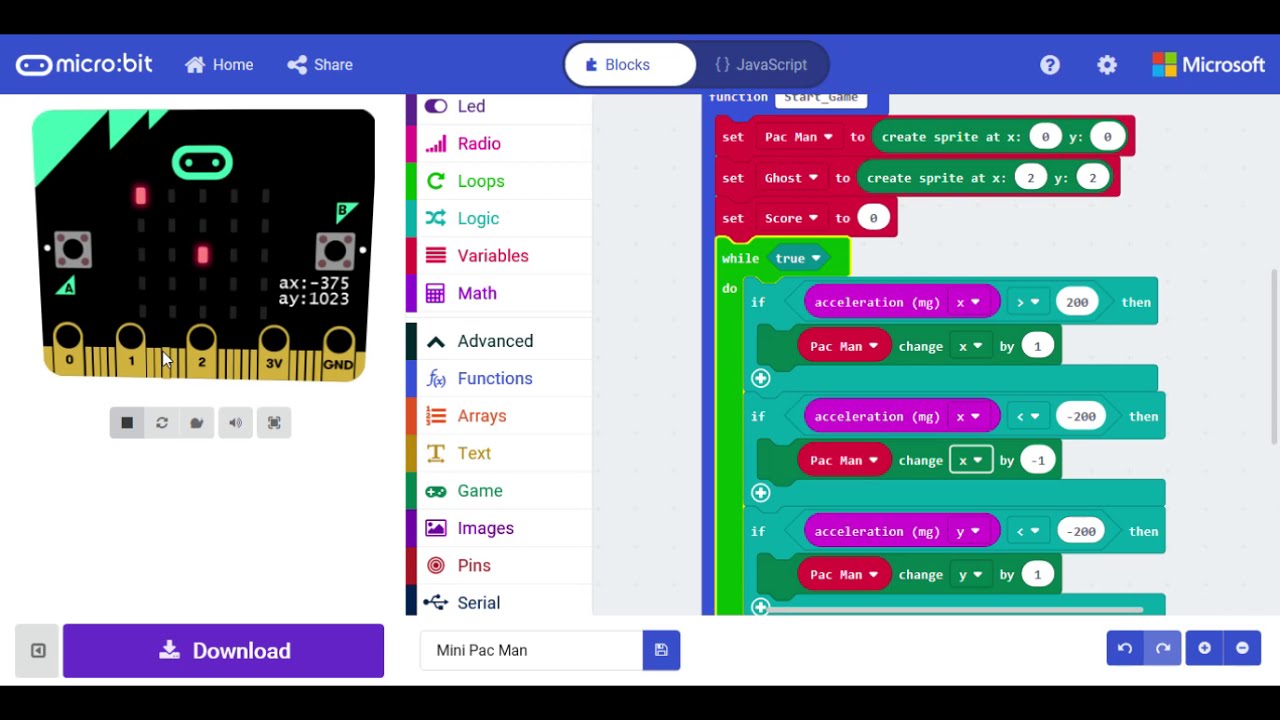
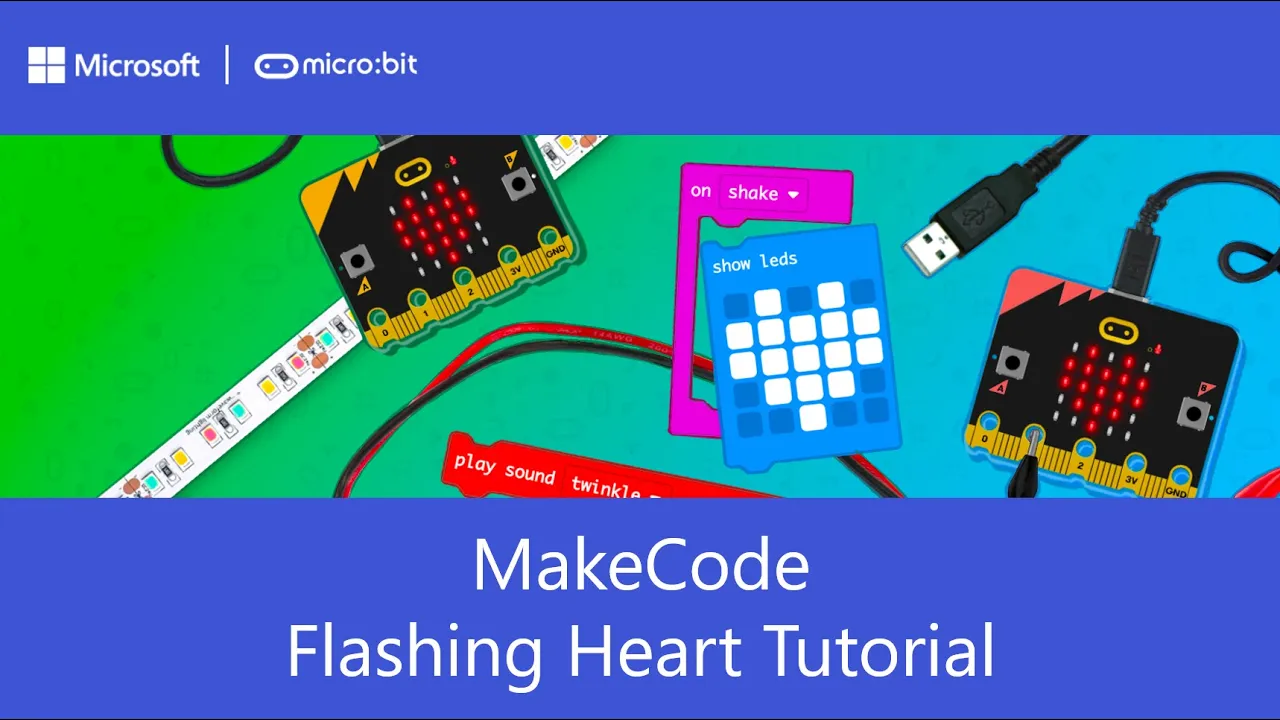
In this tutorial we’ll learn how to create an animated flashing heart on our micro:bit Let’s create a new project and call it Flashing Heart. When our project opens, on the left side of the screen we see something that looks like a micro:bit This is called the Simulator, and it will show us what our program will look like when it runs on the micro:bit This menu in the middle is the Toolbox – where I can click on the different drawers to open a menu of different blocks I can use in my program On the right side
is our Workspace, and this is where we’ll be constructing our program Notice that we already have some blocks of code on our Workspace Anything I put in this On Start block will automatically run when my program first starts And this Forever block means that whatever we put inside of it will run over and over, forever and ever! For our Flashing Heart project, we don’t need the On Start block, so I can remove it from my Workspace by dragging and dropping it on the Toolbox. To create an image of a heart on our micro:bit, we need
to open the Basic Toolbox drawer and pull out a Show LED’s block and drop it into the Forever block – you should hear it click into place The Show LED’s block let’s you design a pattern of lights to show on your micro:bit LED stands for Light Emitting Diode which is just a fancy name for light I can turn on lights by clicking on the different squares So let’s go ahead and draw a heart Notice that as soon as I make any changes to my code, you can see it show up on my micro:bit simulator Now
that we have a heart image, let’s make it flash! From the Basic Toolbox drawer, let’s drag another Show LED’s block into my Forever block, right after my heart And I’ll leave this one blank Notice on my micro:bit I see a flashing heart! This is because my Show LED’s heart block is running, then a blank Show LED’s is running and it’s repeating over and over Forever! You can add as many of these Show LED blocks in a row as you’d like, to create some pretty complicated animations Let's add another Show LED’s block and draw a mini
heart Once you’re done with your program Connect your micro:bit to your computer using a USB cable, or Bluetooth if you are on an iPad Then click the Download button in the bottom left corner Then follow the directions to download your program to your micro:bit The yellow light on the back of your micro:bit will flash as it’s downloading Once it’s done, you should see your flashing heart appear on the micro:bit!