hello everyone and welcome to the game engine programming series I'm going to write a game engine from scratch and I thought it would be a good idea if I would record everything I do in videos and share them online and by doing so create an online resource for people with the same interest in low-level game engine programming hopefully these videos will be useful to you and more importantly they will be enjoyable to watch so without further ado let's get started [Music] okay let me start by describing the general architecture of the game engine as I
plan to implement the game engine itself is a static library written in C++ and it will provide all the functionality that's needed to run a game of course the library alone is not enough to create a game with for that we need a level editor which I'm going to write in c-sharp and WPF the reason that I'm using c-sharp instead of C++ is that creating a user interface in WPF is much easier and less time-consuming than it would be in C++ but the way I am planning to set up this project is that the engine
will be completely independent of the level editor so if you are going to follow along with me you can choose whatever framework works for you for example cute or STL or any other framework that you feel comfortable with if C sharp and WPF are not your thing for me because I'm using two different frameworks I need addy allow a dynamic link library to facilitate the communication between the two and of course there is also the game code that we need to write in C++ which is basically scripts that we can attach to our game objects
when we are making the game in the level editor so that's pretty much all the parts of the game engine as the project and concerning the videos I think it's a good idea to color codes each episode so people can see on what part I will be working in that particular video so because we are more oriented towards low-level game engine programming I consider those to be the more important videos for people who are interested in game engine programming so I'll color code those videos red whenever I am working on a game engine site and
those are must watch videos for or game engine programmers and whenever I'm working on the DLL and level editors sites those will be the green episodes and those are recommend that if you really want to understand everything about this game engine including the level editor but sometimes I also need to do some unrelated stuff that's totally not interesting to game engine programmers for example defining the look and feel of the user interface elements like a button or a particular WPF control and those are blue episodes which you can feel free to skip and those will
only be interesting to people who are also user interface developers and I'll record them and put them out there just for the sake of completeness but they are skippable so this concludes describing the way I'll set up this project and the videos next I'll set up visual studio so I can start programming ok I've got visual studio started here and I'm ready to set up the project the first project that I'm going to create is the static library for the game engine I'll call the project engine because it's just one project within the solution and
the solution name is the name of our game engine which I chose to be primal primal doesn't exist in the form of a game engine and it's easy to type so that's why I chose this name now Visual Studio created a bunch of default files for us that I'm not going to use I'll just leave them there for now so I can go ahead and create our next project which is for the editor that one is a WPF project totnes core application and the project name is the primal editor now one thing I noticed is
that visual CTO picked the wrong target platform for me I would like to have xx c4 as my target platform and I'm going to remove the other platforms that I am NOT going to use so everything is nice and clear and that I can do in the configuration manager I can go to active solution platform and edit and here I can delete the other platforms that I don't need now all we are left with is the x64 platform and that's good now I can try and build my project before doing so I'm going to set
this primal editor as my default startup projects because obviously we can't run a static library here I'm going to check the output directory and I see that the engine library is built here but I don't see the editor and the reason is that the editor is has its own output folder of course and since I'm going to use the engine library and the dll's that I'm going to create later on with the level editor it would be nice if everything was output in the same directory so I can change that here in the properties of
primal editor here is an option for the for setting an output path I can set the output path for the debug field to the debug folder for the engine and of course the target frat platform here as well and do the same for release builds build again and check where it is if the editor is now here as well so I see that the folder which contains the editor is now in the output folder of game engine itself as well but they are still not in the same directory the reason is that Visual Studio appends
the target platform name to this output path that we gave it here but there is no other option for me here to set to prevent Visual Studio from doing this but still I can make these files B output here by manually editing the project file of the primal editor here we have the options for the project and there is an option I can set to prevent appending this name to the output path so this is the option that I can set to false and when I do this visual studio bond append this name to the
output path anymore so save this and build again now I can see that everything is output here I can delete the old one and we are good to go so one more thing I would like to do is to make visuals you pick the editor project as the default startup of course I can always set it by right-clicking on it and setting it up as startup project but whenever you want to open the solution on another machine you have to repeat this step one way to prevent that is to just go here in the primal
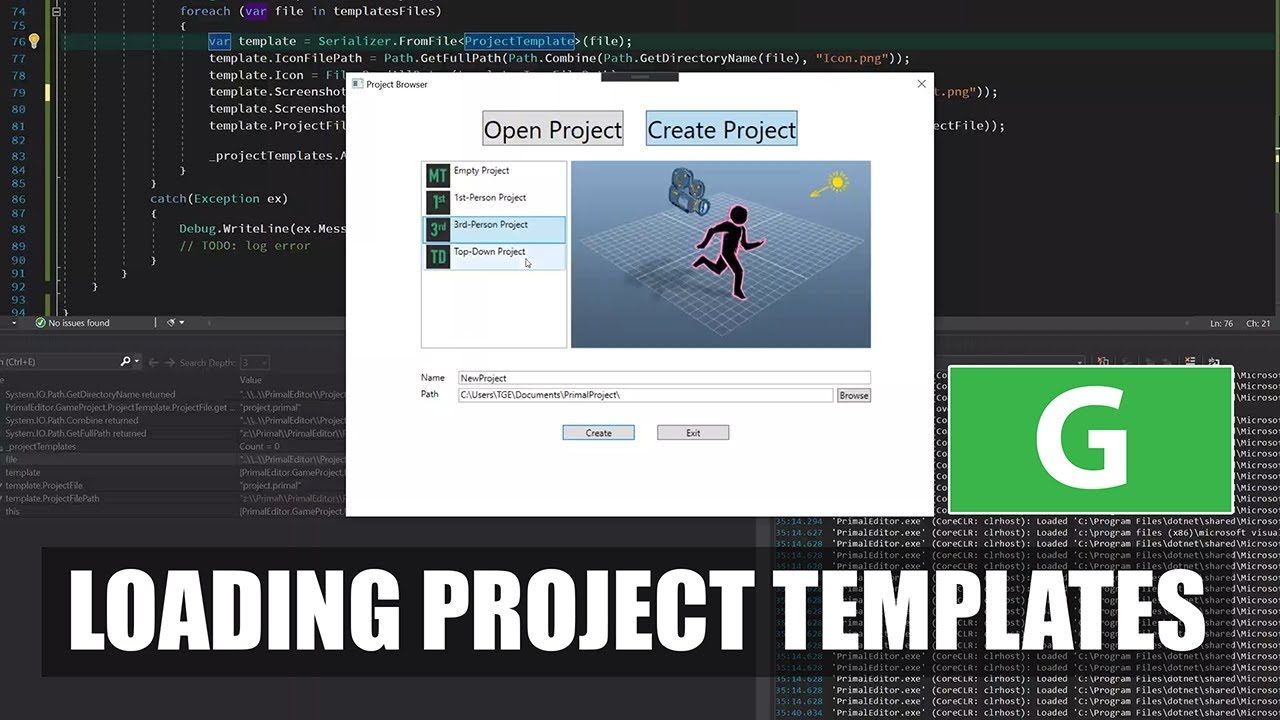
solution file I see two projects here one for the game engine and one for the editor and if I would put this one as the first project then visual studio would take this automatically as the startup project so we don't have to set it every time we open the solution on another machine okay now we are ready to start coding and the first thing I would like to do is to show you what I want a editor to do whenever I start the editor for the first time so here is a dialog window which presents
us with option to open existing projects or create a new one of course we don't have any projects yet because the game engine doesn't exist yet so the first option that we are going to use is a create project but suppose we at some point have game projects then here would be a list of all the projects that we are working on and there is an icon next to it and the name of the project and a screenshot of the last view that you had when you were working on that project and the two buttons
to open or exit and the same thing is for creating a project we are presented with a list of templates that we can choose from so we can have an empty project or a first person or a top-down real-time strategy kind of template that we can choose from and the same as open project we have an icon and the name of the templates and a template picture that signifies what what is in the template right and of course we can give the new project a name and the location to be created and the buttons to
create and exit the application let's start by adding a new folder here game project and I'll put here everything that is related to the game project so the first thing I'll create is a window for browsing the project I don't want this window to be resizable so research mode is no resize let's make this smaller and window location or stop startup location is the center of screen I'll do the same for the main window I'll give this a title primal editor and windows startup location is also the center screen the first things I want to
put here are the two buttons that I can use to pick from opening a project or creating a new project I need a grid here with two rows and height of this row is automatically determined from what we put in that row and the second row is just a default height so in the first lower row I'll put two buttons I'll use a stack panel for this but the horizontal orientation and I'll use toggle buttons too to have our open project or new project buttons so this one is open projects and this name is open
project button and I'll have one more with new project now these buttons are quite small now so I'm going to give them a larger font size going to put a little distance between the two and of course want them to be centered so I'll Center the whole stack panel and give it a little margin as well next I want here to have my controls for opening a project or creating new project all by the way change this to create a project to be a bit more descriptive so another stack panel the thing I want to
do is to have these two controls next to each other for opening a project and creating a project and depending on what button I have selected this whole stack panel will be shifted to the left or right to make either open project control visible our create project control visible so for example I can have here a border with a width of 800 and blue background for example and of course I want this to be on the second row of the grid okay so this blue background represents the control for the open project so it's basically
this one what we see here and underneath these buttons this is what is now blue and the creates part is will be next to it and whenever we select create project button it will be shifted to the left so we see this part and then we go back to the open project it will be shifted to the right so we can see the open project so I'll have here a text block with big font size that says open project and I'll have another bond that says create project and it's screen so if you look at
this we see that there is this border is now next to this part and I can now take this stack panel as a whole and if I would shift it by 800 to the left which is minus 800 pixels then you will see that create project is now visible so that's the way I want to shift between the two controls basically okay let's test this now we see the main window but we of course don't open this dialog window yet so that's what I am going to do here in the main window so I can
go here and create a function that is called whenever the window is loaded here I'll detach this is handler again because we only load this window once and this shouldn't happen multiple times anyway and we'll have other function to open the project browser dialogue here I create an the project grocer whenever I open a dialogue window basically in WPF so in this case it's the project browser well it's actually it inherits from Windows so if we want to open it as a window we just call show this function and this will be like an independent
child window but I want this to be a dialog so we have to first let's rename this because I see it's there is a typo here you okay so I want this to be a dialogue so I can't go to the go back to the main window and for that we have another function which is show dialogue and show dialogue returns a nillable boolean value that can be no false or true and whenever this value is false I want to just close the application because the user apparently clicked the exit button so here is the
application current and shutdown otherwise I would like to open the project we haven't got any data model for the game project yet so I'll leave this empty for now but this should now cause the project browser dialogue to open whenever the editor is started so let's see if that happens okay so now we have this project browser dialog opened every time we start primal editor and these buttons of course don't do anything yet and we see that there is a we can go back to this main window as long as we are in the dialogue
window so that's good next I want you to write the logics for these for these buttons so here I'll give them an event handler for when a user clicks on either of them it'll check which one was clicked so I will compare the sender to for example open project button so if that button was clicked I'll check if you are coming from the creates project control or we already we're in open project control so if you are already here in open project and we click open project again nothing should happen open project should stay selected
and we should stay here otherwise if we click on create project button then this whole thing should shift to the left and the this green control should be visible there and the same should happen in the reverse order when we are in the create project control so I'm going to implement that now so if you are we come from the creates create button let's see if I have the good the correct name for this this is a new project but I mean it should be create so create project button if that one is checked that
means that we where in create mode and we are coming to back to open project mode so open project button should be checked well it should stay checked anyway because even if we already we're in open projects mode then nothing should happen so it should stay checked but if we came back from create project button then this this button should be unchecked and this stack panel should shift to the left so I'm going to give this stack panel also a name so this brochure contents all set is margin to zero because well we were in
create button mode so it was already shifted to the left now we are going back to the right so this whole thing happens for the create button as well so if the sender wasn't open project button well it should then be the create project button so if we came from open project button if it was checked then it should get unchecked and we should go to minus 800 pixels and otherwise if we were already in the create project mode then we should just nothing should happen right so let's check this now if I'm in open
projects then nothing happens and I create project will shift shift these controls to the left so I now see the create project control and if I click once more and create project and nothing happens of course and I can go back to open project so this works and one thing I notice is that when I start this editor none of these buttons are selected while we are in open project so I want this open project button to be selected on default and the other one unchecked now the open project button is selected on default that's
good I'll change the title for this as well just project browser and the next thing I want to do is to implement this open project and create project controls according to our design this is our design and I'm going to create these controls now for the open project and the create project so I'll add two more controls here a user control for the new projects and one for open projects okay in the open projects control I would have a stack panel and in there I have another stack panel for the list of lists of project
templates and screenshot and next to it will be a border that holds the this picture of of the template and of course I want this tech panel to be centered horizontally underneath I want another side panel I'll give the stackpanel a background of white so we can see everything that I put here you I'll also have a button to to browse and select a location instead of typing the path and the last thing I would like to add is two buttons to create the project or exit this window you one more thing I can do
is to make this create button the default button so we don't have to click on it explicitly we just if we hit enter button them it's like clicking on this button so it's default I can set it to true and for the exit button I can set its cancel to true that means that when every user hits escape then it's the same as clicking this button so we don't have to click it explicitly so in the project dialog I will replace these borders with the correct controls that we just created so first is the open
project control and the other one is the new project control okay the reason that is it's not displayed correctly is that I haven't given these either of these controls of a definite width so I can go here and tell the control that it's 800 pixels wide and the same for open projects and now when I run the the editor we have the correct behavior this window is not high enough to to contain our everything in the create projects so I can go back here and make it a bit higher for the open project I just
want to copy/paste everything because they are very similar to each other I just put everything here and the only thing that's different is that we don't have this names name and path fields because well we already have the project so these should go and of course it should be open and we are done okay so now we are an open project and then when I click on create project we have the other control these buttons don't work of course yet but the exit button works okay I think this would be a good place to wrap
up for today and next time I'll try and create the logic behind creating a new project and opening existing Don thanks for watching if you like this video please feel free to like and subscribe if you join me on patreon you'll get access to the code on get up so you don't have to type everything over from the video plus there are also other nice goodies and rewards exclusive to my patreon supporters please use the link in the video description to check them out I hope to see you next time until then take care and
happy game engineering [Music] [Music] you [Music]