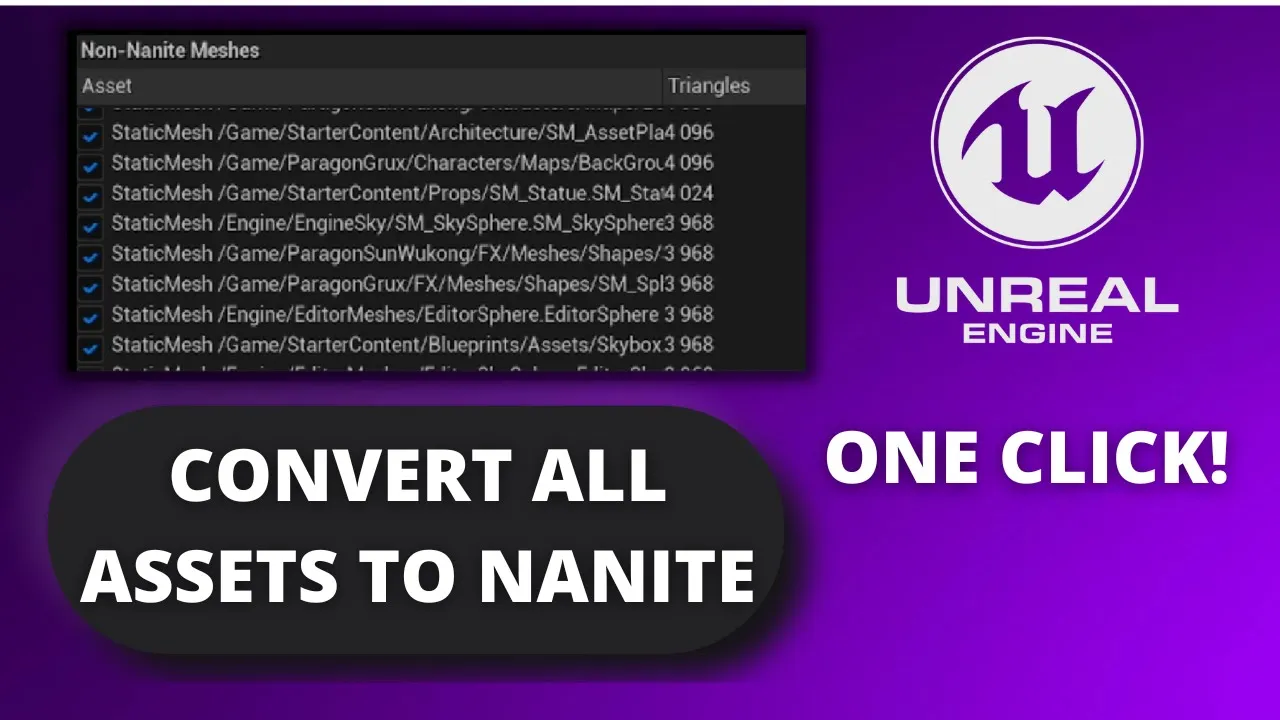
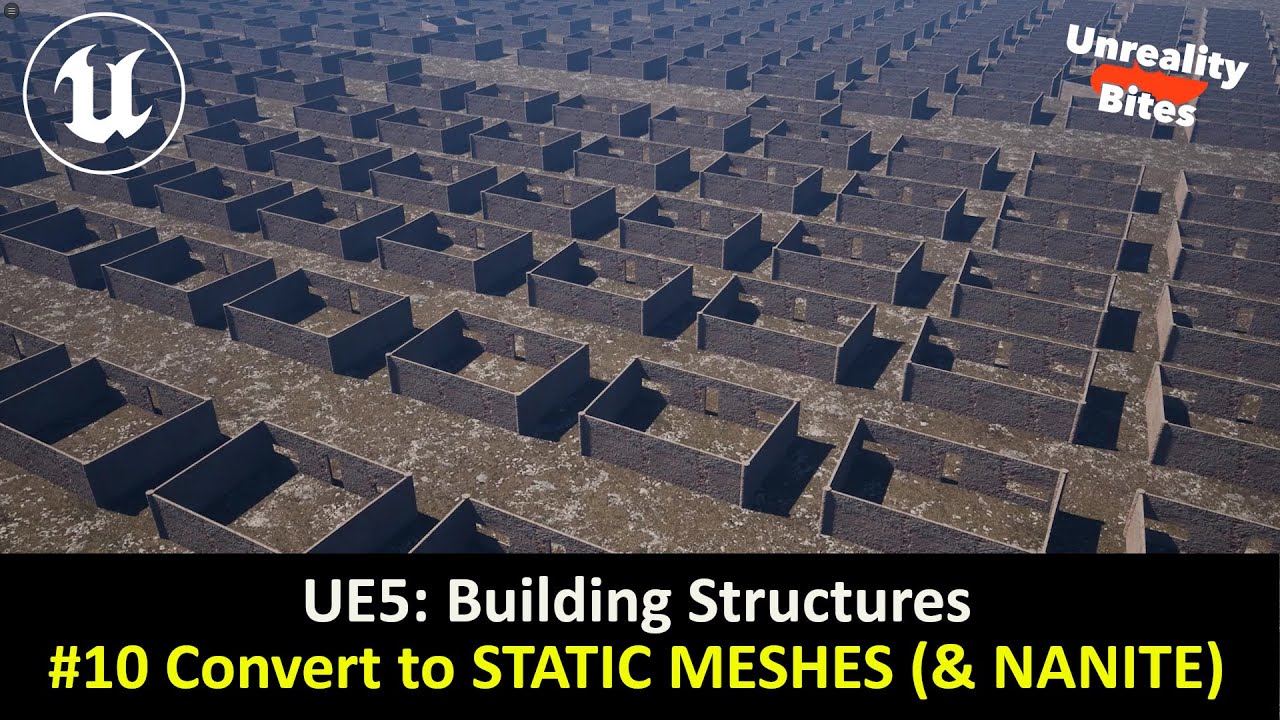
what's up guys welcome to new unreal engine 5 tutorial and today i am going to show you on how to convert all the assets in your project into nanite literally from a single button it's going to be very fast total and easy to follow so uh let's get started so the normal way to you know enable nanite will be basically right clicking in your starting mesh going into nanite and then hitting enable right or go ahead and open it up and then uh in the details panel enabling oh there's a much easier way but first
we need to load all the assets into memory in order to do this we can go into the basically the overall content browser then here we're going to filter by static mesh and boom it will filter up all this all basically all the starting meshes that we have and literally what you have to do to load them into memory you can see that my ones are loaded in right now uh basically ctrl a and it will select everything right all the static meshes that you have and the only thing that you have to do is
literally right and by that you can see that it's basically uh loading all the assets into memory so just wait uh you know patiently it might take a while if you have a lot of uh you know high detailed assets but anyway it it won't take so much so yeah there we go uh now of course you could go ahead and just enable nanite for everything but there's unnaturally a much better way uh which i will show you so in order to do that what you have to do is go up in here into tools
and then you go into nanite tools and this window will pop up basically we need to go into the optimize section and what we have to do is go here in the triangle threshold and basically lower this so uh all the assets that are basically you know smaller we can also convert them into net so you know go ahead and find like a value normally leave it in 120 you know to also get like small things that really don't exactly require nanite but anyway so yeah basically in here we are seeing all the assets that
will be converted into uh basically you know nana so what you have to do is click here enable nanite and this process will take a while i'm saying depending and of course the number of assets and the scale of the project uh so go ahead you know and and you know just take coffee or go ahead and check out my other unreal engine five channels so right now i finished i go close this and i go basically into an any assets you can see that it has the the this symbol uh basically basically that means
that it has been like edited but not safe so for example if right now i go ahead and open uh this model you will see that nanite has been actually enabled on here so that's it guys if you enjoyed the video and found it easy to follow please like and subscribe uh remember to go ahead and check out my other unreal engine 5 tutorials and comment uh what other tutorials you want to see and um bye bye [Music]
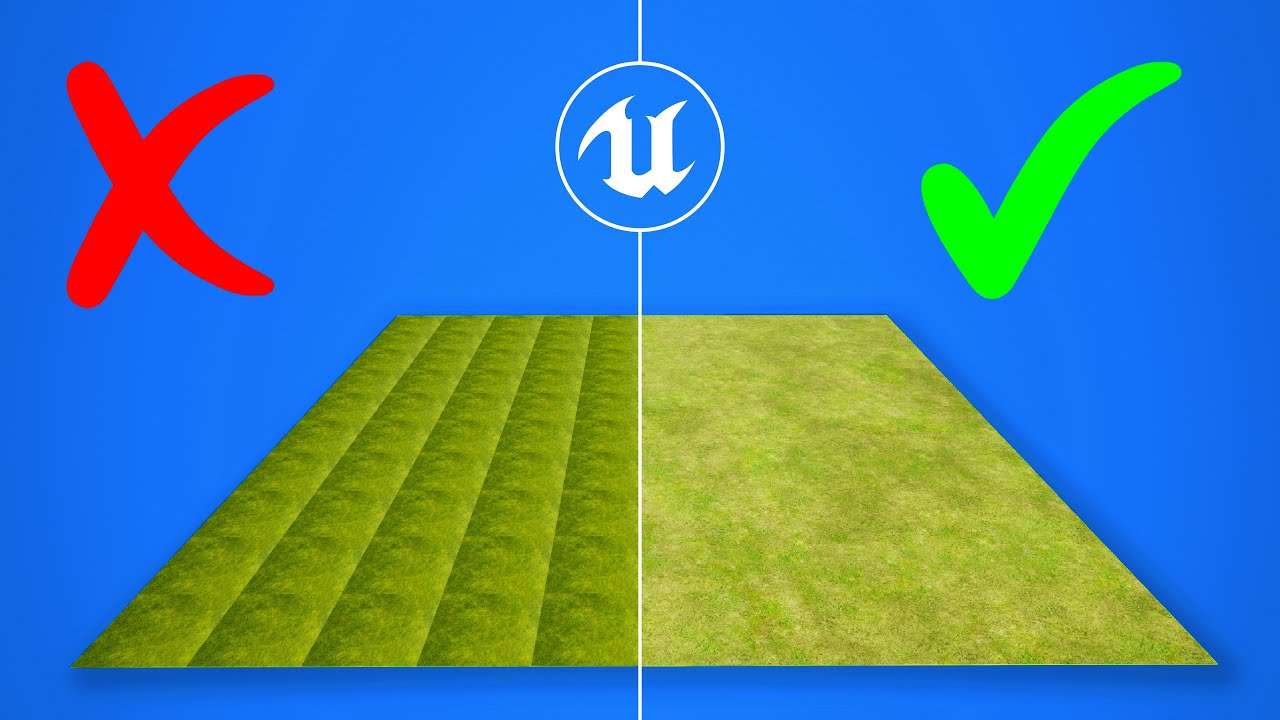
![Nanite: Everything You Should Know [Unreal Engine 5]](https://img.youtube.com/vi/P65cADzsP8Q/maxresdefault.jpg)
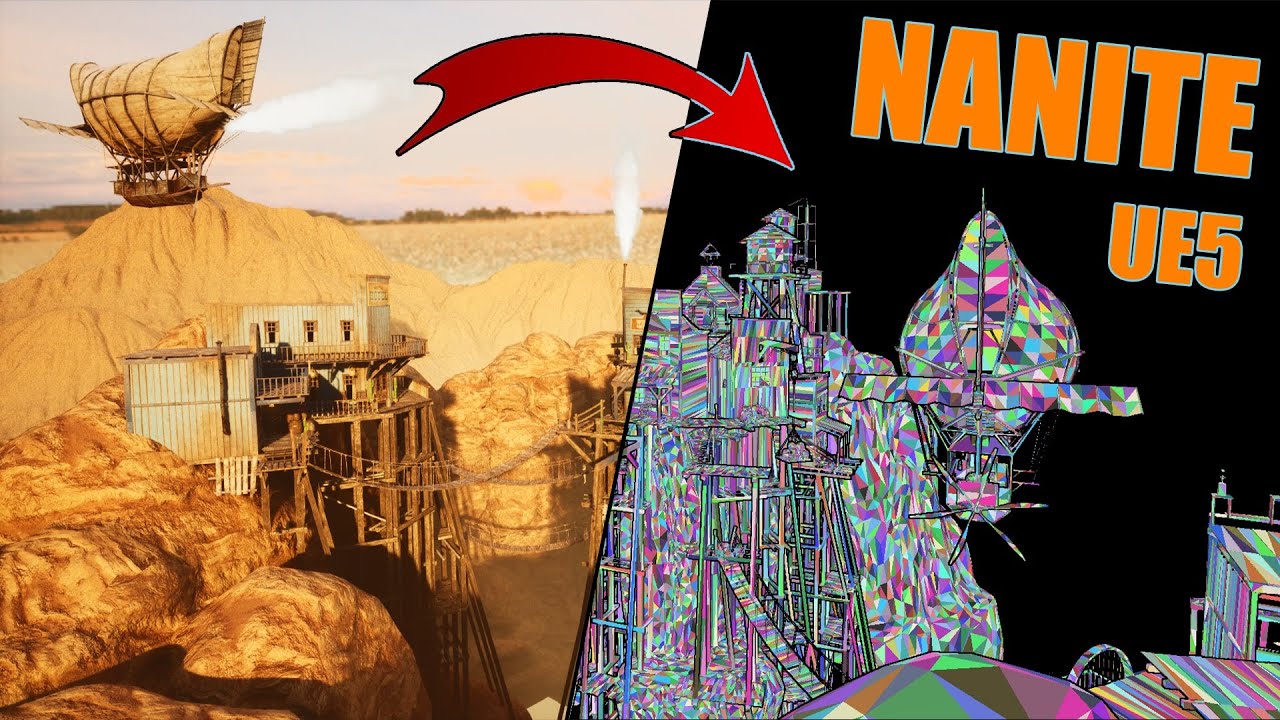







![Creating Mars in Unreal Engine 5 [Livestream]](https://img.youtube.com/vi/H_U_JNuwz_A/maxresdefault.jpg)