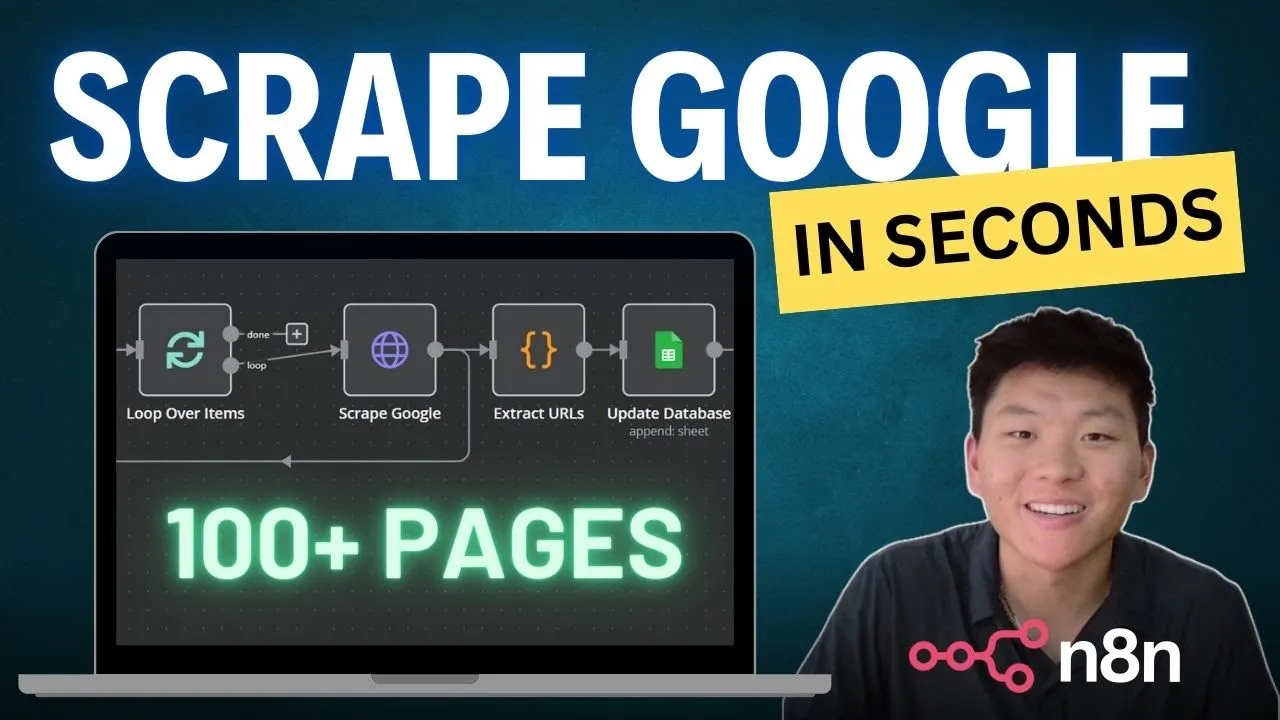
so let's hit test workflow we'll see this process start it's going to go through for each of these requests it'll go through into this code node and let me drag in this Google Sheets real quick and you can see that we're going to start to get all these items put in so there goes the first 10 we scroll down a little bit we should see 10 more pop through now we've got even more items floating through it's an a total of 80 right now 90 now a couple weeks ago I made a video where we built this agent step by step and we gave it access to this tool that would scrape Google and it would return LinkedIn profile URLs based on you know how we chatted with the agent and what kind of profile we were looking for and the video did well but you guys were asking for what if we wanted to scrape hundreds and hundreds of profiles rather than in this case we were just scraping 10 because only 10 results show up on a Google search so in this video that's what we're going to be talking about if you haven't watched this original video I'll tag it right here I would definitely go do that real quick and then come back to this video it'll make a lot more sense but essentially we're just going to be replacing this scrape Google tool with one that you know has page donation in it so that we can go through multiple pages of Google rather than just returning that first page so just a a quick recap here's the logic of that original tool that we had in the first video where we were scraping Google it's really just an HTTP request and when we run this we get a huge chunk of HTML and then this code node all that it was doing was parsing out just the profiles out of that massive block of text and now we have these two different um workflows where basically it's the exact same thing as you can see the the HTTP request and then we're extracting the URLs but we just have a pagination parameter before we go into the HTTP request and then we're going to Loop over multiple times based on every time we want to um you know first time is going to grab the first page and the second page and the third page and the fourth page and so on and so before we get into the actual configurations of these new nodes I think we should just real quickly talk about HTTP requests and how all this works so specifically when we're doing a Google search HTTP request this is what we're doing we we start the URL with https um/ Google search and when you type this into Google and you you hit enter this is what you're going to see just the Classic Google search page that we all know and love from there we start to add parameters so all that we're adding here is the parameter um question mark Q the question mark pretty much just States like okay everything after this is going to be parameters that we're looking for within Google search so we have q equals site linkedin. com slin which as you can see this is what we type into Google and then all this is going to do is return only sites that look like linkedin. com slin so as you can see all the results that are going to coming through here Will just be LinkedIn results from there we want to you know key in even more based on different filters so in this case we're looking for CEOs in real estate in Los Angeles so those are other parameters that we put in as you can see in the actual Google search that's what we're doing right here and now we're getting back only search results from Google that are in the site linkedin.
com and that also have hits in CEO real estate and Los Angeles as you can see um Annie Chan is CEO Real Estate Los Angeles James Suarez same exact thing and it was just going to go on and on and on because it's just essentially we're just searching Google and then from there we get into pagination so at the end of that we want to throw in a start parameter start equals z would just be the first page of of Google results or you could just not have any sort of start equals and it would be the first page and then you go start equals 10 which means the search is going to start after the first 10 results and now you can see if you type that in it's going to be on page two start equals 20 would be page three and so on so that's kind of how we're going to configure that pagination so let's just get into how this is going to work this is the first workflow that I was working on where we're just doing the same thing within this HTTP request we're searching google. com we're doing the site LinkedIn CEOs Real Estate Los Angeles pretty much exactly what I was just showing you guys and then I was testing out this thing where you can ask for a certain amount of numbers back so we were asking for 100 results and then we were doing start and this Json start is just coming from in this page ofation let's say I run this real quick it's going to give us five start values 0 100 200 300 400 and this one would just be looping over each of those items so it would first feed in HTTP request and then it would fill in this parameter of start equals at zero and then it would do it again for start equal 100 start equal 200 start equal 300 start equal 400 and that's pretty much what's going on here and then let me just run this real quick and we'll see what happens but I came into this issue last night where okay it's going to work right now so this is awesome it's going to be getting pretty much like 500 results it's going to be extracting those URLs so let's see what's coming out of this HTTP request like I said it's a massive chunk of HTML it's so ugly it ran five times so each you know this one I said was the start equals 100 um this next one was going to be start equals 200 so it's doing a paginated request for us which is awesome and then what we're getting back as you can see is okay it's actually not working right now because um another one of the issues I told you I was running into but basically um when you request too much you're going to get some errors and Google's basically going to know that it's not a human doing the searching so that is where we're going to start to run into issues and that's where we have a different workflow that sort of uses a custom search engine in order to bypass this so like I said when I was doing this last night I got super excited because I was grabbing 500 profiles at once and I knew I could have even made it more so like if you go into here we go into the first run which would have been the original page you type in linkedin. com that's what we're searching for um and if we go down far enough we should see um Annie Chen which is actually the first search result that popped up right here so we can see linkedin.
com Annie Chen and back in these slides as if you remember when we searched for CEOs of real estate in La Annie Chen was the first result followed by James Scott Suarez so if we keep going down we should see James Scott right here James Scott Suarez so we know that this is actually working it's scraping you know 500 profiles um they're just seems to be an issue right now with this this code node okay there as you can see I don't know what what happened but I just tested the step again and you can see that we're getting um a ton of results back so this first run we got all these items then we got you know all these items you can see Annie Chen James Scott we got a ton of different profiles it just keeps going on and on so this is awesome and it's going to work right now but if we keep doing this we're going to run into an issue where we're going to get an error that's basically going to say like you're blocked so that is why we're going to move into the second workflow real quick that'll show another way to do this all right now this is the second workflow this is as you can tell looks pretty much identical the only difference in this logic is that within this HTTP request we're not doing a Google search in the URL we're doing a search through a custom engine so as you can see it's www. googleapis. com custom search slv1 and then we put in our parameters so all this really is you're going to come to Google and search custom search engine you'll click right in here programmable search engine and then in here you're just going to set up a search engine it's super easy it's going to be custom and and then you're just going to want to grab right here your search engine ID so this is the information that we need and then all the other thing you need to do is go into your Google cloud and if you don't know how to set up a a web app um I've made videos where I sort of walk through how to set up all this and the consent screen all that I know for a fact I did it in the how to create an email AI agent I also just did it in my n master class so go through those videos if you get confused here but and it then has docs so it's pretty simple but you just want to grab your actual API key within here because when you're setting up your custom search engine this is pretty much how it's going to work you're going to do https you're going to do this www.
googleapis. com and then once you start right here with the question mark you're going to have to enter a key that's where you're going to enter your API key you're going to put an and and then you're going to do CX equals and that's going to be your search engine ID which I just showed you within you know the Google custom search engine and then finally that's when you're going to start to add your parameters like you know job description what type of job um location and then you can also start to add you know start equals 10 start equals 20 in order to get those paginated responses so as you can see that's what we did in here um I'll have to blur the stuff out because it has some keys but that's all we're doing right here um and then same thing with the json.