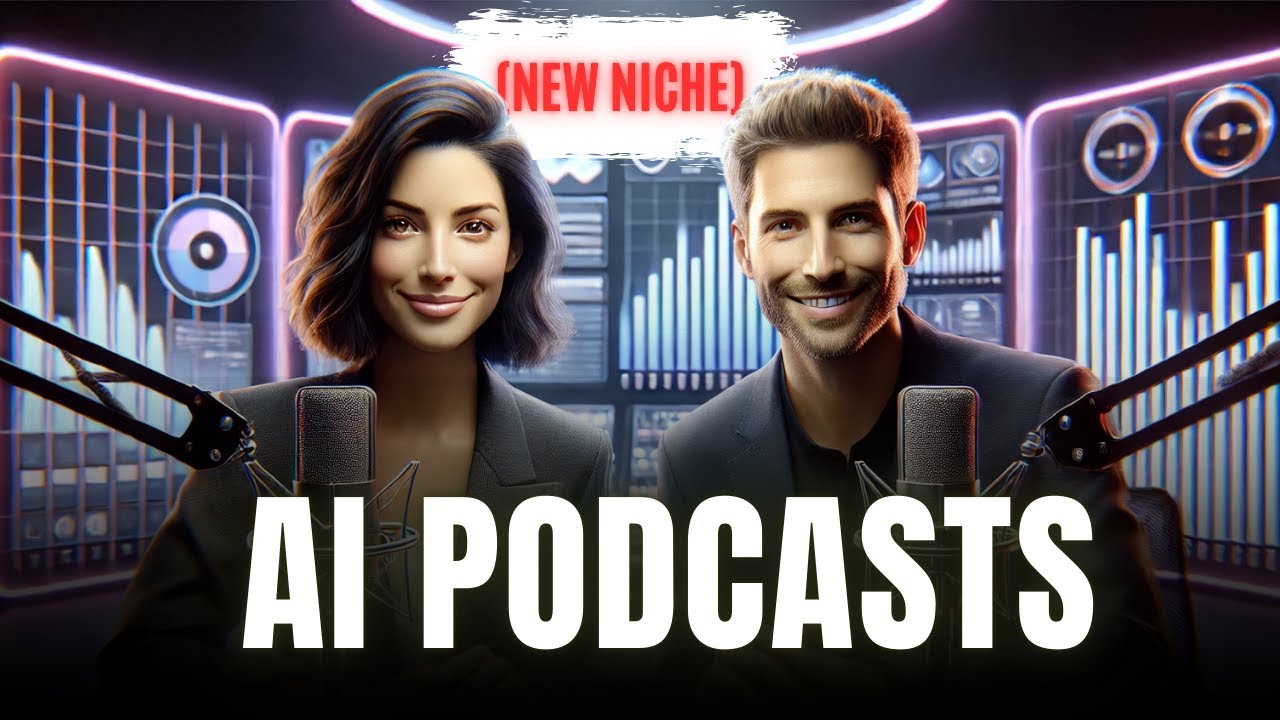
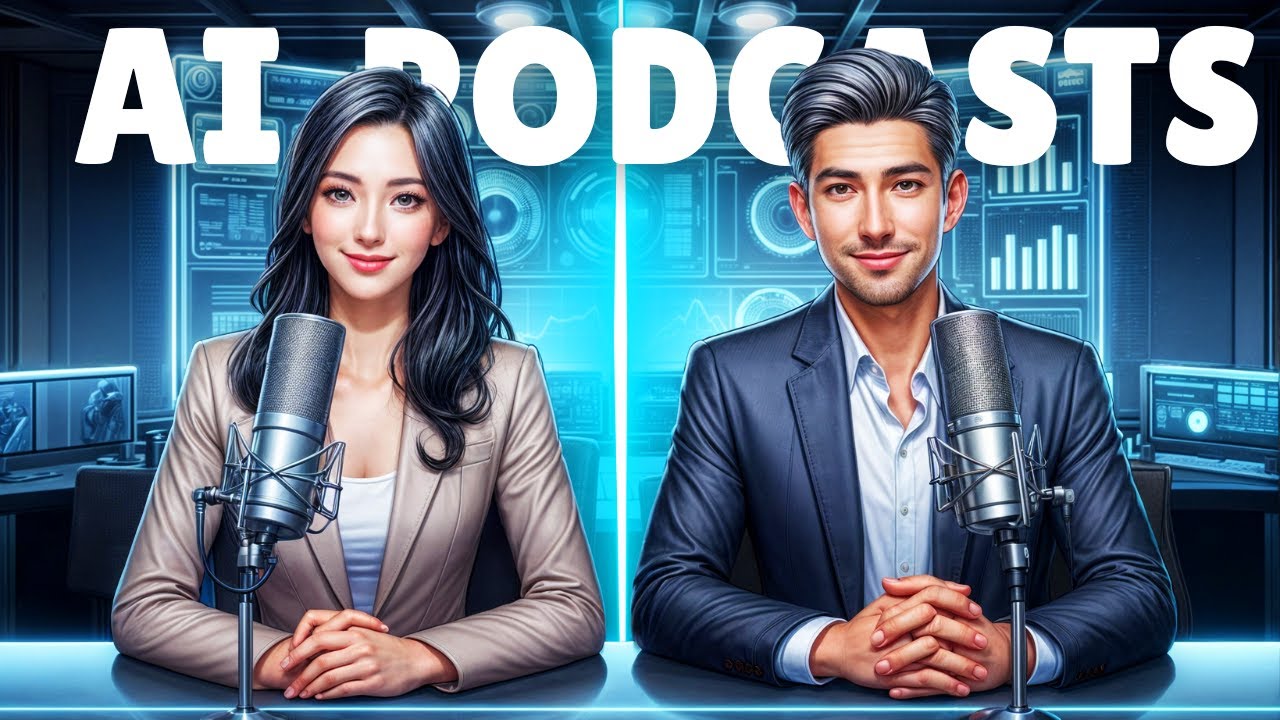
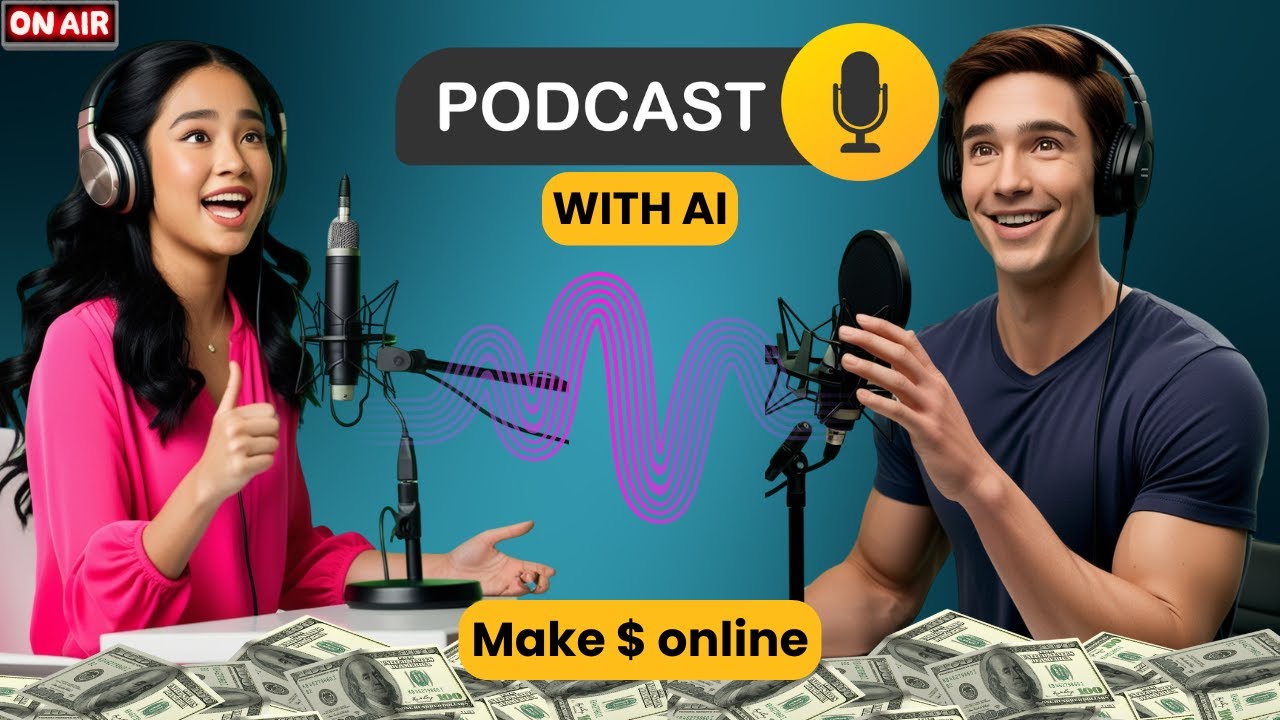
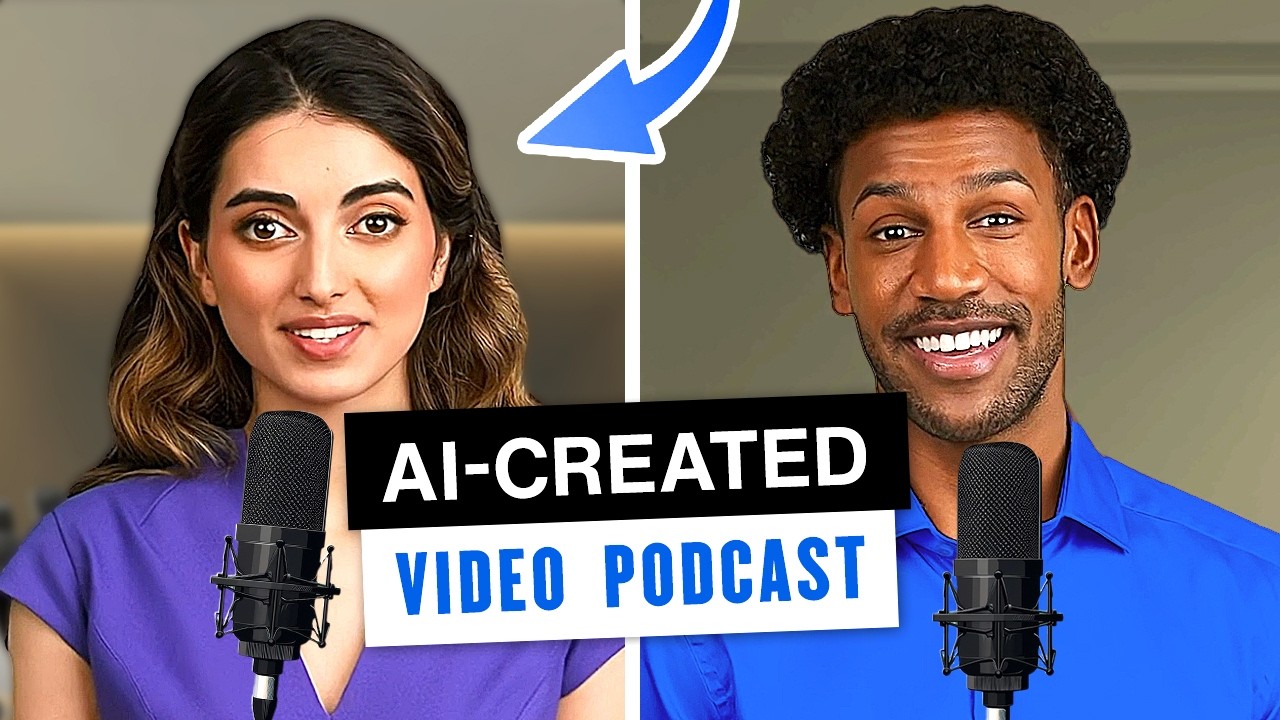
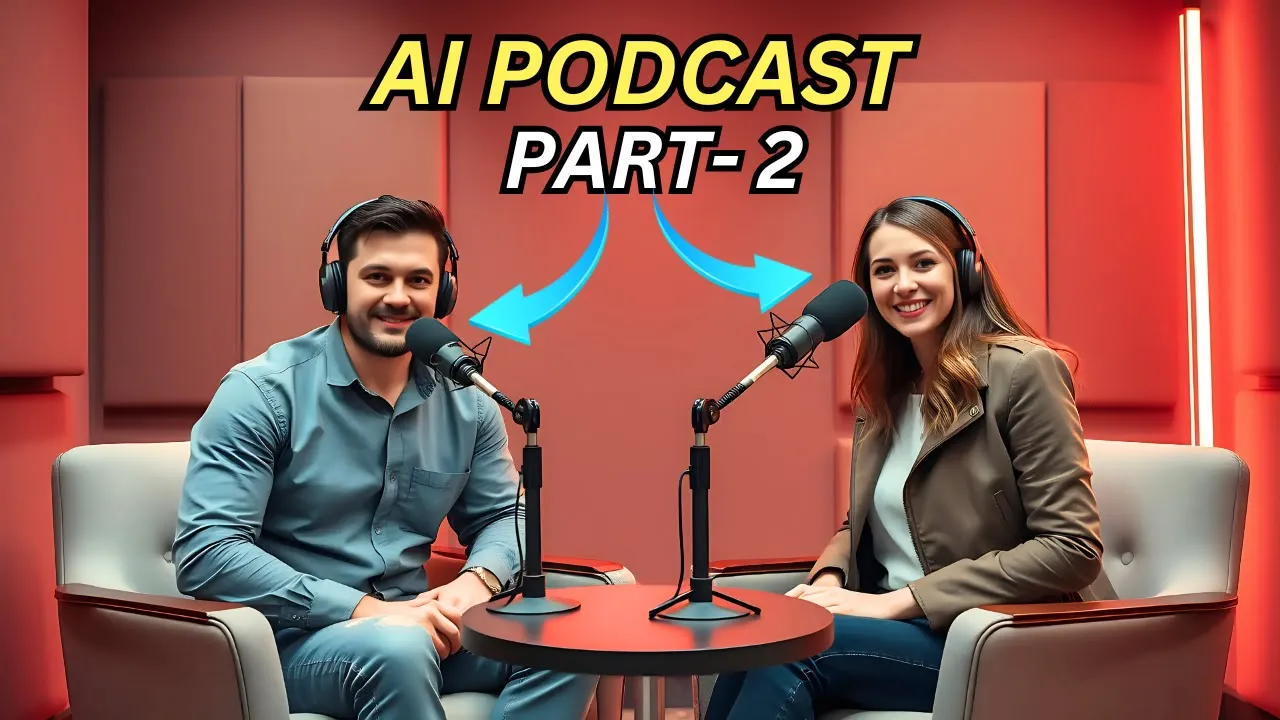
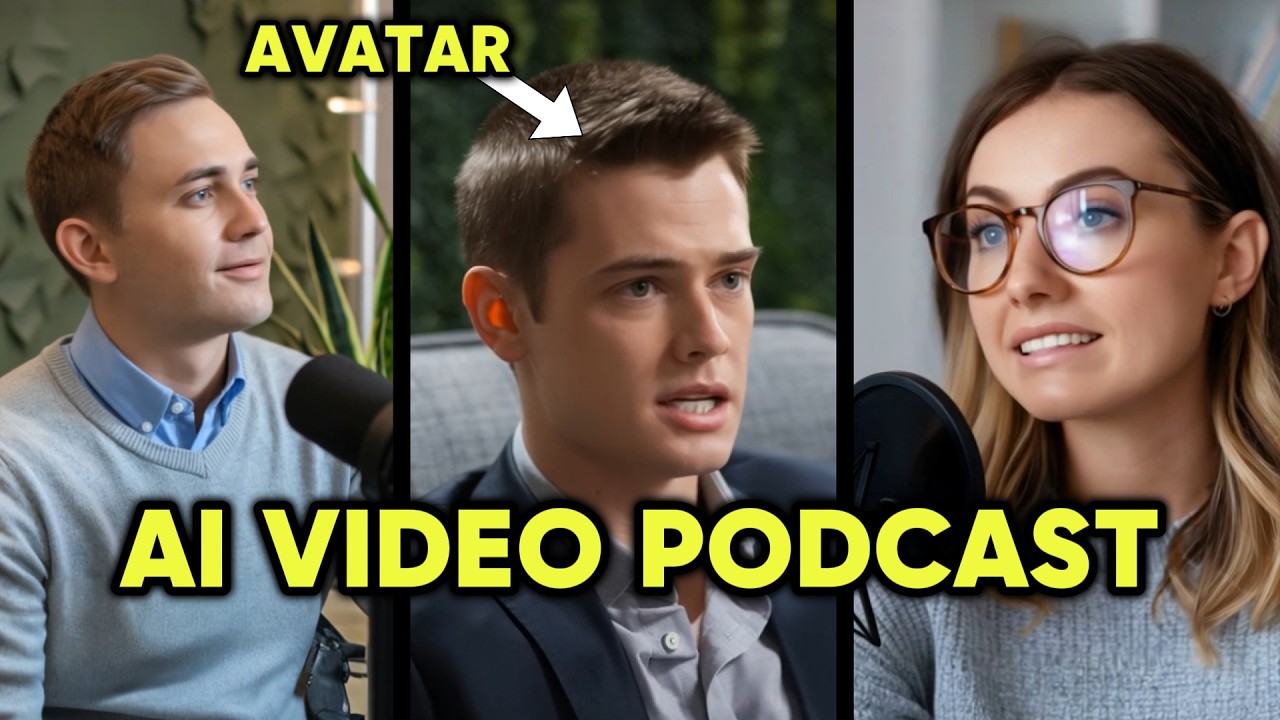
You all liked Part One of AI Podcast very much and many people have commented for Part Two that I should also teach you how to make a video podcast, so here is Part Two of AI Podcast for you, if you have not seen Part One yet. You can watch this video by clicking on the link given in its description or by clicking on the button above. In the first part, we had created only audio podcast which did not include video, but this time in this video we will learn how to create a video podcast and that too in 100 minutes.
% By using free iTools but keep in mind if you miss any step or skip anywhere in the video then you will not be able to prepare this entire podcast video because every step is very important so watch the video completely then let's start. Let us do as we told you in Part One that you can generate audio podcast from Notebook LM and to generate audio podcast you get multiple options in it like you can generate audio podcast from your Google's document in any Create your audio podcast by clicking on the copy text option on website or youtube. com.
I have explained all the methods of creating audio podcast in detail in part one, so you must watch that video. Download the podcast. This step is very important, so do not skip this step at all and understand this step very carefully.
First of all, we will import our podcast audio in Cap Cut and then bring it to the timeline. We have to adjust this audio file of ours. From this audio file, we have to divide both male and female voices separately, so watch this step very carefully.
First, we play this audio once here. All right every buddy. Welcome back your listening to the deep dive today veer guna be looking at what it is like to be a successful user yes so as far as the voice of the mail is concerned i.
e. the voice of the mail is ending there we have to make a cut now the audio Play ahead and listen to Yes and Be diving deep into a podcast episode tomorrow Creator's Corner and the host of the show has some really good advice on packing or so and now as far as the female voice is ending, then cut there. Now we will play the audio further and where the voice of male is there, we will cut it .
The male voice is ending , then we will make a cut there and drag the female voice down. Now in the same way in the entire audio file, we have to divide the male and female voices separately. We will drag the female voice down.
We are bringing this so that we know which is male's voice and which is female's voice, then we divide the male and female voices separately in the entire audio file. Now we have to separate male and female voices from our audio. Now we will select all the voice clips of the mail together and convert them into a compound clip.
Here you can see these gaps. Do not tamper with these gaps. The audio is as it is.
Now we will select the female voice clips together and convert it into a compound clip. Now we have to export these voices, so first we will export the male voice. Before exporting the male voice, we will We will delete the female voice from here, the length of our audio file is about 5 minutes, but here we have to export this audio file in the length of 3-3 minutes, so for this we will first make a cut within the length of 3 minutes and We will delete the audio clip on the right hand side of the cut and then click on export and here we will select the audio and export the male voice clip.
Now by pressing control z i. e. undo, we will bring the clip to the first position and Now in the voice clip, we will delete the left hand side clip because we have exported this part of the clip and we will export this clip by bringing it to the starting point on the timeline and keep giving a name to our voice clip like I am giving so that you can Be sure which voice needs to be adjusted where.
If your audio is too long then you have to repeat the same process and export the audio in a length of 3-3 minutes. Now go back to your mail voice clip using tomorrow + z i. e.
egg and The female voice clip has to be brought to the position after compounding because now we have to export the female voice clip, so first we will delete the male voice clip from here and the process by which we deleted the male voice clip for 3-3 minutes. I have exported a similar female You will also export the voice in a 3 minute clip, the steps which I am following here are the steps that you have to follow because all these steps are completely tested and I have got better results from these steps. You can see this process.
It may seem a little long but when you do it practically, you will not feel any length at all. Now again use control + z i. e.
egg and bring your male voice clip and female voice clip to the position after compounding . In this step, we will create a video for our podcast, so for the video, first we will need a podcast image, so first we will create the image, to create the image, we will search Pickman Eye in the browser and open the first website, on this you will get your account. You have to create an account.
After creating an account, an interface like this will open in front of you. Click on Create. Here, click on the drop down and select Flux Functional.
After that, select the image size from here. Now we will go to youtube1 9. We will select the option from here, we will select the number of images, how many images you want to generate at one time, so now we select two from here, now in this box below, we have to enter prompt to create our podcast image.
So we enter the promo. You will find this pro in the description of the video. After entering the promo, we will click on generate here.
Now the processing will go on for some time, then we will wait for a while. Now we have got two podcast images here, if you do not like the image. If it comes, you can generate it again by clicking on generate again, there is no limit on this, you can create as many images as you want from here, now the image you like will be downloaded by clicking on download, so now I have this If I like the image, then I download it from here.
Now we will enhance the quality of this image, for this we will use Clip Drp AI, whatever tools I am using here, you can find the link of all the tools in the description of the video. You will get it in Clip Drp AI. You also have to create your account.
After creating the account, an interface like this will open in front of you. Here we will click on the drop down and select the option of Image of Scaler. Now we will click here.
Now we will upload our image and click on upper scale here. Now our image has started to be upper scaled and in a few seconds now our image has been upper scaled. We will download the image by clicking on download.
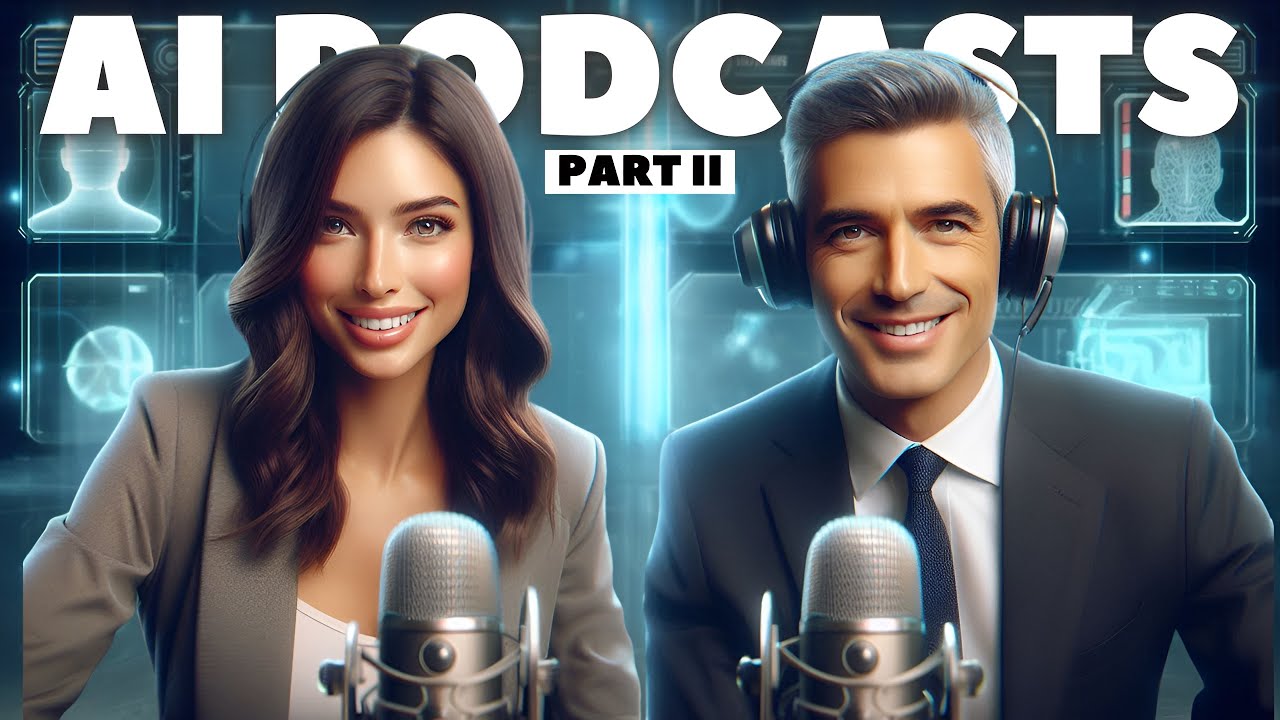
Now in this image of ours There are two characters, now we will convert this image into a podcast video , then no AI tools or application will work on both the characters, so for this we have to use a trick here, we will type background remover in our browser and in this first We will open the website, now we will upload our podcast image by clicking on upload here, now the background of our image has been removed as you can see, we will click on the second option here and the erase option here is selected. Let it remain selected, after that from here we will increase the brush size and from here we will apply the brush on the image of this girl, after that click on Done and then click on the background option here and then on the color. Click and select the green color from here, click on Done and download this image.
Now once again we will upload our podcast image and by applying the same process, this time we have to remove the male character and add the female character. We have to download the green screen image of the character. Now the quality of these green screen images has decreased a bit, so we will also upscale the quality of these images with Clip Drp AI.
Now we have to install Dumb Face and this application on our mobile. You have to install it, you will see its logo carefully, rest of the link will also be found in the description of the video. After installation, when you open the Drm Fuss application, an interface like this will open in front of you.
Here the first option is Photo Talk and Sing option. Click on and here click on plus and upload the image of the green screen male character. Select the image from here, click on import, then click on continue, after that here click on the option of sowing voice, after that select voice from folder.
And from the podcast audio clip of the male character that we just exported from Cap Cut, we will select the first clip and hold it. Will select till the last. Now the people who are watching this video for the first time on my channel, then they must be feeling that I am telling everything very fast here, the reason is that on this application, I am giving the already complete video.
I have made it, so those people who have seen that video, they know these steps very well and those who have not seen that video, then I will give its link on the I button and on the other screens of the video, then you can watch that video. Make sure to watch it because in that video I have also told you to give a free coupon code for the subscription plan of this application. If you do not have a subscription plan of this application, then here you can listen to audio, podcast and video of up to 3 minutes.
You will be able to create videos without subscription. You will be allowed to generate videos up to a maximum of 30 seconds here and for this you will have to work harder in cap cut because just now we had exported three minutes of audio. To create videos without subscription, you will have to work harder.
Then you will have to export 30 seconds of audio and without the subscription plan, the watermark of this application will also be visible on the video, so those who want to take the coupon code for the subscription plan of this application, then they must watch that video. See, now we will click on confirm above, after that we will click on animate below. Now our podcast video has started generating.
As soon as the processing is 100%, our video will be generated. Now our podcast video has been generated . By clicking on play here, you You can watch the video Dive Day We're Gonna Be Looking At What It's Like To Be A Successful Uber To download, click on Save HD below, then this video will be saved in our mobile gallery Now video from the second number podcast audio To create this, you will come back to the home page, click on the Photo Talk and Sing option, select your Mail Podcast character, click on Continue, click on Bye Voice, click on Voice from folder and this time select the second number Mail Podcast audio clip.
We will select, click on confirm, click on animate and after a few seconds of processing, the male character's podcast video has also been generated from our second podcast audio. By clicking on Save AD, we will download this video as well. Now if we have If there were more than two audio podcast clips of the male character, we would have generated a one by one podcast video from them.
Now, if we are going to generate a podcast video of the female character, then for this we will go back to the Photo Talk and Sing option and click on Plus. This time we will import the image of the female character, click on continue, click on buy voice, click on voice from folder and select the first clip of the female audio podcast, click on confirm above, then click on animate and so on. After processing for seconds, the podcast video of the female character has been generated from the audio clip of the first number.
Now we will download the video by clicking on Save HD. Now similarly, we will generate the podcast video of the female character from the audio clip of the second number. Now we Let's go back to Cap Cut and import the podcast video that we have just generated here and also import our main podcast image.
Now first of all, we will bring our main podcast image on the timeline and according to the length of our entire audio. After adjusting, we will bring the first video clip of the male character on the timeline. After that, we will bring the second video clip of the male character on the timeline and adjust it.
Now using the chroma key, we will remove the background of these clips. After that, we will bring the first video clip of the female character on the timeline, after that we will adjust the second video clip on the timeline and remove the green screen of these clips too. Now the audio of all these clips has to be muted because the original audio.
We have now let's play this video once and let's see, let's see lerrat ery buddy welcome back yer listening to the deep day and be looking at what is it like to be a successful ybar yes and we will be deep it p episode call Creator's Corner and the host of that show has some really good advice on how to pack or if you've ever thought about starting your own channel. You can see how well both characters are speaking here. One character is speaking.
So the second character is just doing movements like in a real podcast. You will select all the clips and create a compound clip. You can turn down the volume.
Or if it seems too much, then you can adjust according to your needs. Now you can use your creativity in your podcast video and add some more things like using filters etc. , you can add captions, use audio web in this way.
You can do this or if you think of adding any other thing according to you in the video, then you can also use them. We will add captions in this video. We have captions in this video, so now we are here in our Let's make these captions a little more stylish.
Now export the final video. Now let's play the final video once and see. Ab welcome back yer leaning to the deep day and be looking at what it would be like to be a successful yes and Now you can start earning by uploading these podcast videos on your channel if you like these podcast videos in Hindi .
If you want to make then I will make a part three detailed video on that also but for that you people will have to give at least 50 comments in the comment box for part three, then after that I will make a complete tutorial for Hindi podcast video. I hope this You must have liked the method of making a video podcast. If the video has been helpful for you, then do like the video.
If you have not subscribed the channel yet, then please subscribe the channel. Hello, see you in the next video for a new tutorial.
![How to start a faceless YouTube channel with AI [1 HOUR COURSE]](https://img.youtube.com/vi/FI9lM_5xhzA/maxresdefault.jpg)