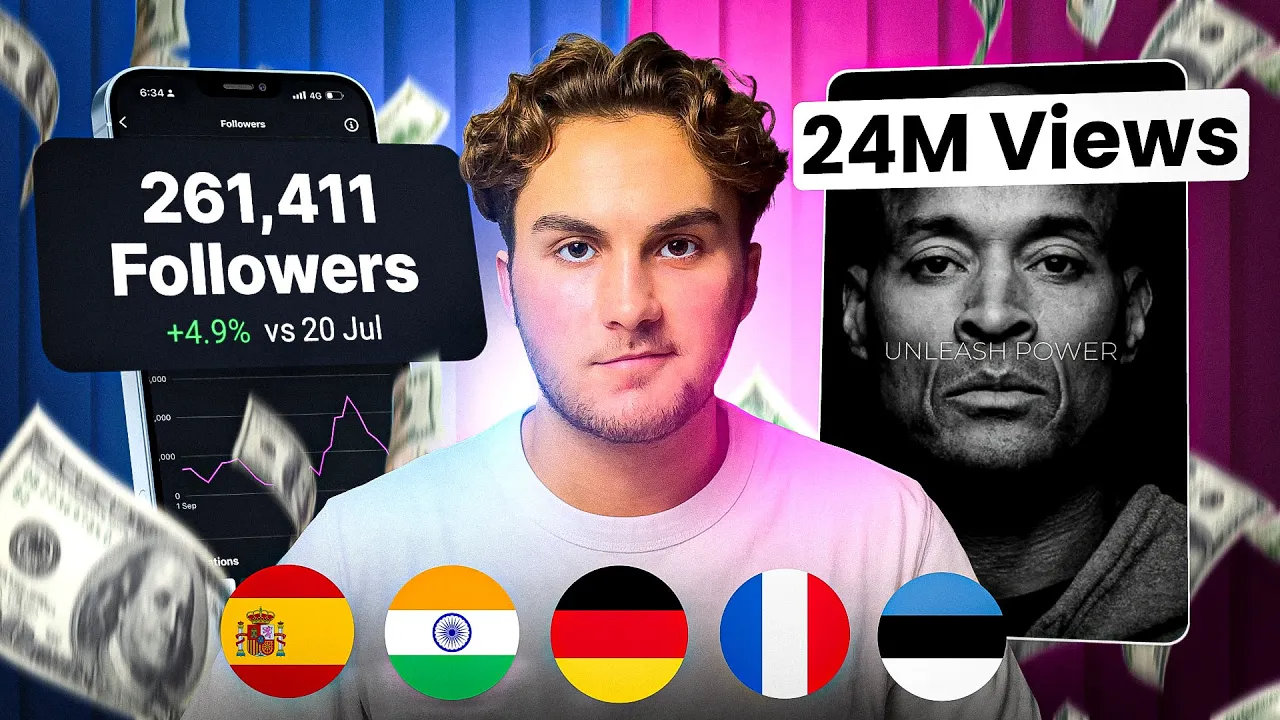
English content on Instagram while gray is extremely competitive and that is why in today's video I'm going to be showing you guys exactly how you can translate a video that's gone viral in English into any other language so you can go viral in less competitive territories and this can all be done totally free just using a phone or a laptop now in this tutorial I'm going to be using my laptop but you can follow along for totally free using your phone using some of the tools we'll mention a bit later here is an example of
a video that I turn from English avoid doing business with these five types of people to Spanish now this strategy of finding viral videos and niches in different languages and then translating them to your language has been around for a while in fact I remember one of my students in my Discord growing a page extremely fast in Spanish however fortunately for him he was from Spain so it's easy for him to translate videos from English to Spanish as you can do it manually but now thanks to AI anybody can do this and you don't need
to know any other languages other than your own now for this method in particular I would suggest going for fully faceless content as it tends to work a little bit better but the tool that we are going to use and that I'm going to show you guys later does have the ability to lip sync the original video into the new language so you could also even try it with motivational videos of say David gogins for example so to find these viral face as niches You're simply just going to scroll on Instagram and when you find
a niche that has a lot of traction has a lot of Engagement and the patien be growing fast and you like it I'll save a link to that page somewhere maybe it could be in your notes and then what else I'll do is I'll go ahead and press a plus icon with a little person and then from there it is going to show you a bunch of similar pages to the page that you've just clicked on so you can go deeper down the rabbit hole into looking at that Niche and similar kind of pages from
that Niche now I've already done this before filming this video now this Niche is perfect because it's totally faceless and they use animations to explain what is going on in the video as well as captions which means when I translate it I should get a very good product and I can even use some of their already made animations on my video as the content should still be original because I'm putting my own captions on it from my language and I'm changing the language so I should be totally okay on that side of things so we
go over to my laptop now once you have found the page that you want to go ahead and translate into different language or a type of content you're just going to go on the reals and you simply going to find some of the best performing RS if you want to or some of the ones that you think would work best to be translated and then you can just go ahead and copy the link of these videos into an Instagram downloader so for example for my video I quite like this one because all of their animations
and images that they did use are in the top half of the screen and the captions down here which is going to make it very easy for me to cut these out and it's all black which then makes it yeah once again very easy for me to cut it out use their kind of images and then just have my Spanish captions and my Spanish AI voice on top of it and then once we have found the video that you want to translate so obviously for me is this one I'm just going to go ahead and
copy the link and then I'm going to take into an Instagram downloader you can use any one that you want but the one I'm going to use and that I have been using for a while seems to work quite well is snap insta and you just paste it press download and you're of course going to download your video and once you have downloaded your video I would suggest taking it into cap cut or any video editor for that matter you really don't need to do a whole lot here and all you're going to do is
just upload the video in here and then all I'm going to Simply do is just crop out the part where they have their Auto caption so if I just go and select on the whole clip and I press resize and then I go like this confirm and then I move this back up to the top of the screen so it's exactly how it was it's just a black screen then when I go ahead and press export obviously I do have some things in English like here which to be honest I'm not really going to bother
with cutting out and now I can just go ahead and press export and I have my video without captions on it and I it's going to be very easy to put my Spanish captions on top of it and make them look good and a Content will look as stolen so I'm just going to press export and then I export in 180p and 30 FPS they're just the best settings I've been using and to be honest on social media you can't really go above that but even it does really matter what you export in to be
honest and the next step we're going to be using the tool w share verbo and you can get started online for totally free so you just go ahead and Press Start online for free create yourself a free account obviously for this video I already have an account so I'm just going to go ahead and come over here to my account and in one share verbo they do have a bunch of different things like you can have talking avatars talking photos whatever but of course the thing I'm going to be interested in for this video today
is the video translation tool so you just go ahead and click on this and press create video and then once you've done that you'll be in this section of wondershare Vero and you're just going to select what you want your video to do so first of all the original video language for me is going to be English and I want to translate it into Spanish and the reason I've chose Spanish for this video is simply because I know that there are a lot of countries that speak Spanish so there is a wide audience for this
but you can do it in any language that you want and then of course I don't need lip sync because there's nothing to lip sync in this video so I'll turn it off I do want the subtitles and I do want a proof R script and then I'm just going to go ahead and click here to go and upload my video of course I'm going to pick my one where I have removed the captions and I'm just going to press open and then it is simply going to start uploading your video it takes a little
bit of time so I'll back to you guys once this is done cool so now my video is uploaded and I've finished with all of my settings I'm just going to go ahead and press translate this video and then once again it's going to start the process of translating this video so I'll be back to you guys once this is done okay so I'm back and I've transcribed the video now so I can go ahead and proofread this I don't actually speak Spanish unfortunately so yeah this isn't going to be too much trouble to me
but I can make sure all of this is correct and I've already done that okay then once you've done that you're going to get your transcript for the video and I would recommend downloading this or copy and pasting it as it could come in handy a little bit later in the video as I'm going to show you guys so I'm just going to press download and save this to my downloads and then we're just going to go ahead and click translate video for verbal AI to actually go and translate the voice in the video and
also add the subtitles and as you can see you're going to be taken back to this screen and it will start translating this version of your video so once again I'll be back when this is done this doesn't actually take that long this process only takes about a few minutes okay cool so the video is now done it literally took about 30 seconds so I'm just going to go ahead and press play so this is actually a pretty good video I one thing that I do really like about this video and this toour in general
is they keep the same music as well which makes my life even easier so yeah that is basically the video I can go and press play and is very good quality for the whole time like I said works extremely well with these faceless type of niches and the thing that's really good is they keep the same tone of voice as the original video which is going to be great especially if you're trying to translate content and lips in content from someone that is speaking so that people can still understand that is that person for example
David gogins has a very distinct voice and using this tool would make people know that it's David gogins still even if he is speaking Spanish and even for this Niche it works great because the type of voice that they're using on the video goes very well with the style of video keeping it mysterious and always being a little bit robotic so yeah I like that fact about this as well so once you here if you are happy with the video of course you just go ahead and press download video and you'd save it to your
downloads now from here there was nothing else that I wanted to do to this video I simply just go ahead and send it to my phone and I would write my caption whatever and I'd go ahead and post it onto my Instagram theme page however if you guys really wanted to ensure that your videos were original there's actually another feature on verbo that we can use to go ahead and make this happen so Recon back over is my laptop and I go ahead and click go back to home I'm just going to come over here
and I'm going to go to more and I'm going to go ahead and click talking photo and then from here I can simply generate an AI character I could even do it all myself I wanted to try and clone myself but I'm just going to go ahead and press generate with text and you guys can actually see some of the ones I made before I was trying to make a smart mysterious looking guy that I thought could go really well with my page so I'm just going to go ahead and press regenerate so yeah for
example this one here I quite like and the dark background fits to the aesthetic of the page as well so I did like this one I'll just go ahead and press download and I can download this photo however for you guys to go ahead and create your own prompt for yourself to create your own kind of character if you did want to do it with text you'd simply just type in text here the type of thing that you wanted I literally typed a mysterious looking man in a smart suit with a top hat and that
is what I got and then if you want to add extra details like a dark background Etc you can do things like that and then obviously you want the post be upper body that is what you really want anyway and then you can change the ratios here for what kind of type of video you want but 9 by 16 is going to be best because that is what we're going to use obviously for short form content and then you just hit generate and it takes about a minute to generate you four different photos that you
can go ahead and choose from okay so once we've then generated our photo or to be honest you could even pick one from their library but once you've generated it and downloaded it we're just going to go ahead and press next and then we're going to replace the photo cuz I want my photo so I'm just going to upload the photo of the AI guy that I had so I'm just going to select open here and confirm and it's just going to take a second to upload our photo and then once it is uploaded you're
just going to go ahead and hit confirm and then I'm simply just going to paste my script that I downloaded fortunately earlier or I copy and past it in somewhere else earlier I'm just going to paste it in here and then once I have my script in here I can choose the type of voice that I want to be honest this might not be relevant it depends on what strategy you want to use so we want to have the voice a Adam which is a very popular one that a lot of you guys would have
heard on social media before so I'm just going to go ahead and click this and press select and then I'm just going to go ahead and hit play script to make sure everything sounds good before I actually generate the lip syncing and then you can play around the speed pitch and volume here as well add subtitles or background music for me in this instance I'm not going to cuz i' probably rather do that myself for one and also I'm just going to use this to add it on top of my other video to make it
more original so I'm just going to go ahead and now press create video because listening to this it sounds pretty good so I'm just going to go ahead and press create video and now it's going to start looking like this AI character is speaking what is being said now fortunately for me I I do have the pro version so I'm just going to hit Pro and then press generate video because it's going to make it even better okay and then as you guys can see we now have a video that is generated so we'll go
ahead and check it out as you can see this actually looks pretty good so once you're happy with it I'm just going to go ahead and hit download video save this to my downloads and then I'm going to come back over to cap cut and I am now going to go ahead and just lay this video on top of my video that I made earlier so I've wanted to make it even more original I could do this I could even just use this video and edit it I could put my own captions on it in
capcut if I wanted to or you can even do that in verbo I can add my own music on top of it however I'm just going to have it for certain sections so for example the start here I need to make sure the audio is lined up and so it looks like that is the first audio wave so I'll just hit cut there and line these up make sure they're all lined up I'll then press play to see if the audio is lined up pretty much lined up it's good enough it it won't look too
AB sy so I'll just then go ahead and mute this video cuz I want to use this sound and I'm going to cut this start bit as we don't really need it as there's no sound and then as you can see we can have this for the start or maybe if I didn't want this for the start I could then cut it here and I can have him come in maybe in and out of the video so I might delete this part here have this as my original part and then I can have him come
in and speak and then I could get rid of it again and I could just have him come in in and out which is going to make my video even more original and yeah you can play around with it like this and do it however you want that is another way you can make your videos even more original now if you guys want to try this out for yourself I'll leave wers share Vero Linked In the description and you can get started for totally free on both their website or you can download their mobile app
if you are trying to do this from your mobile phone now if you enjoyed this video please be sure to drop a like And subscribe and if you have any questions about anything leave those in the comments as I try my best to reply to every single comment so now that you guys know how you can translate viral videos to go viral in less competitive territories go and check out this video on screen over here as I show you some viral Instagram theme page niches that you could go ahead and translate apart from that I
hope to see see you guys in the next one



![How I use AI to make $30K/MONTH with faceless Instagram theme pages [FULL COURSE]](https://img.youtube.com/vi/L9m3F9LhBME/maxresdefault.jpg)