in today's video we're going to talk about how to create a virtual machine or a VM on Google Cloud platform this is Google's offering for cloud computing which is one of the most common use cases for the cloud especially as a data engineer so in today's video we'll go through step by step how to create a VM on Google Cloud we'll talk about different ways for you to interact and access it and then finally we'll review some common use cases especially for those of you who are data Engineers the first step for creating a virtual
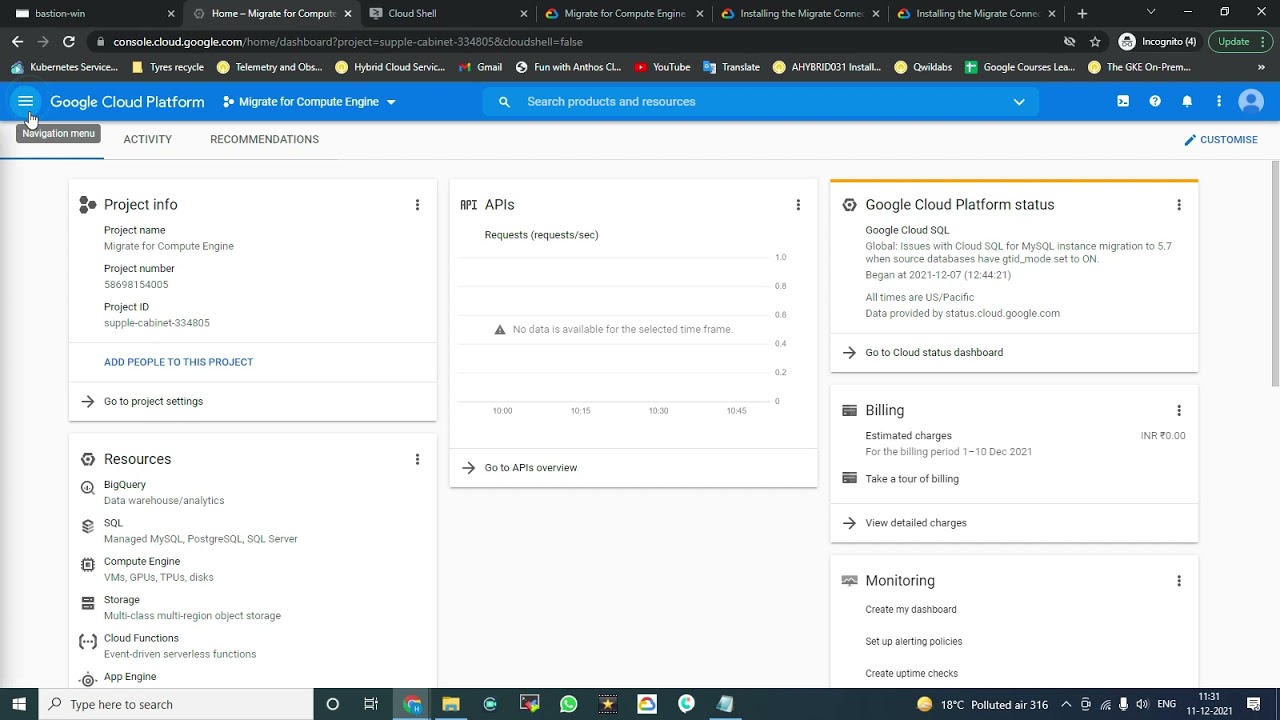
machine is to come into your Google Cloud console and go over to compute engine there's a few other ways you could get here but this is a common way and what you want to do first is enable the compute engine API because as you'll notice as you start working more with Google Cloud everything is essentially an API so the first thing you need to do is enable this and that might take a few minutes to complete but once it's ready you're now able to actually use this API so what you want to do is come
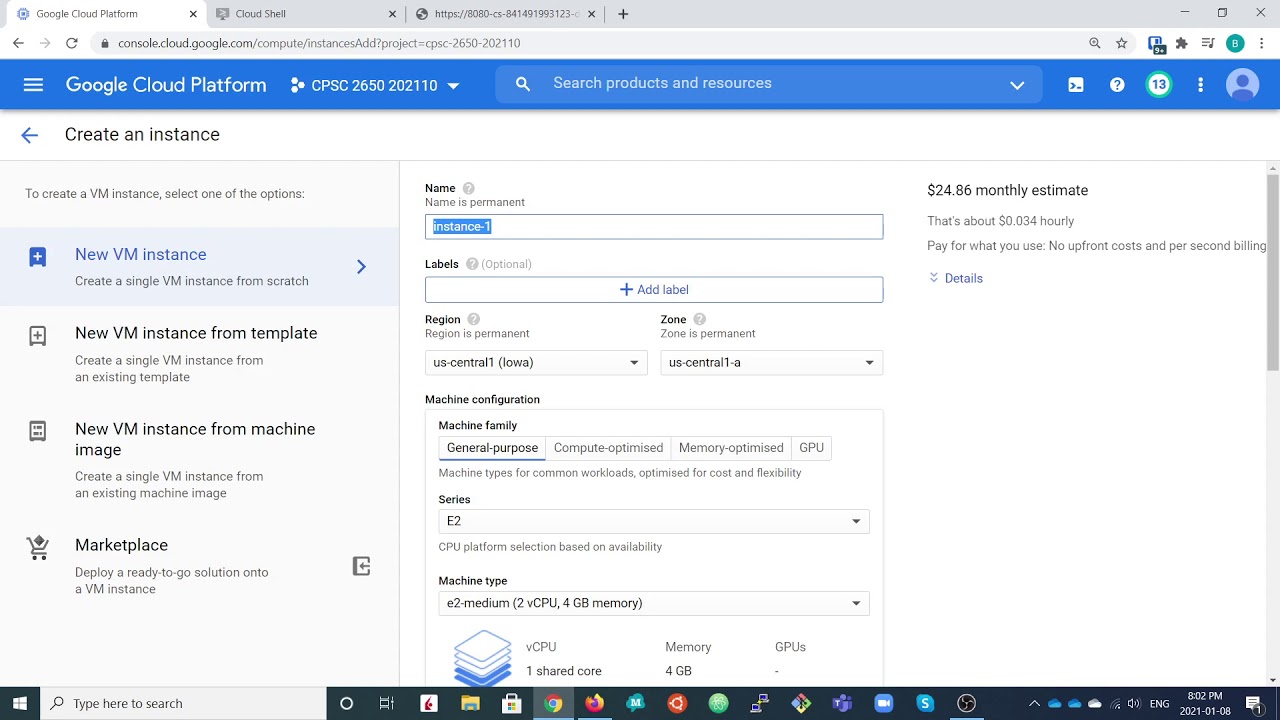
over here to the options over here under compute engine go to VM instances now from here there are two places you could go to create your virtual machine you can create an instance right here by clicking this button or up here they're both the same alright so we'll just go through the very basic options here that you'll see there are a lot of things but we'll just go through the basics to get it going and get your first virtual machine built so number one is giving it a name I'm going to name this my demo
VM but you put whatever you want you can add different labels if you want to organize your project and use that in other ways and then down here is region and region is where it's physically going to live in a server somewhere so for my case it's in the US Iowa in your case you probably want to pick wherever your user base or the people using it but for me I'm just going to go Central and the same with Zone there's obviously different options but for me I'm just going to leave it as the default
now when we get to machine configuration there are again a lot of options here and reviewing all these is outside the scope of this video there's a lot of documentation that you can go to learn more about it for example if you click on this pricing option here you can understand how all this is broken down and as you can see here there are a lot of different types we have the general purpose you have compute optimized memory optimized shared core it's just going to scroll down forever if you really want to get specific on
your options you can go through here and pick what makes the most sense for you and again based on your location and all those other factors but what I typically work with is the general purpose and you can go to the different generations for this and more importantly usually is the machine type which indicates the scope and the size of how much you're working with here so for me I'm going to just click the micro size because this is just a demo and you can see how the price goes down and this is a monthly
estimate assuming you're basically having it run the entire month but also understand that you can set schedules for how often something is running and you're only going to pay for when it's live so you could potentially get a more powerful machine which will have a higher monthly rate but maybe you only had it running for an hour or two a day on a schedule you can see what the price is here per hour and Factor it in that way moving down here we have containers and one thing you can do with virtual machines as well
is build it with a container so if you have something you've built on your container registry within Google you can also use that here and add specific arguments so that it's customized however you want it you know you use an image you create a bunch of different virtual machines based on the same underlying image that's an option here boot disk is determining the size of your actual disk so imagine you had a computer it has storage and a disk on it this is where you can determine what each new machine will have under the hood
when it boots up so in this case here it's creating a new persistent disk of 10 gigabytes every single time and it's just using this base image of a Linux so it's creating a 10 gigabyte Linux virtual machine but again if you pick different types they're going to cost more SSD typically costs a little bit more you can change the size Etc and of course there are other options if you want to use custom or snapshots of previous versions I typically just start with the basics and then adjust as I see fit down here we
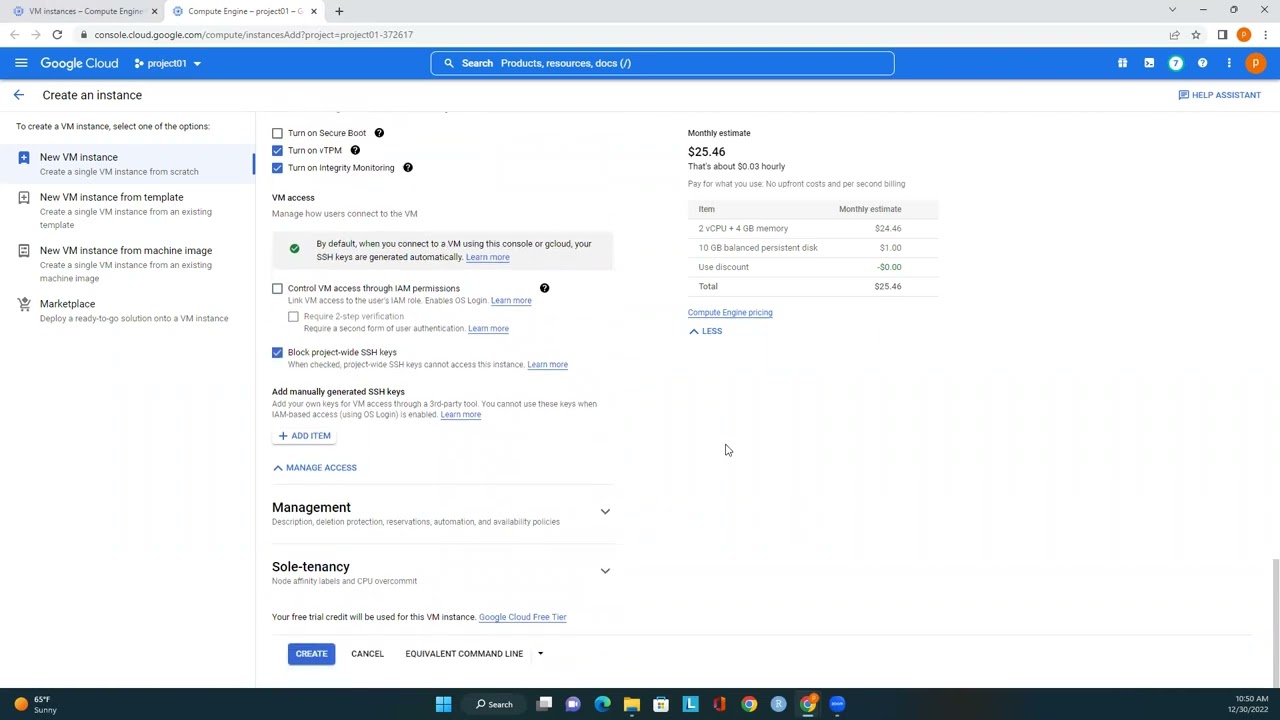
get to access and again this is nice because it comes built in with a default service account Google Cloud operates a lot on what's called service accounts if you're not used to that so you can either create a custom service account with specific permissions and all that stuff but the compute engine does have a default service account that you can use Scopes now are determining the API access remember we mentioned that Google cloud is based primarily on different apis you can see the default settings here of what it has access to storage service management and
read write to service control so that's again another way to limit the scope here firewall is with networking here so many other ways to access this virtual machine from outside traffic so you can lock this down a little bit more keep it more open again it depends on your use case and then under management here one thing that I like especially when it comes to data tools and open source tools is you can add a startup script here which is really nice it's a shell script that you can have run anytime this boots up so
maybe you want to run a program and have some sort of service startup every time you start your machine you can add this script here and again it's just like a shell script that you can add here and it'll just run it every time you start it so you can always be sure that certain services or tools or whatever it is are running once the machine runs as well and you can manage this all from here it's going to take a few minutes for it to actually boot up now this is starting to run here
let's poke in here and see how to work with the VM with in here obviously you can see all the basic information on what we just created and the networking The Falls interface all this stuff here that we just went through and built but when you want to actually work with it there's a few ways you can do it number one and I think the easiest way is to just click this sh button right here and what it's going to do is open up an in-browser type of terminal which will allow you to write commands
and work with the virtual machine and it's going to your SSH keys for you and handle all that behind the scenes because you clicked through here so here we can see it's logged into my demo VM under my username and from within here you can start to run any normal commands let's say I want to make a new directory called demo dir and then list and there it is so you can start to build things run commands install applications just as you would from a regular machine from the command line so that's one way to
do it in a way I find that I commonly work with it just because it's easy and you can do it right in the browser another common way to work with not only virtual machine but really any other Google Cloud resources through what's called gcloud and gcloud is their command line tool you would put this locally to your machine but here if you had gcloud installed you could just run this command and this would SSH into this VM just copy this here and run this in your local machine if you had that and you can
easily look on how to install gcloud here and get that on your local machine so that you can do exactly all this stuff that we're talking about just from your local machine alternatively you could run in the cloud shell so if you click this here this is effectively running the equivalent of gcloud as if you had it on your local machine just on Google Cloud itself so you don't have to install anything locally and then for example here if I were to run this command it just copied it for me here you can authorize to
run the command and it'll update the SSH metadata for you which is really just the keys and the permissions it handles this for you because you're the one running it and now we're logged in now we're in the same position that we were just in a moment ago so if you do LS we can see that demo dir directory that we just built previously is already here so again this is another example of how you could work with your virtual machine the other area that I'll use a lot if you click show more here there's
different ports and sometimes you won't really need to worry about out this but one that I do use on occasion is serial Port one and it says console this is going to give you a real-time look at the logs and what's going on on the machine at any given moment so if you go all the way to the bottom you can poke around you can see it's messing around with keys and stuff you could refresh and it'll give you the latest version if you did run something and really where this comes into play maybe you
added a startup script and you want to come in here and just make sure that things are running you can come in here click refresh and you'll see line by line exactly what's going on and how far along a script is going or maybe you just want to come in and monitor a previous run that you had for one of the tools that you installed you could come in here and see the line by line logs of what was going on and it's just a nice way to debug and keep an eye on your server
another thing here is up at the top we have the start and resume we have stop suspend and then delete now I don't have support of suspend because of the type of instance I'm using and the real big difference here to point out is that when you stop it you're just temporarily shutting it down whereas if you delete it you are complete completely deleting the instance and you're gonna have to start from scratch if you stop it you will still have the disks any directories you made anything you installed Etc all that stuff would still
remain so the next time you restarted it it would still remain in that state as it was when you stopped it whereas if you delete it you're also going to delete the boot disk so you're going to start from scratch and it's going to be as if you never used it before one last thing I'll point out here is what you can do is create a schedule we talked about in the beginning the costs of things sometimes it's pretty expensive but maybe you just want to run it for an hour or a few minutes in
a day you can come in here and create a schedule so that you can be very specific on when something starts when it stops the dates the frequency maybe repeat daily you can do what you want and then assign a schedule to an instance you can keep things a little more under control keep your costs down while still getting all the features of your virtual machine now the last section of this video I want to talk about just a few examples of what you might use a virtual machine for as a data engineer specifically because
this channel we focus mostly on data tools and so I'm just going to pull over here a few examples obviously there are many you can really host whatever you want for example an open source tool like air byte which is for the extract and load you can deploy this on a Google compute engine so here it's giving you some recommended instant sizes different attributes to set to install Google Cloud run the gcloud command so we just spoke about that and then once you're SSH into your machine you would run these commands and this is essentially
installing air byte onto that virtual machine so that you can then use it and you would then come in here and be able to start it up so that it's active it's running and you can use it as if it was on a local machine but it's hosted in the cloud another option here is prefect or this could be airflow or really any other open source tool and what you could do is come in here and make sure your python on your virtual machine install prefect and start a worker on that machine so that it's
actively running and you can just trigger your workflows from that machine as opposed to your local server and then one more example here is Kafka which is a messaging tool it's open source and you would come on here and follow these commands to install launch your or Kafka server but all this would be running on your virtual machine as opposed to again locally or anywhere else you have full control to do what you want obviously these are different tools that you could use but you could use the virtual machine to host a website you could
just run Python scripts or really whatever you want it's computation in the cloud available for you to use as a computer and the options are really unlimited to whatever it is you want to do with that computation working with the cloud and specifically virtual machines is critical for any data engineer and hopefully now you have a better idea of how to do that on Google Cloud so thanks as always for watching and I'll see you at the next video






![Docker Crash Course for Absolute Beginners [NEW]](https://img.youtube.com/vi/pg19Z8LL06w/maxresdefault.jpg)