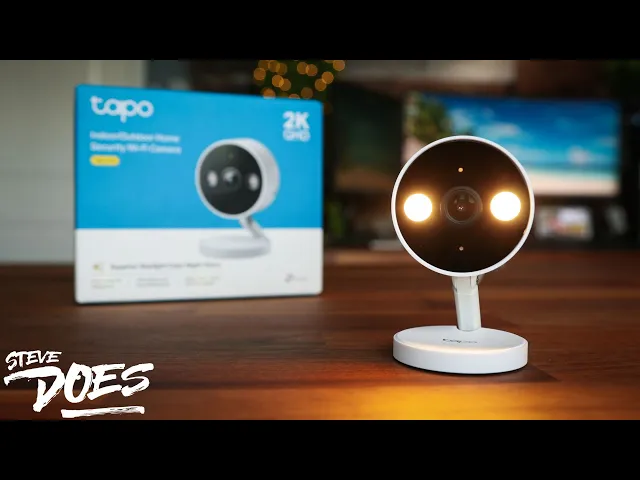
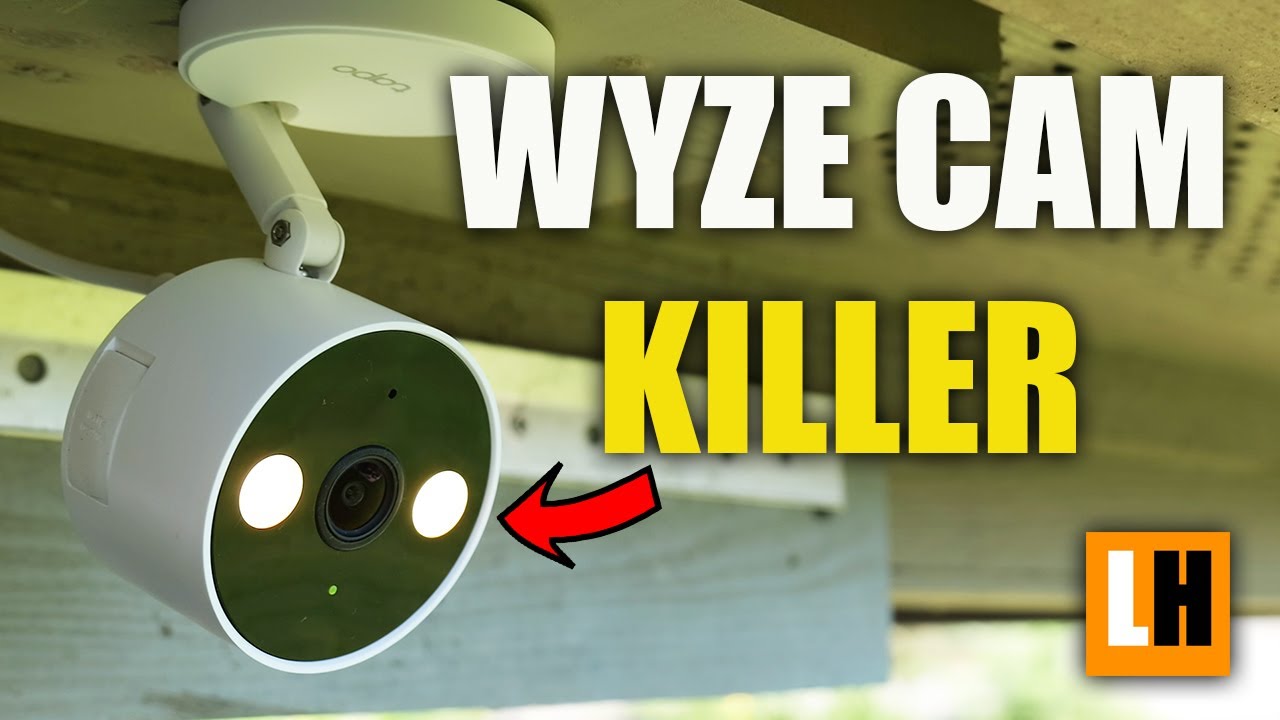
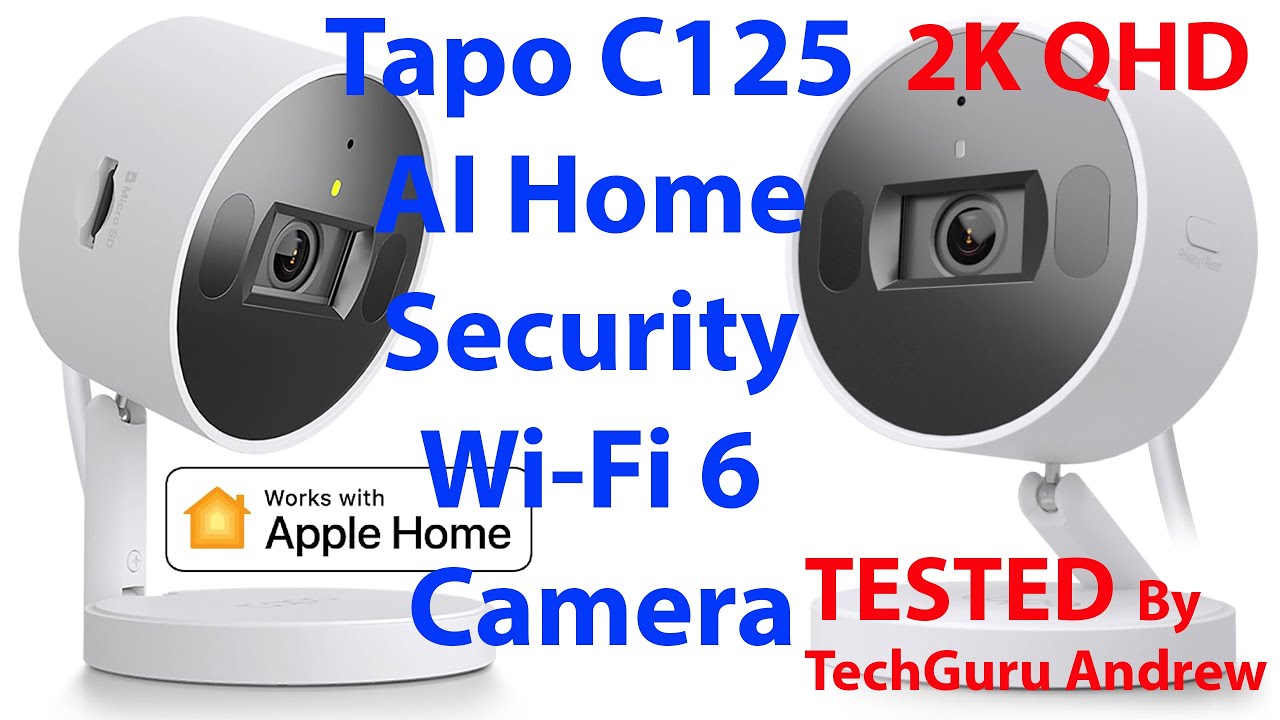
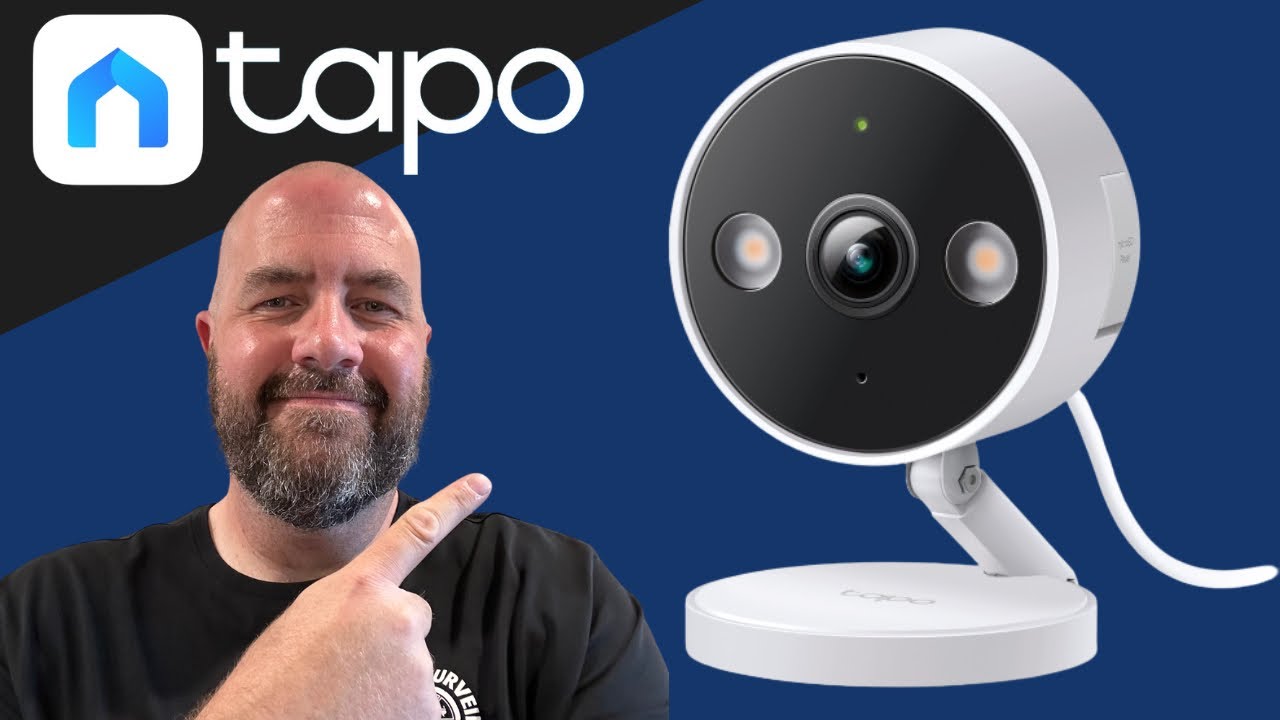
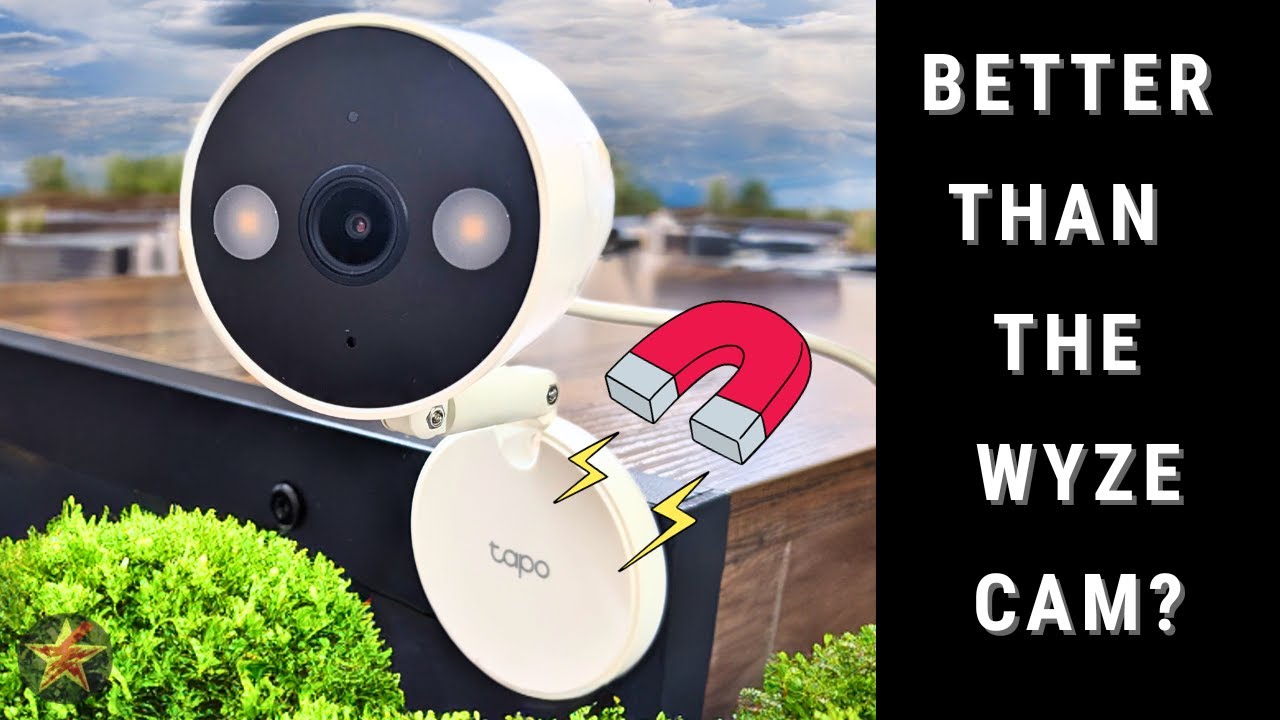
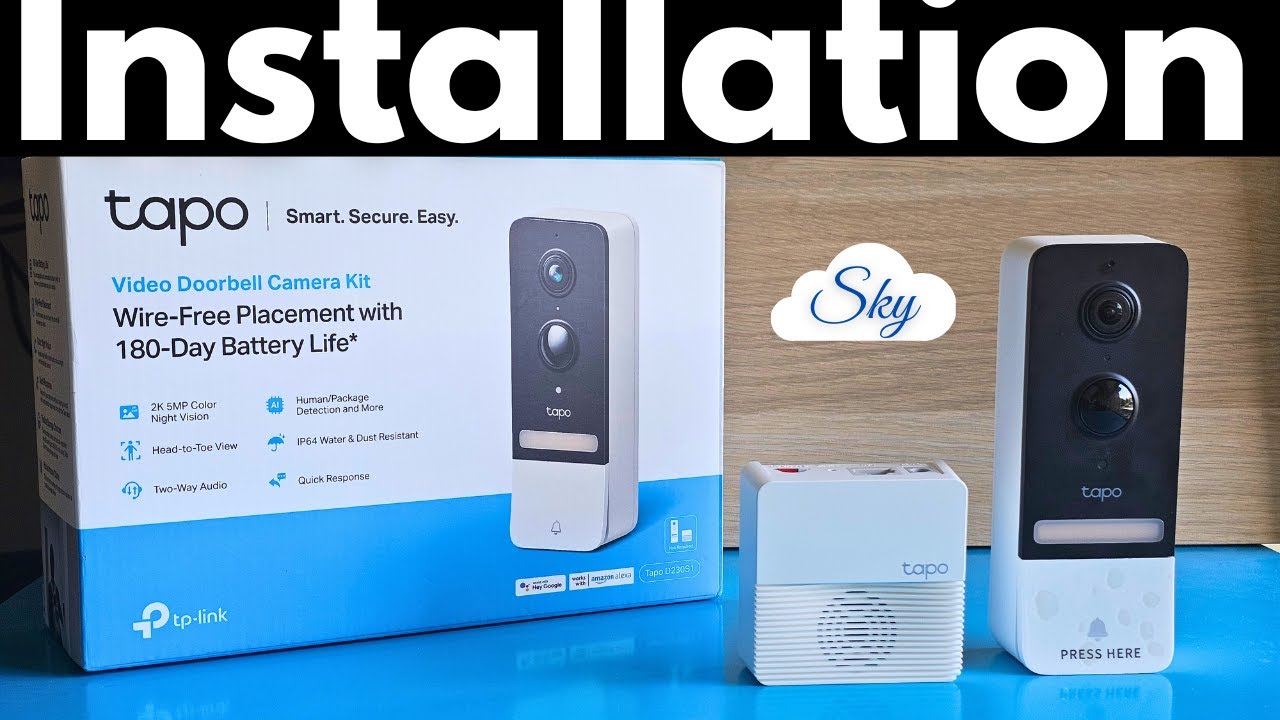
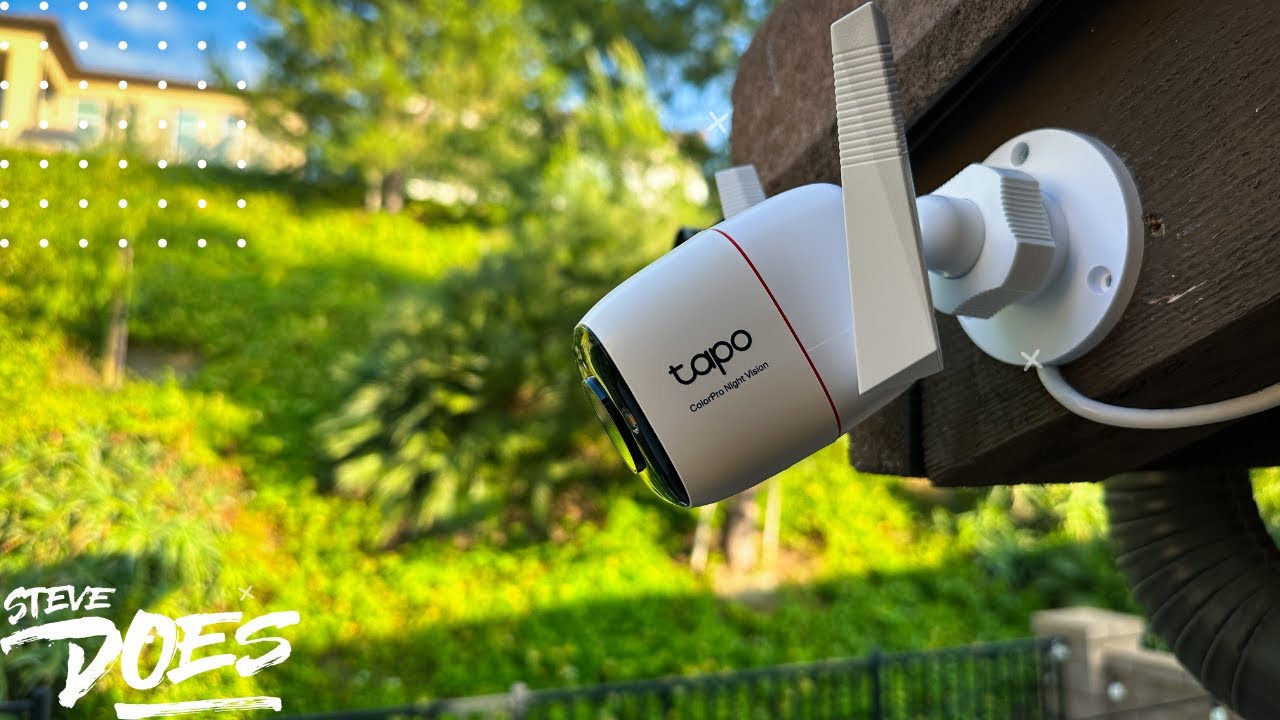
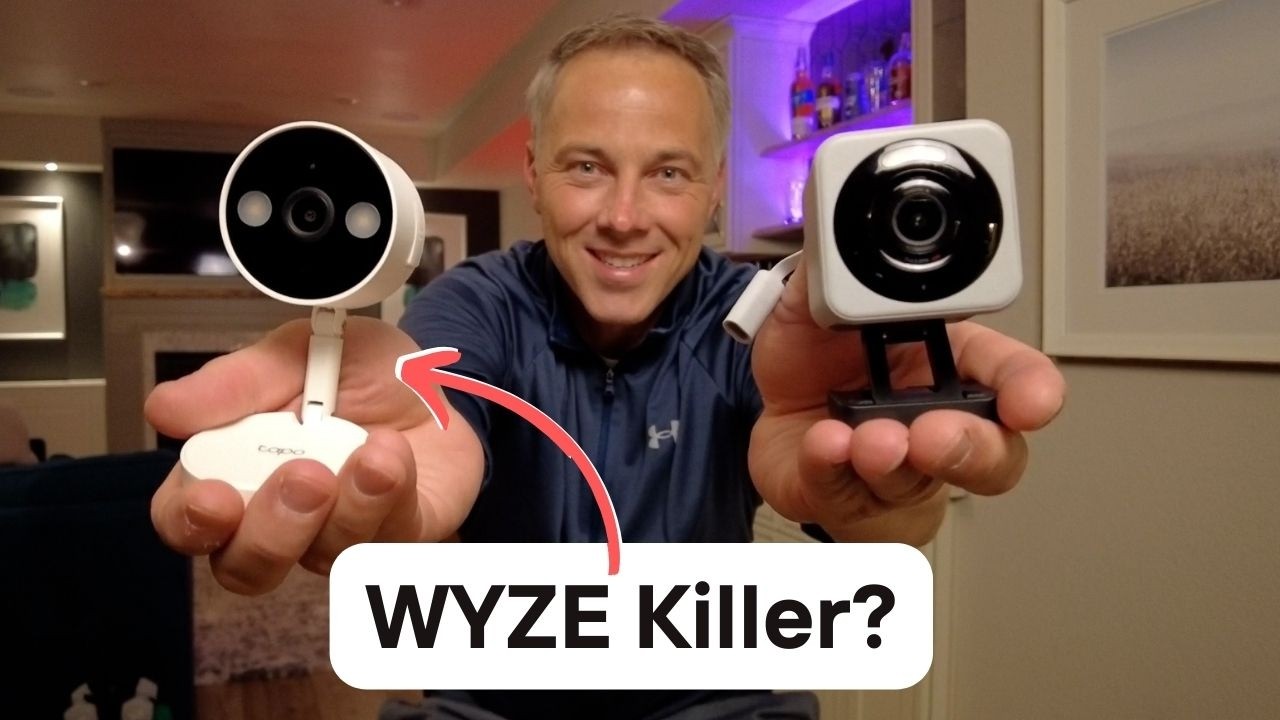
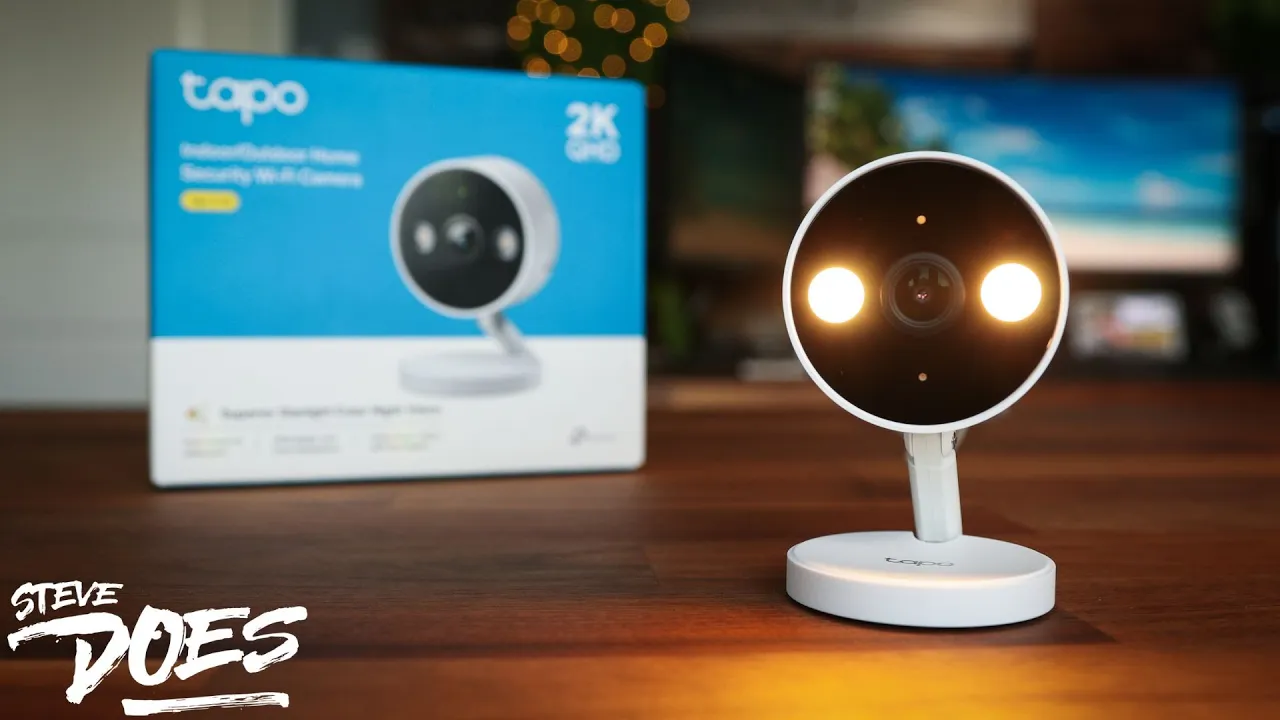
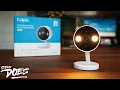
tplink has just released a new indooroutdoor camera this is the Tapo c120 we've got a 2K image sensor spotlights on the front free local storage on the camera with the addition of a micro SD card and AI powered notifications for people Vehicles pets and a load of other things now some of the things we're going to be taking a look at in this video today is how good is that 2K image quality how well do the mics sound typically on these indoor cameras the mics aren't that great and then we're also going to dive into
all the features that we get in the app so stay tuned hey everybody welcome back to another video now I'm pretty excited about this one because this camera technically isn't even released yet when I'm making this video but TP link is sponsoring this video and did send out this camera for us to take a look at so right here let's take a look at some of the features that come with this camera we've got a 2K image sensor this is an indoor and outdoor camera it does connect to Wi-Fi we've also Al got Starlight colored
night vision IP 66 rating so that's going to be water and dust proof we've got free smart AI detection color night vision we just took a look at that on the side here it does work with Amazon Alexa and the Google home so you can integrate it into there and then taking a deeper look into some of this stuff we have got discret night vision so this is something that's pretty cool typically with night vision you do see red lights on either side now if you are going to be using this as Maybe a baby
monitor that can be distracting for kids you can actually turn that off so we've got discrete night vision you can turn off those red lights so that's going to be pretty cool 2-way audio AI smart detection so this right here is going to detect people pets vehicles and a host of other things that we're going to be taking a look at in the app a little bit later we've got local storage and it also has cloud storage so if you do want to pay for a subscription for cloud storage you have the option but if
you don't want to do that that is totally fine we do have local storage here this can take a micro SD card of up to 112 gigs I'll have links below for micro SD cards that I recommend and you do have to have a micro SD card for local storage so do keep that in mind we've got our activity zones we have got our color night vision with spotlights customizable black zones so if you do need privacy you can set up those black zones and then this also does have an alarm okay so now that
we've talked about some of the features with this camera let's take a look at what's coming in the Box we're going to get a quick start guide this is a mounting plate so for this one you can either screw it in or it does come with this double-sided sticky right here once you get that mounted up the camera itself can automatically attach to that so it's going to be magnetically attached to that which is going to be pretty cool here is the actual camera itself we have got USBC on the back love that huge speaker
back here and this is how the mount works it opens up just like this and there is the camera so you can put it in any angle that you want to we can put it back in Reverse so let's say we want to mount it up this way or just put it regular there are so many different mounting options on this which I love now here on the side we do have a port this is going to be for our micro SD card also our reset button is in here this is going to be weatherproof
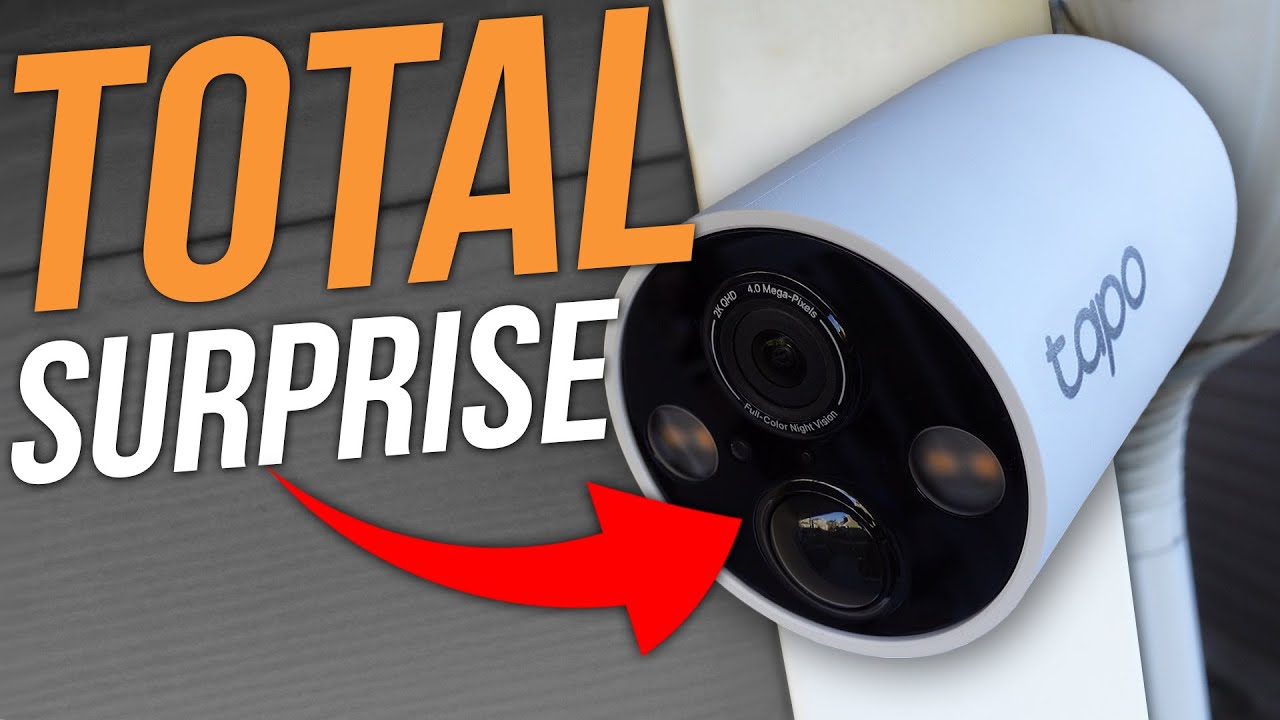
so that's pretty cool now here is the actual front of the camera itself we've got our 2K image sensor right here we've got our spotlights on either side we have got a microph phone and indicator light on there and then also our motion sensing is there on the front now if we take a look the rest of the stuff we also come with a power brick and a nice long power cable this power cable is going to be 3 m or about 10 ft long here is a template for mounting up our bracket up here
we have got also some mounting brackets so if you do want to Cable manage this there's some brackets from there we've also got our reset tool there and then we've got our screws and an aners if we need to use those now if we want local storage we do want to put a Micro SD card into this camera right here so let's go ahead and open up the side of it and then here is my micro SD card we are going to slot that in if you guys need some help on finding the right SD
card I will put a link in the description of the ones that I use for all of my cameras we'll go ahead and get that set up for you let's make sure we're getting it in the right way here nope let's flip it around all right there we go and it is clicked in now once you get this put in you usually want to go into the software and format the card so that way you make sure that it is recording footage on that card all right now as far as the app goes there are
a few things that I want to cover in here and some exciting things too here is what the app looks like so we've got our home button here at the bottom where we can see all of our devices we have our camera tab down at the bottom and from here we can see our different cameras that are set up so we've got our outdoor camera we've got our indoor Indo camera I'm going to go ahead and tap on the play button for our indoor camera make sure the volume's turned down on this one and then
something that's cool with this app that I really like is that I can also tap on the play button for our outdoor camera and I can see both of these live views at the exact same time so typically not something that we get to see with a lot of the camera systems out there so kudos to TP link for setting that up so I'm going to click manage for our indoor camera right here and here are all the settings that we have now we've got our options for taking pictures recording a video adjusting volume listening
to do two-way talk below that we've got talk alarm off privacy mode you can turn on the lights if you want to do that and then at the bottom here we've got our playback and downloads so from here you can see all the different things that have been recorded on the timeline you can pinch and zoom in and out on that if you do want to do that let's go ahead and back out of there and then something that I wanted to show you if I tap on the actual camera here we see that there
is a little little kind of a plus sign in the bottom left hand corner if I tap on this it is going to allow us to do like a multi- view camera so this is going to bring up live views of all of our Tapo cameras which is super cool I'm going to close out of that up in the very top Corner um we can tap on our settings button now there are a few things in here that I want to point out we go to our storage and recording here is your where you're going
to want to put in your micro SD card and then also for at it so you are going to format it here when you put in a fresh micro SD card let's back out of there next thing I want to do is Spotlight settings so we've got the ability to adjust the brightness on our Spotlight our onoff duration from there and then we've got our options for advanced settings so from here we can do a camera account and this is where we can set up an rtsp this is going to allow us to instead of
recording locally onto a Micro SD card on the camera we can actually record to a network server in our house also known as a NZ so a network attached storage so if you have a Nas a network storage that is attached to your home network you can actually set up to record locally to that which is super awesome to do I'm going to back out of this cuz we're not going to be setting up that account right now here are some of the other settings in here and one other thing that I wanted to point
out on here which I found unique to TPL link environment is right here towards the bottom it says reboot camera and you can actually set it up for the camera to automatically reset at a certain date and time I've also noticed this exact same setting for the TPL link router so I've got their mesh wi-fi system and I can set that up on there too what I like about that is that when you've used something for a really long time typically if you're having an issue with maybe your home internet they'll say well unplug the
router unplug the cable modem you can actually set it up in the settings for TP link to automatically reboot itself at a certain time so for me I have it automatically reboot itself once a week at 3:00 a.m. when nobody's going to be using it so I thought that was a pretty cool setting and something that I wanted to point out on these cameras okay now that we've taken a look at the features in the app let's go ahead and take a look at some demos of what this camera is capable of all right we're
testing out the indoor camera now this is what it looks like during the daytime that's right in this room I'm about 8 ft away from the camera right now but we're doing an audio test as well as visual test as where you can see me take look at the patterns on the couch for these blankets right here that'll kind of give us an indication on how well this camera is working I also want to back on here back all the way here I'm about 25 ft away so here I am 25t away from the camera
just to give you guys an idea of audio and also video of what it sounds like next we're going to be taking a look at this camera with no spotlights on so we're going to have the night vision on and then we'll take a look one more time with that night vision all right this is what does the camera looks like at next there are no red lights on which I am very happy to see that but we want to do a distance check so here I am about 8T let's go all the way down
here so this is being all the way about 25 seats all the way back here you of what you can see with this thing next thing that I'm want to do is I'm do one more test of this camera with these spotlights on on all right we now have the camera with the spotlights on I got to say the spotlights look great on this thing right here um they are only at a power L of three out of five so right here in the middle and it lights up great but it's not completely bled so
I do like that a lot but let's take a look at what it looks like all the way back here so we can see back here about 25 away it's nice the light up this old room without being like that's actually something that I really do like about this camera right here compared to stay outdoor camera but what do you guys think of this next shot you light off all right so what did you guys think of this camera I thought the daytime shots were fantastic I thought the blankets on the couch were nice and
crisp the patterns on there as far as me walking all the way back to about the 25t mark and coming forward I thought that the daytime image looked great as far as monitoring your house it's going to look good now for the night time image it looked good when I did not have the spotlights on I thought thought it was fantastic when I did turn the spotlights on there was a bit of ghosting to where when I was walking in front of say the cabinets in the background there was a little bit that needed to
be cleaned up in there but overall I thought it was fine now typically you're going to be using those spotlights outside so you're really not going to be using them indoors as we tested but I wanted to show you a demo of what they look like with the spotlights on in the house now overall this is a 2K camera we have free local storage I love that it has that rtsp feature so we can save our Clips locally to a Naas inside of our house we've got the Starlight Night Vision on it free AI notifications
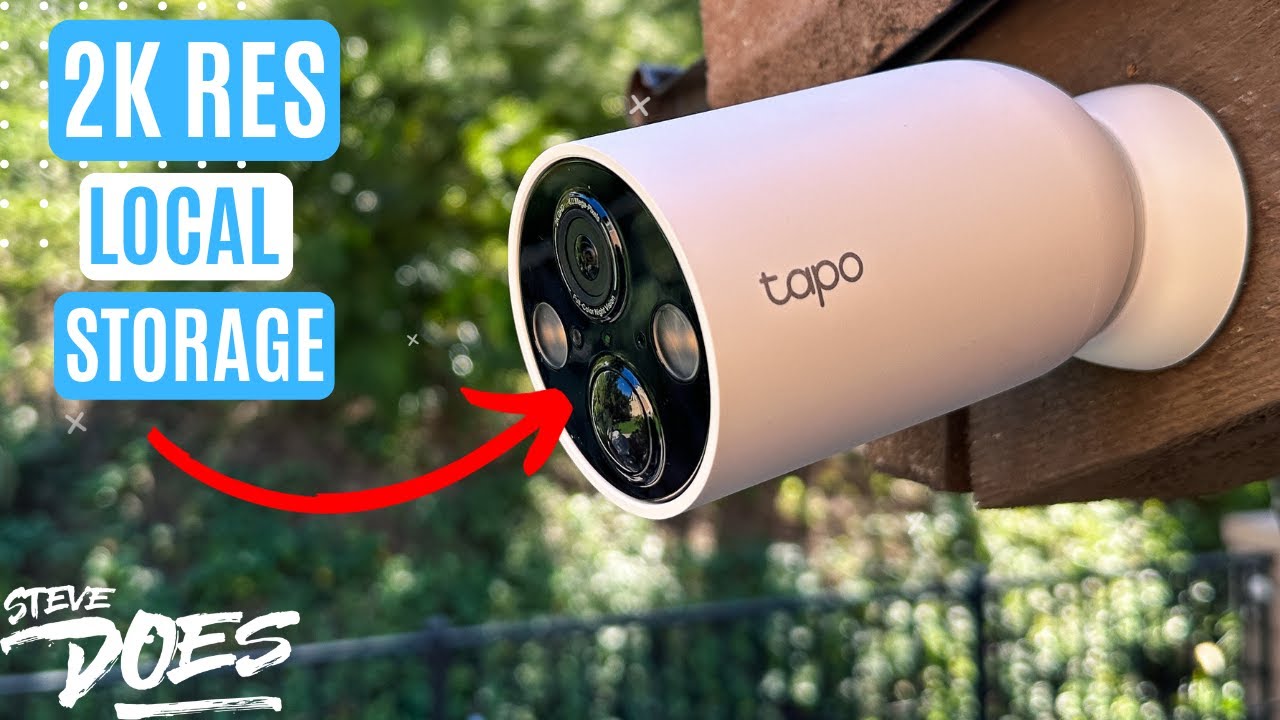
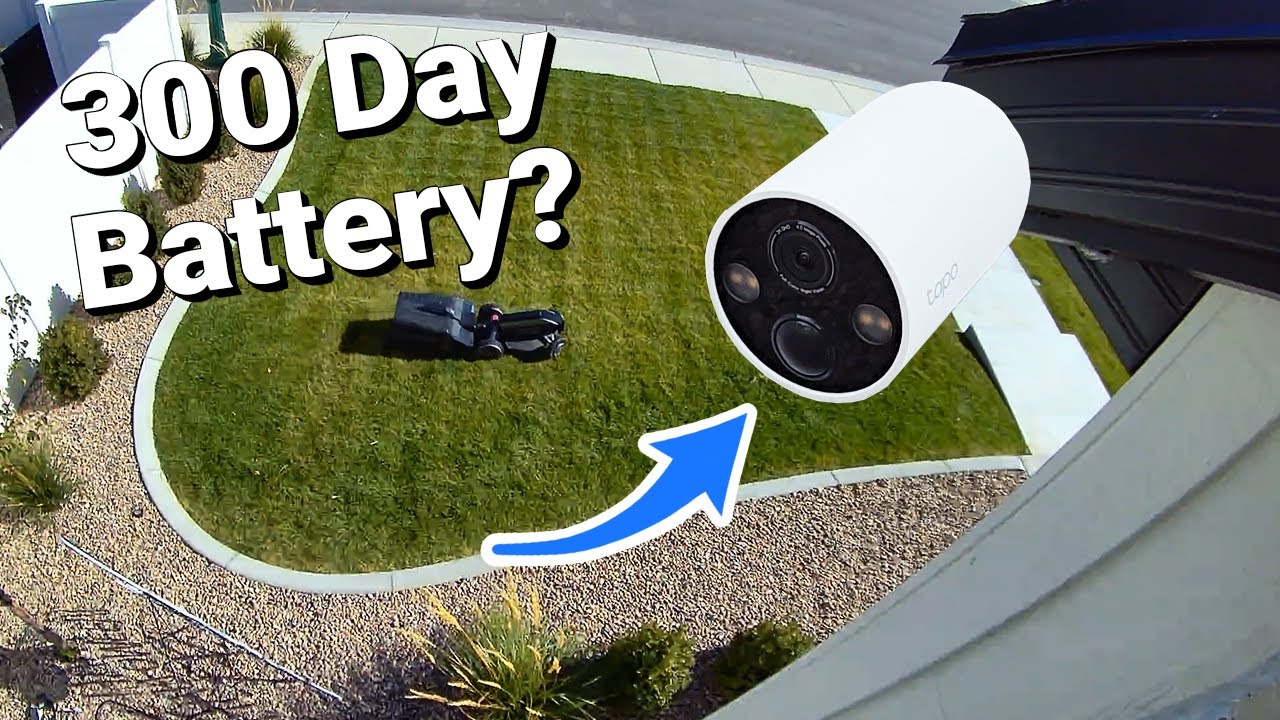
so we're going to get notified if it's a person a pet a vehicle if you do have this outside so that was cool because some other cameras do charge extra for that stuff another cool feature with this camera too is that the base of it is magnetic now as great as this camera is keeping an eye in and around your house it still does have to be plugged in but TPL link does have the answer for that and that is their outdoor battery powered camera you can take a look at that video review that I
did over here if you're interested and if this video is helpful give it a thumbs up let me know that you liked it as always don't forget to subscribe for more content like this I'll see you in the next video