hello and welcome today's video we're going to be talking about the best streaming settings for OBS Studio to stream to YouTube I know it's a bit different of a video from others I've done in the past but I've been live streaming to YouTube quite a lot recently with my valheim and a bunch of you are interested in what are my settings so today we're going over that in my opinion what the best settings are that work really well for me for streaming to YouTube and I'll be kind of going over how you could tweak a bunch of these settings depending on the hardware you have and what computer you have so starting off here you'll obviously just go to the settings tab and starting off with General uh the only thing that's important here is obviously the theme you can choose whatever theme you want I'm just using the default one because I really don't care as much as long as it's a dark theme don't use the light theme I don't think anybody uses the light theme and if you do comment below because you are special I will say that much but you'll also notice here that for the updates I have it selected for beta releases so basically you're it'll be default with the stable release which I suggest you do but some of the settings I'm going to show you today are in the newest beta I think this is 29 yeah 29. 1 version of OBS at the time of this video so I just selected the Beta release because this will be how it will be in the future for you all and I've got some really really awesome tips that are only supported in this beta version so do be sure to select beta close out of OBS and let it update to this latest Beta release because this one is kind of important for this video but if you're watching this in the future don't worry all these settings will be in the default version so going over to the stream tab because I do to YouTube I just have the YouTube rtmps server obviously you can do to any anything you want you know twitch settings will be different than what I'm going to show you in this video so if you're a twitch streamer maybe I'll do another video on that because I did use the stream to Twitch so let me know in the comments obviously if you'd like any more videos in depth onto any one of these things specifically but uh and then this is the server I use you could also use the backup ingest server rtmp um but I usually use the primary one if it's available and working well but if I'm having some trouble maybe I'll switch to the backup one um if I'm getting some errors from YouTube with their servers being a little slow sometimes uh and then I connected my account so I'd recommend highly that you connect your account that's obviously what OBS Studio recommends I actually used a stream key instead of connecting my account for like two years and just recently really realized the benefits of connecting my account and I'll explain those in a bit more detail as this video goes on but then you'll obviously hear ignore stream service settings um you you don't want to click this unless you really want to but um this is pretty much a little more important for twitch but not for YouTube so leave that unchecked and now we're going to jump all the way down to the video tab here because this is kind of The Next Step I know it's not in order but um you can see that I'm streaming in 4k so I have the base canvas resolution of 4K and then I have my output scaled resolution at the same 4K um and because of that resolutions match so I don't need any down scaling and I'm doing 4K at 60fps I'll be talking a little about this because I did get the 4090 graphics card which definitely can handle this but if you have something else there is a lot of other settings and we'll go over those so for example what I used to do before I got the 4090 graphics card is obviously I have the 4k monitor so my base canvas resolution does not change if you have a 1080p yours would be 1920x1080 for example but then if you do want to downscale because the maximum I could stream with my earlier graphics card or maybe if you have a worse internet connection which I'll talk a little bit about soon here um you'd want the output scaled resolution to possibly be 720p or 1080p in which case you will have to do a down scale filter I would recommend the lancos 36 samples one um but if you can only do the 16 samples one there's not that much of a difference between the two the 36 samples is definitely higher quality but the 16 samples is easier on your Hardware so if your Hardware isn't that great 16 samples and then common FPS for valheim I used to do 30 FPS but um I noticed that if I can do 60 I will do 60 for gaming specifically especially if you're playing like an FPS game first person shooter or something where it's like lots of action going on uh it's kind of important to have that frame rate be a little higher if your computer can handle it but I streamed valheim at 30 and technically my game was only running in like 24 FPS because of the fact that my Hardware just was not that great and it still worked you know a little bit I fatigue over time to watch but it still worked so then yeah those will be your settings for the video resolution now we'll go back up to the output tab these are where the important settings are so we're on the streaming and by the way you'd want to click this little drop down menu and select the advanced because by default I think it'll be on simple and then click the streaming tab because that's what we'll be talking about today again if you guys want another video on recording specifically and the best settings for that do let me know but starting off with the first streaming settings tab here I have the streaming encoder or the audio encoder sorry as the ffmpeg AAC which is what I use um it's pretty much default for everything I think now but the video encoder this is what's really important and will vary between hardware and internet speeds and all of that I am actually streaming an av1 encoding which is the new very newly accepted format to stream in there are a ton of benefits to streaming in av1 again I could go over those in another video but av1 is absolutely amazing and it is supported by some of the new Intel graphics cards as well as the new 4090 or the 4D series from Nvidia so if you've got one of those cards av-1 encoding is absolutely amazing I do not rescale the output because obviously I'm doing it in 4k so I don't choose to rescale the output here I just leave that unchecked but for example if you don't have the 40 series I would suggest h. 264 encoding uh Nvidia and vinc h.
264 x. 264 is if you don't have a graphics card and you want to do all the encoding with your CPU which I definitely would not recommend especially in today's day and age it works but if you have a GPU that can support the nvank encoder or whatever use it for sure it makes it a ton better quality so I would suggest h. 264 if your Hardware is on the lower end if your Hardware is mid end and you can do it or you don't want to use av1 h.
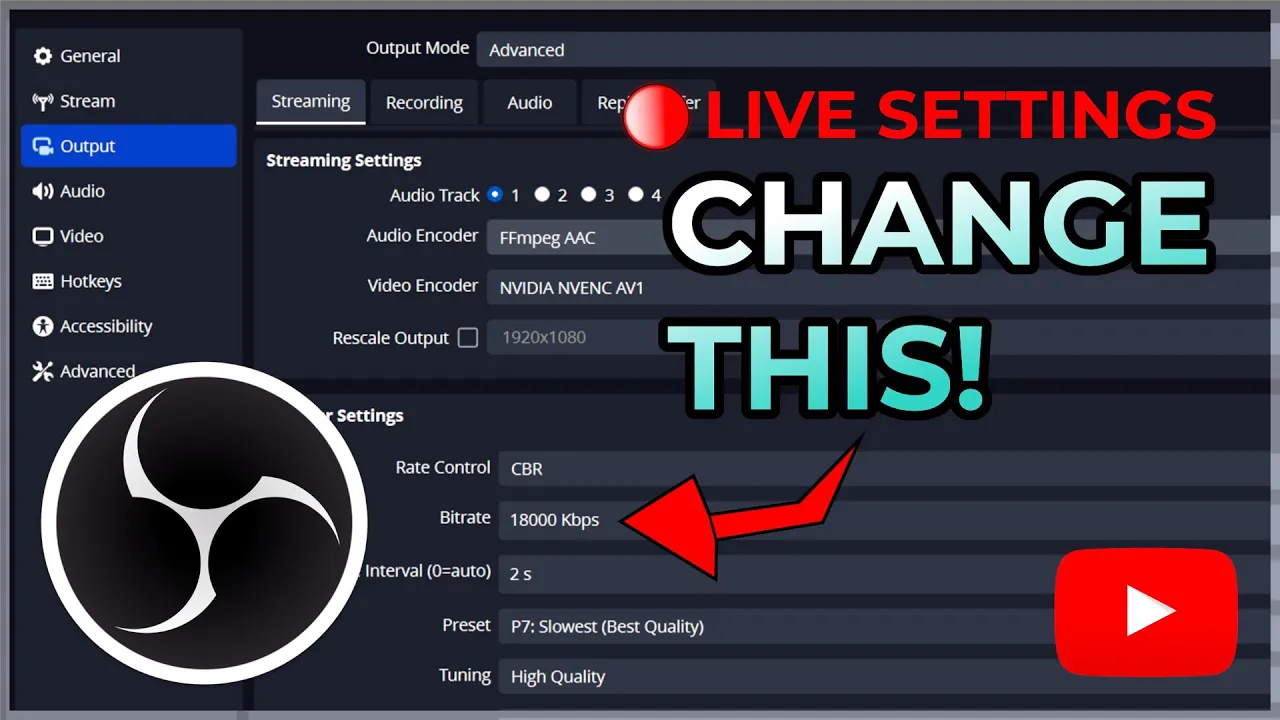
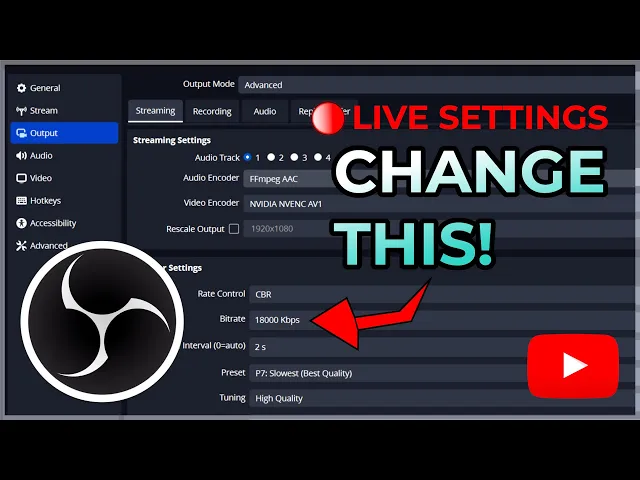
265 is a step up from h. 264 much higher quality video with actually less bitrate needed to maintain that high quality video and we'll go over a bit right here in the next tab which is the encoder settings so I have it set to CBR constant bitrate um which is what I would highly recommend for all of you these other ones are just not very relevant for streaming to be honest and I have my bitrate set at 18 000. which is pretty high um but it's actually very very low for what it should be because if you notice I'm streaming in 4k at 60 FPS this bit rate should be like YouTube can actually accept up to 51 000 kilobits per second all right that's a ton that's such a high number again for twitch it's totally different I think the their maximum is like 6 000 right now maybe 8 000 for partners but I can use the 51 000 but it's pointless because my internet speed is not even that fast and this is the benefit of av1 encoding if I used h.
265 or h. 264 I would not be able to stream in 4k with my internet speed because it doesn't look good at 18 000 kilobits per second whereas um the av1 encoding looks amazing at 18 000 kilobits per second now how do you choose a bit rate you choose your bit rate based on your internet speed I would recommend running a speed test you you can use the speed test by Ookla I think it's just speedtest. net and figure out what your upload speed is that's the important number here whatever that upload speed is cut it in half and that should be the bitrate you use for streaming so my upload speed is about 40 to 41 megabits per second upload but I'm I could do 20 but I'm choosing 18 based on trial and error because I tried 20 and oh because you get a upload speed say you know I get an upload speed of 40 megabits per second it's not a very constant upload speed the internet speed kind of varies goes all over the place and if for some reason it dips down for example if this was 40 000 kilobits per second which would be utilizing the full 40 megabits per second upload speed if this was 40 000 and my internet speed somehow dipped just below that which is super common especially if you're maxing it out like that then my stream would be laggy it would crash which has happened to me plenty of times as some of you guys remember when I just started filming or and doing the streaming in 4k I had it crash a lot of times before I settled on this bit rate because I even tried 20 000 kilobits per second and that was even just too much to where I found that my upload speed could sometimes barely dip below 20 but it never dips below 18.
so I would suggest either trying half that's always a good number for example if you've got 10 megabits per second upload speed then try 5000 kilobits per second as your bit rate here but uh 5000 would definitely not accept streaming in 4k for example so you would have to lower your resolution and your frame rate by a ton you might be able to get away with yes maybe 1080 especially if you use h. 265 bomb or especially if you use av1 you could again that's one of the benefits of av1 super high quality video at a very low bit rate because YouTube even recommends 20 000 to 51 000 for streaming at 4K 60 which is super high and my internet just couldn't quite do that so this is how I do it keyframe interval I do two seconds um that's pretty much the comment amongst everyone works pretty well the preset I choose the slowest quality which is the best quality my Hardware can handle it but if you can't I would recommend six five you know you can kind of work your way down the line until you get a good quality image with something your Hardware can handle pretty solid um so I tried six actually before I went to seven because six really worked well and there's not that much of a difference between six and seven but I noticed that seven was just doable totally doable I noticed I would also keep an eye on The Thermals of my graphics card and such when I was streaming to make sure it wasn't heating up too much and I noticed it was not heating up anymore doing six versus seven so I just decided to do seven because it's the best quality and my Hardware can handle it but again work your way down until you find something that works for your Hardware tuning quality I just have high quality and then multi-pass mode I have it set to single pass I used to do two passes at quarter resolution um but single pass just seems to be the best it seems to still work on Low End Hardware just fine profile set to main look ahead I have unchecked uh I used to check that actually because all it does it's like this AI that does exactly what it says looks ahead a few frames and kind of tries to predict what the next frame is gonna be which kind kind of could create a benefit but if your Hardware can handle it without it it's just it adds a bunch of like lag and unnecessary computing power that I find does not actually enhance the image at all however I do have the psychoviginal visual tuning that big old tongue twister thing checked GPU is zero and Max B frames is set to two now going to the audio tab here I have the sample rate at 48 000 kilohertz this is important uh this number should match whatever your mic input is so I'm using the focusrite solo for my mic and I have it selected as the input on the software for that to be 48 000 but if yours is 44 000 you have to do forty four thousand because if you try to push this number higher all it's going to do is like mess up with the timing of the audio so it's gonna sound either it's going to mess up with the pitch you might sound a lot higher or lower than your voice actually sounds um so you want this number to match whatever your mic can handle and that might be a quick easy fix for some of you who are noticing your audio is not synced up properly or your audio is a different pitch then mess with that number and make sure that's set to be correct the rest of this is just all default stuff and again I could do a whole separate video on audio settings because that's all dealt with in the uh the mic tab down below here so I could do a whole separate video on how to get your audio sounding good if you've got a decent mic now going to hotkeys I obviously just have some basic hotkeys uh to switch between my scenes nothing important there the advanced is also where I want to mention a couple things I have the process priority set to high above normal is also totally fine you know I don't notice much of a difference of high to above normal but if you do have lower end Hardware I would recommend running OBS studio in the first place right click it run as it run as administrator because that will give it top priority um for the processing and then also set this to high if you have lower end Hardware I don't notice a difference because my Hardware is fairly good and um it just so I just have it set to hide because I don't notice any D grade in my gaming performance or anything but uh basically if you set this to low or or normal your game will feel better but it won't look better on Stream So if you if you're okay compromising how your game feels a little bit lacking some FPS in the game to have a better streaming quality I would set this to high and then for the color here I just have the eight bit selected you could do 10-bit if you really want to get fancy but for streaming absolutely not maybe that could be a video setting that I'll go over in the future 8-bit is totally fine and then Rec 709 because that's the standard color space again all of this is default right now all of this is default so don't change any of this if you like the way it is something I do change sometimes is the color range it's so it's set to limited but I could set it to full um full color range versus limited color range again a super minor thing that does not really affect the quality that much I mean it's hard to notice if you if you set it to full versus limited you would really have to be watching that stream at a super high resolution and have a really good monitor with accurate color to notice the difference and it was something that when I set it to full my graphics card was working a little harder to try to stream so I just set it to limited um because I just don't notice the best uh difference there and then for the this tab this is the other thing that I did change automatically reconnect I have it set to be two seconds I think that might be default but I think it might be five seconds so like if my stream loses connection Midway through the stream it will try to reconnect and re you know put that video signal back every two seconds um I'd recommend putting it pretty fast like that you know try not to do it 10 seconds or 20 seconds less your internet speed is really slow but definitely try to do two seconds even one second then maximum retries you could put this number as high as you want I just have it at 100 I think it defaults at 50 but because I have a faster number here I'll just put more retries because who cares it could keep retrying and retrying as many times as you want it to that doesn't really matter so with that said I do hope this video was helpful for those of you who wanted to know a few of the settings and how to utilize av1 encoding maybe and again I might actually do another video on av1 encoding specifically but for now if you don't have the a beta version of OBS Studio or you don't have a graphics card that supports it I used h. 264 for years oh that that's what I use and again if you've got that graphics card that's like you know 30 80 maybe h.
![OBS Studio: BEST Audio Settings for Streaming and Recording! [Ultimate Guide]](https://i.ytimg.com/vi_webp/mCjo85MuD5A/mqdefault.webp)





![How to Stream to YouTube in 1440p using OBS [Best Settings]](https://i.ytimg.com/vi_webp/EkCnQYXX8Fs/mqdefault.webp)
![OBS Studio - BEST Recording Settings! 2025 [Full Guide]](https://i.ytimg.com/vi_webp/_v7cEyYEvaw/mqdefault.webp)