hello Bart this is Sophie from Bart's Automotive you previously called about booking your car in for a service and a Turbo upgrade would you like to follow up on that or discuss a new request today uh actually I have a new question I'm wondering if Barts Automotive does uh roadside assist or towing services yes Barts Automotive offers roadside assistance and towing services within a 20 kilm radius of our shop how can I assist you with that I need a book in a toe please I'd be happy to help you with that could you please provide
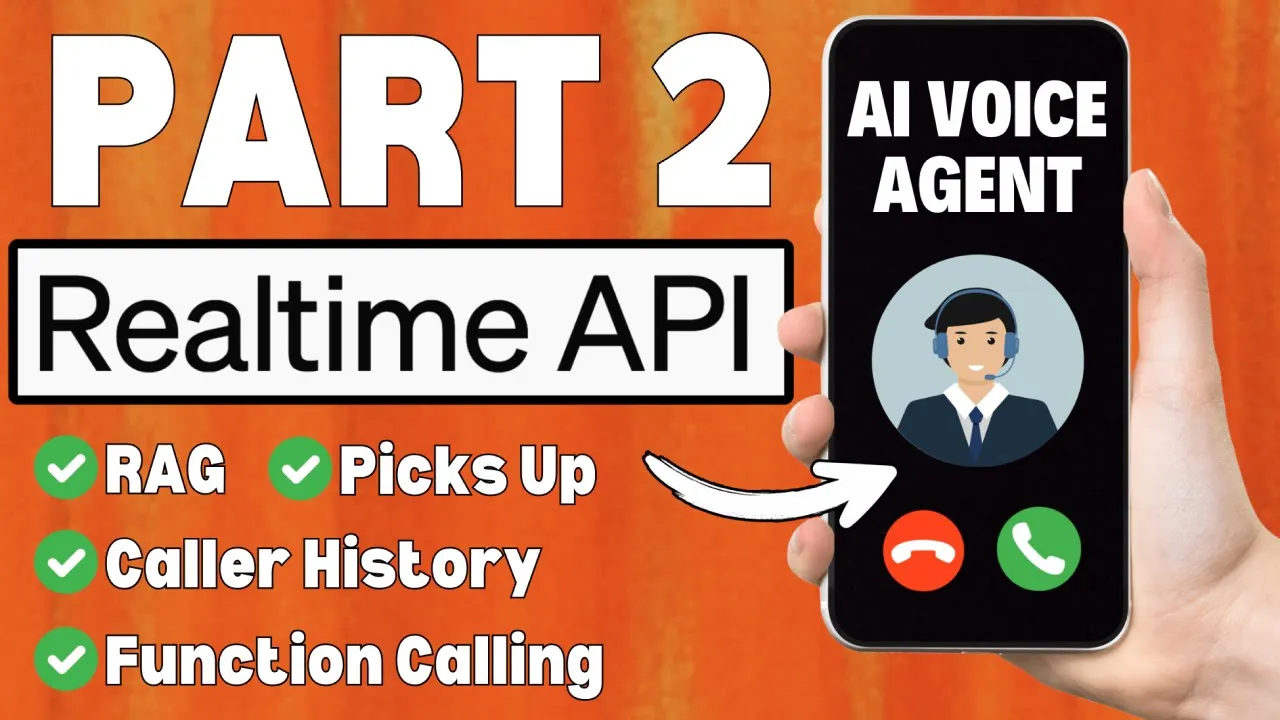
me with your current address so we can arrange yes the address is 12 little Collin Street in Melbourne Victoria your toe has been successfully booked one of our drivers will call you shortly to confirm the pickup time awesome thank you very much see you later all right guys and that was the part two of the real time API voice agent that has rag function calling and caller history how nice is that okay let's get into the video hello Legends in this video we're going to be building a realtime API voice agent with rag function calling
and caller history so this is a part two to the part one video that I made a week ago had a lot of interest and people were asking to build it out to have rag function calling and one person actually asked about caller history so that was a fantastic idea um so this new version it has rag so we're using the open AI assistance API to facilitate that it also has function calling so we're actually managing all of our function calls using make.com and I did this purposely so that when you take this code you
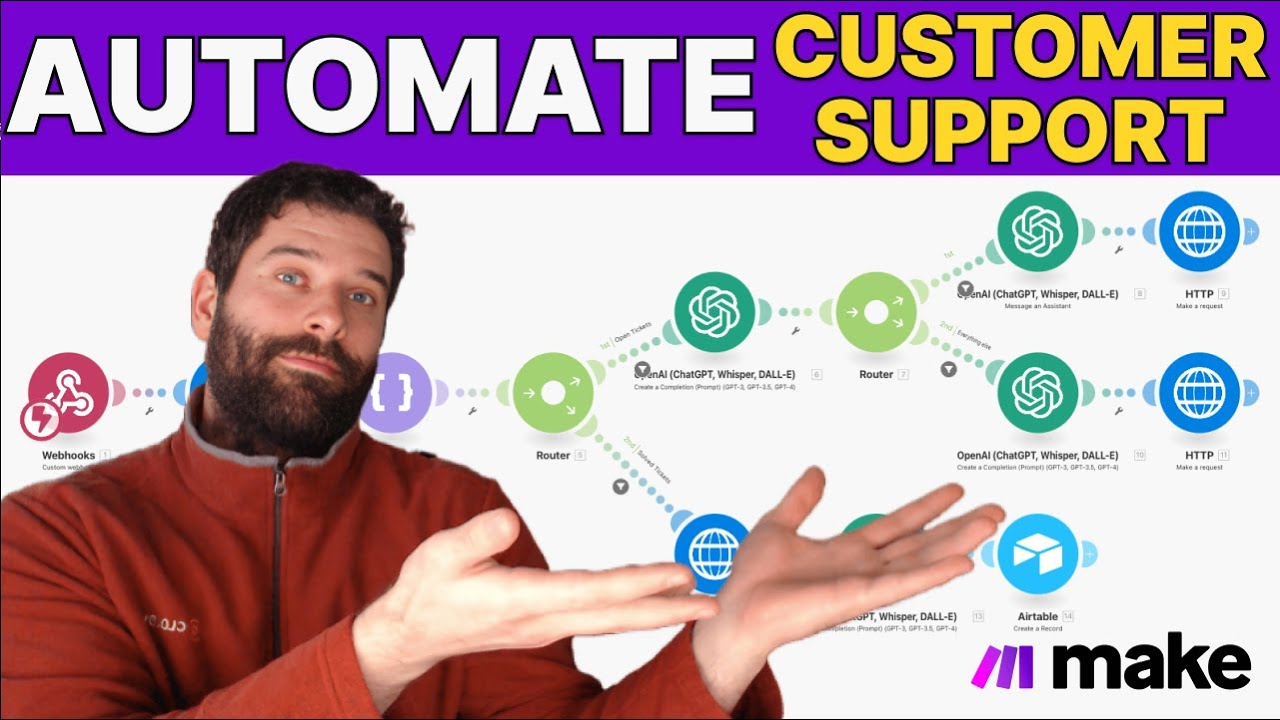
can easily plug it into an AI and say hey can you duplicate another function call for anything else you want to do and then all the function calls actually hit this one web hook in your make.com scenario and then you can use this router to basically route function call one to here function call two to here function call 3 function con 4 and you can see that it's super easy to expand out in make.com you don't have to have any complex API code within your actual repet script everything just happens in make.com so I wanted
to make this super beginner friendly and as you can see it's super Visual and it's only you know a handful of nodes per flow it's drag and drop so I thought this is the perfect way to basically Implement function calling in your voice AI agent and then finally for caller history the same thing we're using make.com and to make this work we just have a Google sheet that stores the phone number the name the entire transcript of the conversation and then an AI generated summary that we then feed into the function that checks hey was
there any previous phone calls that's why when I called up the second time it referenced my previous call saying hey you know your previous service and Turbo upgrade did you want to speak about that or was it a new request so I think this feature is actually fantastic because AI callers have a bit of a stigma it's like very impersonal and you just saw like as soon as it rang out twice I was immediately greeted with hey Bart your last phone call was about X and Y did you want to speak about that again I
don't know how many experiences you can get using a human team that actually just recalls that info immediately and greets you like that and while yeah AI is not going to replace a human agent that was very personal and I feel like I probably be okay if I was graded like that with an AI so scrolling down a little bit more now the functionality here is we're using twilio to facilitate the phone calling connection to the realtime API I had a few people ask if there was any other tools aside from Twi that we could
use because it was blocked in their regions I haven't had time to look into this sorry about that guys but yes there probably will be other tools now once again we're using repc to host the main logic I.E the managing of phone calls and then we're using make.com to run our entire backend so if you're a no code low code Builder you have this script you can plug it into AI you can add any function calls that you want at any stages that you want and then you just build out the rest in make.com which
you're probably already very familiar with and just like in my part one I'm going to make all this code Available to You publicly there's no pay wall you can just go to my GitHub I'll link it in the description you just go there and then you can download it into your repa and start building your agent today now I have two asks for you guys if you haven't subscribed to my channel yet please subscribe it'll help me grow and I can put out more content spend more time on this and basically I want to get
feedback that what I'm doing is actually helpful to people and one of the strongest indicators of that is that people are subscribing and getting involved in my channel number two if you like my content or you're a business and you want me to build something out for you please fill out my survey so this is the survey uh pretty much this is my first time running a YouTube channel I don't exactly know what I'm doing but I do want to get better at it and I'm hoping that you can help me so the first question
just splits like hey do you want to learn something from my videos or hey do you want me to build something out for you and if you want to learn from my videos I just got a few questions where I try and figure out what kind of content you want to see so that hopefully I can make it for you or if you're a business and you're looking to hire me I just have a couple of questions about what kind of project you want to work on and then to give me your email information so
I can get in touch with you all right and before we get into the swing of things uh I suggest that you watch the previous video you can just skim through it but it probably covers a more beginner stuff about how to implement this code even though I'll cover it completely in this video you might find some golden nuggets there so this is that video guys I'm going to link this in the description of my video okay so before we get into the code I actually want to break down the infrastructure of exactly how the
code works and how it plugs into make.com so when I was building this out and I was like running through the uh code that I got from twilio initially I watched a bunch of different videos on how to do function calls and to try and kind of learn a little bit more about like how these web hooks work and why we need two of them and how the actual web soer works as well and I found that it was very difficult and uh until open AI actually releases a simpler interface for running these uh voice
agents kind of like the assistance API it's going to make it super hard for people that are like beginner level to just use this API and I wanted to make it a lot easier to use which is why I decided to couple the actual code with make.com so it did take me quite a while to figure out how to make the first function call but after I did that it was super easy to just plug the code into Ai and say hey can you make me another function call but then I thought how do I
make this as easy EAS as possible because making a function call here you actually have to have the entire function written out let me give you an example so let's say we make a function call that goes into this web hook gets routed up into this first route over here and then we go into Google Sheets we pull out this information from the first phone call and then we pass it through AI to I don't know generate the first response that we want to send into our Ai and then we respond back to it in
this web hook call if you want to build out all of these steps separately well then firstly you're going to have to have some authentication method for Google gole sheets you're going to have to know how to search Google Sheets using Code then you're going to have to make a chat GPT completions API call then you're going to have to build your own API response and make sure it's formatted properly and then you're going to have to receive it in rep and if you're not a coder that's going to be pretty complicated but as you
can see here if we're just using make.com they've got all these modules that do so many different tasks for you and it's all just drag and drop so that's essentially why I thought okay well I'm just going to push all of my function calls into this one web hook and I'm going to show you the exact structure I've had make your function call and what's the payload that has to arrive into this web hook but then from here we have a simple router that goes function call one function call 2 function call three and you
can actually see this is the actual rag function call using the assistance API for brand new convos or existing convos so you don't have to manage any conversation history inside this main code because it's already managed by the assistant API and then finally we have our fourth function call and in the demo that I just showed you this function call Just Books in someone for a towing service so anyway that's the idea here that's why I wanted to build it out in make.com because it does simplify the entire process and it does keep your code
really clean okay so now that we understand the connection between Reet and make.com and why we're using this system I now want to break down the code so over here we have our repa environment and we have predominantly just one major code that we're going to be using so this is a index.js script and before we get into repa and look at the code I wanted to break down the main sections of this code so there's four sections at the very start we have some configuration so that's what we have over here we're just basically
setting up the app and all the variables all the libraries that we need we're also setting up the promp that we're going to be using some more settings we have our logs that we're going to be showing in our console and this is going to help us like debug and then finally we come into this section here which is the incoming call Web hook so that's what we have here so we just looked at the configuration all pretty much just static stuff that just defines libraries things we need to use variables and then the incoming
call Web hook so what happens here is when we first call the number like when you heard it was dialing that calls out and it sends a payload from twio into this incoming call Web hook and once again that's over here that's this incoming call Web hook that's why in twio when we're setting up the actual forwarding of the phone call we have to append for/ incoming call and that takes the payload from twilio and it just drops it into here so then what we're doing here is we're receiving the initial payload from twilio now
before I look at all of this code inside the incoming call Web hook I just want to explain how twio works so twilio first sends an API call to this incoming call Web hook the incoming call Web hook then responds back to twilio and gives it some information about hey okay cool now we're ready to start the actual conversation with the realtime API and here's the settings to do that then Tulio takes those settings and then makes a connection with the media stream web hook inside the media stream web hook we make a connection across
to the realtime API and we have that back and forth conversation now the thing to not is the first call that twilio makes into this web hook here actually contains slightly different information than when it makes this API call here so the package of info that the API call contains from twio that we can receive and use in repet once again is slightly different here than here so then what we're doing in this incoming call Web Hook is we're firstly unpacking that payload from twilio and then we're taking the phone number so that mobile number
on my phone that I had twilio sends it as part of the packet of information into repet and then we're able to grab that phone number and then that's what I use in this column to store the actual unique user ID of the user because every user has to have some user ID and then the next problem was okay if the same person calls twice how do we actually recognize that it is the same person well that's from the mobile number just like an email address is your personal identifier for when you're doing email communication
with companies much in the same way the phone number is the personal identifier for you when you're communicating via SMS or phone calls so we're then making an API call across to make.com and our payload for make.com always contains these three variables the route which is for this thing here because the router just chooses okay if it's got a one it's for Route 1 two for route two three for Route three and so on and I've got two more arbitrary data points here data point one I typically send the phone number because I want to
get some specific information to the user and data point two you can see here in this first API call I just leave it as an empty string I just write empty into the string CU I don't need to use it for anything else now the way to set this up is is to basically plan out your entire voice agent and figure out what function calls you want and then you realize that maybe one function call needs you to send five different variables into your make.com scenario but the main thing to keep in mind is that
this web hook always expects the same kind of data payload that it's going to be receiving so you can't just make one API call into this web hook that just has one variable and then expect when you make another API call that has five variables that this web Hook's going to understand what's going on so that's why sometimes maybe one of your routes would need five variables but one of your routes might just need one variable so then the one that just needs one variable you'll have to send four empty variables this will make more
sense as we go on so after we make the API call we get the response from make.com and then we create a variable called first message I'm also saving the caller number so that's the mobile number from the user that called and now armed with these two variables so the actual phone number of the user and then the first message I can now send it in that response to twilio so this section here is that first response that we get from twilio where we're responding back and saying cool now we can start that conversation we
can Target the media stream web hook and this placeholder this request. heads. host is just the URL of this repet that we're serving so like I mentioned before toia first sends an API call to this incoming call Web hook and then we respond back with a bunch of information to twilio so that we can start the actual conversation that's exactly what this is that's that response to twilio saying hey cool now this is the address for that media stream so we can actually start that conversation and remember how I told you that the information that
Tulio sends to this web hook and then to this web Hook is slightly different that's why in the response to twio when we're saying okay this is the updated web hook that we have for the live conversation we're also sending these variables across so these variables of caller number and first message that we got from make.com we're sending it to twio saying cool when you're making your next request also include this information now we have to do this because just because we target that first web hook with swiio it doesn't mean that whatever information we
captured in that first web Hook is now persistent throughout the entire code in fact it is not it gets fully forgotten and there's a couple different ways that you can manage memory in a code like this but you have to just think that the first web Hook is totally dependent from that second web hook and there's no information that's carried in between them so you need some unique identifying way to make sure that information is the same or in our case very cleverly we can actually pass some variables in that toio response so now that
we've covered off the first web hook I want to speak about the second web hook so this one's going to be where we're holding all of the main functionality for communicating with the real-time API it's also going to be where we're holding the actual function calls themselves so it's it's pretty juicy it's pretty fullon I'm going to try to keep things super simple though so moving on now now we have the media stream web hook and this is where everything happens this is where the entire conversation the back and forth is actually facilitated so over
here we're setting up some initial variables that we're going to be needing scrolling down we're doing some more configuration for this web hook and now over here I'm actually setting up the websocket connection for the real time API and moving down a little bit more this is our main configuration for the session that we're going to be running with the realtime API so over here is where we can change the actual voice and in the open AI dashboard you can actually go to this setting here where it says voice drop down and just try a
couple of these voices and see if you like them but to replace any of the voices you just take the name exactly as it is you can either paste it into here but as you can see I've just put a variable into here called voice and then system message and I've dropped both of those variables into this first configuration section so at the top of the code you have the system message and then you have the place where you can put the actual voice so we have alloy here once again it's all in lowercase now
the most important thing is this is how we're doing our function calls so as you can see here we're establishing our first function call for the question and answer this is the rag so over in a system prompt which we're going to be coming back to a couple different times I'm managing our FAQs over here so the rag is handled with this handling FAQ section where it says use the function question and answer to respond to Common customer queries so I'll break down the payload in a second but we're basically taking route three over here
and for Route three we're using the message and assistant node and we've got two routes over here because when you're creating a new conversation with the assistant you actually don't have something that's called the thread ID you have to create one from scratch and a thread ID is unique to that conversation and as long as you have that thread ID ver variable if you feed it into the API call you can have a continuous conversation so that's why we have that route over here for brand new conversations we're actually creating a brand new thread ID
and then we're saving that variable and Responding back with it in our payload so we're getting the actual response from the assistant and then we have the thread ID over here which we're passing back into our code and then for existing conversations we're just feeding that variable directly into this node and that's what I have over here data point2 so scrolling back down we then have our other function call which is for booking a towing service for the customer and that one is actually route four so I've got over here book a toe for Route
4 this is super basic we're basically adding a row to Google Sheets saying that there's a customer requesting a tow and then we're sending response back to our API call saying that the toe was booked in and that Google Sheets is over here and you can see we've got the phone number we've got the address and we have a status which is pending so then our operator can come into here see the pending ones give them a buzz and organize a toll with them so I'll be breaking down the actual function call in a second
and I'm going to show you exactly how the payload looks when it comes into make.com so let's keep dra down a little bit more so another cool thing that happened in the demo was when I picked up the phone call I didn't have to say anything I just got a response directly back from the AI saying hey bar your last call was about x y and Zed and we were able to make that happen by sending a message using this functionality here so that first message variable I want to speak about this for a little
bit so going back to this image I'm going to quickly jump into here for a second so at the end of the actual conversation with our assistant we have some more configuration which basically says take the entire transcript of the conversation and send it across to make.com and store it which is what I'm doing over here I'm getting the phone number I'm attaching the customer's name the actual transcript and then a summary of what happened in that call and then for every new call that I get like I mentioned before I make another make request
to that same Google Sheets to try and find hey this is that phone number that's calling now is there any other previous convos related to this phone number so that's what we're doing over here we're actually going into the Google Sheets and searching up with the phone number that we have from the user and returning any rows that have available information the reason that we're using this chat GPT module is because it helps us build that first message so I've got a prompt over here that says hey if this Google Sheets call actually returns some
information for a customer then I want you to construct a specific first message whereas if this Google sheet doesn't return any information indicating that this is a brand new caller there's no previous call history at all I want you to create a different first message now let me explain a little bit more about what's going on here as you can see I'm in the assistant API playground in open Ai and this thread is completely empty and I've got a text box here to enter a message I can just write a message like Hi how are
you create a run and you can see the response is I'm here ready to assist you well really what I want to use is I want this response which is technically the second message on a thread I want this response to be tailored as a first message that's why when I was greeted it was like hey bar your last call was about X and Y did you want to speak about that or do you have a new request to make that happen your first message has to contain certain information it has to pass information like
this is the customer's name they're calling for the first time when they pick up the phone I want you to say hey I've got information about your last call do you want to speak about that or is that a new request so now if I clear the actual thread and construct a different first message which is what I've done over here I basically said hey you're just receiving a phone call from a customer called Bart his last conversation was about a service for his car now start the conversation by introducing yourself as Sophie from Bart's
automotive and ask if Bart wants to speak about that last phone call or if he has a new request so let's hit run and see what kind of response we get this time and there you go that's how we got that first response hi bar it's Sophie from Barts Automotive would you want to discuss your previous call regarding that car service or did you want to start a new request that's fantastic that's why we have that first message variable so once again that's what we're sending here is that initial message that first message and that's
why the AI greeted me immediately by name and by referencing the previous conversation we had now anyway moving forward a little bit more I'm going to jump across to the function calls okay and now we're at the section about function calling so that's that functionality over here now I'm going to focus in on this block over here and you can see that if the response type is this specific response type which is what is essentially for function calling the the event that we're looking for and if the function name is question and answer and just
to remind you that was our first function name here question and answer that's for the rag so if it's question and answer let's send this payload across to make.com and you can see we have route which is three we have data point one data point 2 and for data point one it's just the question that we're sending that the last user asked us so my first question in the demo was hey do you do uh roadside assist or car towing and we're sending the thread ID variable now the thread ID variable initially like I mentioned
it's empty but as soon as we get a response this saves as an actual thread ID variable so for our next question if we have any we're going to be continuing the same conversation and then over here we're processing that response so the response from make.com which is this response over here and if I just open it up you see that we're sending the actual response we had to par it as Json first then we have the thread ID now a quick note here is this function itself probably takes about 6 seconds to process the
assistance API is pretty fast but if you're waiting for the entire text to be written out to you it takes about 6 seconds depending on which model you're using or how long the question or how long the response is now to explain that a little bit more let's just say I ask another question here and I say hi what are the open hours if I hit run you can see this entire processing time where this is loading up and now this message was sent you saw that it was sent pretty quickly where it was sending
word by word that was a streaming response we're not using streaming response yet in make.com we're actually stuck waiting until the full response is created so we had to wait for this loading situation here then we had to wait for every word to be delivered and once the final word was delivered that was the end of our API call so using this method for the rag it is a little bit slow but I wanted to keep everything open AI cuz I think it's it's just super cool but you could also use different API calls which
might be a little bit faster so over here the function instead of using a make.com API call maybe I'm just going directly to something called pine cone assistance API and that might be just slightly faster but the main thing we want to do here is introduce some kind of streaming response I haven't looked into that yet but that would be probably the next best thing for reducing the latency cuz yeah it probably takes a couple seconds for this to actually complete and then to respond to the customer but moving down a little bit more now
we have the place where we're creating the response item that the AI is going to be saying back to us and then we have this over here we're using the functionality to basically say cool we've just got the response from make.com now save the response from make.com Back to the customer if we scroll down a little bit more we're going to have our next function call which is book toe and that's that function call over here so book toe and we're doing the exact same thing this time we're sending the route to be before we're
sending two different data points so the first data point is the actual column number the second data point is the address in our prompt for book a toe we first tell the AI to ask for the current address of the user and then when we have that information we're making the request to book a toe so the cool thing is that address situation here then the same thing when we're actually sending the question in this payload the AI is able to take the function call and then insert the variable as needed and I already mentioned
this before but this is that route number four so we're just adding a new road to Google Sheets and sending a response back using the web hooks response module and that's what's happening over here so then we're capturing that web Hulk response module here and then we're processing it we're creating an actual response and then we're feeding that response back to the AI saying cool tell this to the customer so now you can see here that the structure of actually creating a function call it's it's not too difficult and especially if we're just using make.com
and it's the exact same way that we process then really you can just duplicate whatever function calls you want and just maintain that make.com backend system and it's very easy to just expand on this code cuz once you figured out this first section just plug it into AI say make me another two function calls one that does this one that does that and then you just have to briefly edit your prompt and say hey this is the guideline for when you use that function call and then also you add the function calls over here but
it's actually pretty easy like this is exactly how I duplicated my book a toe function call I just put it into Ai and once I figured out the first function call which was this which took me quite a bit of time to be honest then this one was super easy because the AI just yeah replicated it so I'm so I know I'm pushing that point about duplicating function calls Trust me if you're not really good at coding then yeah this method is so so good again just put it into Ai and it'll duplicate it it's
surprising how easy it is so over here we're just doing some other configuration stuff so we're log in the response from the agent we're appending more variables to our transcript variable so the respons is from the agent the response is from the AI and then over here on the event of websocket close so when we actually hang up the phone call on our phone it sends an event to twilio twio then sends an event to here and it closes the entire conversation so then our final function over here is basically saying cool take the entire
transcript which is what we have over here session. transcript and then send it across to make.com so we're using route two over here and as you remember we're also sending the phone number across to make.com so this is Route 2 over here and we've got two chat GPT module so this is a chat GPT completion just to show you that the first one I'm putting in that data point again it might be confusing here because it says data 2 but you can quickly go into here and say okay data 2 contains the transcript and in
this situation I'm just saying hey pull out the customer's name and save it to a variable and in this next call I'm saying hey take the entire transcript and summarize it that's how we get the customer name in this column and then the summary in this column there's a couple of different ways that you can actually make this flow you can also use a chat gbt completions with a structured output so let's say out of the transcript you want to pull out five or 10 different bits of information you probably wouldn't want to use five
or 10 different chat gbt completion calls you might just use one completion call and then pull out all the data in that one call but anyway you see what's going on here we're adding the information Google Sheets and then we're sending a response back to rep so this response is basic it's just the status 200 saying that it was a successful API call and we're not sending any body back because we don't really need any information from this API call and then scrolling down a little bit more and then over here this is the make.com
function code that we're using for our function calls so that one function at the end that facilitates the routes for Route 2 route three and Route 4 in my code I actually used a standalone make.com function for the very start when we're checking if there's any caller history which is what we have in this section here we're making a fetch request this is an actual API call with the post method and we actually have this is the entire API call here whereas here at the bottom of the API call is in the exact same style
so we're doing a fetch request now this is just a personal choice I made the API call at the start part of my first version of the code and then when I added function calling here I just use this as my template function for all the function calling that's why it's separate if you have this code and you're thinking do I need to keep both you can condense down into one and just Slimline your code but there's totally no difference you can just leave the code as it is but yes that's what we're doing here
we're making the actual API call across to make.com and then we're processing the responses over here so that was the entire run through of the code okay so now I'm going to jump across to repet I'm going to build this out using the code from GitHub I'm going to show you how to deploy it so your rep is live and then I'll show you how to plug it into twio the only thing I'm not going to show you in this video is how to build this out from scratch because it'll just make this video way
too long but if you want to see a video of me building out the uh AI Auto backend for the AI caller then just leave a comment in this video saying Hey bar please make that make.com tutorial as well okay so across and repet I'm going to show you how to actually deploy the code so you can get this working for yourself I'm going to go through this a little bit quickly uh if you want to watch my old video then I'm going to link in the description as well that'll go through a little bit
slower step by step um but yeah you'll be able to follow along anyway so actually the first thing I want to do is go to the GitHub uh repository which I'm going to link in the description of this video I'm going to go to this green button here and I'm going to click copy and back back in repet I'm going to go to create reple I'm going to go to import from GitHub and from URL paste the URL into here and then import from GitHub so after this finishes loading what you're going to do is
just click confirm and close you don't have to do anything else now I'm going to make the interface a little bit more intuitive for me so I'm going to drag this and drop it on the right hand side and if I scroll down to here I have a command that I need to run so I'm just going to copy this then over here I'm going to click on shell I'm going to paste the command into here and hit enter and now this is going to install all the dependencies that I need for this code to
run so actually in the package.json file what we just did we basically listed over here A bunch of dependencies that we need things that we need for this code to run so when we ran this command npm install we basically installed all this stuff so that we can actually run this code now back in the readme file we need to set our open AI API key and to do that we have to create a EnV file first so let's go over here and add that file in and type in EnV and hit enter and back
in the read me let's just copy this paste into our EnV and now we have to replace this with our actual API key from open AI so let's go into open Ai and go in dashboard let's go into open AI let's click on API keys and create a new secret key I'm going to call this key- 2 create secret key copy this hit done and back in repet let's paste it into here now back in index.js I'm going to scroll down a little bit the thing that we need to change is this web hook URL
so actually this is already my web hook URL I'm just going to put a uh I probably put a placeholder here so when you go to GitHub it won't have this but that URL is going to be for this web hook over here so if you click on web hook this is the address and you can just click copy address to clipboard let's click okay and then you would paste it directly into here and hit enter so now the next thing I'm going to do is just click this Green Run button and it's going to
deploy this in a virtual environment okay so now technically I actually have a URL that I can Target from my twillo account so I'm going to click on this and I'm going to copy this now cross T again my first video goes a little bit slower in this section but I'm going to assume that you've watched that video already I'm going to click on Australia which is where my phone number is click on phone numbers click manage and click active numbers I've got a couple of active numbers here uh for us we actually need one
that has voice capabilities so if you need to buy a new number make sure it has voice and I'm going to be using this phone number for the integration okay so just copy whatever configurations you see that I have I think if you're doing this in a US region you your your setting here might not be called Web Hulk just by itself it might be a couple different words but just choose the one that has web hook then we want to paste that URL into here so I'm going to go contrl +v and now and
now if you recall from here we actually have to append this incoming Dash call to our URL because that's the first place that twio is going to be sending some information to so once again in our code it's SL incoming D call so I'm going to copy this and back in Twi I'm going to paste it into here now just to note that we only want to have one forward slash here sometimes if you copy this URL separately and this URL separately you might have double forward SL here but that's not what we want and
then make sure you're using a HTTP post request now let's hit save on our configuration okay and with that saved let's go back to repet and now we can actually call this number all right so let's call up our AI assistant hello Bart this is Sophie from Bart's Automotive last we spoke all right and it's as easy as that so now the next thing we need to do over here is just deploy this so I'm going to go deploy and I want to use a default setting so I'm going to go set up your deployment
click approve and configure might just expand this down a little bit more and now click deploy and this will take a few minutes to basically set up everything it's going to be making this now public to the web and it's going to update our URL so when this is finished deploying we're just going to be copying our URL and pasting it into twilio okay and we just finished our public deployment so now we have to copy this URL so I'm just going to copy this let's copy this and back in twilio just paste it into
here remove this double forward slash we just need one and save configuration all right and with that fully saved let's give this one more go so across in rep I'm going to be calling this number one more time but actually what I want to do is I want to hit run once on this scenario so you can actually see how the payload arrives into here okay so let's give this number a call hello Bart this is Sophie from Bart's autom thank you Sophie okay so now to dig into this a little bit if I click
open here you can see that we have the payload so to break this down the bundle that we're getting from repet always has to contain these three variables so it's always got a route variable so that I can actually route my request to different sections and then I have a data point one and a data point 2 it doesn't really matter what you put into these data points you can technically have them as empty you can have a phone number you can have a transcript you can put whatever you like and then the only thing
you need to do is you have to make sure that you're using the correct variables in your other modules so now example over here we're using the first variable called route as our route so it's one then data point 2 is the phone number and data point 3 it just says empty so that's why over here in our filter the route is the variable we're using and the condition is equal to one because we want to take Route One and then over here I've got data point1 cuz it's the phone number and that's what I
want to search up against and then over here I'm just using whatever I've return from our Google Sheets and then for the web hook it's just the result of the chat GPT completion over here and that's how you set everything up in make.com so it might be a little bit confusing now about how to set it up but just take your time go through the code just look at how the payload is structured for each of your calls like over here my data point one is caller data point 2 is empty but then in my
question and answer I have data point one is the question and data point 2 is the thread so you just have to make sure in make.com when you're actually making your route so like route three I just use the appropriate data points in the appropriate places it's actually not that hard once you just spend some time looking at this and once again from my booking of the toe I've got route four and I've got data point one is the color number and then data point 2 is the actual address so again interchangeable but you just
have to be consistent in your make.com scenario all right guys thank you very much for watching this video it takes me a while to kind of figure out these Concepts the code and then to understand it well enough that I can break it down in a very beginner friendly way so I'd appreciate if you comment below and just say hey Bart the pace was good or the way that you broke things down was good do you want me to emit anything do you want me to go a little bit deeper in different things um so
I would really appreciate that if you haven't already please subscribe to my channel Help Me Grow help me reach more people uh that's also positive feedback for me that I know that okay people actually like this kind of stuff enough that they will subscribe to my channel and finally if you're a local business or a government organization or an AI agency whatever it is if you want an AI caller built out for your business my email is in the description of this video please reach out to me all right thanks guys enjoy your voice AI
agents see you