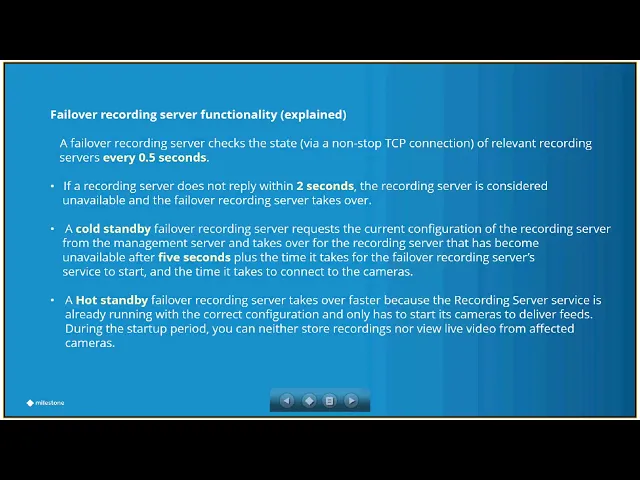
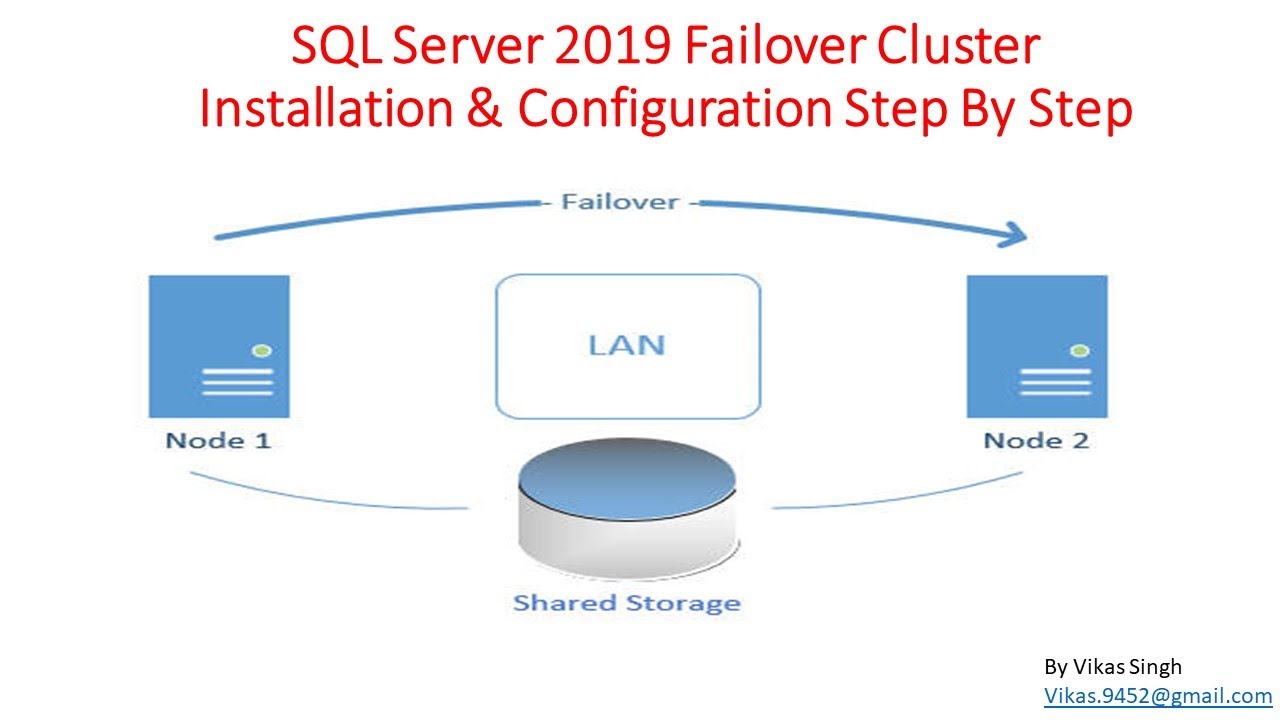
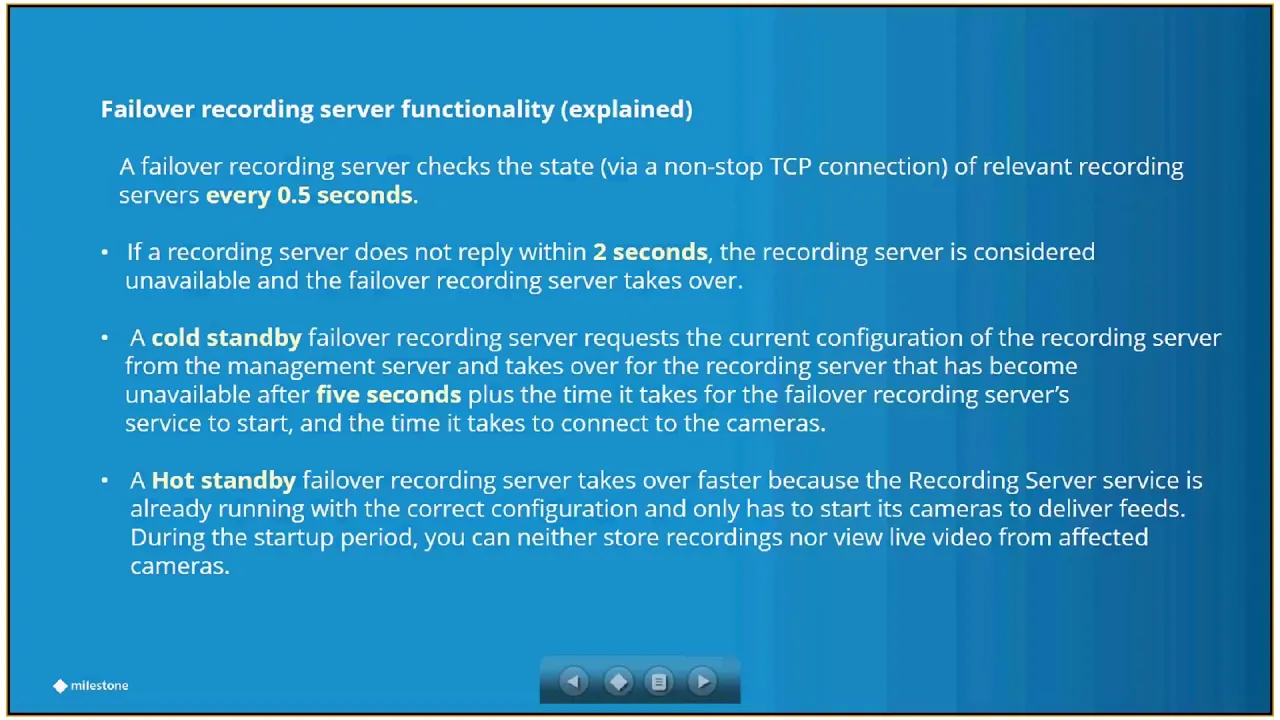
okay everyone thank you for participating in this week's um fmff before a christmas eve and christmas day okay so i believe we touched on this subject pretty much about a year ago okay i talked to jared about it and he said the last time somebody talked about this was a year ago uh i'm not sure exactly what they covered to be perfectly honest with you i don't remember seeing that one so it may be a few overlaps here for from the people that actually attended that one so anyway let's get going here okay let's see here here we go okay failover failover is actually a building module that is available on a couple of our applications that are going to go into that next slide and basically provide the ability for our main recording servers to be basically backed up in case of an emergency okay or even maintenance for that matter okay and we have a couple of options as far as failovers are concerned and one is the call standby which we're going to get a little bit into it in a minute and the hot standby what you see on screen now is kind of a typical situation in which you're going to be able to use the failover option you're going to have two recording servers for example and this is more relevant in case of the call standby you have two recording server you have a failover unit okay or failover server and of course you have the management server this is the bare minimum you're gonna need okay and of course in this particular scenario the management server has the event server loaded sql of course loaded and the the log server loaded okay so let's go from here now which are the applications of the actual products that support it i heard not too long ago someone indicating that professional plus has that ability and that's not the case i urge you to please always check against the comparison chart things change from release to release there are some features and functions that we actually bring down into the lower level products and we add new features to the higher level products so in maybe on one time or another we may have that available in professional plus but at this point in time the only two products that actually have the ability to do failover is the expert the s protect expert and the ex protect corporate so keep that in mind especially for those of you that are actually you know in contact with a customer and they would like to to do a type of a deployment if they request that they need failover they have to go with one of these two options okay at least using our integrated module so from here in regards to the two options that we have the hot standby and the call standby okay basically both options uh work very well okay it's just a matter of how they go about it okay in the case of the call standby as you could see here okay and maybe later on when you see it on your own you're gonna be able to read it in more detail but basically in a nutshell the call standby has the ability to always check the server as well as the hot standby will do but it does not have any particular configuration already preset on the failover unit and the reason being is that the custom buyer has the ability to actually become a failover for any one of the main servers and we're going to again also go into that a little bit later on so it doesn't know which main server is going to be backing up or okay or failing over so it takes a little longer to get it going because you have to check with the management server and pull that information out in the case of the hot standby is faster because it's a one-to-one relationship the custom buys is a one-to-many relationship so one failover server may cover three or four main servers or standard servers as they said it in the manual um but in the case of the hot standby it's a one-to-one relationship the one that you're going to see most at in the field is the cost and buy and the reason being is the economics of it okay you you can save a lot of money in hardware when you have a one-to-many relationship in the case of the host and buy for every one of the main recording servers you're gonna have to all the integrator or the end user have to spend money acquiring another piece of equipment to use it as as a failover of backup okay so the ones that i'm you know that i see the most in the field and you you know some of you guys in pre-sales probably will back me up on that will be the ones that are actually a one-to-many which is and they call standby okay now how does it work okay basically you have a tcp connection that is always talking in the system right this tcp connection is between the failover recording server okay and the main server okay any one of the main servers is always checking against each one of the servers okay every half a second it does a check to make sure everybody's alive everybody's responding if any one of these servers takes longer than two seconds in response this the failover unit will assume that server is down okay as soon as assumes that it starts procedure in order to take over that particular server okay it takes roughly about five minutes for the call standby server to start on top of that you have to add a and sorry five seconds and five minutes five seconds on top of that you have to add an additional amount of time which is not actually specifying the manual okay i tried to look it over but i couldn't find it that it will take for to talk to the management server pull the configuration out that belongs to that particular unit that failed okay and on top of it when that configuration comes in you have to go ahead and move all those cameras assigned to the streams of those cameras assigned to that recording server to come and started to record on the failover so it takes a few more seconds if you're working with the call standby that if you're working with a hot standby the ability of the host and buy as i mentioned before is that the configuration is already running on the standby unit because it knows exactly which a main server is going to be replacing so that few second that requires for it to talk to the management server pull that information in and start transferring cameras is zero okay the only thing he has to worry about from that point on is just pull the cameras in and start recording so the hotstone buy is is a bit faster not much faster but it's a bit faster that the cost and buy okay in some particular designs maybe more desirable to use the hot standby in other cases it may not be that relevant so the constant buy is the one that's normally used okay and as far as the operator is concerned we're talking about is hardly noticeable to be perfectly honest with you it's hardly noticeable from their standpoint um although there are certain caveats that we need to look into it and i'm going to get into it in the next slide here okay so then after the unit takes over when the recording server becomes available again okay now you're recording on the on this time by unit keep in mind and this is very important this is something that a i haven't seen any changes to what i'm about to say so it is still prevalent even in the 2017 r3 is the fact that the the main recording servers are storing all this information on a storage that could be either a nas or or a san or even a das okay but when you move over to the recording server that is acting as a failover okay that failover recording server doesn't have access to that same area okay therefore it have to record in his own area now the we need to keep that in mind for two reasons number one when we do the server calculations we should be doing two server calculations one for the main recording server that is going to be holding the information for let's say 30 days okay and then we have to do another calculation for the failover server and the only difference between the two calculations will be the retention time the retention times the way i do it is i talk to the integrator and it says okay in case of a main failure what is the response time uh whether that you know will entail replacing the the recording server altogether or repairing it and if they say well within a day or within two days then my my calculations are for a two day or sometimes i put five days retention time okay just to have a little extra okay so you do two calculations so when you when you provide information to the integrator you have the configuration for the failover with maybe five days retention time so it's a lot less storage that is required in comparison to the main recording server and again the only difference between the two will be the retention time hopefully the the network is balanced all the servers have pretty much the same amount of cameras if on the other hand you see that the the network is not balanced and you have service with a lot more cameras and some of them with less cameras then you have to use in your calculations the server that has a lot more cameras in order to make sure you got enough a horsepower on the failover server to take care of any one of the servers that is supposed to be backing up in case of an emergency so that's that's in regards to the calculations are concerned okay now the way the system works when the main recording unit comes back online is that the recording server it gives all the responsibility back to the main recording unit okay so all the cameras go back everything goes back and then the the the recorded video okay started to trickle back into the main storage area now this last part is important in case okay and it's unusual but in case that during the time that this recording server is sending all this video back into the main storage area a secondary main server fails he will stop that transfer he will take care of the secondary server that failed okay and when that secondary server goes back online it will continue to move that video that it started before into that server storage area okay whether that be as i mentioned to you it does an ass or a sun and then when it's done with that it will go ahead and start transferring the video for the second recording server that it failed okay so keep that in mind and of course is it's very difficult to determine how long it's going to take because it depends on the resolutions of the camera how many cameras how long it was online a backing of a one server or maybe even two servers so that particular amount of time is not easy to to to calculate is it is possible to get very close by after we know the whole design okay so if the integrator wants some sort of a ballpark idea how long this is going to take we can may be able to figure that out but otherwise is at the beginning it's unpredictable because it requires a lot of variables to be into consideration but that's basically the way it works and we need to make sure of that because in some projects they don't necessarily like that and the reason being is that when you are on on the failover server if let's say that i don't know a day before something happened and somebody wants to see that video okay while you are on the failover that failover unit doesn't have access to that video until the main server comes back online of course that main server was the one that had that bid in the first place okay if it's another server has nothing to do it but if that main server was the one that recorded an event that happened the day before hours before it failed and didn't fail and the failover is taking control of both cameras the operator would not be able to pull that video until that main server goes back online the the good thing is that of course the video is is intact you know nothing wrong when you happen i mean the video is still very much accessible but it will take a little longer most projects don't really care for uh you know for that but i have seen some some end users that don't necessarily like that procedure and then we have to deal with that when the time comes okay but that's something important to realize how do we load the failover server okay it's very simple you go to the unit that actually is going to become the failover and you um basically put the address of the management server as you see on the screen okay you you either put the name in the network okay if you have a dns server or you put the ip address then the port the port is very important that you use port 80 because it's the default for the iis in case that for whatever reason that changed then you have to put the appropriate port there but typically sport 80. so and for you know for those of you that already know this uh port 80 is not really required to be a label there you just you just finish the address and then it goes slash install and slash admin but if you feel better you can put actually a call in 80 and and keep going um since you're going all the way to admin because for installing the for example a smart client you just stop an installation and go ahead but when you go into the slash admin you're going to be requiring the username and password of the management server in order to pull the screen that you see okay it's a website building into the into the server and you will see this now the choice that you pick if you if you look closely you are not going to see oops sorry about that here we go if you look closely you're not gonna see one label failover okay and this is important what you're gonna see is this one it's a recording server installer okay so there's nothing here that says failover but this is the one that you actually picked as soon as you activate that one the next screen will show you this and here's when you see typical that means a regular recording server you don't want that one or you can go to failover there's also the option of custom if you need to change something else that is required for your installation but typically you go straight into failover so keep that in mind because some people actually calls me and they say well listen what is the failover uh and it's not here it's actually within the recording server install okay so you go there you go to failover it's pretty straightforward from here on and then you start filling the information now keep this in mind also it says recording server name but you can put something along the lines of what you see on the screen failover so you understand it's a failover configuration in reality when you install this particular option you're installing two things you're installing the regular recording server services on that particular box but you're also installing the failover services so if you go back when you're done and you're going on the services you can take a look and you're going to see this too okay so you're actually installing two components it's not one single component label failover you're installing two components okay then you go ahead and you set up the management server address and this is very important because obviously the failover server has to talk to the management server in order to pull the configuration okay and even if you're on hot standby at one time you're going to have to pull it in the case of call standby have to do it every single time it wants to take over a main server a main recording server and of course where the data where the video data will be re is you know stored and that is pretty straightforward as well okay so you can put it there next and this is very important here next typically what you picked is a a particular account that depending if you have a work group or you are part of a domain it could change slightly in case of a work group a local admin username and password will be good enough and you can keep going from here in case that you're in a domain the ideal way of doing it is to use a domain administration password username and password but for some installations that may not be an easy task because you have a lot of requirements by the it department and they don't want to give you one or whatever the case may be but you go you can go with option b what i call option b which is a domain user that actually has local rights okay to this server and you can go ahead and use it it could be a little tricky because i would really like to use a domain administration username and password that way i know across the system that i'm configuring i'm using exactly the same one but this is also another way of going about it you do have to use one that has administration rights though okay if you don't or if you're using a user that is not part of the domain it's not going to work so make sure you have this information at hand when you're doing the installation okay next you're going to see the loading procedure okay as on the screen after that you're going to see a screen that says that everything is done is completed it will show you the device pack in this particular image you see 6. 7 in case that that device pack is not the latest one i urge you to go back and re install the latest one in order to maintain all the servers with the same device pack is very important that all the servers in the system whether it be the main server recording servers or the failovers they all have the same device back it makes common sense but you'll be surprised so as soon as you see that then you got to go to the lower side of the screen as the arrow the arrow shows and make sure that your failover server is starting or already started if for whatever reason it's not a stopped you have to manually go there and start it manually okay that would be a little bit of a concern because i was wondering why it's not starting but it's something that you need to make sure before you continue if this is not working nothing else from this point on is going to work so make sure that you confirm that your failover server is actually running okay so at that point in time we go to the next slide and it's time for a configuration so you went to the management server using the management client of course and you're going to fail over the first thing you have to do is press refresh because if you see on the on the right hand top right hand it says failover groups and it shows nothing so you need to you know press refresh since the the failover server you put the address for the management server it will be able to communicate okay if you put the wrong address even if you press refresh nothing is going to happen so you have to go back there and make sure you put the right address okay so anyway you push refresh and next thing you're going to see is this it shows you under failover groups failover i in this particular case is igi.
com which is the name of the failover server that you just installed okay on the right hand side you're going to see a port in okay in this particular case it's 8844. it is very important there are several ports okay at least two that you're going to see here in this presentation that they need to be accessible if the i. t department has a firewall or somehow these ports are blocked okay or has a conflict with something else in the network this is not going to work properly and you're going to have a all kind of unpredictable type of problem so you need to make sure that these ports are available okay and and obviously talk to the it department or to the integrator make sure every due diligence is done to make sure that all the ports are not required for the installation not only this but everything else in the system they are all available the manual has a list of all the available ports that req that are required for the system to operate but in this particular case this one is very important so the next slide it will give you an opportunity to continue to configure the failover okay so now remember in the previous slide we went into the failover on the left side of the tree you see we're on failover you created a group and you confirm the port then on the next one you go into recording server so now the idea is that we're going to make a a group that this recording server will be assigned to so we have recording server okay we don't have a very creative name here but it's recording server i igi and you're going to see that it's a different port now that requires to be also a fully functional which is eleven thousand okay so make sure now you have a window that shows you a failover server none primary failover group secondary follower group and hot standby server okay so on the next slide we're going to explain a little bit of that in case of the failover groups the failover group works in the following fashion you're going to be able to create a group and you're going to put as many recordings failover recording servers as you have in the system in that particular group okay and then you're going to assign and you're going to see this on the next slide you're going to assign a main recording server to that group and if you have several main recording servers you assign it to the same group that group has several failovers as those main recording servers start failing they're going to pick the first available failover server to replace it okay so that that's the way they call standby works okay so you have a main recording server that fails it looks into the group it says which is the face the first available failover and it will assign that one if you have a secondary main recording server that fails it's going to go into the same group see the next available one and it will assign down and so on and so forth in case that you want to have let's say another layer added to that okay you can activate secondary failover group and you could have a couple more failover servers there so when the primary failover group all the servers are used okay and assuming that you want this type of configuration okay uh it will start looking into the secondary failover group and then it will pick servers from that area okay so that only happens in case that the primary is completely taking over okay and there are no more available failover servers then it will go into the secondary but it has to be specific to the design honestly uh i don't really i mean if you have enough recording servers or failover recording servers most of the cases you're going to assign all of them to the primary group okay i i cannot really at the top of my head think why we need to separate them but i'm sure there is a reason otherwise it would not be available here okay so that is in regards to call standby if we want to use hot standby then you go to the option that says huston buy server and then you will assign a server per main unit so for every main recording server you're going to assign a failover server okay and that's the only server that is going to work with that particular main unit okay you also have the advanced failover settings i think that's a topic for or maybe another time but it gives you two or three more options that you can choose from and not necessarily in regards to the recording server failovers but the functions that you want them to serve okay for live or for full time failover okay so those are the reasons you have the primaries recording a failover server group and the secondary okay now next so here after you have that made that selection so you have now a failover group that has the the box that you configure the failover server box that you configure and you are going to assign it okay so you say okay i have one failover now you have to assign it to that group so you click on it and it goes to the right side of the screen so now that particular failover server or failover box it will be assigned to the main group okay we only have one group in this presentation okay so you're only going to see one and the name of the group is failover group so very simple okay as soon as you do this now you have a failover server assigned to a group okay and that is in turn if you look on this particular slide on the upper left you see that this group is already being associated with the remain recording server so basically you created that group you assign a failover server to that and that will automatically be the one available in case that main server on the upper left corner fails okay so after you do this then if you come back here you're gonna see that says failover group and then the server if you happen to have more servers then you're going to see several servers there for example this one again is failover igi.
com you may see failover two failover three failover four whatever name you want to assign okay there are no particular names that you need to use for even the label or the failover groups you the the failover groups could be failover group one or mickey mouse whatever it is okay so the only thing is you have to remember what you're doing and make sure that you follow some sort of procedure in order not to get confused for the next guy to be able to understand what you are actually have done but it's straightforward this is pretty much what you need to do okay nothing more than this just remember that there are only two applications that has this particular product available okay which is a corporate an expert other than that guys this is it very simple very straightforward and it works very well as a matter of fact okay so thank you for participating we went over a little bit okay and happy holidays to everyone and a great new year's 2018.