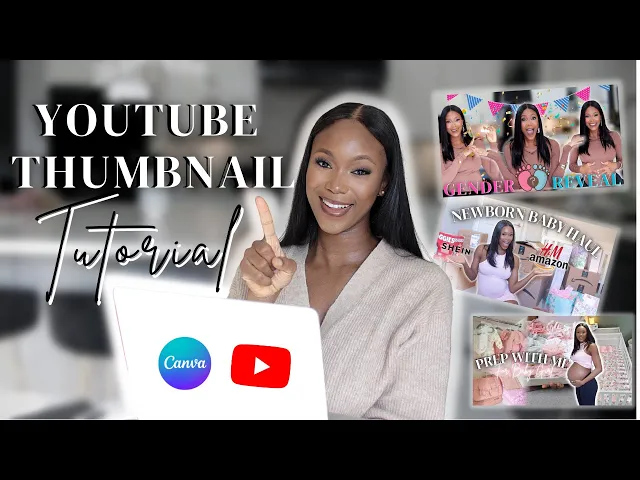
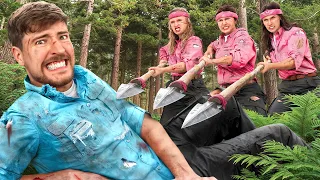
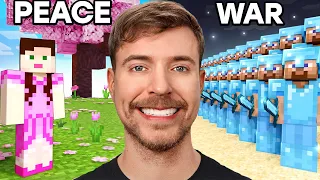
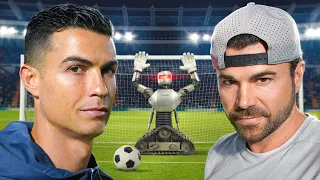
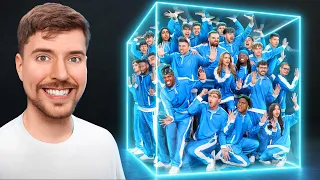
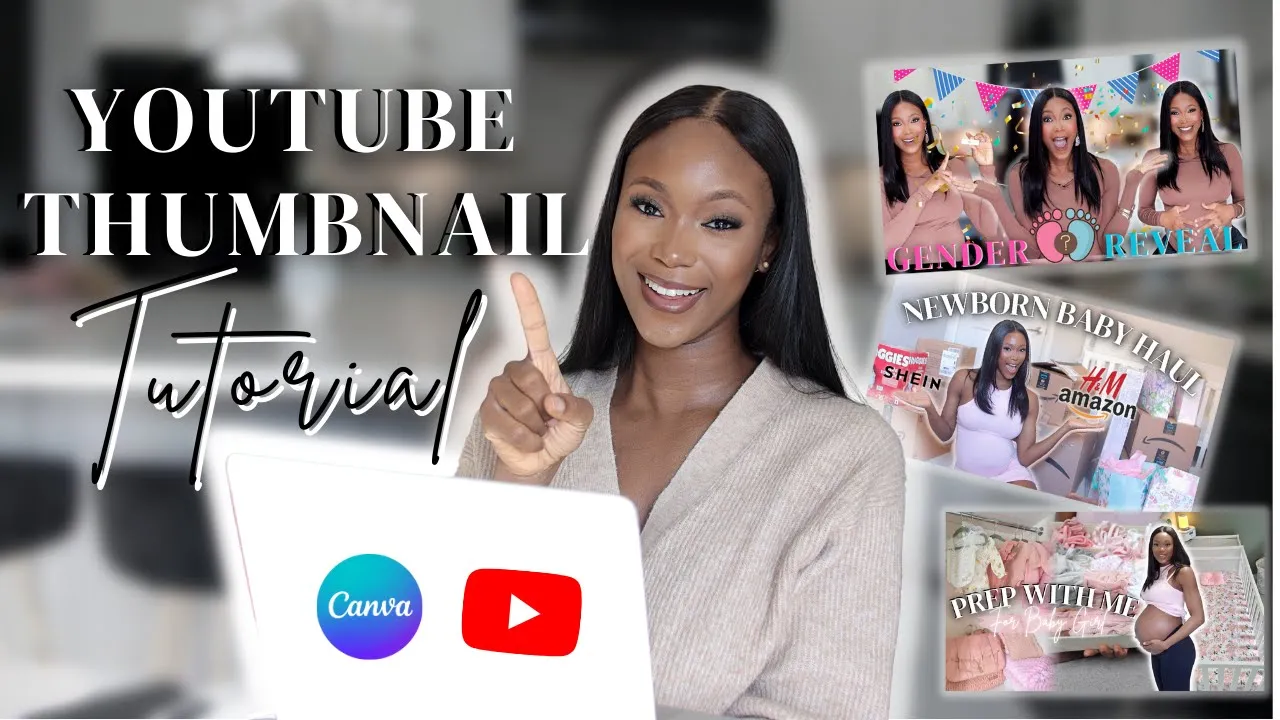
hey loves and welcome back so in this video I'm going to be showing you how to create an optimized thumbnail for your YouTube videos now when it comes to optimizing your YouTube videos there are three things you need to consider your thumbnail your titling as well as your description however we're going to be focusing on thumbnail today because this is a major part towards getting the clicks the views and the engagements when it comes to getting your audience attention your thumbnail plays a major role and I'm going to show you guys what I'm talking about
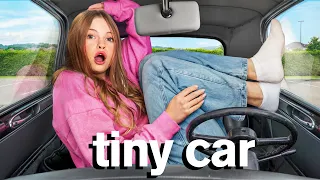
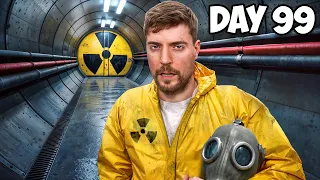
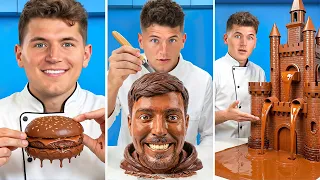
I'm going to have a thumbnail over here and a title over here and in three seconds just tell me which one your attention is fixed at [Music] odds are it's going to be this thumbnail over here right so it is so important to be very intentional with how you are creating your thumbnails in order to ensure that you are optimizing your videos as much as possible because the honest truth is if you spend hours and days filming and editing your YouTube content and you finally put it out if you use any thumbnail that is not
attention grabbing odds are your video is not going to get as much view so you want to make sure that in as much as you're spending so much time scripting filming and editing your videos you're also considering and spending time with planning and you know editing and creating your thumbnail as well so you want to make sure that you're putting in as much work and you're being intentional with your thumbnail because that is going to affect how many people actually click and then actually watch your videos okay now something I like to say is that
your thumbnails and then your titles are the gateway to YouTube videos and it's the honest truth because this determines if your videos are going to get viewed or not now something that you can do is to kind of compare your thumbnail with other thumbnails and other creative thumbnails within your Niche and see how well yours is performing or just see visually see how well yours stand out now if you go to your YouTube home page or your search page you will see that YouTube is pinning your content your thumbnails amongst other creative thumbnails so you
want to make sure that yours is not only attention grabbing but it speaks to what the content is all about so that's what we're going to be doing on here I'm going to be showing you as well as walking you through my thumbnail creation thought process production process Graphics designing process and we're going to be doing this together so the first thing you need to do and to consider when you are trying to create a thumbnail for your videos and for your channel also who is to choose a thing right right that theme should represent
what the video is trying to convey and your brand as well so you need to mix this to the context as well as your brand and that's going to affect how you design the thumbnail and the individual thumbnail for the individual contents that you're working on so you want to consider the color right the design the image that you're going to be using the font that you're going to be using and all of that also contributes to the theme right turn as much as possible to make it have a visual appeal okay so before I
even start designing my thumbnail I like to first of all go on to YouTube and do a little bit of research I like to see what thumbnails are doing well based on the theme I'm trying to create like I'm seeing that these are the thumbnails that are doing well based on the views right and most of these thumbnails are a bit similar in terms of the design there's a collage at the background and then there's a pregnant woman in front and guys the content I'm working on is a prep with me for a newborn right
and I'm seeing that these are what's working so I'm going to kind of create based on this okay so next up we're going to be using a graphics design software and guys right now there are so many graphic design softwares available in the market whether you are editing on your desktop on your laptop or even on your mobile phone there are a lot of design softwares for you and they are easy to use however personally I love using canva because not only can I access this on my laptop I can also access this on my
mobile phone at the same time and it makes my workflow and work process a lot more easy and seamless right but yeah that's what we're going to be doing and we're going to dive right into that right now thank you so I have a folder already and a project already existing and this is basically where I create most of my thumbnails all of my thumbnails for YouTube and I have them categorized based on blogs based on you know pregnancy content based on tutorials based on you know Beauty content as well and yeah so I have
it categorized I'm gonna just go over to Vlogs because this is going to be a vlog style content and something to know with canva is that anyone can create stunning images stunning designs that kind of communicates your content message effectively so whether you have a mobile phone or you're editing with your desktop you know this is very flexible for you so now that we've opened up our design platform you need to keep in mind the theme of your design and make sure that you are concise and make it as simple as possible and easy to
understand at the same time so that way it's not overcrowded it's not overwhelming to your audience it just speaks directly to what the message of the content is but then it also grabs attention so next up after you've figured out what the theme of that content is going to be about so something that you need to do next up is to choose your images right when it comes to letting your images you can use stock images you can use pictures as well as screen grabs from the video that you have recorded now personally I like
to use pictures as well as screen grabs from the videos either I'm like creating like Vlog style content and there is a scene that I maybe I'm looking a little bit curious or intrigued or something I like to kind of screen grab it and use that in my thumbnail but whatever image you're using you need to make sure that there are high quality image so that way you get high quality graphics so like I had said when it comes to creating thumbnails most times I like getting my still images and pictures from the videos that
I recorded and I use Final Cut Pro to edit all my videos all I need to do is to go over to the frame that I want to export click on the export button and then click on save current frame and then export this now you can definitely change the settings you can change this from PNG to jpeg down to photoshop depending on how you edit so what kind of quality you're looking for but I definitely love sticking to PNG because it has the best quality so I'm going to export this and then this is
what we have I'm Gonna Save this you can save it as whatever name you want to save it as and then usually takes about one minute to export and this is what the image of picture looks like I'm gonna do the same thing I'm going to scrub through my timeline as well to see if there's any frame or any still image that I think I like and that will go well with the thumbnail creation and I feel like this would work so I'm going to do the same thing click on the export button click on
the save current frame click on the next and save this as it is again you can do this consistently and continuously if you have different frames in your videos that you want to save and this is how I do this on my MacBook Pro however another thing that I do is to record as well as take still images using my mobile phone or my DSLR camera so I'm going to go ahead and take pictures of my background things that I want to include in my thumbnail and then next up I'm just going to import all
of those pictures that I've taken and as well as exported from my editing app onto canva onto the project that I'm currently working on and so we can start editing right away so when it comes to creating thumbnails for lifestyle Vlogs um lifestyle content I love to use grids I love to use photo grids so that way we can have multiple pictures multiple frames in one shot in one thumbnail right so I'm going to be adding on all the pictures that I think would soothe this entire theme because we're trying to create a nest with
me wrap with me for a newborn baby girl you know Vlog type of content and I'm just adding all the scenes that we did in this video so the making of the bed the folding of the clothes laundry all of that I'm adding that onto this so that way we have multiple um frames what I also love to do is to create multiple versions of the same thumbnail right so I initially used three grids now I'm going to be using five grids so that we I kind of see which one works better right or which
one works best okay so while we are working on the background of the thumbnail I'm going to go ahead to import a picture of myself right because I'm gonna be the front and center I'm also going to be using the background eraser tool because I want to erase the background so that way it's just me right so I'm gonna you know composition this properly make sure that it is front and center increase the width and the length of this make it a little bit larger so that way I'm bigger so this is what it looks
like I also love adding a little bit of Shadow white shadow to be more specific so that way I pop a little bit more and I look more outlined and I'm going to increase intensity increase the size as well as blur it out a little bit and guys this is what it's looking like right now I'm loving it okay next up I like to add text after adding up my images I'm playing around with the edits blurring out the background kind of seeing how things look like with different scenarios personally I find that it is
important at text at least maybe three words or five words are most effectively conveys what the content is all about so that way when people look at the thumbnail they have an idea of what the video is going to be about and also what the title is so for the text I'm just going to go to an existing thumbnail copy the existing text and then paste that onto the thumbnail that we're currently working on so with your thumbnail you're literally killing two beds with one stone and it's so important not to overcrowd your thumbnail with
a lot of text because then again it becomes tacky it becomes overwhelming and it becomes stressful for people to be able to instantly pick out what the video is going to be about so if you can stick to only three words maximum five anything more than that becomes overcrowded and just put the rest of the information in your title box and with your text you definitely want to make it bold in a way that people can instantly read and see what you know the text is all about um don't just use cursive words all around
and it becomes hard for people to read make sure that you're using bold text for the majority of the text and maybe use one cursive to add a little bit of finesse to it but personally I if you can just use bold eggs so that way people can read and see instantly what you know the message is so I'm going to go ahead to just move this around I want to put this just underneath the prep with me guys so adding a little bit of bold text and complementing it with a cursive text just makes
it look a little bit more aesthetically pleasing so next up we are going to be adding a little bit of effect right I want to see what this neon would look like I feel like it will give it a little bit of pop but also add a little bit of Shadow to the bow text as well black shadow and intensified a little bit actually a lot and this is what it's going to look like it's going to make the text Pop more right so next up I'm just going to add a little bit of background
and I'm looking for the brush background I'm going to put this just underneath the cursive and the cursive text basically and guys this is what it's looking like right now and if you can you can definitely use bright colors bright colors are more eye-catching they're more engaging they tend to grasp the attention of your audience so if you can if it's on brand if it's on theme feel free to play around with colors with bright colors so that way you are literally grabbing your audience attention so while you're doing this in as much as I
would advise you to be as creative as possible also bear in mind that branding is key so make sure you're sticking to the brand colors the brand fonts the brand text the brand formats basically so put that into consideration because again consistency when it comes to building and growing a brand is very important and is very key because as you grow people can instantly within a pool of other thumbnails pick your thumbnail pick your content because they know your brand they know what your thumbnails or your videos look like without even looking twice so that's
why it is important so if you can do that and next stop which is very important I feel like a lot of people don't talk about this and that has to do with following the YouTube guideline don't want to be using this leading or clickbaity words so you definitely want to make sure that your thumbnails are not inappropriate they are not misleading or they don't sound or look clickbaity that makes sense because YouTube's AI is so amazing that it picks up instantly on your content it picks up on your text thumbnail title so make sure
that you are sticking to the guidelines so that way you are maximizing your contents this fullest ability and potential so when you're done with creating your thumbnail something I like to do is to create a variation I like to have at least two to three options when it comes to selecting a thumbnail so I like to create two to three designs so that way I can APK test it with you know my family my friends maybe my community or you can even a B test it on tubebuddy as well which is something I personally do
and see which design works best you can change the images you can change the text see which one gets the audience attention so finally we are done with creating our thumbnail we have created variety we have tried to stick to the brand and theme of the content we've made it legible we've added text and conveys the message and it looks amazing at the same time the next thing we need to do is to save and upload this thumbnail onto YouTube now something to bear in mind is that you always want to make sure that you're
saving and uploading this in high quality high resolution format and you're uploading it onto YouTube now do bear in mind that YouTube recommends a resolution of 1280 by 720 pixels so we're going to select the exact pages that we want to export or the exact page if it's just one image you're exporting and then click on the download and Export this as PNG you want to make sure that you're also keeping those image quality on that two megabyte right so anything beyond anything above two megabytes you would not be able to upload it onto YouTube
so five hours after uploading this thumbnail and content we have a click-through rate of 12.3 percent which is a lot and which is amazing so make sure that you're sticking to the recommended formats and qualities and size as well guys we are done with this so that is it guys I hope that this video was helpful and it was easy to follow at the same time I try to kind of take you guys along with me and showing you guys the best practices but also share with you guys the guidelines the process the do's and
the don'ts as well so that's how to create an optimized thumbnail for your YouTube videos and I hope that this video was as helpful as I had envisioned and if you're someone who is starting off this is probably one of the easiest platforms and the easiest um you know design softwares you can start off with you can start off with the free plan and then if you feel like you want to do more you can then upgrade to the Pro Plan and I'm currently using the Pro Plan on canva and it's is amazing I've been
using this since I started off my YouTube and No Regrets so yeah if you guys enjoyed this video let me know down in the comment section and I'll be more than happy to see I know right so yeah thank you for watching this video again so I'll see you guys in the next one till then make sure you stay fabulous and you stay blessed bye guys [Music] thank you