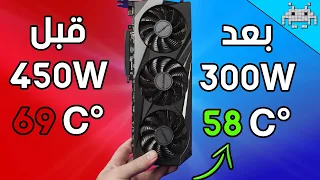
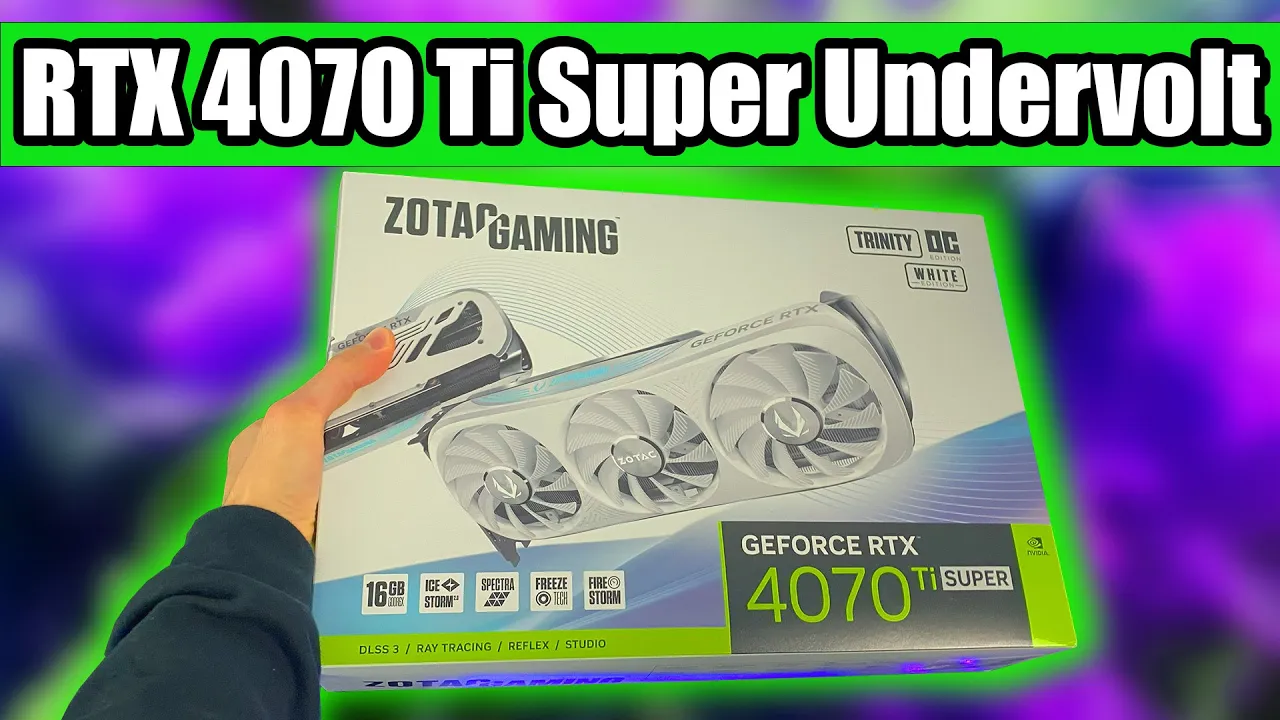
well if you want to undervolt your RTX 47 TTI super to increase the FPS decrease the power consumption decrease the temperature decrease thermal throttling Remove coil wine and actually get more FPS and 1% FPS in games this is the right video for you and no I'm not kidding we can do all of that we will have two different profiles the first one is going to be more balanced mostly focused on termal performance and efficiency then we're going to have the second one just fully focused on performance and I will tell you guys how you can
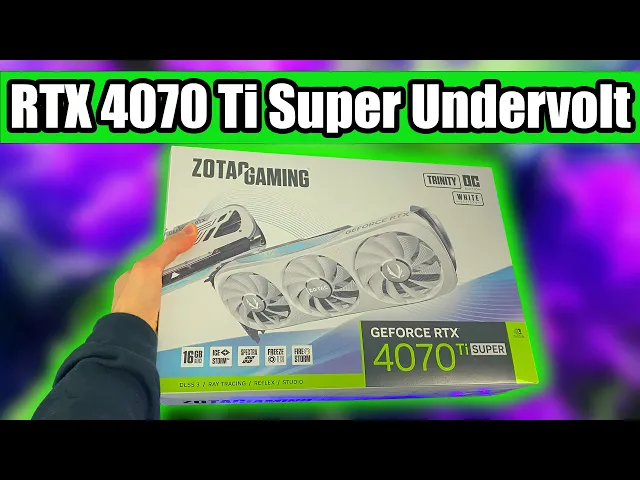
tweak your card to make it go the fastest possible now what I have here today is a Zotac RTX 47 Trinity in white I actually have a dedicated video discussing zota cars they're pretty good but this video will work for any model of RTX 47 TTI super if you have a different card I have another video for you because I'm trying to cover all different cards and CPUs on the market so I have playlists on the channel you can go check them out but again if you have one of these any brand even the founders
Edition Nvidia card this video is going to be right for you so we're going to go straight into windows and show you guys how to do it before we do that promise me one thing if the video ends up being helpful you will drop a like And subscribe to the channel okay let's go so for the tutorial you're going to need two simple piece of softwares one is going to be Heaven Benchmark and one is going to be MSI afterburn now you will find both of them in the description down below now first off we
want to open up Heaven Benchmark and basically set it to be quality Ultra desolation extreme anazing X8 and 1440p resolution then we want to run it and once it's running we want to hit the Windows button and open up MSI After Burner right here on top at this point we want to go into settings and enable voltage control and voltage monitoring right there hit apply hit yes it will reboot and then here we will be okay now at this point let's go ahead and click con curve editor now we're going to start with the first
profile the first profile again is going to be mostly for efficiency temperatures Etc so how we do it is we go here on the left side and we grab the 900 molt voltage Point okay we hold shift and now we want to bring this one all the way up to 2550 again this is the Baseline then I will tell you how to change it for yourself if you want to customize it now click on the void right here hold shift and select the right side of the curve while holding shift now release shift left click
on any one of these points and flatten it down and now hit apply now as you can see we are now running a 2550 right there now this will actually make the card run at a little bit of a lower clock than it would at stock so we're actually theoretically at least in synthetic benchmarks losing a bit of performance but no worries toriel will will cover it now next step is going to be go on the memory clock and give it plus 1,000 right there hit apply Now power limit and temperature limit if you can
change it unlock it all the way and hit apply and now the first setting is actually done so what we want to do is go save it save it into one click into one hit apply go here go start with Windows start minimize hit apply hit Okay click here and now after will be running every time you start your PC with these settings perfectly fine and your card will be much cooler much quieter draw a lot of less power okay however let's say you actually want to get performance out of this how do you do
it well no worries second preset let's reset all of it and let's go again so what we want to do is this time we are starting from the 975 molt voltage point so right here okay so again we hold the shift we grab the point and we bring it all the way up to 2750 now again this is the Baseline you can push this one a lot higher matter of fact if you want to push it I'll tell you right away 99% of cards can do 2800 2800 so if you want to push it outright
you can just push it but just for the sake of this video I'm going to keep it simple and do 2550 okay now you want to click on void hold shift select the right part of the curve left click flatten it out hit apply and now this time we want to go into the memory and give it 1,200 now I will spend a few seconds talking about the memory as well unlock the power limit unlock the temp limit hit apply same procedure save the profile hit apply and here we have it now again if you
want to just copy it and spend zero time thinking this is it so the video is over you can close the video but please drop a like subscribe to the channel if it was helpful and I hope to see you in the next one but if you want to stay and actually understand how to make this better for your card here we are it's going to be a bit boring though so basically this one on the xaxis is the voltage now the lower this one is the lower your temperature power consumption Etc is going to
be however the lower this is the lower you can actually get a stable frequency so what we want to do is find a spot in which we are comfortable with the temperatures but then we want to push basically the megaherz as high as possible so without speaking too much how much can you push it well you can easily push 1,000 molt right here so if you want to basically voltage Point overclock which is still 100 volt technically your card you want to get the 1,000 molt voltage point and try to push it as high as
possible why don't you want to get like 1050 because then you're going to start hitting power limit if you really want to push it you can do 1,25 but really don't go higher than it trust me okay especially if you don't have a power limit slider do not go higher than one volt okay now with 1,000 molt how much can you get well on most cars you can actually get 2900 working right here or just a little bit under like 2895 for example it do doesn't have to be the exact number here by the way
let's see if this works for my card okay so we bring it up and we flatten the other side let's see as you can see for my card is working but it might not work for every card for the memory clock if you want to customize it and push it differently basically the higher the memory clock the more the FPS straight up it's pretty simple the higher the number the higher the FPS however this can get unstable pretty quick so you have to test it and not in heaven Benchmark you have to test it in
games every every single card even the worst card out there on the 16 gabt of ram this card has can get plus 600 okay now the best card can get plus 1500 okay only the top of the line the 1% of the cards can actually get like 17 okay 17 is pretty high at least in my testings I I've had a few of these obviously but if you want to just start with a stable number I recommend for most of you 1,00 if you're really pushing the performance 12200 honestly will work for most of you
so exactly like this with 1,000 molt 2900 MHz plus 1200 memory this is a very proper aggressive performance profile but you have to test it out for yourself and now the video is actually finished okay so if it was helpful please first thing drop a comment and tell me it worked because it helps other people validate this video as well and remember your promise and drop a like And subscribe to the page we actually do builds like the build we have here today with the GPU I have it on the channel we do reviews of
weird things giving different opinions at least in my opinion and much more again many more tutorials like this one so I hope to see you guys in another video as well and I wish you a very good day goodbye