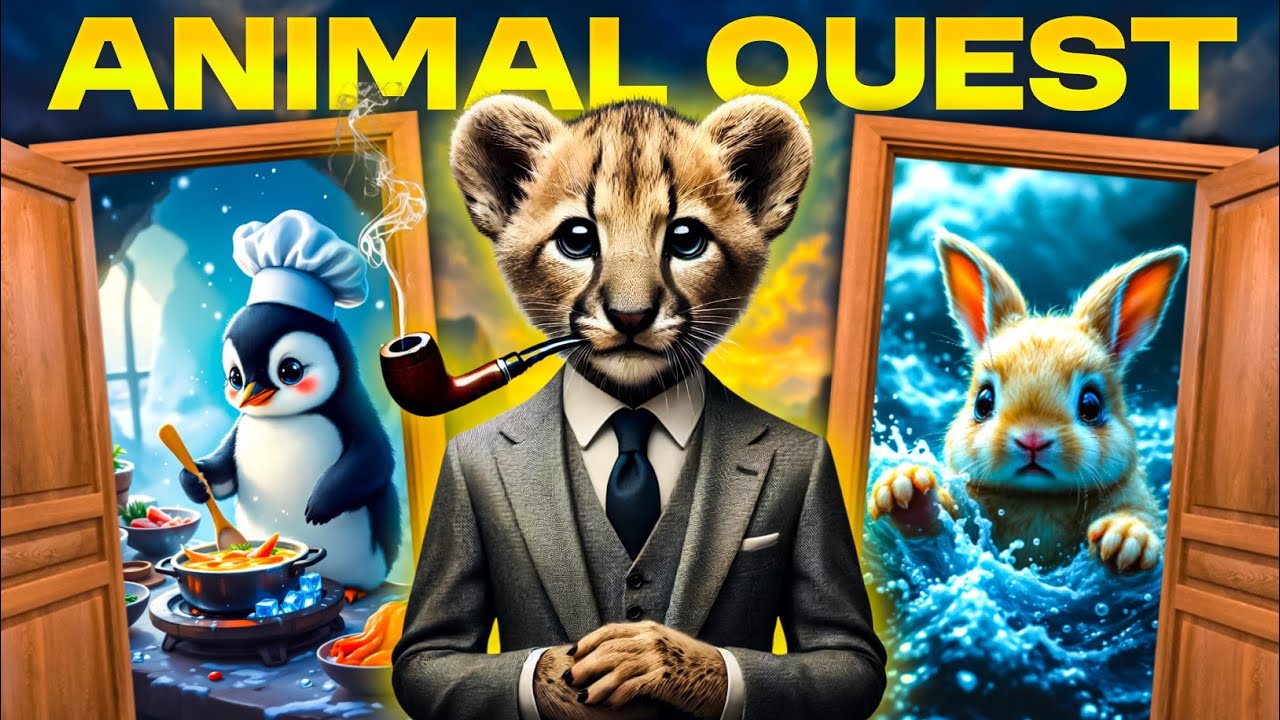
there's a niche on YouTube that's quietly making creators millions of views and yet most people Overlook it completely it's not what you'd expect it's something so simple yet so addictive it's taking over and these are brain teasers these clever puzzles don't just entertain they grab attention spark curiosity and keep viewers coming back for more but here's where it gets even better making this kind of content doesn't have to be complicated today I'll show you two easy methods to get started one is fully automated and perfect for beginners and for those who don't find enough time
to make content on their own but still want to create a side income stream with minimum investment while the other is free but takes a little creativity and may test your editing skills but whatever method you go with stick around and I'll show you how to turn this Nik into a massive opportunity for your channel to grow in 2025 but guys make sure to click on those beautiful buttons because it really motivates me and helps YouTube push our video to more people this brain teaser Niche took a huge bump in 2024 and many new channels
are already ranking very high in this Niche channels like buly and SpongeBob knowing have gained millions of views on their videos but you will be shocked to know that it is very easy to create such videos that's what I will be teaching you in two different methods let's jump into the first method which is the full automation method with the help of AI for this purpose we will be using a new AI tool in the market named Tesa Tesa is an advanced AI tool that can make videos for you in just one click not just
in one but many popular niches and yes the brain teaser Niche is one of them therefore we will just create a free account in Tessa and after landing on the interface which is the homepage you will witness not one but six different niches to go with such as Story videos brain teaser videos Quiz videos one of the oldest and still watched niches on YouTube fake text story Niche Instagram story Niche and Dark Fantasy AI Niche we will simply go with this don't say the same thing as me which is actually the brain teaser Niche now
this is where things get pretty interesting the interface is very simple you will first have the option to select a background there is a green background so if you select the green background you can then easily remove the screen and add whatever footage you wish later on in any editing software but we will simply go with gameplay background footage afterward from the quiz section you can first customize the intro it will be written by default but you can customize it to make it more powerful here we will use chat GPT what we will do is
simply command GPT that we want to create a brain teaser YouTube short such as don't say the same thing as me and for that we want GPT to provide us with a good script in a question and answer format with a total of four questions use fun and humor to make the script engaging along with a short but powerful intro like this GPT will provide us with a well-written script if you like the script you can use it or you can regenerate it then just copy paste the details first you need to replace the intro
after that you need to place the question in the question box and then in the section where it says displayed answer write the word that is basically the answer then in the section where it says spoken answer write down the full answer that GPT provides you that's how easy it is now you see these two options if you turn the first option on your character will keep talking during the timer here you can write any additional commentary if you want to for the custom difficulty feature by turning this on you can write down the round
name like easy medium Advanced and so on after that to add the next question just click on the ad set icon and a new question and answer set will be added just like before you need to write down all the details and repeat the same process for as many questions as you want but I would suggest keeping the count between 3 to 5 because that is the ideal length to ensure that the viewer doesn't get bored finally from the video options you can select a character for your video right now there are just three characters
but I'm pretty sure they might bring new ones in the future it doesn't end here you can even select a good font for your texts and that's it just click on generate and Tessa will start making the video for one video it will just consume one credit and it may take around 5 minutes for the video to be ready let's have a look at the video Welcome to the ultimate brain teaser where the Only Rule is don't think what I'm thinking let's see if you can outsmart me ready let's go I'm thinking of something round
and shiny you see it in the sky but you can't touch it what is it the moon did you think the sun gotcha I'm thinking of something you can eat it's yellow curved and monkeys love it what is it that was the automation method to create brain teaser videos but if you want to do everything manually with spending any money I got you covered but it's going to be a little bit tricky so suit yourself first we will start with our script and for the script you need to repeat the exact same procedure that we
did in method one for that I have already created a prompt for you guys which will be in the description so feel free to use it by using this prompt GPT will provide you with a full script that starts with a strong intro and includes around four questions once you have the script it's time to move on to our next step which is generating your voice over when it comes to voice over we will be using 11 Labs because it's free to use however there is a minor set back we won't be able to use
animated voiceovers but that isn't a big problem a normal good voiceover will also perform very well simply copy and paste your script into 11 labs and generate your voice over I suggest generating the voiceover in Parts like one set of questions and answers at a time this will ensure things don't get confusing for you additionally I recommend using a combination of male and female voiceovers for each set of questions and answers this will make the video more engaging prevent viewers from losing interest and encourage them to watch Until the End once the voice over is
ready we need to get gameplay clips for our video for this you can either record your own gameplay or head over to YouTube and search for the channel no copyright gameplay they have pretty much every game on their Channel and the best part is that all their videos fall under Creative Commons this means you can use their gameplay even for monetization purposes as long as you leave a link to their channel in your video description simply download some good gameplay videos finally head over to Leonardo AI or Lexica Ai and search for different character images
that suit your voiceovers depending on your characters you can easily download images from there if you plan to use the same voiceovers in every video you can save the images you download and reuse them in each video after all materials are ready simply import everything into your editing software I will be using cap cut first we will change the aspect ratio to 9916 which is for shorts and then we will first place our gameplay footage on the timeline the gameplay footage will look like this on the screen so you just need to stretch the gameplay
footage to full screen just like this now pay close attention first you need to go to the text section and drag and drop default text onto the timeline and stretch it across the complete timeline you need to add text layers as many total rounds as you have in your video for example if we have a total of three rounds we will add three text layers in the first text we will write down easy which indicates the easy level but to make things more amazing you need to change the font as well as the color of
the text for the easy level we will pick green color then for the second text we will write down average or medium whatever you like but here's a Twist you need to keep the font the same for all the levels but when it comes to color you need to give each round a different color for instance we will give this round orange color and then in the same way give all the rounds different names and colors as well position all the levels on the screen just like I am doing it after that simply place the
first voiceover on the timeline and make sure to remove the silent areas to ensure a fast-paced and engaging voiceover adjust the voice over thoroughly once done simply drag and drop the first image for that voice over onto the timeline reduce the size and go to remove background and then just turn on auto removal cap cut will automatically remove the background of the image but in case cap cut is not accurately removing the background you can use any online background remover tool for this purpose after that place the image at the center of the screen and
it should be at the bottom center something like this now go to animations and add slide left as the inanimation and slide right as the out animation keep the duration to around 0.5 seconds now go to effects and search for the play Pendulum effect drag and drop this effect effect onto the image and turn the value of twist to zero strength to 10 and speed to 30 now our animation will look something like this after that simply place the first questions voice over onto the timeline and like before get rid of all the empty spaces
then simply adjust the voice over together now listen carefully first place the second character image onto the timeline and remove the background just like before also add animation as before and also add the play Pendulum effect keeping its value the same as before keep the length of the character until the end of the question from where the answer starts you need to select the whole answer voiceover and take it 3 seconds ahead in the timeline keeping this area empty because we will add our 3-second timer animation here now for the timer animation go to text
and drag and drop default text onto the timeline keep the duration 3 seconds in that empty area then simply add dashes just like me on the timeline scroll down and turn off uniform scale then increase the height and width until it looks something like this change the color of this bar and then turn on the stroke and give it white or any color that suits well with the main color make sure to reduce the value of the stroke then simply copy paste this text again at the same place click on the first text layer and
press V to disable it then for the second layer right click on it and click on compound clip after that go to the remove background section and turn on chroma key and simply place the cursor on the yellow color and you will have this empty bar left with you after that click on the first layer and click on V again to enable it then simply turn off the stroke and you will have this yellow color now right click on the layer and turn this layer into a compound clip as well then go to mask and
simply add a mask then select the split mask and rotate it like this simply adjust it at the end of the bar just like this place a key frame on the mask at the start of the clip and then come to the start of the clip and simply Drag The Mask to the left side until it gets fully empty finally our timer will look something like this now simply select both layers right click on them and click on create compound clip and both layers will be turned into a single layer you don't need to create
this layer again and again for every question simply copy it and paste it into the next question now go to the audio section and then to sound effects and search for the clock ticking sound effect drag and drop the sound effect on onto the timeline and adjust it with respect to the timer our animation is created now once again copy the same character from the question and paste it onto the entire answer section in the final click on the easy round text layer and cut it from where the timer ends just at the beginning of
the answer then simply replace the easy text with whatever your answer is just like this once we play our video it will look something like this our answer will pop out just after the timer ends you don't need to give it any animation just like this this our first set of questions and answers is complete in the same way you need to edit the remaining questions as well simply add the voiceover remove the silent areas then add your character give it animations and effects then give a 3se second gap between the question and answer in
that Gap just add the timer bar with a sound effect then again add the same character for the answer as well finally simply cut the round text layer from where the timer ends and after the cut just replace the round name with the answer you can also add some sort of pop-up sound effect or cor Choice sound effect when your answer pops up to make it more engaging and professional done your second question and answer set will be ready this can be tricky on your first try but after making three to four videos you will
get used to it save this video in case you forget any step you can watch it again now and final when your full video is completely ready you just need to add good humorous background music to take things to the next level just like this you successfully created your brain teaser video for free let's have a look at what we created don't think what I'm thinking if your answer matches mine you lose let's see how clever you really are I'm thinking of something you wear it's not too big not too small it's something you wouldn't
leave the house without but it's easy to forget what is it I was thinking of socks did you guess shoes too easy you have to dig deeper I'm thinking of something in the sky you see it every day but it doesn't always look the same it can be soft fluffy or dark guys wasn't it great let me know your thoughts and comment brain teaser if you are ready to start the work on this niche