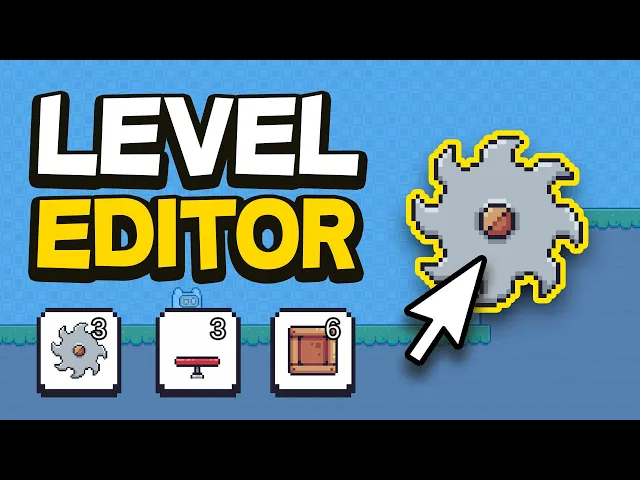
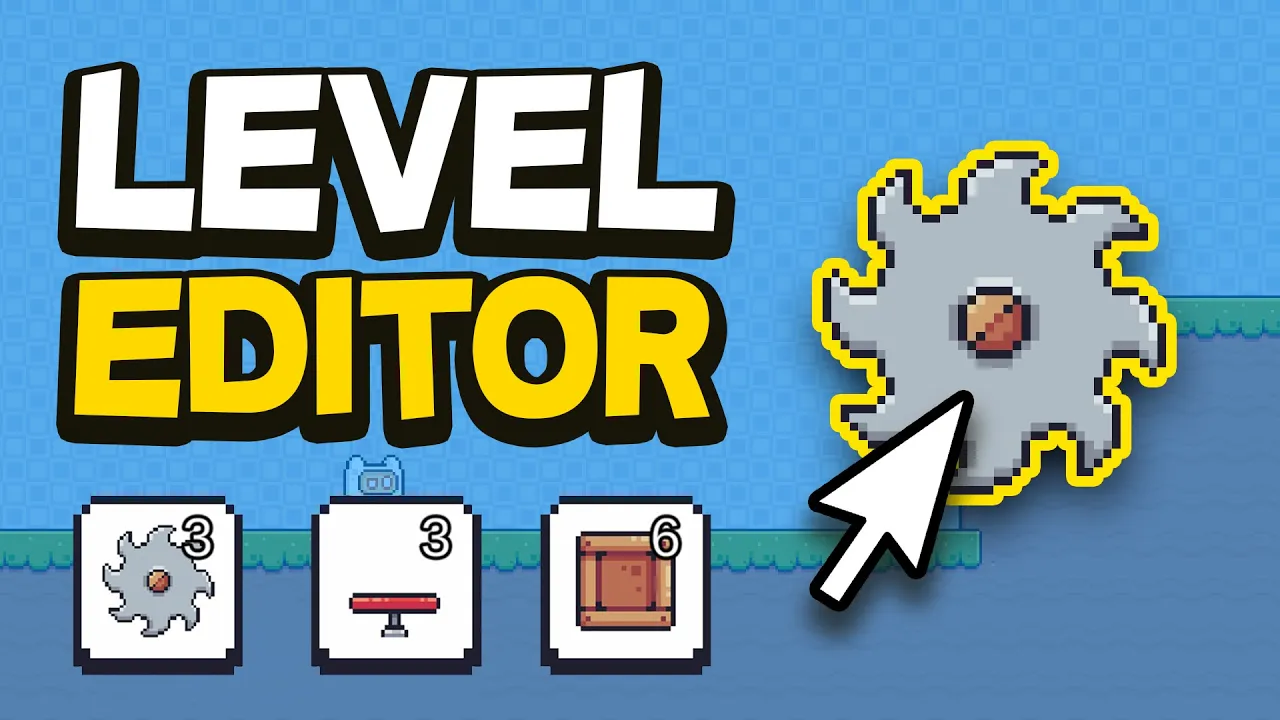
welcome back in this unity tutorial i will show you how to create a level editor to freely modify your levels in your game i will go over how to create the item board at the bottom how to place items remove them and more if you would like to access the source code for any of my projects you can become a patreon today and support me at the same time link down below also thank you to my patreons smokingvita and tardisitguy now let's begin ok so open up your unity project in my case this is a simple platformer controller but yours could be completely anything or it could be empty the first thing we will work on is the item hotbar that you saw in the beginning so right click on your hierarchy and press ui and then canvas if you double click on your canvas there's a few changes we need to make first of all make sure that your ui scale mode is actually scaled with screen size this is super important so that your game displays properly on every resolution at this point i'm going to make my overlay over the camera but you don't have to do this you can just keep it as overlay this just makes it easier for me to see things now a quick little mention this tutorial will go over item quantities this means we'll need to use text now for my text i will use text mesh pro if you don't know what text mesh pro is it essentially gives you more options to edit your text now to actually import this go into package manager which can be accessed via window package manager and in here just select on packages in project make sure you select unity registry and then search for text mesh prime once you've located text mesh pro press install and it will install the package the final thing you need to do is click on window text mesh pro and then import tmp essential resources if you click that that's going to start importing resources at this point just press import mine are already important so i don't need to do this within our canvas right click it press ui and then button text mesh pro once again we'll be using text mesh pro as i said now we can't see anything so ensure your order and layer is something high like five or you can just set it to be on a different sorting layer then on the button itself i'm going to add a source image in my case i made a little plain kind of background thing and then i'm going to set set native size this will be my button so i'll place it somewhere around here and i'll reduce its size so this looks good for me the final thing is click on your text and change its name to quantity text i'm going to position my text to be in the top right corner right here and i'm going to change its size and the colors so on the actual text element i'm going to set it to be something like 0 for now i will also make sure that it's centered in the middle and i'll give it a little underlay now the image will be the item that you want displayed on your buttons in my case this will be a soul as you can see here is my saw really important make sure you take this code transparent mesh this basically means this image will have a transparent mesh essentially allowing us to press the button i'm going to place this above the quantity text so the quantity appears above it and i'll change its size to fit properly so now we have a first button finished name it something like item button on the button itself press add component and type an item controller then press new script and create an ad open it up in visual studio now this will require us to do a couple things first of all we can delete the update function as we won't be using it and at the top let's set some parameters starting off we want a public ins called id this is super important as we will have different buttons this basically means we need a way to distinguish them and an int id will be the perfect way then make a public end quantity we'll also make reference to the text that we created now if you're using normal text that unity provides you'll be able to access it by typing using unity engine dot ui now because i'm using unity text smash pro what i need to do is press using tm pro like such then i will make a public text mesh pro u gui and i will call this quantity text okay so in our start function a couple of things we want to set grab your quantity text and then type dot text and make it equal your quantity as you can see we're getting an error and this is because this is an integer and we're trying to set it to a string so all you need to do is press dot to string and remember the brackets so before we move on we need to make a new function i'm going to make this function be called button clicked now this function will be called whenever we press the button so first of all let's ensure that our quantity is actually bigger than zero this is because we want a button to only do things if our quantity is higher than zero the next thing you need to do is make a new boolean so make a public ball called clicked and set it to false as default the reason we're making it public is because i want this to be accessed in a different script otherwise i would make a private grab your clicked and make it equal true when we press it also when we press it we want to ensure that our quantity gets decreased so do quantity minus minus finally copy over your text and update it here because we're updating the quantity we also need to update the text so let's minimize this and go back into our unity project on the button component you'll see this on click press this little plus button drag in your script and on the function go down to item controller and select button clicked on the actual item controller we'll set the quantity to something like 5 and then drag a new quantity text to the quantity text right here keep the id as 0 as that's where we will be going from if we press play now you notice if i press it the quantity decreases and once we reach zero we can no longer decrease the quantity perfect now let's actually do the level editor manager right click on your hierarchy and press create empty and call this level editor manager so on the level editor manager click on tag and press add tag click a new one and call this level editor manager press save go back to your level editor manager and give it a tag down here this will be important when we want to reference this editor later on the actual ad component type in level editor manager press new script and create an ad once it's open in visual studio let's start by removing these two functions the first thing we need to do is make reference to our item controller script and because we have multiple item controllers we'll make this an array so type in public item controller and then do square brackets as this is an array and call this item buttons now we want to make a game object array so the same way public game object bracket and this will be our item prefabs the item prefabs will be the items that we're actually placing on the screen when using the editor finally make a public int called current button pressed this will hold reference to the item id of the button that we press now make a void update and within the void update there's a few things we need to do first of all we want to instantiate an object at our mouse position so we need to get a reference to where our mouse position is and this is super simple make a vector 2 or a vector 3 if you're working in a 3d environment called screen position make this equal a new vector 2 in the brackets type in input dot mouse position dot x then do a comma and do the same for y i'm just going to copy it over because it's quicker if you are using vector 3's make sure you type in input input. mouseposition. z now you might think this is our mouseposition but actually we need to find it relative to the world so create a new vector2 and call it worldposition and make it equal camera.
main. screen to world point and then here just type in screen position and well done we have successfully found the position of our mouse the reason we're doing this in update is because we constantly want to update where our mouse position is the next thing we need to do is check for an input so let's do if input dot get mouse button down and then i'm going to put 0. the reason i'm putting 0 is because that is the id for left click if you want to use right click press 1 and if you want it to be any other button then go ahead and press that now the final thing we need to check is if the button was actually clicked so do double and and the thing we're going to do now is get a reference to our item buttons now remember our item buttons is an array which means we actually need the position of the array now this is super simple we're just going to copy current button pressed into here and then we're going to press dot clicked which is the ball we made in the previous script do your brackets like so now the first thing we need to do is actually set this click to be false so copy this over and make it equal false now that we've placed it on the screen and now we will instantiate the item prefab so type in instantiate then the item prefab and once again this is an array so in here we're typing current button pressed comma new vector3 and in here we want to grab wordposition so copy over dot x comma word position dot y and then zero because i want it to be at the zero position finally comma quaternion dot identity this basically means that it'll keep the rotation of its original prefab now the final thing you might ask is how do we know the current button that is pressed well if we go back to our item controller we can actually do this within this script so let's first of all make a private reference to the level editor manager i'm just going to call this editor then in our start then in the start function type an editor and make it equal game object dot find game object with tag and then do you remember the tag that we added well this is the tag you've got to type in so in my case this was level editor manager finally dot get component and then level editor manager like such then when we actually press the button we need to do is grab this editor do current button pressed equal the id this basically means if this button is pressed the current button press will equal the id of this button once it compiles you see we have a couple things first of all the item buttons so currently we only have one so i'm going to just set it to one and the item prefabs is also one because it's exactly the same as this drag your button into here and the item prefab is the item you want to spawn when the button is pressed in my case i have already created a prefab of this called saw item but yours could be completely anything you want so drag this into here now if you press play let's see what this can do if we click on this the item reduces and if we click again we can spawn it somewhere on the screen now that it fully functions there's a few things we can do to actually make it a lot better first of all it would be useful to visualize what the item would look like before actually placing it so let's work on that back in your level editor manager there's a few things we need to add first of all let's make a new public game object array and this will be a item image the item image will be will essentially be the image that we'll create to visualize what the item will look like don't worry if you don't understand just yet it will be all explained really shortly now go back to your item controller and there is a couple things we want to do first of all we want to get a reference to our mouse position you could just copy this over from the previous script as we don't have to type it all up again and the next thing we want to do is actually instantiate that image that we made a reference to so this will be super simple just type in instantiate then we get a reference to our editor which we did before dot item image once again do the brackets and just type in id because the id of this press new vector3 worldposition.
x comma worldposition. y comma 0 because i want my z to be a zero and then finally quaternion dot identity and like such so that now will create the item the last thing we need to do is actually destroy this item when we place it now the way we're gonna do this is by finding the game object with a tag now i'm aware we don't have that object just yet but we can write this code first before doing so so type in destroy then gameobject.