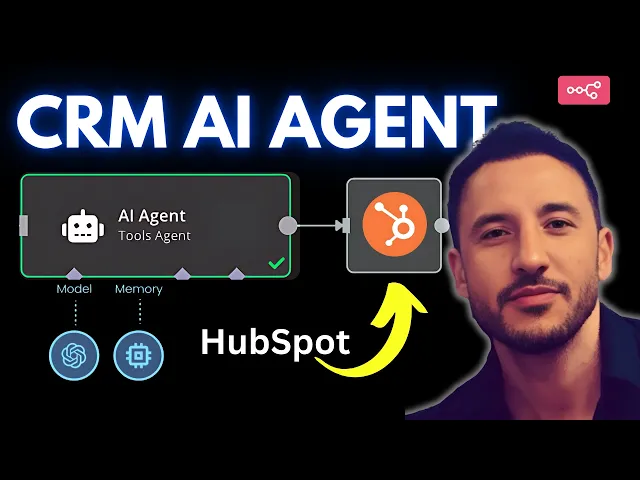
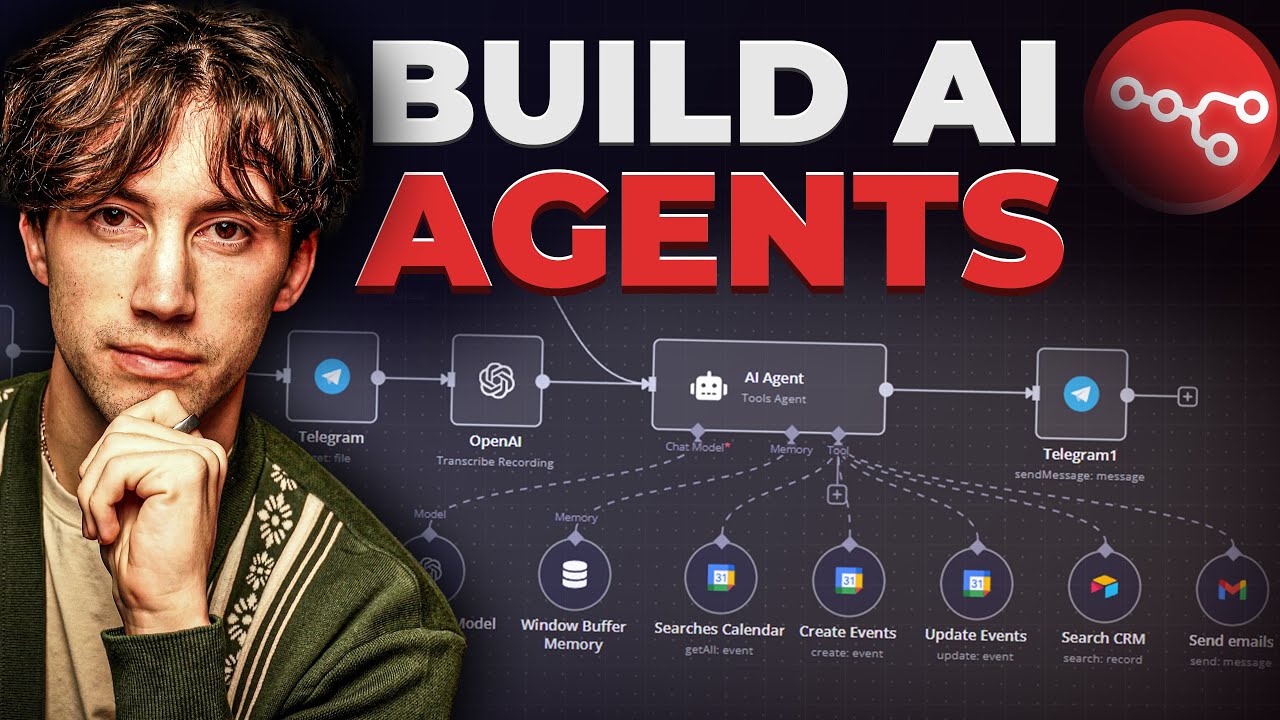
in this video I'm going to show you how to build this amazing AI agent and automation workflow in anid and that's going to take in the transcript of a discovery call a zoom Discovery call with an actual client it's going to process all of that transcript it's going to extract very important information like the name email and contact information of the client it's going to update our hotspot CRM record with things like the qualification stage the potential opportunities of the client the profile analysis how the salesperson did so it's going to provide feedack back based
on that transcript on top of that it's also going to extract things like any kind of red flags about the client and much much more this is going to be an amazing build and workflow so make sure you stick around till the end because you could use this for personal use case for your own business or you can take this and actually sell it to an actual business because it's such a powerful workflow I'm super excited to show you guys this so I'm going to walk through a step by step so that way regardless of
your background you'll be able to build this out for yourself so let's go ahead and get started with the video and jump into the workflow all right so first of all I'm going to do an entire demo of this workflow I'm going to run this thing so that way you can see an action and then afterwards I'm going to come back and actually explain each note step by step and we can build it out all right so this is the actual workflow let's go ahead and take a look at our hopspot for those of you
who are not familiar with hopspot hopspot is one of the most popular crms out there in the market it actually has a really good free tier as well so feel free to sign up for an account there um so the way this works is basically you have a lot of different information that you can update about a particular deal in our case I'm just going to use an example so as you can see right now on my hopspot CRM I only have this one deal which is Discovery with Joe's Diner obviously I use uh hopspot
as well but this is just a demo account that I created so I'm going to go ahead and actually process that workflow right here and then you will see that the deal gets updated with our new um record and then also I'm going to switch to the contacts as you can see right now on the contacts tab there's only this Brian heligan and Maria Johnson this just comes standard with with uh hopspot CRM um so as you can see right now there's only two records here and then on our deals there's only this one Discovery
Joe's Diner deal so let's go ahead and run this and I'm going to actually show you guys how this thing works actually before I do that so I put this here just an example but I've already downloaded a zoom transcript so if I go ahead my Google Drive so this was a zoom transcript uh that I Ed kind of the AI companion so this is just kind of like a dummy data uh but this is basically a AI Workshop Discovery call so John is a discuss the possibility of implementing AI driven workflow solution again this
is for I took this uh from an actual client Discovery call that I did with my AI agency uh but this is just kind of like a sample data so I switched the name and The Business of course um this is kind of like a um fictitious company named streamline Logistics but this will give you a good idea of how how all this things works so again same thing you can grab this directly from Zoom via the HTTP uh request node or again like you can set up um a system where all of the transcript
gets downloaded or sent to your Gmail or Google Drive in my case I put this in my Google Drive so I'm going to go ahead and on the right here as you can see so that's what I'm doing I'm just grabbing that file from the Google Drive so let me go ahead and shut this off cuz otherwise it might give me an error so again deals only one right now Jo's Discovery same thing with the contact information there's only these two now you'll see this entire thing get updated so let's go ahead and run this
thing I'm going to click on test workflow all right so now you can see it's grabbing that information that file from the Google Drive I'm going to explain what's going on on top there but the main one is our AI agent that's using entropic chap model to be able to extract all of that information process it and then um create outputs or um structure output parser to update our C hopspot CRM and as you can see on the right hand side everything went then uh was successful so let's go ahead and check out our hopspot
CRM now so let if I go ahead and refresh the page here now you can see this John Smith streamline Logistics got updated qualification is seven we got all of this nice data potential opportunity so you can see all of this got updated oops let me click in here there you go it says initial implementation of AI driven workflow for client communication future expansion into voice Ai and customer support So gives you these potential opportunities based on this transcript of the call that we process the AI agent process so the sales cars feedback this is
actually very cool so this actually gives a feedback back for the salesperson that had this conversation so it says zuar effectively addressed security concerns provided clear cost estimates suggested practical phase approach and it also gives you areas of improvement for that particular salesperson so it says could have had or could have deeper explored budget approval process more emphasis needed on Roi metrics and then it also gives you a recommendation and then on top of that it actually also extracts are based on the transcrip of the call to see if there's kind of red flags and
much much more more and then also if we switch to our deal here so if we go to deal there you go now so we have a uh uh deal that just got added which is this streamline Logistics yep that's the one and then it gives you the deal stage obviously I'll I'll walk through step by step how to do that the priority uh reasons deal probability and then uh you know additional information that we can add even more to this so that's kind of the demo of how this thing works so now I'm going
to go ahead and walk you through step by step or in each note and show you how to build this thing all right so let's go ahead and start with the fresh workflow as you can see right here it's blank I'm actually going to use as a base template the uh actual build that from my community Alexandra build during a live call so I'm just going to go ahead and grab that from the classroom section so right here hopspot CRM agent I'm just going to grab this Json template file so I'm going to go ahead
and download this all right that's good and then now I'm going to go back to my um nadn so I'm going to go over here and just import from file and I'm I'm going to show you why I'm doing this so there you go sales call analysis so this is what she did she actually um walked through step byep on how to build this thing through a Google Drive trigger um and then she also had the ability to add this uh let me zoom in here a little bit she gave it also this agent the
ability to use audio uh to process and transcribe the video via this open AI um open AI transcriber um so this is a version that you can build as well and again you can feel free to watch that call here I think it's uh I think it's right here yep this was the the the entire live call step bystep is right there uh but I'm going to build a different version of this uh a more cuz I'm lazy I'm going to build actually a simpler version of it that doesn't require any coding because here she
uses a bit of a code to actually make this workflow a little faster better not for our use cases the one that I built this one is kind of like the lazier version of of that exact build but let's go ahead and actually I'm going to show you how to do this so what I did I essentially um removed this Google Drive trigger you could do this so for example in a for example in a zoom call transcriber so when you use um a zoom call now obviously a lot of these the zooms and the
Google meets of the world they already have an AI companion that automatically transcribes the video so then one option is to actually listen listen for that um file that get up gets updated to a particular folder and that way you can download that file from that um folder to goog from to Google Drive node here and then you can add the switch node where now you can actually regardless of the type of the files for example if it's just an audio a transcript which is a Google doc or also a PDF you can process all
of that so she did a really great job of kind of working through this and building out that one so what I'm going to do is actually I'm going to show you guys so that's exactly what I did right so I took this as a base uh workflow and then I just built on top of it so I basically removed the switch node I removed the Google Drive node and then I you know because transcribing recording I was like I don't want to uh proc show show that because obviously I just want to show this
as an example because the main point is to Showcase how to update the CRM properly and then instead of extracting the name and the email directly from that file in Google Drive I'm actually using a open AI note to be able to uh grab that from the transcript directly because like I said I am lazy so I use uh as less of a code as possible but obviously if you're building production you can check out both of them and see whichever makes sense to you for the for your particular use case all right so that's
basically the base that I built this thing on top of so now let's go ahead and walk through and take a look at step by step on these nodes and see how this works like I said you can directly use a zoom transcriber so now if you're recording a call on your Zoom Cloud account it gives you the ability to actually extract that trans um the transcript directly from the crowd account and the way to do that you can actually add a HTTP request node and you can grab um directly from the API through Zoom
so that's one option so again or like I said you can use an email trigger here where it's listening for or looking out for any kind of transcribed um uh recording and then you can add that to your Google drive or just add a add a Gmail note here in my case I'm just basically downloading this file which is called meeting summary for AI Workshop Discovery call at 1:24 2025 right so I'm just using this Google Drive node the resource is going to be filed operation is going to be downloaded and if you connected your
account properly and I've got plenty of videos for you to watch uh to see how I did this as far as uh connecting my Google Google account here so make sure you check that out but anyway so I'm grabbing this file right here so this is the exact file that I showed earlier which is just you know the transcribing of that particular call so what I'm doing is I'm downloading that I'm extracting the data from that file so because I wanted to convert this into text and as you can see that's exactly what I'm doing
uh so let me go ahead and actually do that so let's go ahead and delete this deal right here so I'm going to click on delete so that way we can do this again all right and then I'm going to also switch to contact delete this one and if you're not familiar with um hopspot spot CRM there's plenty of tutorials on how to use this thing um but again my goal is not to walk through the hopspot CRM but I just want to show you how to use this whoops that is not what I meant
to do see all right right here um so yeah so what I'm doing is actually extracting the file so let's go ahead and delete this so that way I can show you exactly how this works so right now again same thing no deals here um but I'm going to go ahead and add that so let me switch to deals so so as you can see right now there's uh only one deal this discovery Joe Diner let's go ahead and now take a look at this step by step so I'm going to jump in into my
Google Drive uh test step and again this is uh this document right here so we should be grabbing that document's content so I'm going to click on test step and this is just going to download that right and I'm grabbing it from this list right here so I'm going click on test step and if everything worked it should download it and there you go perfect right so that got downloaded now we need to add this extract from file node because obviously this is a p PF so depending on what you have as far as what
kind of documents so that's why in the original one that Alexandra did right here on this live build so what she did was basically um went oops sorry um see she basically created this Gmail trigger so what she's doing is listening for that um file that needs to be added to the folder and now she's actually adding a switch node um to detect depending on whatever file typ if it's a audio gets processed to this route by transcribing it if it's a PDF same thing it's getting extracted here so I'm just skipping the audio part
that's it and if it's a Google doc you can actually doc to text as well same thing extracted so for my version I'm basically just grabbing extracting from PDF input binary it's going to be data right so now if we go ahead and click this right here test this step that's just going to basically take the document here the PDF and convert it into text and there you go as you can see on the Json or even on the table this is the text that's um inside let me actually go a little bit here this
is all of the text that's inside of this particular document so that's that's what's happening there in that step so let's go ahead and take a look at the next step so here this is where now mine is a little different compared to hers because again she just puts uh extracts that name and the email directly from the Google drive what I did I did the lazy version I just added an open I note because on all I'm doing here is I'm telling and messaging the model I'm using gp4 mini so this is a very
simple Noe right all I'm saying is extract the name if I maximize this extract the name and the email of the client from the following transcript and I'm literally just grabbing this transcript right here and it's text from the previous note which is extract from file right so that's exactly what it's doing it's going to process that quickly grab the name and now you can add more stuff too here for example if you want to say hey extract the name email phone number or whatever else right so that's why like I said this is the
lazy version uh but what this is going to do is grab that so let's go ahead and test this step same thing it's going to process all of this data here and it's going to go ahead and use this open ey node with gp4 mini and on the right hand side as you can see there you go name is John Smith email is johnsmith streamline logistics.com right that's all it's doing and I'm saying it output the content as Json because I want to be able to grab this the name and the email for my next
note uh for my set Noe right there right so now let's go ahead and take a look at the AI agent because this is the main AI agents that's processing all of the content of that transcript so this is just a tools agent um for prompt Source I'm just defining below and this is coming in from right here so this is the text that's basically being grabbed right there okay so now we need to um also say require specific output format and Alexandra mentioned that she wanted for this particular CRM to uh separate and specify
the output format based on the CR rows or columns that are here so I'm going to keep the same columns as she has but you can add whatever you want right so uh here we're doing require specific output format and that's why we need to put an output parser but before we go into that let me quickly see show you the system message here so this is the system message so the system message you're defining the role of this particular AI agents you're saying act as a Multi Sales analyst expert adopt at evaluating sales call
transcript to extract actionable Insight analyze business opportunities and understand the prospect profile so all of this it's being given a task so this prompt is very uh precise and it also give a example output of a Json format here so let's go ahead and take a look at the output parser here so once you toggle this it says require specific output format then it's going to enable this right here so let me zoom in as you can see right next to the tool there's this other little thing called the output parser and you can add
several typ some output parsers you can have a structured output parser item list and autof fixing so you can add a structured one because this you give will give you the ability to actually put your own schema sample so that's what's happening here right so she's basically putting it again no need to know how to code you can just use Claude or chbt to be able to figure out exactly um what kind of output part output you're looking for right so here she's just saying uh the properties need to include things like the red flags
potential opportunity qualification score deal transcript analysis uh the name deal probability and priority right so that's what you're doing you're providing an example of what this agent is supposed to Output this so now let's take a look at it and exactly from this text it should follow that instruction and output the exact same format that we I uh described or we provided an example uh using this output parer so if I go ahead and click on test step now this is going to go ahead and process that so this is going to take a couple
of seconds because it's using an tropic chat model because it's trying to like process all of that data that's coming in because we gave it also on a structured output parser so it's going to process that and output that in a really nice uh Json formatted way and as you can see right here there you go perfect right so you got this nice little output based on the exact example we provided it in the structured output Parts here so let's take a look at the output of this AI agent cuz this is kind of the
main eii agent right so if we take a look at the schema there you go that's much better um so you have the output the Persona right this is the Persona of the client so John Smith is an operations manager at Streamlight Logistics so this is identifying who we are talking to who the client is the red flags if there's any red flags about this based on the call the potential opportunities the qualification scores deal transcript analysis deal name priority and then sales called feedback so this is where we actually grabbing that transcript and based
on that data we're actually providing a feedback for the salesperson so in this case it would be me because I was the one who was talking to the client during this discovery call right so that's exactly what's Happening Here Again up to you this is just an example depends on how you want to um update or depends on what you're trying to extract from your sales call you can add more things here right so what's happening next is now we're actually going to add an edit field because now we're just basically grabbing um all of
this uh the stuff that's coming in from the left hand side because this is not properly um separated so that's why set node is a great node here because then you can exactly uh identify what's coming in you can take out the output from the previous Nee in this case so you're doing a profile and we're getting this uh Persona red flags we're just grabbing this and putting it here so that way we have this nice cleaned out data so let's go ahead and test this step and there you go perfect right you got this
nice clean data now that um you know you you have from this previous node uh because I always and this is a really good practice to have a set field after um a your AI agent or your open AI node because you want to clean that data so that way it gets easily processed further in the next nodes so on the top right here right so we processed that open ey note earlier here so now same thing we're just grabbing the name and the email so if I go ahead and do that let me actually
pin this cuz otherwise this is going to give me uh it's going to give all right go ahead there you go perfect all right now we're going to go ahead and test this again because earlier it stopped cuz I was using that all right perfect so now we're just going to go ahead and same thing we're just going to grab the name and the email because we got a lot of output here from this opening ey node we don't need all of that we're just grabbing the name and the email if you're grabbing the phone
number you can just add a phone number as well so let's go ahead and test step and perfect there you go nice only name email that's it all right so now we got uh one coming in from that side on on top let me zoom out a little bit cuz it's too much which is the name in the email and then here's all of that uh data that's coming out as well so let's go ahead and let me actually pin this as well there you go got pinned so now we need to merge this right
so you I'm just putting a merge and I'm just using all possible combinations because only two of the items are coming in from the uh set notes here so now here's where we need to add our hopspot node right so if you add click on ADD node and search for hopspot obviously NN has integration with Salesforce and other crms as well but hopspot is one of the best ones in my opinion because it's very easy to use and here's when you look at the hopspot note it has a lot of things you can do with
it right so you have engagement actions ticket actions deal actions contact list information contact actions all of this stuff so what Alexandra did actually and I'm not going to change it because again otherwise that would have be too too too much work she just basically created these custom parameters or these custom properties inside our uh the CR our HubSpot CRM and essentially just um made sure that the it's matching the output of our AI agents here right so the output of thei Agents is what right now it is this profile red flags potential opportunities qualification
sco de deal transcripts and more so same thing she just B the way to do that is you basically go to settings so there's two ways to do this you can go to setting so if I go to um settings right here oh sorry not setting actually it's a property right here data management right if you just click on properties here so this is where you can actually add your own properties so right now as you can see hopspot already has these pre-made it says created by HubSpot right you can actually add your own property
so if I click on create property you can add a name um a label here so I can just say test one two the only thing is the internal name is going to have a because when you put a space it's just going to do an underscore but same thing you could just add the object type you can put it inside deal you can put it inside contact again Alexander put it inside contact so I'm not going to change it but you can put it essentially under any of these things depending on what you're trying
to achieve uh the group uh it's going to be contact information I need to identify the field type the field type needs to be you know whatever if it's um text one line text a number that or if it's a date you need to make sure you identified that so if I just click on multi-line tasks right so if I go back to detail so test 13 contact under contact information and under the object type contact if I click on create this is where it says test 13 was created right so now if I just
toggle uh created by it's going to show all of the properties that I created there you go right so this is all the properties that I created and if you can and if you see on right here under sales calls feedback it says test 13 created by me so all of these other ones sales call feedback qualifications score profile analysis all of this is created custom by me therefore now when I go to my hopspot node if I double click on this so obviously you'll just need to add your account it's actually very simple to
add your account all you have to do is just basically sign into your hopspot and and it then will basically bring over your account information but anyways so resource so this is where we looked at earlier right so if you created cont under contact under de deal or under any of these resources you will just select it so if I select contact you can operation is going to be create or update right so because we're updating an existing column and this is where for the properties you're just going to add Uh custom property so if
you click on custom property right this is going to now for the Select Property name or ID this is going to toggle I mean this is going to Showcase all of the different custom properties that you just created that I just earlier showed you how to so this is how you can create um custom properties and actually select it from inside and it in here but anyways I'm going to delete this all right perfect so that's exactly what I did right I just grabbed um um that custom properties based on whatever I had set up
inside my CRM so let's go ahead and test this merge so that way it will bring in data so if I click on just this play button right here this is going to just grab all of that oops now it's processing it again let's give it a second I should have pinned in the the data that was coming in from here let me actually go ahead and unpin this cuz otherwise okay there you go perfect so now it went through me pin this again boom all right so now we have data that's coming in here
and there you go now you can see all of this what I'm doing is just basically matching it so from the merge we got the name email so you just name an email you grab it here the custom properties literally just potential properties you just grabbing grabbing and dropping right so I'm just grabbing this we get it here so all of this is just coming in directly from here and as long as like I said it's matching your CRM you should be able to grab everything so now if I click on text uh test step
they should be able to um update all of the stuff that's inside the contact so if I go to my hpot CRM and go to uh contacts right so as you can see right now there's only this Brian hallan and Maria Johnson now you'll see if I click on that test tap all of the these uh different columns are going to get updated with the new data from that client right and again there if you want to add more columns the way you do that you click on edit columns and this is where you can
search for the column that you created so if I click t for test test 13 you can just add it right here and you can select the different uh order of the columns as well but anyway so let's go ahead and click on text and we'll come back and you'll see that this a new row gets up added here and all of these columns will be updated with all all of that information so if I click on test step here and perfect right there you go all of that got added so let's go ahead inside
our CRM refresh the page and there you go John Smith qualification score initial opportunity potential opportunities profile analysis sales feedback so to test this to make sure that we know that's coming in from there and I'm not just not making it up if I click on this let's expand this a little bit oops all right let's take a look at what it is strengths zuar effectively identified core pain points provided clear cost estimates addressed security concerns proactively blah blah blah areas of improvements right could have gathered more specific metrics about the current operation insufficiencies should
have explored competitive Solutions there considering recommendation propeled detail Roi so all of this information is there so let's to to double check that this is exactly coming in from NN we could have we could take a look at the areas of improvement says could have gathered more specific metrics about the current operation inefficiencies so let's go back to our NN and take a look at the improvements right potential opportunities qualification score we got to take a look at the sales uh where's what are we looking at here sales call feedback okay so if we take
a look at the sales oh if we take a look at it here here there you go sales sales called feedback right so it says strength Zar effectively identified the core pain points great right um and then it also has suggested improvements so all of that it's coming in I mean it's hard for me to take a look at this take a look at the schema here there is sales call feedback right there you go and as you can see all of this matches exactly what's inside our CRM there right and you can take a
look at the different um other resources as well to make sure that it matches including the potential opportunities right so all of that good stuff is coming in directly from our NAD so now uh if we go back to your if we take a look at this one as well so this is just updating the deal stage same thing very similar the deal probability and the priority reasons is getting updated so if I test this step same thing is going to happen it's going to update that deal probability so if I go back to my
CRM and this time go to Deals there you go this is what it is right this has got updated deal State decision maker broad end priority reason highly qualified Prospect deal probability is 750 so now let's just double check go inside and as you can see same thing I'm using my hcop account deal stage name is decision maker B right so and then the output from this is going to be so let's double check and make sure that uh our qualification score was 750 oh there's so much data here let's take a look at this
side oh there you go deal probability 750 right so that's exactly what went through here deal 750 so there you go all of that information gets brought in so as you can imagine this could be very powerful especially if you're um you know a small business you know you're you have even a medium-sized business right you have salespeople that that are all always interacting with the with the client and as a manager as a owner you don't have time to like listen to sales calls or the zoom recordings right so I do that too like
I don't I don't actually listen to like sales calls of people um I actually a lot of times just take a look at the notes so that's why set up automations you can set up automations like this where now it's giving you notes so now from this you can actually send yourself additional notes add additional noes like an email node or a slack node where now you're getting in the feedback from this automation uh from this AI agent and sending yourself a feedback about a particular salesperson so that way you can evaluate them right and
provide more recommendation on how to close deals and do much much more so as you can see this is an extremely powerful automation and very very useful you can use this like I said for your personal um use case for your business you can sell this for clients actually right and that's what we do a lot of times in our school Community we have a lot of people who have ai agencies who are working on different projects uh that are trying to make money with AI by selling these workflows so it's a great space where
you can come and collaborate with a lot of people um and we also have obviously calls and our classroom section is amazing because we have a lot of people a lot of great content there so feel free to check that out I will put the link in the description hopefully I'll see you inside the school Community again thank you so much for watching the video make sure you like And subscribe because I got a lot of content coming in the future that's going to be very useful and it's going to be a lot of great
tutorials thanks for watching again I'll see you on the next one [Music]