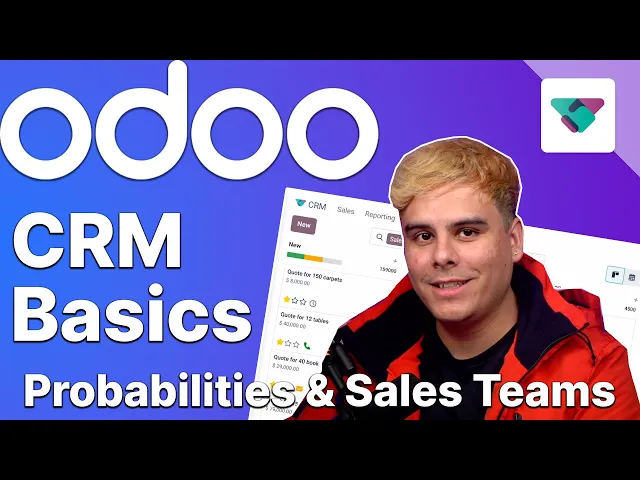
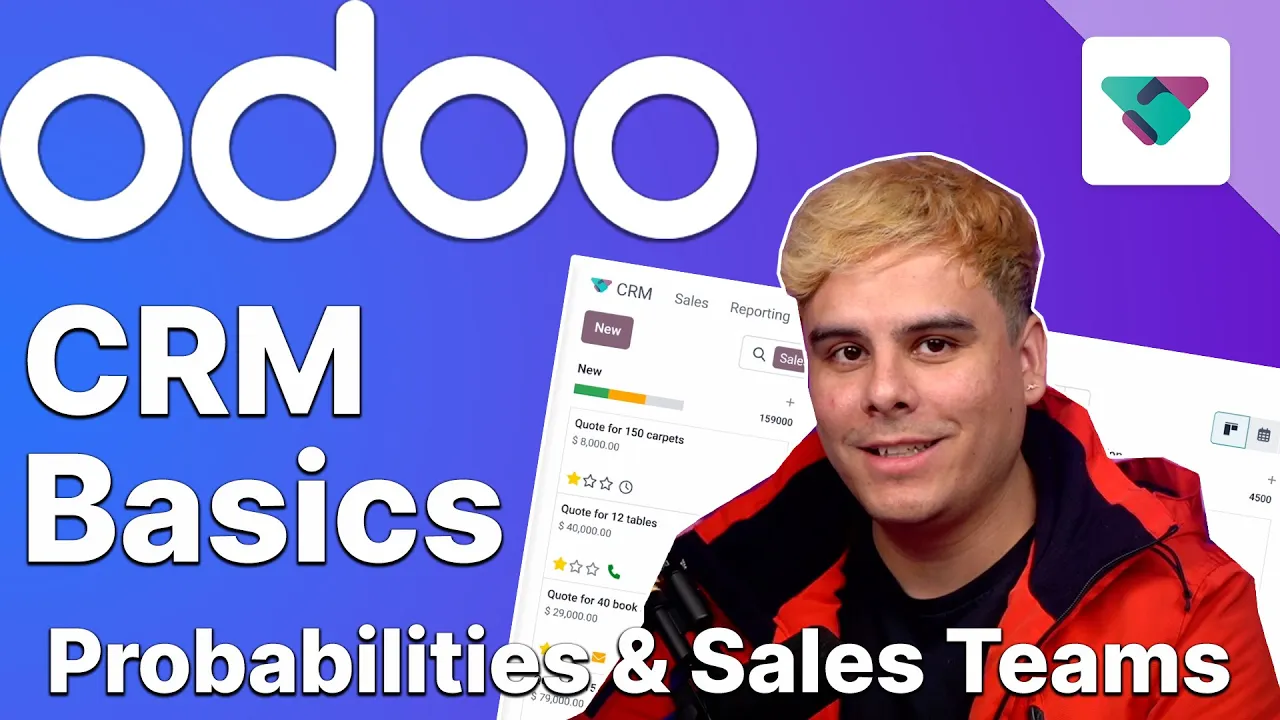
hello doers lead scoring is a methodology used by sales and marketing teams to determine the worthiness of leads and predictive lead scoring is a more specialized method of lead scoring that ODU uses which utilizes AI to automatically score leads so predictive lead scoring is the method and the probabilities that are generated are the actual lead scores together these can help companies know which leads are most likely to end up in a win or loss but hopefully you don't lose them traditionally lead scoring is done by manually ranking leads based on different factors B odu's predictive
lead scoring however however makes these calculations automatically using a variety of data points such as a phone or email quality or even better recognizing certain patterns across data sets in the database now salespeople can use these calculations to adjust their sales strategies and focus on leads that are more likely to result in a sale when salespeople are designated into specific teams the entire sales department becomes far more organized and when you have an organized sales department companies are able to focus on specific Target demographics and regions strengthen their skills and sales strategies and it allows
sales people to work together to close deals so enough sales chat let's jump into our stealy Wood Database to see how easy it is to work with probabilities and sales team using ODU sales all righty let's kick things off on our CRM dashboard by opening up an opportunity over here inside of the one stage so we're going to click through this Cable Management boxes I like that a lot now from here we can actually see all the information we discussed in the previous video but right now we're going to focus on that probability field up
here in the top now since this opportunity has already been one as you can tell by that green Banner over here to the right the probability of winning this opportunity stands at 100% And that makes sense right however as we move opportunities to different stages of the pipeline the probability will automatically update accordingly for example if I move this opportunity back to the qualified stage over here would you look at that the probability changes to reflect that move ODU calculates the probability of winning opportunities based on past data this means the more that we you
know we feed ODU and our database with one and lost opportunities the more accurate the predictions become and don't worry we'll go over wins and losses in more detail in the next video so keep an eye out for that as well now this probability percentage can also be changed manually for example let's say that I know that this client is a bit wishy-washy they don't always return our calls with that in mind all I have to do is type in the new number here so if I go over to it and just type in 50
let's say it's a yes or a no and then I save over here boom look at that it's done however when we change the probability manually it will not update automatically anymore when opportunity moves through the pipeline and when you do that you'll notice another number with a little tiny green gear icon appears up at the top now that number is the number that ODU calculated you know for its probability prediction which we can quickly revert back to by simply clicking on that little gear icon and chef's kiss we're back right to where it was
that's perfect we can also customize how ODU calculates this probability on the CRM settings page so let's go check that out now we're going to click up here at the top for configuration and settings it's my favorite page right there now for here you're actually going to want to direct our attention to predictive lead scoring settings which happen to be over here oh sorry I'm meant up here small little dupsy now this lets us know the probability of success and how it's computed and which leads ODU takes into account for its calculations when I select
something such as update probabilities you'll notice nice popup clicks and if I click inside of this field we have a dropdown menu where I can select some other options let's say that I want language in here for in instance since that seems to be a factor in whether or not we make sales and you know the thing is things like phone quality which refers to whether Elites have a viable phone number doesn't really come to play here at stealthy wood so let's delete that one while we're here we're going to leave it at email and
language and we're going to keep everything the same including the date because that's what ODU will use considering what leads to use for its calculations then once we're done we're going to hit update over here and just like that we're done it's done now with that in place OD will now calculate the success rate of each opportunity based on stage email quality and language and I know you didn't see it in there but that's because it will always use stage to begin with it's one of those things that's automatic great we did it o doers
okay so hold the phone we got one more thing to take care of real quick while we're actually here on the settings page so let's actually activate the multi- team setting right there and boom we're done we're going to hit save always save and now we can take take a closer look at sales teams now the multi- teams feature allows us to assign individual salespeople to multiple sales teams this can come in handy for a number of different reasons like for example if a company is short-handed but steadily expanding to reach new markets they might
want their experience salespeople to spark interest in their new demographic without abandoning their other responsibilities but that's just one of the many ways that multi- teams can actually be super useful so feel free to take full advantage of it to your company's needs okay now that we're done with that let's take a look at the sales teams page which you can find under configuration and sales teams here we see a list of all of our sales teams that we've already configured in our database along with some basic info related to each one to view or
modify any information related to an existing sales team all you actually have to do is click on the team you want to check out like in our case West Coast Best Coast over here into this sales team and look at that we also have our detail form now now from here we can actually see the team name and a few of the details such as our team leader the email Alias that we use and we can even decide who we want to accept emails from you can tell from this accept emails from form over here
we can select everyone authenticated Partners followers only and authenticated employees but for now we're going to select everyone we want everyone to reach us at this point now we can also decide which company their sales team is associated with and we can even configure in our case a custom invoicing Target over here and that's per month if we want now beneath that we have the best part it's the team members over here inside of this tab we can add people by simply clicking on the add button over here now when we do that we're presented
with a couple options well first it's a list and it's all the available salespeople we can also directly create a new employee by selecting this new button right there but we're not going to do that now if we wanted to add multiple people at once we actually just click multiple of these little check boxes and then hit well in our case once we're done with that we just hit select but in this case I only want to add Mark demo to the team so let's find Mark himself there he is and we select him boom
just like that he's added and if we want to remove any team members we'd also just be able to do so by just clicking on their name then hitting remove but for now let's not remove Mitchell admin we're kind of necessary for this and also just cuz I want to show you something real quick okay now to create a sales team from scratch all we have to do is go back to our sales teams page or we could do this cool little trick we could just select new right there and boom we've opened up a
new place where we can make our new sales team so let's say that we need to create a sales team for our new European office so we're going to type in Euro sales team just because we're shortening everything now we'll click the team leader dropdown field and in this case we need to select one so we're going to select who's trustworthy Sean sample Templeton very good one actually I'm going to change this up here sounded less cool than European sales team okay once we're done with that and this is why we did that we're going
to change this over here to our Alias for Euro sales now emails will go there and since we're getting started over there across the pond we're also going to give our team a modest invoicing Target of 10,000 sounds pretty doable all right now we need a team member actually team member we're gonna have that in here and we're going to pick Mitchell admin who happens to do everything now if you remember we just saw that Mitch was a member of the previous team that we looked at but with multi- teams it allows us to do
that with a couple clicks and now he can be in both teams well that's it folks that's how easy it is to configure propabilities and customize sales teams with ODU CRM app now we're almost done learning the basics of the CRM app but we still have a couple things left to cover so stay tuned for more useful ODU knowledge in the next tutorial remember go grab a snack