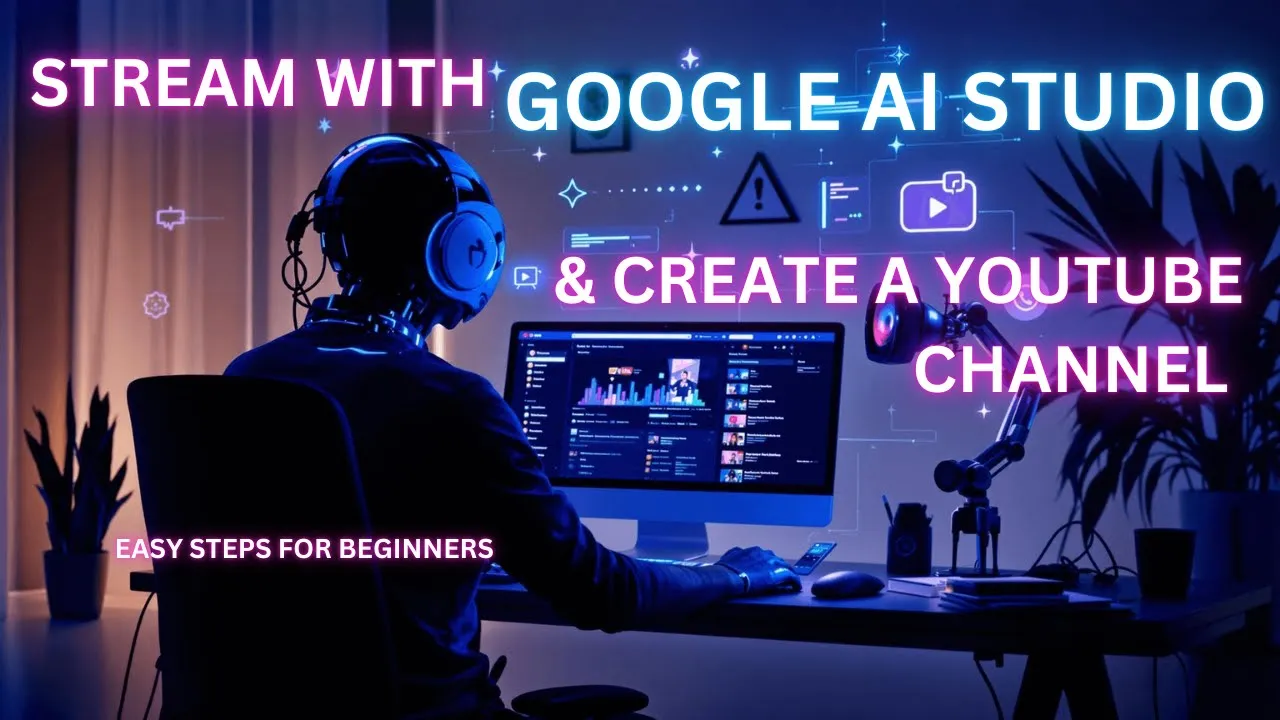
Wow, so I'm using Google AI Studio Streamline. It's freaking amazing! So, you are using Google AI Studio Streamline.
Is there anything specific you'd like to discuss about that? Oh, sorry, I didn't realize you were listening. No problem; I am always listening.
Do you have any questions about what you are doing? Okay, so yeah, I do. I want to know how to create a new channel in YouTube—not a new Google account, just a new channel.
Is that possible? Yes, it is possible to create a new channel on YouTube using your existing Google account. Would you like me to guide you through the steps?
Yes, I would. Let's do it! First, click on your profile picture in the top right corner, then select Settings from the dropdown menu.
Okay, I did that. Great! Now, on the Settings page, click on "Add or manage your channels.
" It's below your YouTube channel. Wow, I see it—"Add or manage your channels. " Great!
Now click on that option. This will take you to the page where you can create a new channel. That is so helpful!
Thank you so much! You're welcome! Now you can add a picture, a name, and a handle for your new channel.
Let me know if you have more questions. So there you go! That is using Streamline—Google's AI Studio Streamline—to make your life freaking simple.
Okay, let me show you how to get to that Streamline and how I connected that up. So, I'm going to sign in. Okay, so this is how to set that up that I was doing.
It's dead freaking simple. You just log into Google AI Studio, and if you just go to ai. studio.
google. com, you can log in there. Then click on "Stream real-time," share your screen, click on that, and then it will ask you for permission to be able to do that.
So, I clicked on Allow, and then you can do your entire screen. I have two screens: I have this little one that I look at, and then I've got Google Data Studio on—Google AI Studio on—and then I've got this big one over here, which is where I actually do all my work. So, this works really well when you have two screens like this.
Then you just click on Share, and it can actually see everything that you're doing. It knows what's on the entire screen; it'll talk back to you. It's like, "Oh my God, this is freaking awesome!
" You described using two screens, one being a smaller screen and the other a larger one where you do most of your work. You also mentioned using the share screen function and the AI being able to see everything on your entire screen, which you found awesome. Okay, just if you're recording something like this, you probably don't want the microphone on while you're actually doing that.
But anyways, that's how you use Google Streamline, which is—oh my God! I'm going to lose my mind on this; it's freaking crazy! Let me know if you'd like to learn more about using Streamline, or if you'd like to see more videos like this.