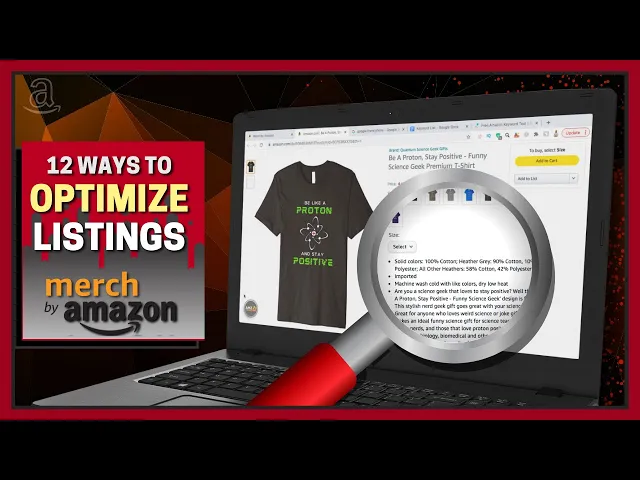
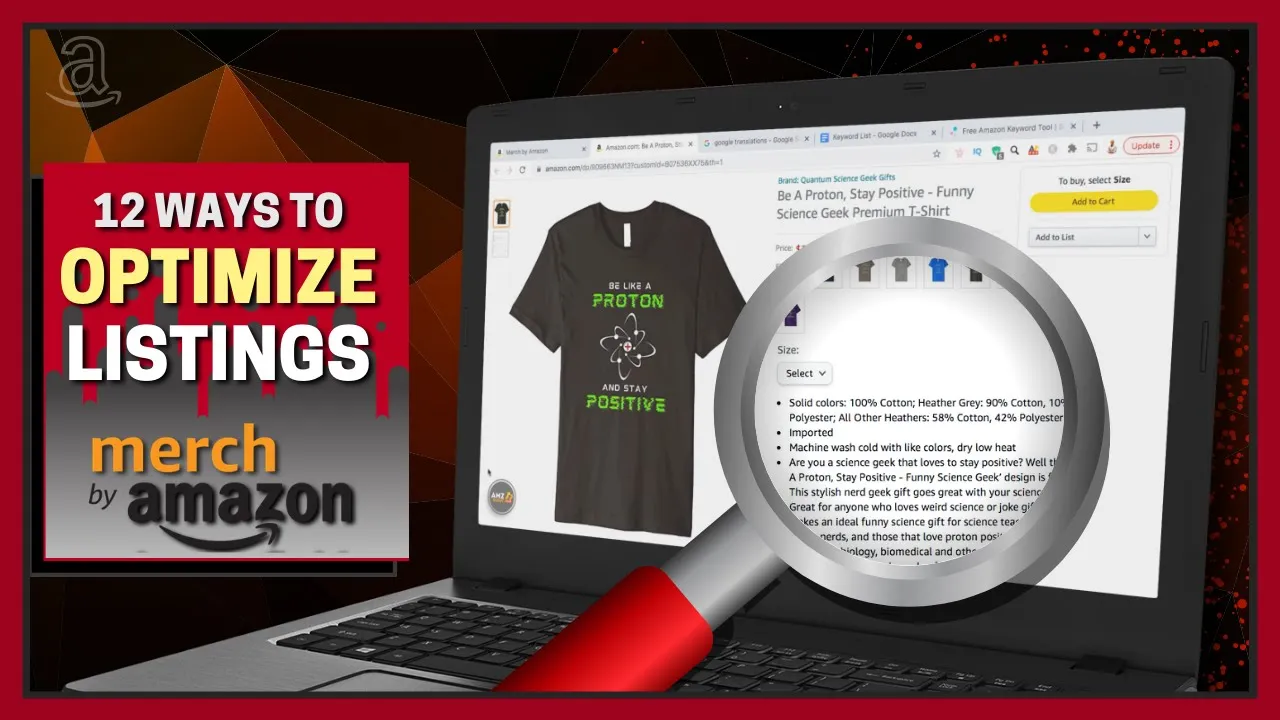
[Music] hey guys jason here with quantum courses and in this tutorial we'll be going over 12 ways to optimize your merch by amazon product listings but before we get started make sure you hit that subscribe button and hit the notifications bell so you'll get notified each time i release a new tutorial as you know amazon is the leading global marketplace for online products with so many users already familiar with the amazon marketplace it's no surprise that products listed on merch by amazon would also benefit from the traffic as well but in order to stand out from the competition you'll need to optimize your product listings in this video we'll go over 12 different ways you can optimize your merch by amazon listings to increase your ranking traffic and your sales optimizing your listings will include performing keyword research editing your designs setting the best prices language translations and much more if you haven't joined merch by amazon yet and you need help applying you can click the youtube card at the top right of the screen to check out my tutorial on the invitation request process also if you need help downloading templates formatting or uploading your designs to merch by amazon check out my video tutorial walking you through the entire process by clicking this youtube card and of course you can view these and other helpful tutorial videos by going to my youtube page i've already created a new design to upload to my merch by amazon products so let's get started by logging into merch by amazon and head over to the create tab here's where you can upload your designs and create your product listings for merch by amazon so let's upload my design to the standard t-shirt to do this let's click on the t-shirt image where it says upload artwork you can then find your design and open it up your design will then be added to all products with the same dimensions i currently only have the standard t-shirt and long sleeve shirt selected so let's click on the edit details button under the standard t-shirt to get a closer view now that we have a better view of my design we can discuss our first optimization tip guys fix your designs if you take a look at my design here not only is it too small but also not centered correctly on the t-shirt i've seen a lot of product listings where designs are too big too small or not properly aligned i know it can be a hassle but don't be lazy and open your editor back up and make the proper corrections the size and location of your design can mean the difference between no sales and a bestseller so now that i've made corrections to my design let's head back over to merch by amazon and update my image to change your design simply click on the image on the t-shirt here then open up your new design there we go my design is now much larger and properly aligned if you're uploading your design to multiple products make sure you do this for each one speaking of multiple products let's go over how to add more products and select countries for your product listing if you look up at the top right of the page you'll see a button that says select products go ahead and click that now so this brings us to our next tip when selecting your products and your countries make sure you select the options most likely to perform well for the design that you're uploading you could click here to select all countries and products but most people aren't at the tier level yet to add them all so you have to be strategic with your selections keep in mind your current tier and available daily uploads if you can only upload let's say 10 products per day you want to select the products and countries that will likely perform best for your particular designer niche for example if i created a design that said american made with an american flag image i would probably choose the us as my country for my 10 products if your design works well with multiple countries and products select the best ones based on your previous sales history t-shirts and hoodies seem to sell best for me so i would make sure to always include these in my product selections so take some time and go ahead and select the best products and countries for your design for my design i think i'm going to go with all the products in the united states and japan once you've made your selections go ahead and go down to the bottom and click on the continue button as you can see now that i've made my product selections all the products that were previously grayed out are now available for me to edit or upload my design to your design will automatically be added to all the products with the same dimensions but now i'm also going to upload my design with the correct dimensions to the hoodies the pop sockets phone cases throw pillows and the tote bags if you need help exporting your designs with the proper dimensions for each product you can go to merch. amazon. com resource to view all the proper dimensions and download the product templates now that my design has been added to all of my products we can now move on to the next tip which is to choose the correct fit types and select the right colors for your design let's start by clicking the edit details button under the standard t-shirt for your clothing the fit types you can select from are men women and youth some designs you create may be made specifically for men women or children so keep this in mind when selecting your fit types and of course if your design contains any adult content don't include the youth option several of the products on merch by amazon will also allow you to select your colors the standard t-shirt has a ton of colors to choose from but other products may not have as many when selecting the colors for your product make sure your colors complement your design you want your design to be clearly visible on your product and not just blend into the background for instance if your design is white or your text is white it may be hard to read on a white t-shirt so take your time and go through each color and select the ones that best complement your design you should also check out the additional colors down here that may not be available in japan but your us customers may love so now that we've selected our fit types and our colors we can now move on to our next tip which is how to properly set your product prices underneath your colors you'll see a section where you can enter the list prices for all the countries that you have selected simply type in your list price and you'll see your estimated royalty payment on the right hand side here but when setting your prices how do you know if you're setting your price too high or too low a great way to find out the best price for your products is to simply check the competition if you head over to the amazon website and search for similar products in your niche you can see exactly what the best selling products are selling for if i search for funny science t-shirt i can see the prices for all the top products related to my design judging from the products on this front page here it looks like the products related to my design range from around 13 to around 19.
99 if you're a new merch by amazon seller and simply trying to tear up your account you might want to price your product near the low end of the range but for my product i think i'll go towards the high end of the range but a little bit lower than the top price let's set mine at 18. 99 which gives me a royalty payment of 4. 48 per cell and since i have japan selected i can also change the price for that marketplace as well personally i typically leave the default prices for foreign markets simply because i'm not familiar with the currency i have no idea what i'm changing it to and no idea what my estimated royalty payment will be but if you're familiar with conversion rates feel free to search the prices on foreign markets as well so now that i've set the options for my standard t-shirt i want to go through the same process for every product that i have enabled this may seem a little tedious but you want to do what's best for your brand make sure you select your fit types or other options select your colors when available and set your list prices so now that you've optimized all of your products we can now scroll down to the product details section here's where you can enter the product details for each marketplace that you selected for my design i currently have the united states marketplace and the japanese marketplace selected filling out your product details will include creating a design title coming up with your brand name writing your key product features and your product description but in order to fully optimize the product details for your design you're gonna need to do some keyword research so the next tip we're gonna discuss is how to create your keyword list so let's go over to google docs and create a new document for our keyword list as we use different methods to research keywords for our design you want to add them to your keyword list so you can have them when editing your product details so now that i have a document to keep track of my keywords let's head back over to amazon and go over the first method to research keywords for your product listing if you start typing your main keywords in the search bar on the amazon website you'll see a list appear of keyword phrases that people are actually searching for on amazon for example if i type in funny science i'll get results like funny science t-shirts for men funny science gifs funny science teacher gifts and multiple other keyword phrases that might be good to add to my keyword list when searching make sure you search for different keyword combinations to see what comes up if i type in science geek for instance i'll get a totally new list of phrases that might be good for my keyword list so now that i have good keywords from the amazon search bar let's go over the next method to research keywords the second method we're going to go over is to actually analyze the top selling products in your niche if they're the top selling products they probably have some good keywords so as an example let's search for a science geek t-shirt you can then browse through the top results to see which ones best match the design that you're creating but for the sake of time let's just check out this first product here since i'm creating a design for the science niche and this is one of the top selling products in the science niche i want to analyze this product listing and look for good keywords in the brand name the title the bullet points and the description once you have the best keywords related to your design go ahead and add them to your keyword list keywords are one of the most important things to get found on merch by amazon so i'm gonna show you one more secret method to research keywords that customers are actually searching for right now if you head over to scientificseller.
com you can access a free keyword research tool that actually shows you amazon buyer keywords these are keywords that amazon buyers are actually searching for on the marketplace simply go to the search box here and type in your keywords one per line once you're finished go down and click on the start my keyword search button the app will then start pulling in all the buyer keyword results related to the keywords that you're searching for if we take a look at our results you can see that we have our stuffed words on the left hand side and our amazon buyer keywords on our right hand side the stuff words will always be single keywords while the amazon buyer keywords can include both keywords and keyword phrases since these are keywords that amazon buyers are actually searching for these are some of the best keywords that you can use for your product listing so take some time maybe do a few searches then add the best keywords and keyword phrases to your keyword list so now that we have some good keywords and keyword phrases to use for our product listing let's head back over to merch by amazon and fill in our product details so our sixth merch by amazon optimization tip is to optimize your design title as you can see both your design title and your brand name are required to publish your products to merch by amazon when creating your design title remember that amazon will automatically put the product type at the end of your title for example if you make a design title called funny cat amazon will automatically add funny cat t-shirt to the t-shirt product listing so when filling out your title and other product details for that matter don't mention any product types and also your design title has to have a minimum of three characters and a maximum of 60 characters so let's come up with a title for my design since my design contains relevant text i usually start with the text that's on my actual design so i'm gonna start with be like a proton and stay positive i can then use my keyword list to find the most relevant keyword or keyword phrase that people might actually search for to find my design so my design title now reads be a proton and stay positive funny science geek if i type in funny science geek t-shirt or funny science geek hoodie for example you'll see this message appear from amazon here recommending against it so let's remove the product type and i now have a title for my design so let's move on to the seventh tip which is how to optimize your brand name a brand name for your design is required it can have a maximum of 60 characters and must have a minimum of three characters all of your designs that you upload to merch by amazon with the same brand name can be all grouped together so if you're creating multiple designs for the same niche you might want to use the same brand name for each design when creating your brand name you want to be strategic if your brand name is related to your niche shoppers are more likely to click on your listing a great way to come up with a good brand name is to use some of the keywords in your keyword list so the brand name for my science niche is going to be quantum science geek gifts i'm actually using the main keyword science and geek in both the title and the brand name you want to make sure to have your main keyword in multiple areas of your product listing in order to increase your seo on merch by amazon your design title and your brand name are actually the only fields that are required but since our goal is to optimize our listing let's move on to our eighth tip which is to optimize your product feature bullet points you have two feature bullet point areas where you can add text with the maximum of 256 characters each don't include any information about the product itself such as the fabric type or the wash instructions you want to focus on details about your actual design such as what it is who is made for how it was made and any other information you think might be relevant to anyone interested in buying this type of design when writing your bullet points make sure you have your keyword list handy and use your keywords to write complete easy to understand sentences you don't want to keyword stuff by just simply throwing in keywords randomly you only have 256 characters for each bullet point so make sure you're using your top keywords so let's check out my bullet points and see how i use the keywords to describe my product my first bullet point reads are you a science geek that loves to stay positive well this be a proton stay positive funny science geek design is for you this stylish nerd geek gift goes great with your science kid great for anyone who loves weird science or joke gifts my second bullet point reads makes an ideal funny science gift for science teachers stylist geeky nerds and those that love proton positivity great for chemistry biology biomedical and other science geeks as you can see my bullet points are written in complete sentences and include many of the top keywords from my keyword list when filling out your bullet points try to use as many of the 256 characters as you can and include as many of the top keywords as you can while using complete sentences that actually make sense so now that i've filled out my bullet points we can now move on to our next tip which is to optimize your product description your product description must have a minimum of 75 characters and a maximum of 2 000 characters with much more space than your bullet points your product description is a great place to add tons of keywords and long tail keyword phrases from your keyword list you can also add text about any related topics and terms customers may search for when trying to find products like yours you can include common search phrases like mix a great birthday gift or perfect gift for mother's day depending on your particular design make sure you're taking advantage of the space that's available in your product description and include any details interested buyers may be searching for so let's check out my description for my example science design my product description reads the be a proton stay positive funny science geek design goes great with your science kit if you're looking for original science gifts cool science apparel or weird science stuff then this cool funny science design is what you need whether you're a science student chemistry teacher biology nerd or simply enjoy the mystery of science then you'll love this design impress your nerd friends with the be a proton stay positive funny science geek design from quantum science geek gifts as you can see i filled my description with keywords without keyword stuffing all of my sentences at least somewhat makes sense so now we have our design title our brand name our bullet points and our product description in english but what if you selected other marketplaces with different languages this brings us to our next tip which is to translate your product details for other marketplaces for my example design i have the us marketplace selected which is english and the japanese marketplace selected but if you look beside my japanese option here you'll see this little warning icon this is a notification from amazon saying to add all product details in each marketplace's language they also state that localized translations for each marketplace are the most successful so in order to start ranking in other countries let's go over how to translate our product details if we click the japanese drop down here we can see that we have the same product detail fields that we had in the us marketplace but how in the world are we going to fill this out in japanese to translate my product details into japanese and any other language i like to use google translate simply go to google and search for google translate or google translations at the top of the search results you should see the google translation tool we'll be pasting in our english text in the box on the left but on the box on the right let's click the drop down menu here and find the language we want to translate to for my listing i want to select japanese so now that i've selected my language let's head back over to my merch by amazon account and copy the english version of my design title we can then head back over to the google translate tool and paste our text into the box on the left the tool should automatically detect the language in english and translate it over to japanese i can then copy the japanese text head back over to my merch by amazon account and paste it into the design title for my japanese marketplace i will then go through the same process for my brand name my bullet points and my product description and voila i now have my product details filled out for the japanese marketplace as far as grammar and punctuation goes i have no idea but it's the best we've got and it seems to work for me remember to go through this same process for each marketplace that you select to add your products to so now that we've gone through all that work of filling out our product details and translating our text we can now move on to the next tip which is to save your default settings in order to save tons of time when creating designs for the same niche you can click here to save your publish settings and save your product selections your marketplaces and your product details including the translations if i was planning to upload 10 different science designs this month for example i can save my publish settings which will save me a ton of time when filling out my product details for my next upload but remember that each time you save your publish settings it will replace any previous settings that you may have had so now that we have a fully optimized listing let's look at the bottom right hand side and click on publish you can then confirm your products and your products will be sent to amazon for review you can check the status of your products by going to the merch by amazon manage page once your product is published it'll say live in the status column here so let's check out the product listing for the science design that i just created so here's my new be like a proton and stay positive science design we have my optimized brand name my design title my bullet points and my description from the products manage page you can also view your products on all the other marketplaces as well let's check out my product listing for the japanese marketplace so here's my new design on amazon. co.