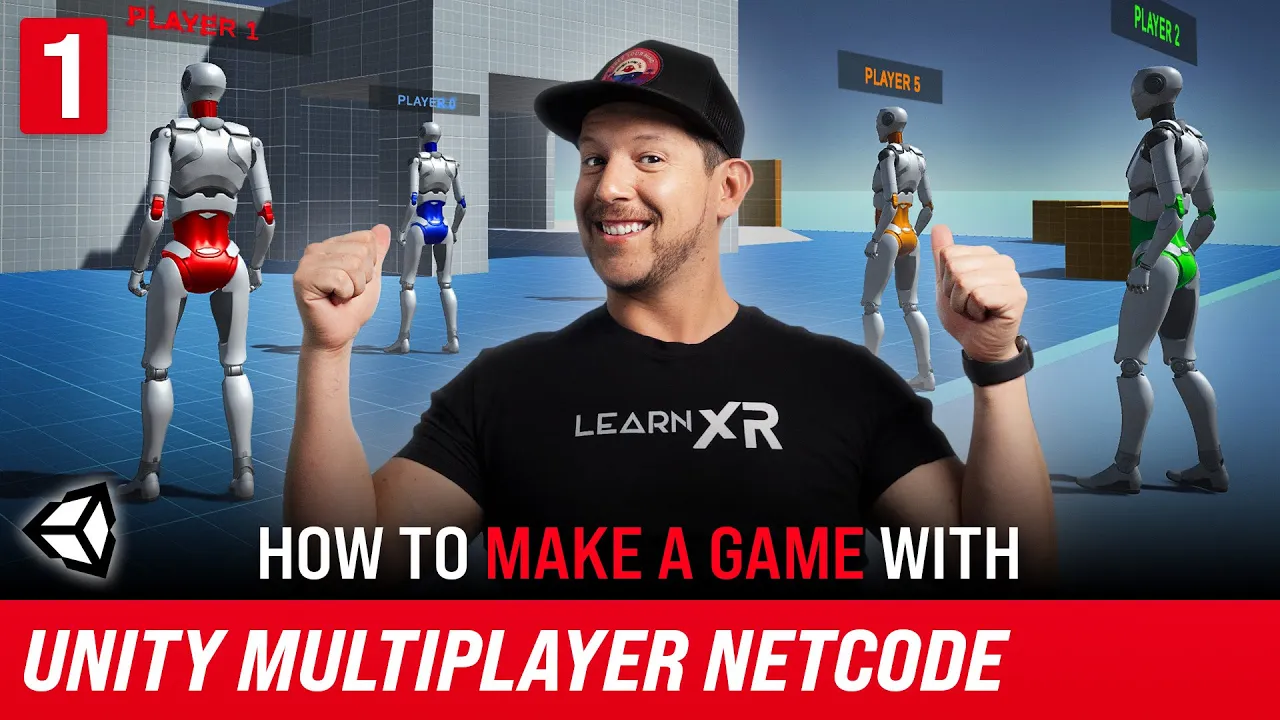
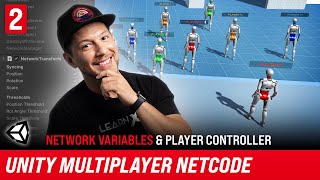
what's going on everybody it's dilmer and welcome back to my channel so in today's video we're going to be taking a look at the new unity multiplayer solution this is going to be available in versions 2020 and also 2021 i'm also going to show you how to install it in version 2021 and also what you need to do in 2020. we're going to be looking at some of the components such as the network transform also some of the properties in the network manager basically how to install it how to get it going and i'm going to be dividing this video because there's going to be a lot of content that we're gonna be doing for unity multiplayer so let's jump into my computer and start working on it all right guys so let me show you what we're gonna be doing today which is to look at a demo that we're gonna be building into two parts this is going to be a multiplayer implementation and a lot of us know that many games today get more engagement whenever we had multiplayer and for obvious reasons is because we have you know we're playing with people that we know we are engaging with people that we don't know so multiplayer is a feature that we really aim to have on on most games today so what i'm going to do is i'm going to show you how this demo works so the first thing that i'll do is i'll go ahead and pull up the bill here and i'm going to have multiple windows open because we want to test multiplayer so multiplayer has more sessions so we're gonna have a window here window here i'll just add about four different player sessions so that we can test the functionality and i'll put this one right over here so so the way this is going to work is this is what we're going to be building right so hopefully you get as excited as i i'm getting by teaching this and let me show you some of the parts so this part right here is going to be where we start the server so we can start either a server we can install a host a host meaning that we have a server and a client and a server is just a server itself we just can't handle that it won't clear create an actual client and a client is just a client itself so if we look at the left section you're going to see that we have a logger and this logger is so that we know what's happening between the server and the client if we want to see some login information we can do that and we'll have that on every single one of these windows and i also can see how many players we have in the game at all times so what i'm going to do is the one on the top left is going to be the host so if i click on the host you're going to see that we have one player in the game we also have a label here that says player zero i also have a little login information here saying the logger has been enabled we are just connected zero means that this is player zero and then that the host was started so what i'm gonna do on the right side i'm gonna start this one with the client so we now have player one that join us i can also move player one if i wanted to let's just put him right here so it's not on that you know next to the player zero i can also move player zero put it right here i didn't have animations because i want to keep it as simple as i can so what if we wanted to add another player right we can do a star clan here and now we have player two joining joining us and what if i wanted to do the same thing here we want to do player three which in our case is you know it's player four we're talking about zero index that's where they are the way that they are but you know i can move these here i can move this here and everything is going to move so what if we wanted to do player five with unity we can also do that as well i can jump in and hit play you're gonna see that as soon as we do that and we hit start line all different clients synchronize with unity i mean pretty quickly it's all obviously running locally but you can see that player four just connected we also can look at the hierarchy here we can see each one of the armatures which in my case is what i call them but you can see here this is you know player zero we can also look up player one which is right here and the other cool thing about this implementation that unity did is you can see everything in real time and by that i mean if you look at the objects that are on the inspector right here you can see that we have each one of these ones with the network object and i'm going to walk you through that just just you know stay with me so if i look at this one you can see that this one right here is owned by the server this is a player object and it's not a local player it has been expanded so there's obviously a lot of properties for each one of these if you look at the last one this one says that i am the owner so that means that the last player is the one that we joined so we are fully you know with control of that player so we can see which players we own which players we don't know because these are players that you know somebody else join with we shouldn't be able to touch him unless we do some things in unity which i'm gonna i'm gonna be teaching you so the first thing that we're gonna do is we're gonna be looking at some of the requirements so the requirements for unity are going to be unity 2021. x plus meaning that any version of 2021 it's going to work with the multiplayer features or you can also use unity2020.
3. x so any version with 20 20 that three it's going to work so once you do that and you create a project go ahead and go into windows then go into package manager i'm going to click on this little symbol if you're using unity 2021 make sure that you do it the way that i'm about to show you if you're using an older version which is the 2020. 3.
x make sure you click on get url so we're going to be using the app package by name and then i'm going to go ahead and paste the package which is com. unity.


![Chicago Soul | Marvin Gaye Inspired 1970s Soul — Mercy & Grace [Unreleased Album]](https://img.youtube.com/vi/YTytykkOygg/mqdefault.jpg)