getting started in mahara mahara is an e-portfolio software which is integrated in moodle or the e-campus as it is called at the sangpoltin university of applied sciences it enables the organization of different artifacts such as pages and groups mahara facilitates managing groups supporting students in their study process with various tools or the representation of e-portfolios an e-portfolio is a digital portfolio which is a documentation and visualization of study processes and results in a certain time period and for a certain purpose the students themselves manage the selection of content to share in addition the e-portfolios created
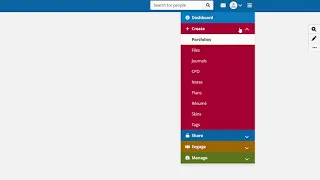
online can be managed edited and shared as pages or collections for example it is possible to submit a mahara eportfolio on the ecampus login to start mahara you have to enter the url mahara.fhstp.ac.at you are now on the mahara login page where you log in with the same data as on the ecampus which is your username and your password mahara will usually open in the german language version to switch to english go to the language selection button and choose english pages in mahara you will find a burger menu in the top right hand corner here
you have various tools and options to choose from under create you can create different artifacts create an e-portfolio with pages and collections a new page is created by choosing add and page the page's title should have a direct reference to the content a short description explains the content without having to open the page adding tags makes it easier to find pages confirm by pressing enter in the advanced settings you can for instance choose a cover image to do this choose an image from a local directory or from the mahara online directory you can also drag
and drop one here it is important to respect copyrights and to add a corresponding description in the directory the directories themselves are described in more detail in video 2. after completing the page setup go to the main menu and click on pages and collections to display the page overview here you can easily see the cover image and the description appears on hovering over the page now you can edit or delete pages filling pages is done with so called blocks these blocks can be added either at the top or the bottom of a page you will
find a wide variety of blocks to choose from in this video we will present only the most important ones the text block is a very important block the block title chosen here is the title of the entire block you can then format and edit the text with the tools provided you can also insert images into the text the option retract can amongst other uses be used for blocks that are very large and take up a lot of space on the page after adding the block appears on the page the next important block is the image
block here also add a title and a description of the image choose an image by uploading one or taking it from a directory in case you upload an image for the first time it is important that you provide a description and thus the source image management in the directories is explained in the video content in mahara as a next block let's add a file for download again provide the file either by uploading it or choosing it from a directory the content of the file is not displayed all you see is that it is downloadable another
block is the image gallery with this you can display numerous images without having to create lots of single image blocks you can select the pictures in a number of ways you can choose an entire folder this then includes images that were not in the folder at the time of its creation you can also choose to display images from an external source by choosing single images you can upload new images or select from a directory please consider copyrights in the settings you can also choose the style of display in the image gallery block it is important
that you set the width because here contrary to single image blocks the images are not rescaled when you change the size of the blocks by dragging the edges as a last block let's choose a pdf file this file other than the file for download is displayed in its window when all your blocks are in place you can now edit your layout by dragging and dropping the blocks in many blocks the content is rescaled when you drag the edges but images in image galleries remain unchanged here you can also expand blocks for which you activated the
option retract defining access after having edited your layout you can now define access by clicking on the padlock symbol you unlock the access settings you share with a url the new secret url now you can set the parameters for sharing for instance you can edit comments or authorize copying you can also individually for each page set a time limit for sharing a further option for sharing is the authorization of for instance groups or single persons save to finish collections add this time by choosing a collection the settings are the same as when adding a page
you can combine your pages in collections these can later be submitted as e-portfolios just like pages on the ecampus collections also enable you to share combined pages the single pages are added to a collection by drag and drop the next step is to manage the access this can again be achieved with a url or by selecting groups you can manage edit or delete a collection at any time in the overview and you can display the content very easily submission on the ecampus a submission needs to be set up on the ecampus for students to be
able to submit a page or a collection for this go into editing mode and start a new activity as an assignment the possible and necessary information here correspond to the usual submissions to now enable a mahara portfolio do not choose file submission as submission type but instead choose mahara portfolio the submission thus opened enables students to submit entire portfolios without having to upload single files students who open a submission on the ecampus thus have the possibility to select a collection or a page that is directly connected to their account support if you have any questions
or need support please refer to the university's i t support for technical issues or the skills center for educational questions or issues with mahara