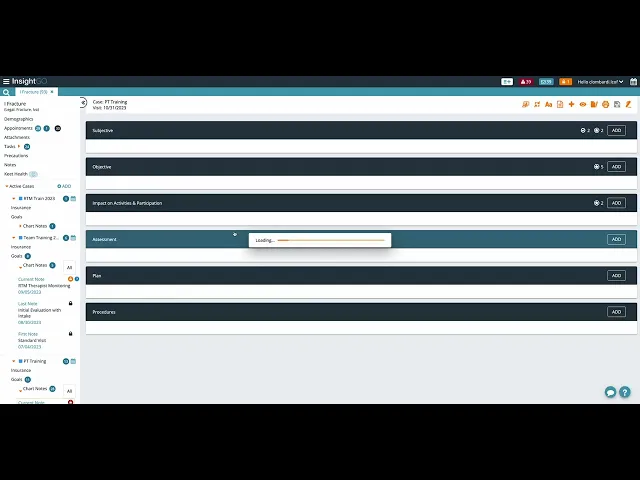
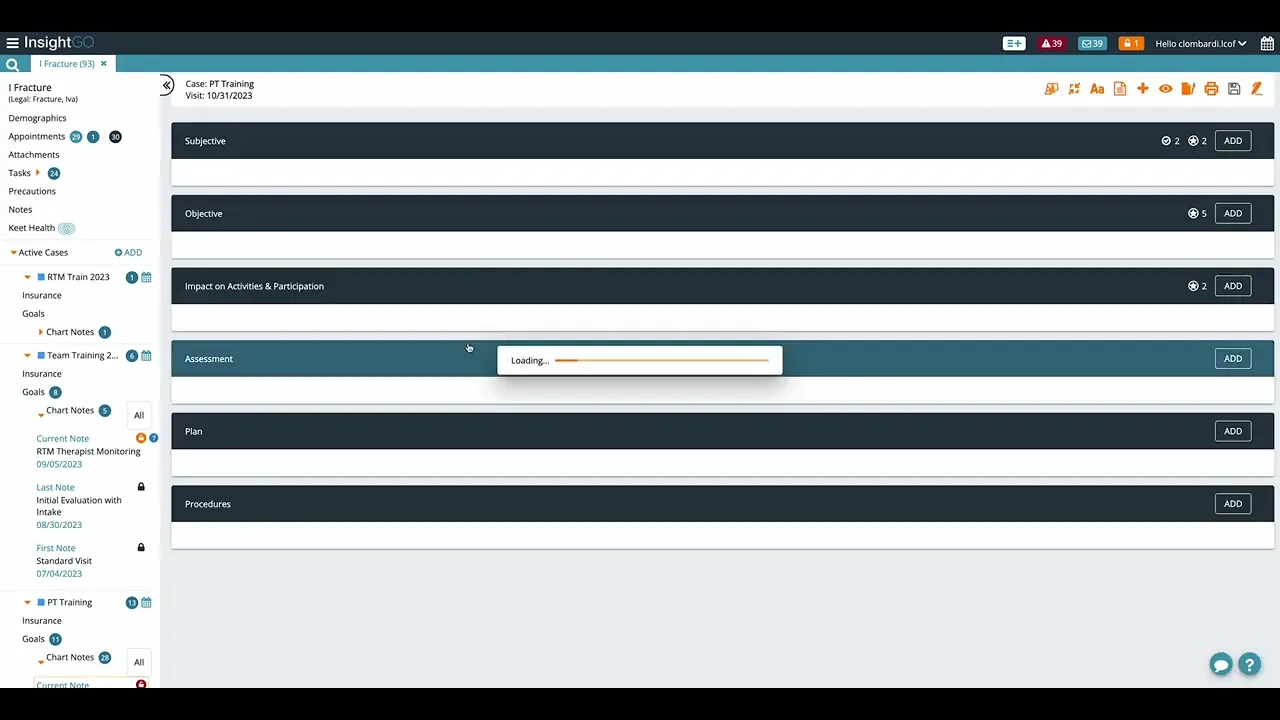
so today we are going to be going over how to do a daily encounter note on Insight go clinicient tier and first things first let's start off by searching for our patient so in order to find a patient what we're going to do is go up here to this little magnifying search class here and we're going to type in the patient's name okay so I'm going to be using a patient that is fake just for an example here so once you type that in their name will pop up down here and once you find it just click on the patient's name and the first thing that's going to do is pull up their demographics page here so you can see their name um date of birth address phone number a lot of the uh important information on the demographics here if there's any important notes like a specific person to text or call for appointments it will be over here and um emergency contact information down below the next thing we're going to see on this left sidebar here is appointments so if we click on appointments you can see all of their past appointments and again this is a fake patient so a lot of this is just uh for training purposes but when you're going to do your first uh daily encounter note you'll see likely an initial evaluation with intake here and that will have been done by the physical therapist so if we just click on this one for example we can look at this evaluation that was done uh so you'll see a lot of your pertinent information here on the patient and as you scroll down through this note you'll see your typical subjective object itive assessment sections and the plan so this is an important section to look at and on an actual evaluation for a real patient this will be filled out so it'll tell you the total number of visits that are recommended for the plan of care the frequency how often per week typically two to three times per week and then the duration of each visit etc etc so this is just taking a peek at the initial evaluation here of a patient um we'll get into the actual note here shortly and one last thing to look at on this left sidebar here from searching your patient is attachments and so here they will there will typically be one that says uh medical report and you can click on that and that medical report will have uh either their script or information from the doctor regarding their diagnosis or a certain type of procedure or something that they had the reason why they're having Physical Therapy okay so this is all just from that search bar here um searching for patients again demographics appointments and attachments those are really the three important things that you need to look at here so if we close out of that it takes us back to our main schedule screen okay this is what you're going to see when you first log in now let's say I want to go ahead and schedule an appointment for a patient today and let's say I saw this patient at 400 p. m. today so you'll see your weekly chart here Monday through Friday and let's say I saw this patient today at 4:00 p.
m. p. m.