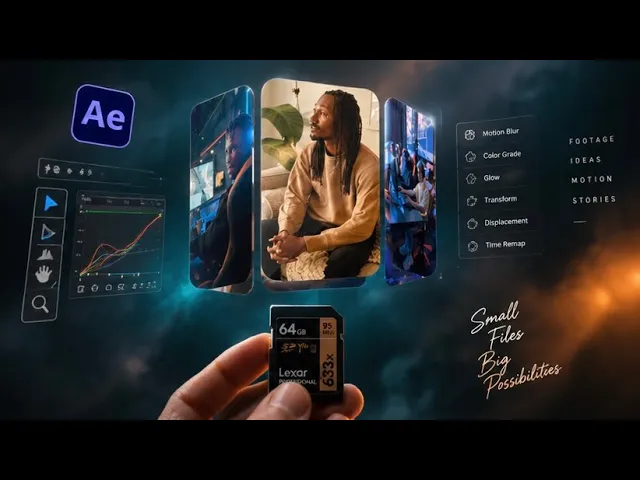
[Music] all right import all the video assets inside the new composition and create a folder and rename it video drag all the videos inside this folder to be more organized now drag and drop in the footage and drag this onto the new composition icon that will create a new composition if you can't see any tracker window like me here go to window and check this tracker so that you have the tracker window here go and click on this track motion and go and zoom in inside and set your tracking Point somewhere in the memory card
on the text somewhere here and you can hit this button to track forward and sit back and relax until after effects track all the information for [Music] you go to layer and create a new null object rename the layer to tracking information all right go and hit this edit Target and select the tracking information layer hit okay and apply okay so the tracking information has been linked to the null object all right let's test this out out by clicking on this rectangle tool draw a rectangle and I'm going to parent this shape layer to the
tracking information layer and if I play it back you can see that the tracking information works very nice all right now that you know that the tracking information is perfect you can go ahead and delete the shape layer and go to composition create a new composition and set the resolution to 1080 by 9 20 rename this to video one hit okay create a new folder and rename this precom just to stay organized and drag and drop the video one inside that folder now collapse this video and drag and drop the footage one and scale it
to fit the composition and you can adjust the length right click trim comp to work area select the rounded rectangle tool with no stroke and a fill color of black hit okay and draw a box like this to fit the composition collapse this rectangle and increase the roundness rename the shape layer to mask hit F4 and select this track mat and set this to mask one so that you mask that out go to the project panel select this video one control D to duplicate go inside this video One select the video and select the next
video hold down alt and drag and drop it duplicate this video three do the same we'll have to replace this hold on alt drag and drop it and you'll have to do this for the rest of the videos close this video out and let's go back to the main footage composition contrl K to bring up the composition settings and rename this main comp and hit okay and we're going to work inside this composition all right now is the fun part let's go inside layer new and create a new null object go to the project panel
go to the precom and select all these videos drag and drop it just below the null object change the color of the layer to yellow and I'm going to rename this null object to rotation controller select all the videos hit s to ring up the scale and scale it down to a 50% and collapse this back again select the controller and all the layers make this a 3D layer select only the controller hit P to bring up the position and set the Z values to 500 hit r on the keyboard board to bring up the
rotation and parent the video one to the null object and we're going to input some values in the Y rotation for for that we have to do some math so we're going to take 360 divide it by we have six images so we're going to divide it by six so we get 60 so we're going to input that 60 in that y rotation because we're going to position those videos in a circle and the radi I of a circle is 360° all right we're going to do the same for video two we're going to parent
this to the controller and we're going to plus 60 on the rotation and we're going to do the same for three parent it to the rotation and plus 60 and we're going to do the same for the rest of the video except for the last video which is video number six we just have to parent it to the null object and collapse this and parent the controller to the tracking information select the controller hit R and if you scrub through this y rotation you can see it's very very nice all right let's add some key
frame for the wire rotation and we'll just scrub through the timeline and try to match the finger gesture like when I you know scrub my finger somewhere around here let's move this key frame here and I'm going to go forward few frames as my finger scrub like that I'm going to set this rotation to somewhere here and you have this one so we're going to do the same for the rest of the video all right after you've done all the anim select all the key frames and we're going to hit F9 for Easy E let's
go to the graph and if you see this check this edit speed graph and select all the key frames and we're going to tweak the key frames to something like this all right go to the first frame here set a key frame for the rotation to something like this and if you play it back you have this rotation and we're going to select all the video layers hit p hold down shift and T to bring up the opacity go few frames ahead and set a key frame for the opacity and position for all the layers
go back to the first frame and and change the values of the Y to something like this so that it comes from the bottom and set the opacity to zero select all the key frames hit F9 for Easy E and we're going to offset the timing of this animation so let's go back to the first frame and we're we're going to hit page down five times 1 2 3 4 5 select this layer and drag it over here and we're going to do again 1 2 3 4 five we're going to drag this here and
we're going to do this for the rest of the layers so finally you'll have to turn on the motion blur for the composition and for all the other layers as well in that way you have a very realistic motion all right that is how you create this kind of video in After Effects don't forget to like And subscribe to my channel this is motion designer and I will see you in my next video take care





![3D Building GROW EFFECT - Premiere Pro Tutorial [Benn TK]](https://i.ytimg.com/vi_webp/x_RsGFXjP-k/mqdefault.webp)