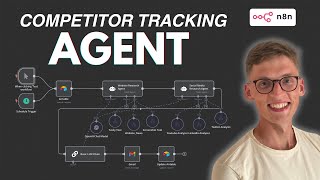
in this video I'm going to show you how you can get unlimited leads by scraping Google Maps and doing it very easily and almost for free so if you want to know how to get such businesses as plumbers dentists HVAC Specialists or many others uh you come to the right place because in this video I'm going to show you my step-by-step process on how you can do that very easily and affordable in a very simple way so let's get started for the moment I'm in Google Maps just show you my thought process on how we'll be doing this whole scraping so for example now I'm in Austin Texas area and if I want to search for dentist uh I can insert it my keyword and I'll get a bunch of different results I would like to get this data it would take hours and hours of manual work that I want that I do not want to do uh because for example when I press on one of a dentist office in in Vara I get very website I get their number and all of this is good but if I would want to get like 500 different dentist offices in this city it would take too many hours of work so of course I could do that manually but it's not the use case I want to show you that's why we'll be doing that automatically using different tools and in this case we'll be using apy so if you don't know what apy is basically it's it's an Bi Store that help us to scrape different data from Instagram to Tik Tok to Google Maps and many other different tools so we'll be using one of uh one of many scrapers we have specifically for Google Map scraping uh for contacts uh we'll be using some additional software like anyil or any other email finder you you might be using as not many of these businesses insert the email in their Google Maps account so that's why you need to get it from different source so we will be doing two types of activities one will be to just basically scrape the website of a of that particular business to get the email and if the email wouldn't appear there we'll be using email email finder to get the email from the website domain we are using and all of this data will be stored in our own database so in this case I'll be using air table but you could use Google Sheets or any other software as well and any1 Tool so it is like a glue that will combine all these different tools into one place so I'll show you my thought process and step by step actions you'll need to take to have this own scraper by the end of this video from Google Maps we'll go back to the apy so ap. com will need to create an account and go to console P the most advanced API store you could ever imagine and there are a bunch of different scrapers as I already mentioned and when you go to the store here you can search for different apis we'll be using so in this case we'll be using Google Maps extractor so it's it's also free to try so you can just select it and you'll go to the screen like this you can mimic all the activities that you would do in Google Maps but but do that automatically by uh interacting in this dashboard so you could also include any Search terms in pin any location you want limit the number of places to extract the to select the language and many other filters and in this case we'll be using uh filters just like I do so just select the any filter you want so basically the filter will filter all the different businesses uh you want to scrape so airports as you see allergist anodizers I don't even know what it is and many others uh but in this case I'll will select the dentist as I already did you could also filter it according to the rating they have uh if they have websites or not but moving on uh I will also select the G location I would like to have and I will go to the G location settings and I already included the required location so United States as a country City Austin and Texas state so that's uh where you should also customize it and select all the uh information you would like to scrape and that's basically it ensure that this is also blank like search term and location because we are already doing that in the filter so you don't need to repeat the same information and also limit the number of places where we'll be extracting so in this case I'll limit it to 50 and the only thing I'll need to do is to press Json button uh up here so you don't see the Json button is right here and now you'll get uh wonderful Json uh of our query if you have uh this whole uh thing set up you can just save and start and see how this scraper really works and as you see it might take couple of minutes but basically now we'll have 50 different uh dentist offices scraped in our apy account and I will yeah that's it and we have all these 50 different small businesses that we can Target in our campaigns or just Reach Out offering our services and help so as you see we have a place name the image URL of that place uh that will be found in Google Maps as well the rating the reviews account the street that they are in the city the country code as well as the website so we have have a bunch of different information that we can use later on helping building our email list so that is great now the question is how to do that automatically and how to insert this information into our database so that's why I'm showing you my n10 uh automation when you are in n10 uh in this case I'm going to show you the step-by-step process so that's why I have a blank canvas and show you how you can you can put all these apy results into one uh nicely formatted database with all this information as well as with email because as you see we don't have any email here we get only the phone number so that's why we using this automation to get the email as well when we are seeing all these results good thing is to starts thinking about the database we'll be using this case already created an air table where we basically have different data selected so the title of a business the street number of that particular business the neighborhood the website uh of that business the phone number as well as the email a column that will basically be free for now because we don't get the email from the apy scraper but we'll later on fill this information as well as well as the URL off a search query so basically when you select this URL you'll get the exact location of that dentistry in this case uh by selecting the Google Maps URL Bas structure and now we can get back to the n10 start building we'll go to n10 Tool and we'll start this process from scratch uh so uh when you're are here you'll need to start with a trigger so just select the trigger manually this is a manual trigger uh standard procedure in many automations uh later on uh we'll need to have an HTTP request so basically HTTP request is an note that help us to get this work uh automatically so when we are in this uh HTTP request we'll need to fill the data to fill the method the URL and the body as well as some headers in in some cases so if you want to do that uh pretty easily uh you can go to the AP API scraper and that we already used and go to that Google Maps extractor and select the API and API endpoints this is a very simple way to get the same data we're doing it manually in apy and do that automatically in n10 so when you're pressing that API scroll down to run actro synchronously and get data set items and just copy paste this URL you are getting method and the long URL with a data to scrape and to integrate this into your own n workflow so when you're in n10 select that post method and just copy paste that URL this URL is semi-private because it contains your API key so that's why you won't need to authenticate anymore so that's it's a good because it's a very easy way to do that and the only thing you'll need to insert is body when you press on body and select the using Json and now we'll we'll need to insert that Json uh into this uh workflow so when you go back to the apy scraper select the Json and just copy paste this information we can just copy paste the existing query uh this scraper of course you can make it Dynamic so what mean by D Dynamic you could change this uh by inserting the na10 functions by using the cly brackets but for the moment we want to do that manually so it doesn't uh matter because as you see our search query is the same as we had before so the dentist the city is Austin the country card is United States and the state is Texas so now we can uh get back to this and if we would test this step with the same process would happen here as we did before with apy app uh the only difference is that when we are doing it here in any 10 we can manipulate the DAT data so for example we can go to the website we are you we are scraping or get the email of of that particular domain that we are having so that's why it's useful to set this uh up in the na1 and not just leave it in apy so when I just press test workflow you will see the results we we are getting in n10 couple of minutes and we'll be good to go and see the results and uh after one one minute or two we get the results and if you press on HTTP request we get we see that we get the same information that we got in API but just in um uh different format so in this case we get an Json and we can see that P URL the URL of a uh of a location of that particular Dentistry uh I think yeah if you scroll up you'll get the website as well so if you could just copy paste this URL we see that we get the same websites we had before so all of this information and now we can just pick it Target it and use it in our own uh automations later on when we'll be sending those emails and so can set fields and basically to summarize the information we get because now we are a lot of different uh information that we really don't need like price like category name like uh postal code for example in this case I don't need it claim this business uh array is also not needed the location uh magnitude is not uh useful for me here as well so I will leave this data out of my equation and I'll filter filter down this data to scrape it uh in more comfortable way so now what we'll be doing we'll be selecting the edit Fields tab so we just select fields and fill the data here you want to leave or use so now I'll do this of cameras to make this process faster and now I did it uh so basically what I did is selected the data I want to use later on so in this case I selected the title with Street the neighborhood the website the phone and URL and just copy paste it this from the HTTP request the apy request we got uh so that was an easy the only difficult more difficult U array I encountered was domain so I wanted to get the domain uh out of this um as you see we got we get only the website out of the scraper and the website URL is pretty long one and it contain not only B domain but more additional information and that we don't need because we couldn't use that in our email scrapers so that's why I use some function that basically extract the domain from the URL so I said json. website.
extract domain this is a function from n10 so we could use it as well of course you don't need to copy paste all of this because all the templates and workflows will be Down Below in the resource section so if you want to copy paste this and just plug and play it uh you can do that as well you don't need to follow process all along but if you want you can just learn some new stuff and do that with me so now when the only thing I needed is the email so basically the only task we need to make is to get the email because already got all the important information we might ever need and to get the email uh I'll suggest you to use uh two different options so the first option will be to use the website scraper and the other function will be to use animail finder so animail finder is an paid API that basically helps you to find and verify emails where you can just insert the website domain and get the all the emails from that particular domain you could also select search by decision maker select search by LinkedIn or whatever here we'll be using on website domain uh but before that and because it's a paid VPI I want to show you more cost efficient way of scraping and what I mean by that so yeah then we are in uh I can press this uh note right here I will pin the data for the moment sometimes you'll find the website just like Highland West dentalcare. com where by scrolling down into this website you find you'll find the email of this particular website so basically now you can just take this email and put it into your own database and contact with uh business automatically and there are different ways of how you can get this email the simplest way is to insert this H this website as HTML and you find the email address and that will match your criteria so you could do that with some coding or just with a basic help of AI so if you go to the any1 uh now we can start uh our scraping email scraping process and at start we'll be using uh loop uh loop node so Loop node will be useful because we'll you have this um scraping as a happening as a loop because we now want to take one website only and go through the loop and get the email out of it um one by one and not from many that's why we'll be using using Loop uh we will need to replace this node so now we'll be using another node HTTP node so just find it by here by selecting this and now we'll need to in insert the website URL to scrap that website and get that email as already mentioned insert the website so yeah if you press the execute previous notes we get the website URL and we basically just need to insert this uh website right here here and we'll be uh good to go when you just press test step uh now we get all these different HTML and basically we can feed this HTML and ask for chbt to uh find the email because yeah the email is somewhere in between this bunch of information it's pretty hard to find it by hand of course AI is almost free right now you can very easily do that with the help of chbt feed this into ch gbt and ask for it to find the email sometime not every website will have a email but some of it will do so that's why uh we we can just rename this um function to later on reference it in more clear way so we could say uh scrape website we could do the same with apy scraper so we could just say uh Google Maps scraper it will be more easy to reference a later on and now we can go back to the chbt node so just select open AI message a model in this case I'm be using 40 mini so just select it and I already wrote some simple pron so I'll just copy paste it and explain it uh step by step it's a pretty easy one so I could just show you um I said look at this website content and extract only the email I can contact with business in your output provide only the email and nothing else ideally this email should be of business owner so if you have your more options try for most a authorative one if you don't find any me email output null and Exemplar output of yours name at at example website. com and website you should analyze I just inserted the data from the script website notes we have right here and we just test the step we can see how this uh function will work maybe uh I think this um yeah this website doesn't have any email in their HTML that's why the hbt output is null but uh in some cases there are some emails so that's why we'll be using the second API as well so now what we'll be doing is to connecting our own air table base and uploading this information from na10 automation to air table and we'll need to get this data and that we got in n10 and insert it into the air table how we can do that with air table no so we just select the air table and create a record so we creating a record based on information we got the only thing we'll need to do is to select the air table VL already have so in this case I have Google Maps scraper my table is called Data so I selected and I can just insert all of this data uh that we got so I just map out all these uh values so the title and the street and I I select loopover items node that's why I'll be using it neighborhood website the phone number and the URL as well as the email and the email will be from the open I node so if open will found the email it will output here if not the output will be null and if I just test it uh we can get back to the air table and we'll see that on the same process once again air table just inserted this and yeah now we have this automation set up it can automatically update into our own air table now what think we need is to make sure that we can get as many emails as we can uh from that particular websites we are scraping that's why I want to introduce to the if node and basically we now to logically uh separate two different scenarios so in one scenario open AI will get the email that's why we want to Output that result in our air table just right here and if the output is null so basically if the email is not found we'll be using our nemil finder so I'll select the if node and we'll select if the content of chbt Cy paste that value so if I open a message which contains we want to select contains null so the answer it got if it's true we'll use a different uh API call to any mail if it's uh false so we'll Loop over process once again but if it's uh true use a different API call and as already mentioned we'll be using any mail finder so as I said any email finder is an API that helps you to find those emails a free account on this tool as well so just go to the app you'll need to connect your own credit card but you'll have a free day free trial so and so if you can cancel it before as well uh and then you are here just select the API create and generate your API key so basically you need to press the bo uh button right here when you are generated your key go to the documentation the find all emails at the company and here once again you'll get the URL and post method as well as the classical command so a Cod command is basically a a cheat code that we can copy paste with call command insert it into our own HTTP request and will will be pretty much good to go copy paste it go to the any scenario and select one more HTTP request uh and we can just copy paste the curl Command right here copy paste it and import and now all the modification is already set according to our needs we don't need to copy paste URL the post method as well as authorization so that's that's why choices because it's very easy to authorize now we just need to copy paste the API key so get back to that dashboard and copy paste the API key you generated make sure to leave the uh the space between the beerer and your API key and the the last thing you'll need to do is to include the domain of a particular website so basically we'll need to select that particular domain we already have so I'll just execute previous notes we'll go to the loop over items I don't see it uh it doesn't populate right here but basically we could just do it manually by selecting the expression and WR write the dollar sign node uh over items included into the quote do json.
domain and if you'll test this uh we should get the uh request to the in and mail finders and we will see if we can get that particular domain from the website or not yeah we still didn't get any results so that particular website where River roog Dental family. com maybe don't have any associated in any uh databases that these apis uh might contact them with so basically maybe we're using a Gmail account and we don't uh we don't just showcase it that's that's why this example is pretty hard one but basically as already showed you you can um expect around 50 to 60% of the chances to get those particular emails and now yeah we basically finished all our scenario now now the only thing we'll need to think about is when we getting that any mail a scraper we can rename it as well when we getting the results from the Anil we want to update our air tables with the information we got from the any mail so in this case we'll select the ad node and search for air table but in this case we won't uh create an record but an update and record so we choose update record once more time we'll select that particular base and table so Google Maps graper and data will'll match the data with the ID uh and we'll include that particular air table ID into this step because we want to match that particular rows according to the each ID we have we won't use the title the street the neighborhood the website the phone because we already do have it but the email is the one we will need to insert and I already wrote you some little function that we'll need to use in this inil finder uh that is an expression with a json. stringify function so basically when we're getting a bunch of different emails it will go into the array and now we want to stringify it into a string that all of these different emails will be uh populated into one particular row so that's why we are using this function and as well H adding the json.