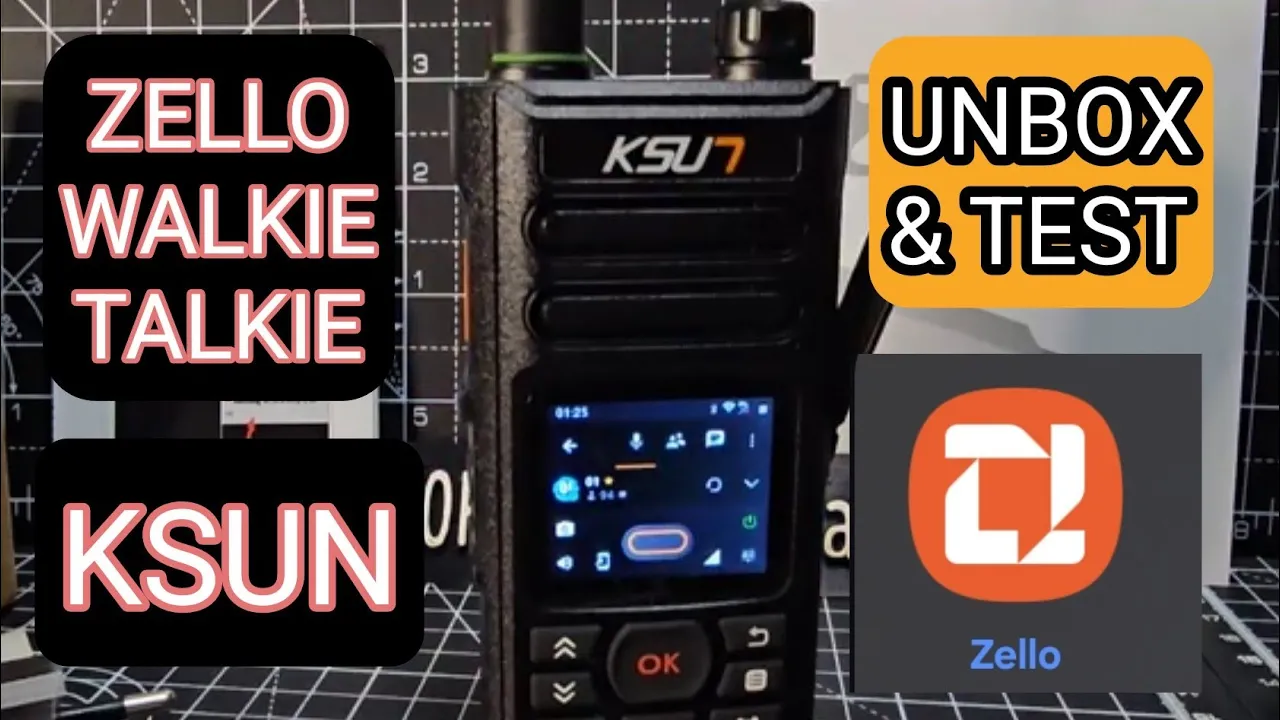
MZ effectb ham Tech welcome to my videos on the Zell walkie talki called the K Sun so this is how it comes badged quite a neat little box and it's not touchscreen and it comes preloaded with Zell we are going to attempt to add some more apps to it using a program called visor or total control so let's see what we get in the Box these aren't expensive they're about £39 from Express so let's take a look this small little box we' got some instructions here as you can see there you go we'll look at
them closer but you know the idea is that it's a Zell device and some more instructions there now it does take a bit of getting used to regarding navigating around the screen because it's not a touchscreen device the first impressions are taken out of the package that it's a nice solid device with a good size screen uh someone's move the screen protector for me probably my son but anyway so yeah it's a nice nice size feels chunky in the hand and there's our battery there at the back so if we just quickly work out how
we take this off yeah there's a push button here slides down and the battery size is 4,800 100 Milah 3.7 volts yes it does have a SIM card and it is a 4G device as well so we just put that in now although it's got an antenna which you can see it's probably a Wi-Fi or a GPS antenna but I have to look it up but yes it does have Wi-Fi and and GPS also Inside the Box we get a belt clip and it looks like we are going to have to screw that on so
I'll do that in a second okay screws are there in the bottom of the packaging take out the radio and I think it's quite quite well packaged comes with a measure anten there I like the little green ring I know it's a silly little thing but you know small little bits of color you know you've got the orange already which matches Zell I think do give a walkie-talkie device some something let's have a look what's inside and underneath this flap okay yeah micro USB and that I'm guessing is a headphone out and that's very handy
you can add Bluetooth to that thinking about it this does have Bluetooth now whether it has Bluetooth audio I'm not sure and you got a couple of customizable buttons there and see what else is in the Box probably a 1 amp Main's charger and there's your micro USB cable I don't think the micro USB cable will act as a data lead but that's fine you can buy a data lead for a few pounds because we are going to be having a go at programming this also in using using like I said earlier our PC okay
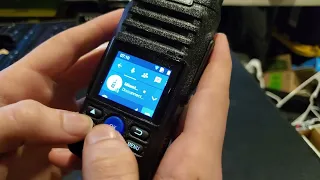
and got on the front we've got the okay button up and down and we're going to work out the navigation shortly that's everything that's in the Box let's just have the first time turn the device on I just seeing if that's the there hold down the let's call it the volume 4G light so it's a 4G device which I think for this price is very good see how long it takes to boot up you see an okay button [Music] there there's Zell on the screen now I said it's not touch screen so we have to
navigate but it's you know it's a nice although you can't see it as good as me it's a nice sharp clear image and though it's small it's clear see the time there some more logos there is that the battery there so let's just press okay and then it says sign in so we're going to go we've already got an account so we're going to down one and what happens it's quite light but it's highlighted the next one down then we're going to press okay oh it's a nice although the you still have to you know
go up and down with the arrows it's a nice big keyboard so we'll just work out what's right and left so the obvious one is up and down with the up and down arrow that's nice and easy the okay that's nice and easy press okay the right and left is actually these two people here so just remember that the three little people there takes you right the one person takes you left okay if you go all the way and it says number one where it's yellow there and press okay and that's the okay is the
enter button it takes you to the numbers to go back you go back to the arrow and it takes you back let's do that again back with this button go down let's do the let's go back down or up it uses zellow work as well but anyway press okay and if we start typing my first letter is a capital so I'm I've got a bad habit of pressing the okay so we go back we just need to remember to go to the selection then use the up and down arrows so I want a capital press
okay then navigate to the right and up to the I yeah you get the idea press okay and then go back again I just pressed the okay again there now let's just work out the delete so would that be just going to work out the delete button yeah so that's the delete button there that yellow arrow so let's start typing in an email because the it is a quiry keyboard but some items are not look the a is over here look so let's start to select so we'll go down down and I need to go
over across to the a so we use the little right man here go down one and then a that's our a then we've got to navigate to n so we go down one cross to down again and it's the kind of thing that once you've done it for a while you just start to get it that's n then I need a d now I'm again got a very bad habit of hitting that okay button so let's go back two deletes too many deletes so we're going to have to do it again sign up let's go
back cuz we want to sign in back back right I already have an account then we go down to the left a to the right n then go up so as I do this you can see the way to do it I will pause until we get a bit further down so A and D okay and it is as I said earlier a lot easier to just put this into total control to the right then up a and d r to the left e uh then luckily to the left W that's the first word and
then we want the at so we're going to go to the left and hit the one and go okay and we're looking for the at sign now to find the at you hit the two arrows here so you navigate to The Arrow when you press okay it appears here so go to the right then you go down one and then select at then go back to the left back up to the arrow and then press okay and then you want to go up again cuz we want to go to letters uh let's try that there
you go and then we go to the right and keep typing go down H we want the I we'll go to the left push where it says a no I there no let's go up one where the numbers are we'll go okay and down to those two arrows no just press okay again and then we'll navigate down like so okay down to the arrows actually know there's the dot there so we'll go to the right click okay then go to the left press okay and we want letters so we'll go oh keep pressing okay okay
let's try and sign in like that hit the okay button no let's go up one let's go to the right and click okay ah it looks like we've got to do our our Wi-Fi first so that's okay we're going to swipe down actually we can't swipe down so we're going to have to go into settings so we'll go back go down one settings it's got Bluetooth we will test that but not now and then we're going to go down to yeah LS at the top click okay turn it on just here available Wi-Fi click okay
that's my favorite one we'll click okay get my password in there like so hopefully there's our keyboard type that in ual boring up and down and then enter so when it comes to putting in your password for your Wi-Fi it's a bit different you're just going look at this you just keep going the the up and down doesn't seem to go you know up and down so you're literally going back and forth so if I start and then to delete you go you have to you can keep your finger on it click okay that's deleted
and then you you either use using this all the up and down to go left and right and you can see it's capitals there at the bottom then if I just go okay and then to the right or left if you want a so it's a bit of a different you know layout with the with the you know Wi-Fi password so we'll get that in we get the idea and we'll go along at the end of it we'll press enter we we'll navigate to enter here and when you're doing the password when you want to
switch to numbers or letter or yeah numbers hit the bottom the bottom key there each time you press it you either get numbers press again look you get all the exclamations okay then you can go back if you want with the back button start from the beginning so it took a while to sign in just filling around learning the keys it just takes practice to be honest the PT does work watch no problem and to navigate around you still using the right and left up and down so if I go down look to the onoff
channel I can press okay and I turned the channel off press okay again you still have every time you have to navigate so you go across down and then turn it back on and then if we see the back button so we have to navigate until we find the back button left and right up and down there you are we've got to the back button and it highlights it in like a gray color press okay and we go back and now we can look down at all the different channels that we've got here like so
or we can navigate across youve got the recent contacts and channels here just keep navigating and it's just there are we managed to get the channels there click okay and it just takes practice if you want to get to those three dots try and go up and then we've got near it then go one to the right we're on the three dots click okay and now we're in we can set status so we go status and we can we're in available at the moment if we go down we could select solo available means you hear
all of the channels that you've got in your account and you can go on your computer and make changes to your account I'm pretty sure or maybe just go on your modern smart phone it's going to be a lot easier to make change settings on your on your particular account than than on this device with the then you got solo mode there and then we can go back if we want and if I want to go to the channels I go down to like and I'm just you're navigating until you get to where you want
to be there channels look click okay then go up or down so you have to navigate channels and then we're going to try and go we want to go up and down the channels there we go to a channel and then we can go up we go up to the top channel that we've got there's one there and press enter and then we can go ham Tech calling for a contact hamtech anyone about on 01 I think that's 01 it's quite small and it does have a volume control now the screen timeouts quite quick I
have managed to get some apps on here7 Hotel I'm on 61 there you are and it's good perfect audio oh how you doing wondered how my audio is my name's Andy and there you coming coming through noce and clear oh thanks so are you I'm in Western Superman I'm using one of these Kon little cheap handhelds they're only about £ 39 but they sound you know they're nice little chunky walkie-talkie back to you x 200 oh what's that what's it called again the one you you've got 200 oh Roger well it's working well thanks for
the test right let's look up my I have managed to drag some apps on later and 73 yeah cheers 73 so I managed to get a couple of apps on here and yeah I really highly recommend this group of channels it's Network radios owned by G1 ypq and you can search channels and add that uh or go to the Facebook page there'll be direct links there now if we go back we're going to go to let's see I have tried to add some apps let's see if they've appeared we might have to reboot it but
I did I'll just show you at the end of the video how I did drag and drop some apps into this device um and um let me but ultimately it's you know it's made as a Zell device put it in your pocket the battery looks like it will last quite a long time and um you know it's it's a walkie-talkie for nice to meet you Z your day Z walkie-talkie by Kon under £40 uh really it's designed for Z it's not touchcreen but it does the job of Z very well good solid device clear audio
thanks very much where are you located and they got a proper volume control Nebraska you I'm in the UK and my friend here is in Nebraska how good is that bye for now 73 well there you go but it is working it does the job and I think for the price it's good but yeah bit of a pain to enter the password T an now


![Afternoon Jazz 🎷 [jazz lofi]](https://i.ytimg.com/vi_webp/-R0UYHS8A_A/mqdefault.webp)




![5 Pieces by Hans Zimmer \\ Iconic Soundtracks \\ Relaxing Piano [20min]](https://i.ytimg.com/vi_webp/Os47nMrjw_Y/mqdefault.webp)