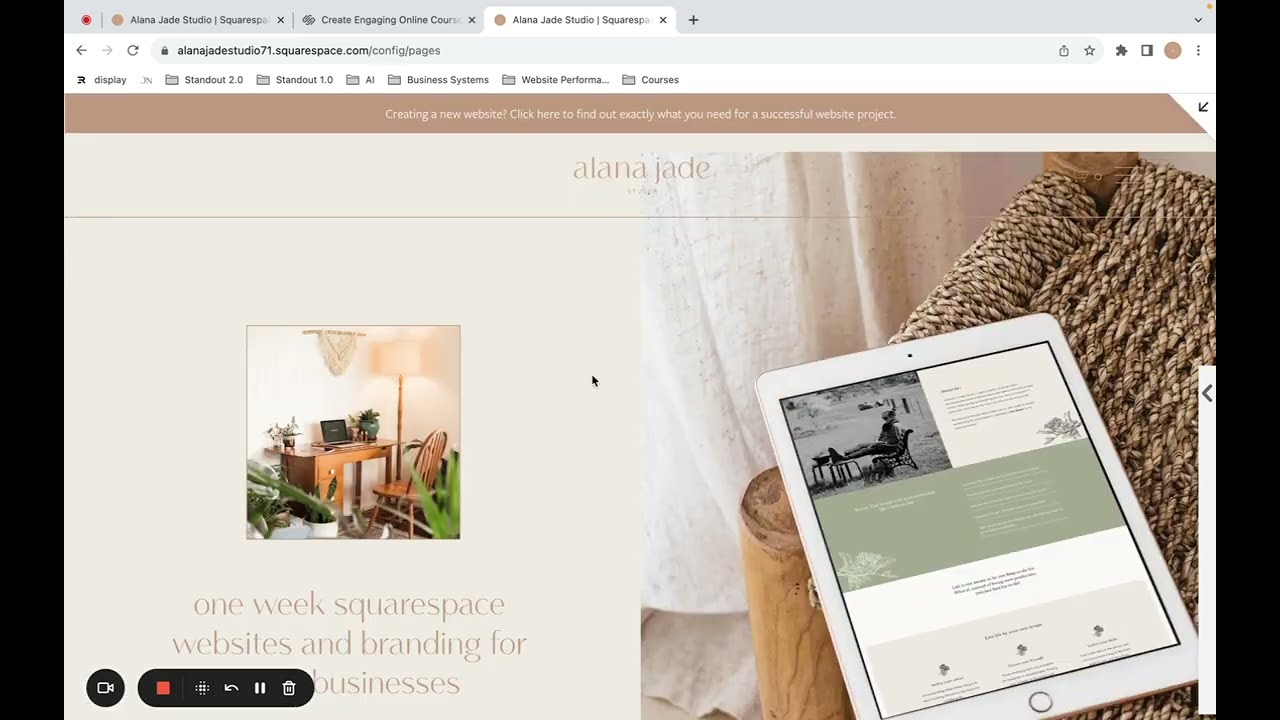
hey guys welcome back to my channel in today's video I'm going to show you how to sell digital products like ebooks on Squarespace I know there are a lot of you that are pivoting right now and trying to figure out how to offer products that are 100% online so I hope this video will be really helpful to you so for this you are going to need a Squarespace account I'll link to my other video down below where I show you how to set this up alright let's dive into today's training so this is what it
looks like when you're logged into Squarespace to add a product you're going to click on pages and then you're going to click the plus sign here and you're going to select store okay great so from here they will give you two different starter layouts for you to choose from I'm going to go with this one here and then I'm just going to remove the one because I'm only going to have this one store and hit enter on my keyboard okay great so as you can see if I scroll down on the right I can see
what it looks like awesome now these are demo products though so I'm actually going to delete them to do that simply double click on it and then hit delete and confirm double click delete confirm okay so to add your first product you're just going to click right here and then you're going to select digital so this is going to work for any type of downloadable digital files so this could be an e-book a template even an audio file anything that requires a download okay so let's click on that and this is where you input the
information for your product so I'm going to type in the name here so for demo purposes I'm going to use my Squarespace of roadmap and pretend that I want to sell it as an e-book this is usually completely free and you can get it on my website okay so let's type in the title here great then I'm going to upload some images so I'm just going to click the arrow and then I can select one of my images and I can upload another one great so as you can see I have created some mock-ups to
display my digital files and I definitely recommend that you do this as well I have a video showing you how to do this so I'll link to that in the description below so we have our photos then down here is where you would add your product information so I'm just going to have my product details and as you can see you get this bar across the top with all sorts of different editing options so you can make use of those then we have pricing so for that I'm going to click Edit and this is going
to open up a new window so first you're going to actually add the file so you're going to add the digital file that you want customers to receive so as you can see here I have my roadmap PDF I'm gonna hit open and that's going to upload here ok great so there it is now here I'm going to set the price so let's say I want it to be $25 I'm just going to type in 25 and click right here and it adds the dollar sign and the two zeros and I can also add a
sale price so let's say I want to actually put it on sale for $20 I can do that and then I can check on sale great so let's go through the rest of your tabs but first there was a few more under items so you'll see we have tags and categories you can absolutely add those then under additional info you can add any additional information that you would like this functions like the rest of Squarespace and you can add in any blocks that you would like if you're new to Squarespace definitely check the description below
because I'll link to my other Squarespace videos and make sure to go and grab your hands on this roadmap next we have a forum if you want to collect additional information but I'm happy with what Squarespace collects by default and I will show you that in this video then option so this is definitely important you're going to want to add a product URL so a unique link for people to use to get to this product so I'm going to do Squarespace - Road map so you'll want to use just letters or dashes then you're going
to add an image for your main thumbnail so what image do you want to use for the main thumbnail on your shop page upload that right here okay great then I can leave everything as default then we have our SEO tab for you to add the right keywords to ensure that your product is found then we have the social tab so this will actually pull one of your photos by default after we publish this or you can add a custom social sharing image and I would recommend you do this and do one that is more
landscape dimensions so that it shows up nicely on social media then we have the share tab this is where you can connect your social media accounts and it will automatically share out your product but I actually never use this and wouldn't recommend it okay so we are done here so we're gonna click Save and publish and as you can see this has added our product to our shop yay so in order to view your store full screen you're going to click this arrow right here okay so that is what it looks like now keep in
mind with Squarespace that everything is customizable so the colors the fonts the background color here the size that your products are displayed everything about it is customizable which is a huge reason why I love Squarespace so let's click on the arrow here now not only do we have this shop page which would display all your different products but if we click on it over here will also open up your individual product page like this which looks pretty great but again everything about this can be customized so now I want to show you how to change
your colors you're just gonna click on store and then edit scroll down here to your product area and you'll see a little pencil icon appear so you can click on that then go over to colors and you can take off the default theme if you would like and you can change this to any of these colors here so I'm going to change it to white bolt and as you can see that's gonna give me a white background which is going to be a little easier for us to see all the details here so yeah tons
of choices here in terms of colors okay so let's go with white bolt and then hit done and save so that's how you change the color of the product area and there's a whole lot more that you can customize within the colors themselves okay so let's get to customizing our product page because I love how many options you have we're going to click on this here okay and this is going to open up and it looks great but there might be some elements that you want to change hit back and then you're going to click
design and then product items and here you'll see all these different editing options for this page so for example we have width is currently full but you could change that to inset so that's going to give it a bit of a border you can change the aspect ratio of your photo so I have it on square I've uploaded square images but yours might be a different size you can change the text alignment you can change how this product navigation looks at the item spacing your gallery wit so this is how big your images display I
could make them a lot smaller or I could make them a lot bigger we have content alignment whether you want to have a slideshow or you want to have stacked and display your images like this or change it to a carousel which will then display your images like this so there is a whole lot that you can do here we can change where the photos are placed we can change what happens when you click on the photos so we can either have it where it will zoom in like that or lightbox where if you click
on it the image will open up in a new window like this and then I can put it back to slideshow then I can change the hover action to zoom so if I come over here and hover over at that image it's going to zoom in on my product photo okay great so let's hit save and back hit back again now the next thing you need to do is click on commerce so we need to get your store set up for sales and you can sell on the business plan or higher if you're on the
business plan though there is a three percent transaction fee whereas on the higher commerce plans there's a zero percent transaction fee so checkout squarespace.com forward slash pricing to see what plan is best for you so first as you can see I'm on a trial I'm actually going to need to subscribe to a plan in order to start selling products so I'm going to click on that and for demo purposes I'm just going to go with the business plan okay so I've gone ahead and done that now I'm gonna go back to my site okay great
so let's continue on we're going to go into commerce and then payments now Squarespace connects with both stripe and PayPal so you're going to need to hook that up here okay great so we've connected PayPal you'll see your store currency down here you can change that if needed and now let me walk you through the process of what it looks like from the customer and from your end as well so let's pretend that I'm a new visitor to the site I'm going to click on store and I'll see my store here then I click on
my roadmap see my product page and I'm going to click add to cart great so if you want and can either look like this or you can enable Express Checkout and it will go straight to the checkout it's up to you then I'm going to click on my shopping cart icon and then checkout okay so this is what the checkout will look like for your customer you can of course customize more of this for your brand I'm going to click continue and I'm going to type in my information and click pay with PayPal so they
will either see the option to log in or create an account if they click on create an account they can actually just use their credit card here and pay this way and then just choose to not create a PayPal account so that is an option as well but if you would like this to be more seamless because I can see that that would definitely get a bit confusing then I would set up a stripe account which is an easy way to accept credit card payments so after they have purchased they will be led to an
order confirmation page where they can click here and download your ebook or digital file all right so super nice and simple they will also receive some emails from you so your customer will get an order confirmation email like this and then they will receive another email with the digital download so this is super important once they click it they will have 24 hours before this link expires so it's really important that you just instruct to your customers okay click on the link all right and ensure that it has actually been downloaded and saved to their
computer because 24 hours from now if I were to come into my email again and then try and click this it won't work though you as the store owner you can resend to them so yeah I think it's just important to tell them that they need to download it to their computer and then that's totally fine the seller you will receive an email letting you know that a new order has arrived so within Squarespace make sure that you click on commerce and then scroll down to the setup and go through all of these different tabs
to make sure that everything is set up correctly and your customer notifications so if I click on this it's going to give me all of the options to customize those emails so Squarespace is very flexible and customizable to get more help make sure you grab that roadmap by clicking the link in the description below then you'll be on my list and I can share more resources with you as well alright guys so that is how you set up digital products for sale on Squarespace of course there's so much more to teach you about this topic
so click the link in the description below and you can get my free Squarespace roadmap which walks you through how to set up your website on Squarespace also if you haven't signed up for a plan on Squarespace yet you can use my affiliate discount code sidekick 10 at checkout to save 10% thank you so much for watching if you haven't yet don't forget to hit subscribe down below I'm posting new videos every single day to help you work remotely so do that and I'll see you tomorrow with you you