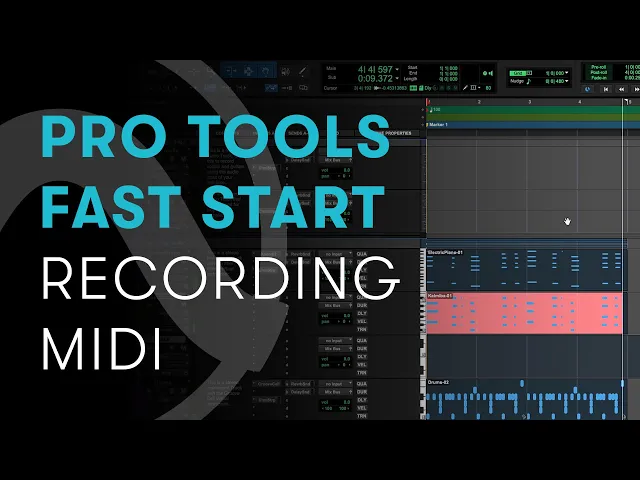
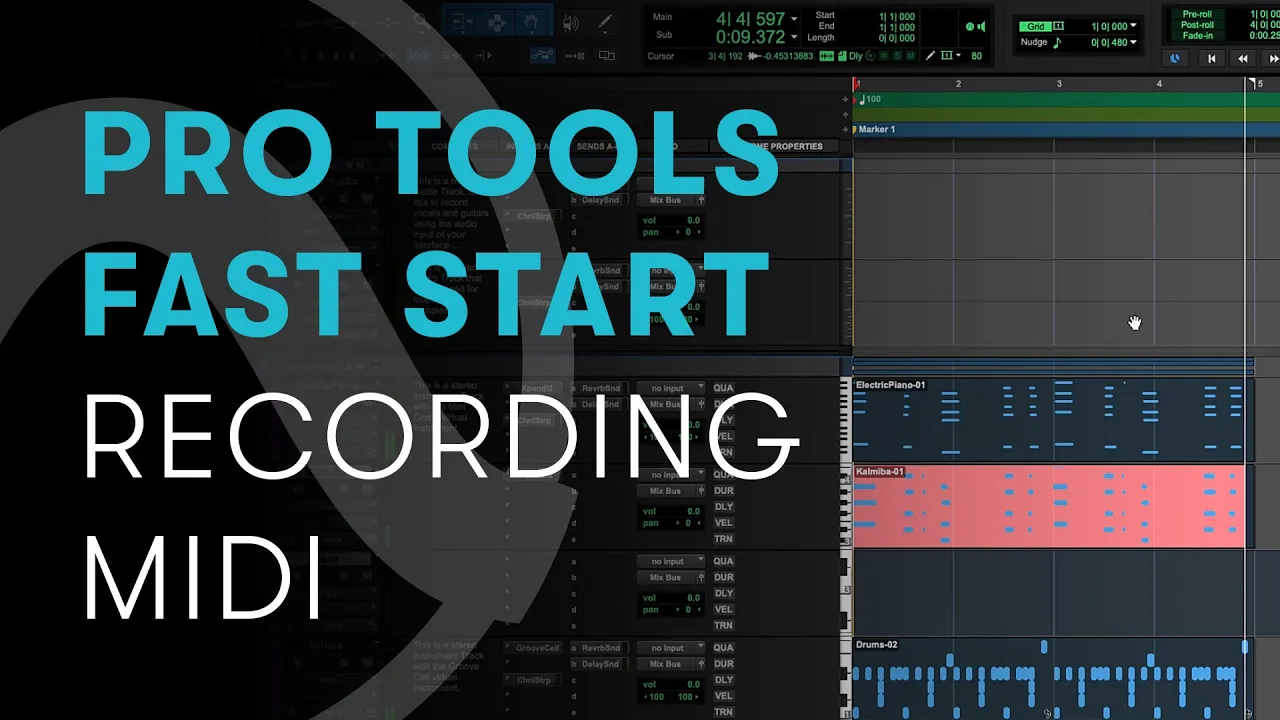
[Music] um [Music] hi everyone tj from avid here and welcome back to pro tools fast start in our last video we used midi to sequence a drum pattern and what we have so far sounds like this [Music] now that's a great start we have a strong foundation but today we're going to add three more instruments to this track using midi but instead of using the midi editor to draw in the notes we're going to play our parts on something called a mini keyboard now when we tracked drums if you recall we had to record enable
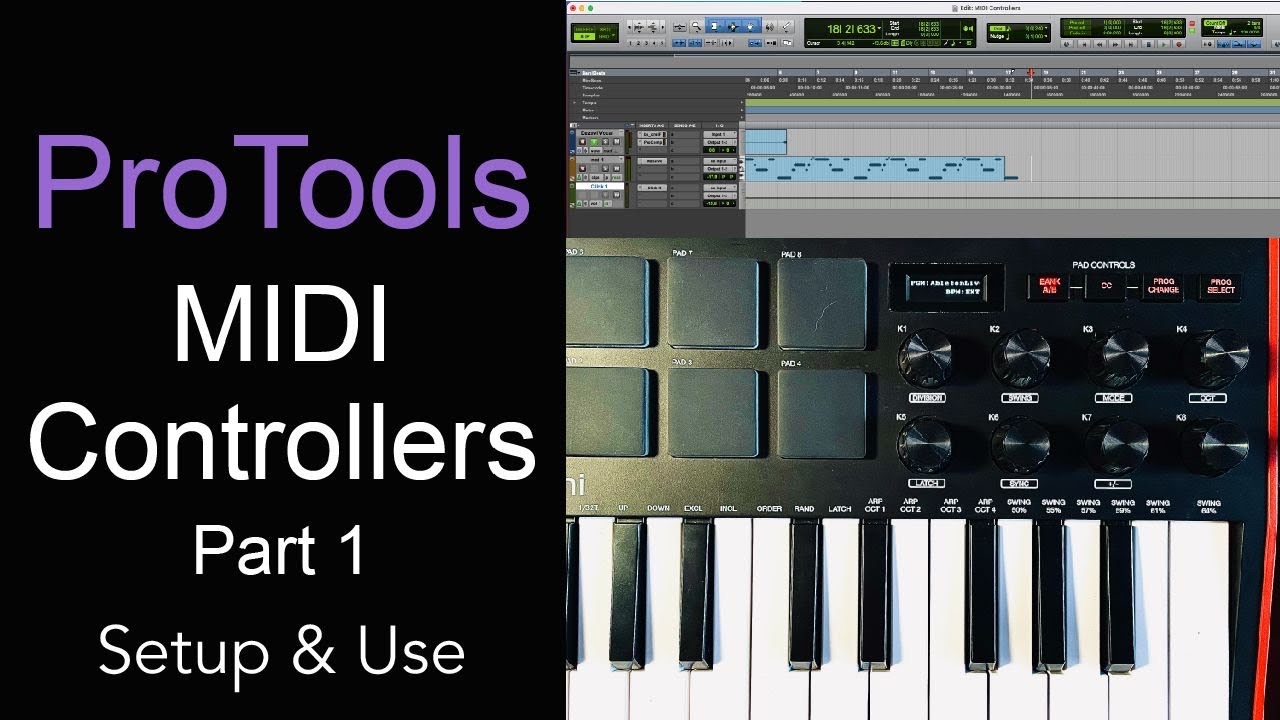
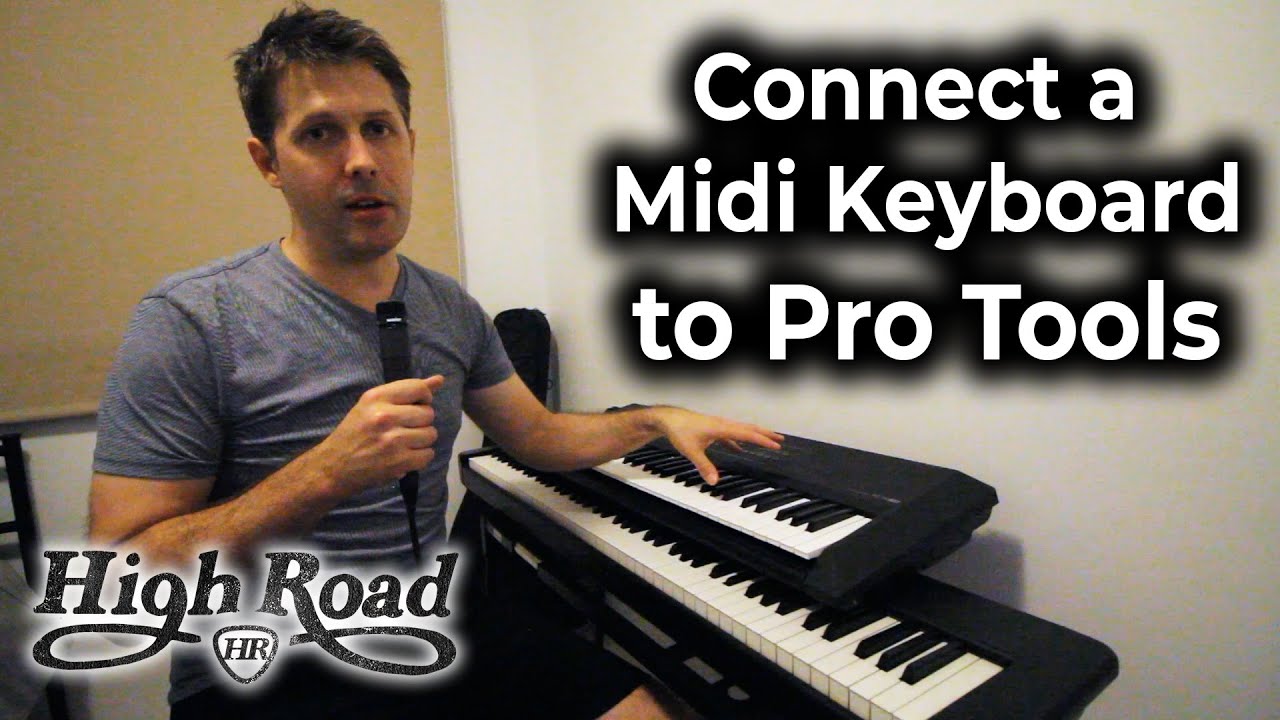
our drum track so we could hear back what we were doing with our notes and that's this button right here with the red outline and the white circle we're going to do the same thing to this piano track because that's the track that we're going to start with now before we start playing this instrument let's make sure that our midi keyboard is set up correctly in pro tools my mini keyboard is plugged into my computer via usb and to make sure that pro tools is recognizing it we can go up here to setup we can
go down to midi and we can click on midi input devices now this list will show you all the devices that are connected to your computer that are capable of sending midi messages and you want to make sure that your particular keyboard that you have plugged in is selected my keyboard is selected here so i press ok and now when i press a key on my keyboard [Music] it triggers our piano track in pro tools which means we are ready to go now if you don't have a mini keyboard that's no problem pro tools has
a really cool feature that allows you to use your computer keyboard as a midi keyboard and you can access that by going up here to window and clicking on midi keyboard now this window pops up that will allow you to use your computer keyboard to trigger the keys on your piano so if i press some keys on my computer keyboard it's triggering our piano track which is really pretty cool now i don't need this today because i have my midi keyboard hooked up via usb so i go ahead and close out of that and the
final step before we record is i'm going to change the sound that we're using if you remember from our drum video we were able to load our virtual instrument by going here to the insert selector i'm going to do the same thing again i'm gonna go to multi-channel plug-in scroll down to instrument and select this right here expand to expand is an amazing instrument with so many awesome sounds i strongly encourage you to take some time thumb through the presets and find something that inspires you but i have the sound that i want to use
saved as my own preset so i load it up right here let's make sure that we're triggering it with our midi keyboard and we are so we're good to go let's close out of expand now in real life when you're playing with a band you want someone to count you in so that everyone starts at the same time and the same principle applies in recording thankfully we can do that up here in the top right of our window we have this option that says count off now when it's green that means it is selected we
can turn it on or off but this will count us in before we start recording so we can start on time we can change the length but one bar works perfectly for me so i'm going to leave it right there now one more thing that i like to do is i like to turn my metronome track on in the last video we turned it off but i like to have that to really help me reinforce my rhythm while i'm recording now let's go to the beginning of our track our piano track is record enabled and
before we start recording the last step here is we're going to name this track i double click and i'm going to call this electric piano press ok and now we are ready to go so i press this record button up here at the top and now when i press spacebar pro tools is going to count me in and i'm going to start playing here we go first recording in pro tools let's do this [Music] press spacebar to stop recording and there's my piano track now on to our midi editing options everything i played in my
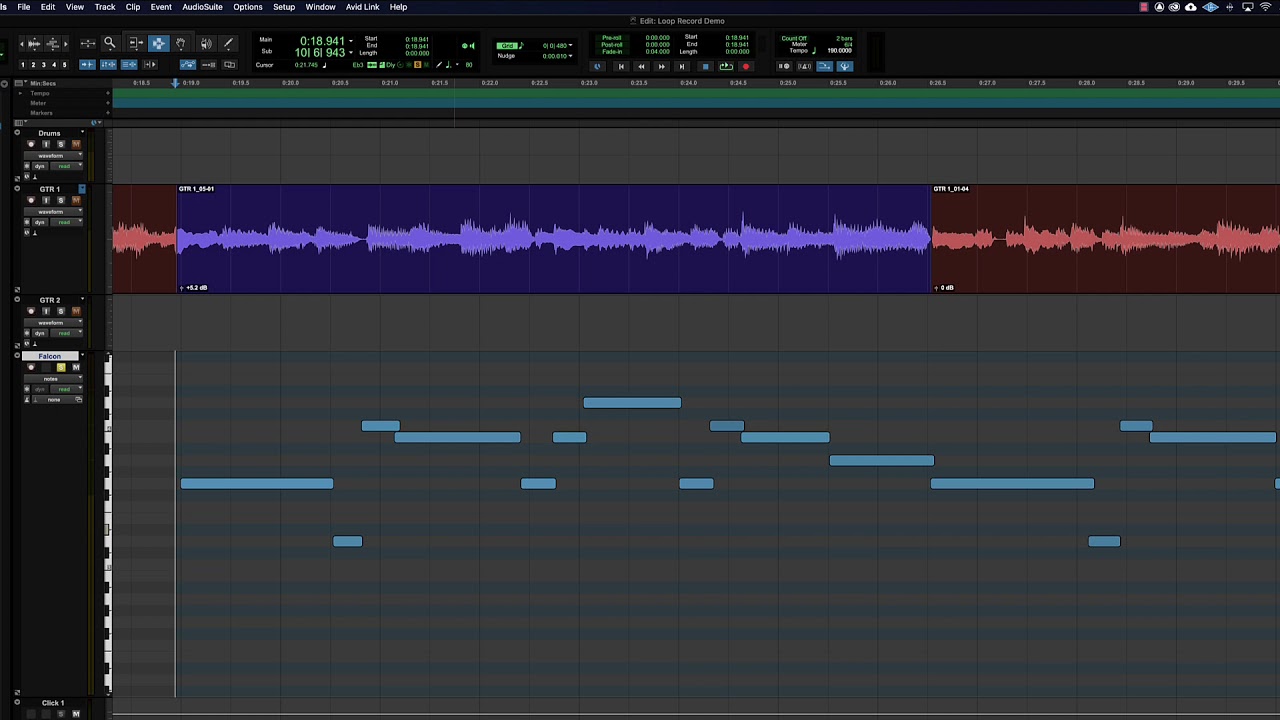
track is editable via midi and if we double click on this clip here it opens up our midi editor which is going to look familiar from our last video and in our mini editor i can change any note that i want by simply clicking and dragging up or down forward or backward [Music] i can even change multiple notes at a time by clicking and dragging a box around whole chords or sections and doing the same thing i'm going to press z to undo those changes and there are some deeper features that we're going to talk
about in a second things that we can do in this midi editor that really help us take our midi tracks to the next level let's close out of this for now and move on to our next instrument now we don't have any more instrument tracks available for us that are already set up so we're going to have to create some and we can do that by going up here to track and clicking on new now we have some options here don't worry too much about these yet i'm going to go over the difference between some
of these in future videos but for now we want to create two new mono instrument tracks we're not recording a microphone or a live guitar we're triggering a virtual instrument so make sure that the track type is instrument track now we're going to click create and pro tools is going to create two new instrument tracks for us i'm going to name these tracks kalimba and bass now there's one more concept that i want to introduce to you and it's something that i use all the time it's an unbelievably powerful feature in pro tools called the
real time properties we can see our real-time properties by going up here clicking on view scrolling down to edit window views and then clicking on real time properties now there are a few options here but the thing that we're going to focus on today is this quantize feature if you're not familiar with quantizing it takes the notes that you've played via midi and it locks them to your grid so that everything is perfectly aligned and really tight which is an amazing feature to have when you're making electronic music or any track that you want to
be really tight to your grid so i'm going to record enable my kalimba track and now let's load up the sound that we want to use first thing we do is we go over to our insert selector we're going to go plugin instrument and once again we're going with expand to i have another patch that i've saved as a preset called kalimba i click here to load it let's make sure that our midi keyboard is triggering it and it is so we're good to go let's close out of here and once again go to the
top of our track to record i press the record button and now when i press space bar pro tools will count us in and i'll start playing [Music] i press space bar to stop recording and there's our kalima track now if i select this clip and utilize this quantize feature in real time properties you see our notes shift a little bit and when i double click on the clip you can see that they're perfectly aligned to our grid which is nearly impossible to play for humans but it really makes our track sound nice and tight
so i'm going to keep that there and i'm going to move on to our next track which is bass i'm going to record enable this track and once again i'm going to go over to my insert selector choose plugin scroll down to instrument and this time i'm going to load vacuum vacuum is another synthesizer plug-in that's included with pro tools and it has some amazing sounds that i love to use for bass once again i've saved a preset that i really like right here i'm going to load that up make sure that my midi keyboard
is triggering it and it is so let's close out of this now before we record our bass track let me show you another amazing feature of real-time properties if i click the quantize option before i even record anything pro tools is going to take the notes that i'm playing in real time and lock them to the grid while i'm playing them which is a really amazing feature and it takes a lot of guesswork out of the process of lining things up to the grid after the fact so once again let's move to the beginning of
our track i press record and when i press spacebar pro tools is going to count me in start recording and lock my notes to the grid in real time [Music] once again press spacebar to stop and there's our track now you'll notice that i can toggle quantize on or off to decide whether i like my track better quantized or unquantized you'll notice that my electric piano track is not quantized because i wanted to have that human feel i want it to be a little imperfect now we've tracked electric piano kalimba and bass let's hear what
we have from the top [Music] now in our next video i'm going to show you how to record audio into pro tools whether you play guitar or you sing whatever instrument you have if you want to plug it directly in pro tools and record audio i'm going to show you how to do that on our next video so make sure you stick around and join us next time as always thanks for hanging with us and we'll see you soon you