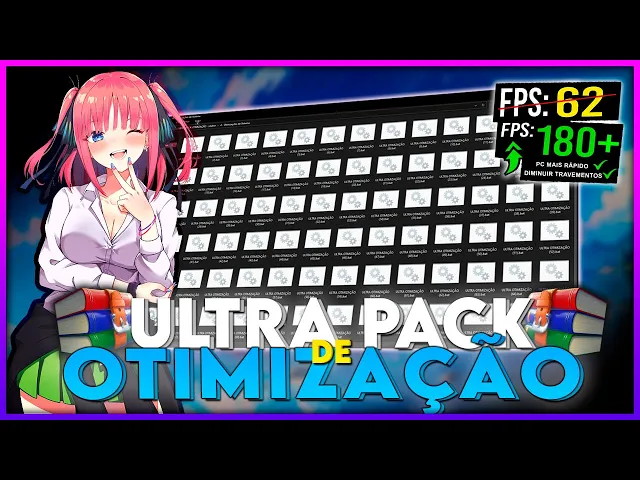
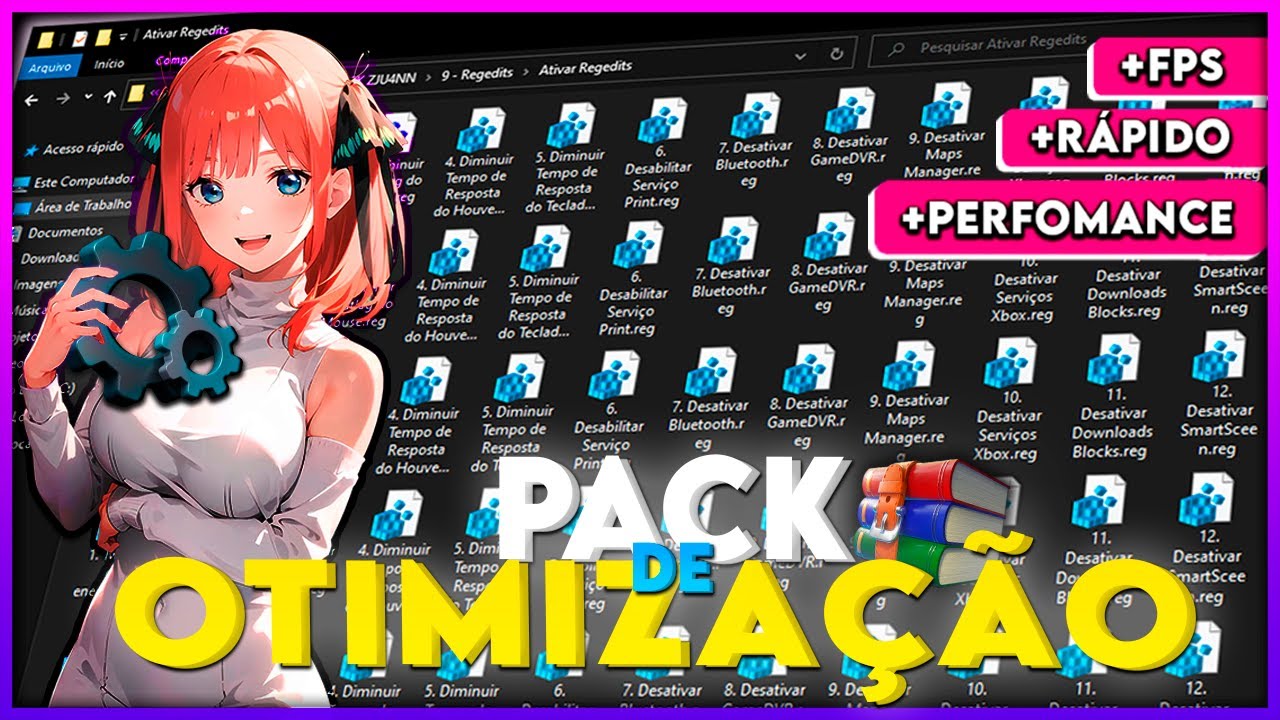
And there my gourds, how are you? Well, I came to bring you my new optimization pack the Ultra pack of optimization in this new pack has many new things i added for you guys and that will be improving Almost 100% the performance of this potato of yours and If nothing changes, my name won't be Z Juan and Sim in Gameplay underline Dark underline Ghost underline 21 but it's out wanting to keep rolling around without smoking plastic chair and comes with me then let's go for you ok managing to download this folder of mine new this new optimization pack of mine Ultra optimization pack you will get who joins my discord server yes instead of you having to access the shortener you will only have to enter on my discord server get the necessary positions and there in the channel downloads and I'm downloading this new one of mine pack Ultra optimization pack I I decided to do it this way because that way I I can take out the shortener and everyone I win, I gain new members and you get the folder totally free grace without having to go through a cutter none and a request from me do not go in there alone to download the folder interact lots of cool stuff for you guys are doing inside my server both to interact with people send photo of your setup the more you interact you gain special positions have exclusive file optimizations exclusive for those who become Boosters and etc. but it's after I managed to download this my new optimization pack throws it to his work day as soon as he has here right click extract it here It will ask for a password and the password is very easy Z Juan Ultra gives an ok Ready I'm done distracting myself and here inside, bro has 16 folders that will be optimizing the your entire computer so the name Ultra pack some things that are in this folder here I also took it from my special 20k pack but also has quite a few new things that I'll be showing you more in depth during this video but it's starting for the basics for the backup here you go is creating restore point for if some of these optimizations do not have worked well for you or worsened the performance of your PC you can to be restoring to be like this reversing the things you did then arriving at this screen click on create here you can be putting any name that you want But put a name that you know how to identify, put the name then if you want to restore your PC just go to system restore and advance Here is the little name you put there at the time of creating the point of restore selects it clicks on move forward move forward and that's it be restoring your PC in case you may need it in the future but it is creating the bridge restoration can come back we will come now here for the basics and here in the basics As you can see there are a lot new things for us to be optimizing our PC Starting here for the first time optimize all the Windows Settings This is it be doing a general here in your your computer's default settings this here is also very interesting for in case you have just formatted your PC and you don't want to have to configure thing by thing right click and run as administrator remembering all Bates all the programs you have inside from this folder of mine you have to run as administrator because otherwise so he won't be applying the modifications that we want it to do so always remember to run as an administrator now here in two disable startup program but just letting you know if you use any program and you quote queer start along with your PC you don't Run this beat because if you run ISO here no more program both of the new programs how many of the old ones you already have in your PC none of them will be starting with your PC i.
e. But no program will be started along with yours PC So be careful when you are running this beat because if you are a person who needs someone program start together with your PC will not be more functional in the third remove cortana i am sure that many people still have cutting on PC because you don't know how to remove it. So ok?
here I made a quick little part for you run as administrator and ready to cut, it is already removed disable visual effects too Patty who is going to do this here automatically for you to disable location Smart Screen updates automatic This will be here disabling automatic updates Windows update That is, you will continue with Windows update activated but it will not be updating anymore automatically disable ac control of accounts, that is, it will not appear anymore that message asking if you want run such thing as administrator or ms config basic execute it comes services hide all services and here you will uncheck all the services except for your video card or integrated board and launchers that you download your games like for example Steam and Epic Games The rest you can uncheck all unchecked apply give ok closed we can go back here now advanced these folders that are here were also in my 20k pack past there that I posted PR you here inside each folder there will be explaining what each twick will be doing on your PC So come here read the what this is doing to your PC Did you like it? Do you want to run it? Come here and run it.
as administrator and ready ready finishing doing all this from here can be returning n in optimizations of system first disable services will be disabling several services that are unnecessary for your computer optimize Explorer i. e. will be optimizing your manager of essential Trucks tasks Like the The name itself says it will be running some twicks that are essential to pro your PC disable notifications i.
e. will no longer be displaying those annoying popups that make you lose performance decrease monitor input leg and activate exclusive full screen remembering Run all as admin may be coming back now here in the CPU part as you can see There are a lot of new tricks that I I added it here for you Remembering that every beat you will be running here it will be increasing performance of your processor but also the his temperature will increase so if you notice an increase in temperature very high come here and perform this last beat that this here will be disabling the turbo Bush thus doing the temperature stay a little bit more below or even stabilize but it's here in first will bring counting some essential tricks for your processor the second one will be deactivating the color Parking the third one will be deactivating in the energy register the room will be disabling inactive processes i. e.
if there is any background process that is not responding he will be closing fifth will be activating maximum performance of your processor this is what can cause the most overheating in your processor so if you activate this from here you will notice a very high temperature rise comes and disable turbo bush disable service of sharing disable the energy estimate this is just for those who have a notebook and remembering that only run this here if you always use it your notebook plugged in because otherwise the your battery and go eat here in a bull disable Power throttling this here you only do it if you have a computer table and here on nine you only touch this here if you notice a big increase large temperature on your processor we may be coming back now here in GPU part will have some tweaks essential for all gpus wings i. e. for both NVIDIA AMD and Intel and here at NVIDIA twix are twix specific only for NVIDIA now here on the disk you will select whether you have SSD or HD in my If you have SSD then I'm starting by SSD here you will be activating the Fit behavior This will be here optimizing the overall performance of your SSD in two you will be disabling the automatic defragmentation Because case you don't know if you defragment the your SSD this may be decreasing its life useful of it then come here and deactivate the automatic defragmentation of it here at cleaning trash will be cleaning all the trash that you have stored there on your disk then then any log file temporary file and etc it will be removing and here deactivating service hibernation when you are disabling the hibernation service you will yes ok gaining more space on your disk because this takes up space on your disk but your computer may take a while just a little bit more to get started because this here kind of leaves your computer in a hibernation state like say the name and make it start faster then if you disable it It will just start a little slower but this won't bother you that much now here on HD you will also have the option activate the Fit sub behavior here you will be adjusting the Nativity time of your HD here on the third instead of By deactivating you will be activating the automatic defragmentation because when contrary to this SSD this from here to the HD is very beneficial here at five in six is basically the same options you have there on the SSD and defragment and optimize disk basically the options that I I put it here but here is in case you want to do it manually then here if If you have SSD you can select this SSD and click on optimize and if you if you have HD click on HD click analyze and then click defragment now here in ram there are six specific tweaks for improving your memory performance RAM the first one will be running some General tricks for your RAM memory second will be increasing the size of the Cash from your third Ram will be disabling automatic synchronization of the clock, that is, your clock, it doesn't will automatically sync more according to your computer network so if you use this you don't disable here do not increase RAM memory this is more for those people who have little RAM and it always stays in that, that is, you open it some game your RAM memory gets basically 100% use this here it will increase your RAM memory but what is he going to be doing he is going to taking up part of your HD or SSD to be using it as Ram but remembering this here and it will only work if your Ram is at 100% and you need but then yes he will remove a part from your SSD or HD to give you more ram here decrease services is the CC ros simple not basic you are running he you will choose how much Ram you In my case I am 16 I will be typing cin Press enter and that's it and here at six you will be deactivating the ram performance policy this here It's very similar to that policy of Diagnostics that you have on your computer we may be coming back here in debloat There will be a little menu that I made here for you guys to be deblando there your programs And also your Windows and the blot part for those who don't you know it means you will be leaving your application or your Windows as crw as possible leaving only the essential I will be setting an example here in Windows there is this option here to you guys are activating this from here be removing all those programs that you don't need that you have in your computer or in your computer solitary theme o Skype PowerPoint o Excel that camera people show and etc.
all that stuff he will be there removing for you leaving only the essential the same thing will happen with your browsers you will be removing everything that is useless, everything that weighs everything that is useless and leaving only the essentials for you are being able to navigate there without many problems and that guy is simple it's just you come put the number you want to give one enter and that's it, there will be a bot now here at Conexão there is also a little menu that I made here for you here as you can see there are six options for you are optimizing yours there internet connection the only option that I don't recommend you that much to do is Firewall optimization because Firewall is a good business complicated then This one here you just move if you really want to test test to see if it will improve or not but if you notice any huge loss of performance or your internet is not working more or something like that Run the restore point now here at peripherals will be optimized for both your Mouse keyboard monitor and USB then here in the first part the mouse comes here execute these two twicks and you will be decreasing your mouse's input lag keyboard the same thing as the monitor the same thing these twicks that are here too are in system optimization but I I put you here again for home forget to run and USB also the same thing here that is more related to latency, right? The input lag is both yours Mouse, keyboard, monitor and USB here on the network gits will have several networks that you may be activating to improve the performance of your PC both sck of energy memory mouse leg time Bluetooth Maps print service response Smart Screen Windows defender teclas de adhesion and etc and here also in the folder from reded you will have the reded that you will be able to reverse all the causes of dits there so if you see here you ran a test you didn't notice no performance gain or worse other performance is just you come here to reverse redit find her here to be enabling again here on 13 is the windows 32 priority basic here you will choose whether you want more FPS or less putut leg and here if you want will be returning to the default value Or be it will be leaving Windows default here in the energy plan there will be some power plans for both Windows maximum performance plans plans of revision plans of aluma isus Custom like for example from atas ggos kinos ros foreign plans, that is, plans of Foreign YouTubers and foreign companies MD plans so here will be several energy plans you can be coming here to apply and test to see which one is best for your computer and for you to apply come here in this first folder add plan energy will be running This program here if it doesn't open don't nothing appears on your screen down here below the tasks will be its icon only click on it once you get here on his screen the import file appears plan comes here in the folder of my pack power plan power plan and here you will choose which energy plan you want to be testing I will be importing the revision here by clicking Open Ready has already imported the plan energy of revision and here for me it is applying just click on top click on this check and the plan is already applied of energy that I chose ending this here might be closing here comes here in the taskbar close it here Also Ready we have already applied our plan energy and now here in app are some programs that I consider essential you have installed and also be run there on your computer. first is a program that will be clearing your RAM every time certain period of time, that is, if you put to clean your Ram every 5 minutes every 5 minutes he will be freeing up more space for you using your RAM memory then VM here runs its setup installs everything nice and everything is fine, arriving here open the settings leave exactly as it is here in mine and here you will be checking this box down here Here you will choose the time you want it to optimize your RAM memory I recommend leaving it at 5 10 minutes but if you have little memory RAM i.
e. 4 GB or less I recommend you are leaving in 3 minutes finished setting up If you want you can come here po in optimize and here below will be showing how much memory RAM he released for you a good thing of this program is also that obviously it runs in the background to be cleaning this RAM memory and the other is that he consumes almost none of his computer as you can see is consuming only 2 MB of RAM and 0% of the my processor then this is fine light and helps you a lot the Shut app10 is a program that is related to the part of your computer's privacy So come here run it as administrator that here he will be deactivating some options that you don't have in normal settings of your computer and that here you will be able to disable getting here what I I recommend you doing it if you want you can come here in shares and here apply the config settings that the program recommends that you apply or be all these settings here that have yes yes yes it will be applying this here for you automatically But if you want follow my recommendation come here in file Import settings and here you go be importing my configuration personalized and as soon as you select my configuration it will be enabling several options here that they will be disabling some things useless there related to the privacy of the your computer finishing we can go here for MS utility this here is good everyone already knows the basics but if you don't know find your video card check if it is written here at the end MSI if it says MSI mark it her little box takes it out of the undefined and put it in High application and that's it privacy High piler is also related to privacy part of your computer but here, besides having options related to privacy has options related to Windows Defender Microsoft Store shortening look screen And Windows Media Player coming here in the part Telemetry Diagnostics here as you can see most of these options here are recommended for you to be deactivating So come mark them all marked everything closed we can come here to system here system the same thing can come here and you can be marking everything Windows defender too if you want you may be coming here and unchecking but this will only be useful in case You still use Windows Defender, right? in case it is still installed on the your computer and why am I saying this because basically there is a little program here that will be removing Windows Defender completely our PC So if you are going to run this program here you don't need to be messing around here in the Microsoft Store is I recommend you are leaving only the first marked here on cortand as the people will remove the cutting you won't need to be moving here but you you want to go Mark all can also be marking look screen the same thing mark all of Ed I don't use Ed So I'm coming here and I'm marking everything in Med Player the same thing can be coming here and may be marking everything is over You can close and now here arriving at the DF control part this little program here it will be deactivating completely your Windows defender but remembering before you click here to is running he goes in his Windows security settings and disable real-time protection because if you saw here and try to run this program your Windows auto it will automatically be deleting it then from the pine cone then Disable the protection in real time first and then you come here and be executing the program disabled protection in time real comes up here right click run as administrator this one is his screen is very simple and for you You're disabling this simple defender, bro come here in the first option click on it and closed Son defender has already been disabled and here in rub x64 it's basically the same d control thing but here it goes disabling your Windows update the same thing run as administrator here you will be marking these two boxes here and click on apply Now and you are doing this he will be deactivating your Windows update but remembering with Windows update disabled your Microsoft Store won't work anymore because it depends on Windows update activated But beauty finished setting up may be closing and may be coming back and now here in our last folder in games goes have some specific optimizations for some games that I put here that is What do people play the most?