I'm going to create a Lofi music channel in under 30 minutes. And the best part is you can do it too. You have probably seen hundreds of channels like this before.
The Loi girl, Chillhop, Study Beats, the whole cozy playlist wbe. And yeah, there are thousands of them. Loi, study with me, sleep music, ambient sounds, background music channels.
Basically, what I love to call the YouTube slop content. But here's the thing, we all watch it. I catch myself putting on random background music when I'm working, cleaning, or just winding down.
And honestly, I don't really care where the music comes from as long as it fits the wibe. Now, don't get me wrong with this video. I totally respect real musicians and the creativity that goes into producing original tracks.
This video is not about replacing them, but it's about showing you what is possible with AI tools in 2025. Because there are channels out there right now doing exactly what I'm going to teach you, making around 3K a month just from background music videos. In this video, I'm going to show you how to make a channel like that and videos like that in under 30 minutes.
The goal of this month's side quest challenge is simple. Build a lowfi YouTube channel that looks professional, sounds great, and could actually make money. If you want to follow along and make it yourself as well, I have dropped a Google doc in the description down below with every AI tool and prompt I'm going to use today.
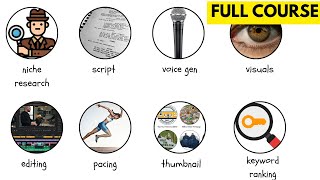
I'm going to split this video into four simple steps. Step number one, setting up the YouTube channel. Step number two, making the music.
Step number three, creating the visuals. And step number four, distribution. So, let's start the timer and go, go, go, go, go.
All right. Step one, we need a YouTube channel. Since you're watching this video, you probably already have a YouTube channel.
But uh here's a little trick. If you already have a YouTube channel, but you want to make a new one for this project, you can click on your account, go to settings. In the account settings, you will see an option called create a new channel.
So, we can do that. This way, we create a new channel under our same Gmail account. So, we don't have to have like separate emails for that.
So, we have to come up with a name for the channel. Um, since this is a music channel, let's do something with music. Caravl Music will be my name.
Just come up with a handle and a name for your channel and click create channel. Once your channel is ready and empty, now it's time to customize it. Let's design a profile picture and a YouTube banner.
So, the channel looks more professional. Both for a channel picture and for the banner, you can use AI to do that. So, I'm going to use this website called Higsfield AI.
That's my go-to website when it comes to video and image generation. Uh I'm going to use the Cream 4. 0 image model, but you can also use Nano Banana, which is completely free on Gemini.
Why I'm going to use the Cadream model is because I can change the aspect ratio pretty easily here. I can change whatever aspect ratio I want and just prompt it in and it's going to work out. So before we actually generate the image, we're going to go into chat GBT and we're going to ask him for a prompt.
So let's say to chat GBT, I'm creating a profile picture with Cream image model for a Loi music YouTube channel. Give me a good image prompt. Here we go.
We get a prompt, a cozy loi anime style character sitting by a window. All right, so we're gonna do that. Copy the prompt, paste it inside, in my case, Cream 4.
0. Uh, we're going to choose the aspect ratio to be squared, and click generate. So, while we wait for the image to be generated, we can go back into chat JPD and ask him to give me three more prompts for the same image, just a different vibe.
And there we go. We have three more prompts that chat GPT is typing out right now, which we can go ahead and paste out. So, we're going to copy and paste each of those prompts and go back to Hicksfield and paste in the prompt and generate the image with the new prompt.
Okay. And here we are. In under a minute, we got our four images.
I actually think I like this one the best, which is which one was it? Night City chill mood uh from Chad GBT. I think it did a great job.
See, good job. So, we're going to download this image. We're going to go back into our YouTube channel and upload this image as the profile picture.
Drp it to your liking. And here we are. We have a profile picture.
We can click publish. All right. Now, we have our profile image uploaded and published on our channel.
Now, we're going to head to the banner. So for the banner image, we need an image that's at least 2048 by 1152 pixels, which is a 16x9 aspect ratio. This is exact reason why I'm using Cdream on Higsfield, cuz I can choose the aspect ratio pretty easily here.
We're going to go with 16x9. And let's get back into ChatGpt and ask him for a prompt, but this time for the banner. Okay, so this time I'm asking chat GPD I need a 16 by9 image prompt for my YouTube channel banner.
The channel name is Caraval Music. I'm adding the channel name in case it wants to add the channel name inside the banner, which would be nice. That's what I'm looking for.
And I think it did in this prompt. So, we're going to go back into Hicksfield and paste that prompt and click generate. And I'm actually going to generate one more image with that same prompt in case we get a different result.
And while we wait for the images to be generated, I can go ahead and ask JJBD to give me three more prompts. I feel like I'm going to stick with the Night City skyline since the profile picture that we chose was pretty similar to that. So, let's generate that.
And here we go. Hicksville did its job on Sedream. Uh, I think for sure I'm going to go with the Night City skyline just because it really matches the profile picture that we just created.
It pretty it's pretty much the same guy, right? So, we're going to download this image and upload it as the banner image. All right.
Now, if we review the channel, it looks a little bit more professional, that's for sure. So, what else we can do is add the channel info. So, the channel name is Caraval Music.
It's going to be a Loi Music channel. I need a channel description. I'm using Chat PT for everything today cuz I'm on a time crunch.
I got to do it in 30 minutes. So, Caraval Music is your escape into calm. Drft away to the sea of lowfi beach chill hop rhythms and soft ambient melodies crafted for studying, relaxing, or simply being.
I love it. I actually would not be able to come up with something like that. So, I'm really glad I did.
And that's about it. You can also add your social links, whatever you want. Uh contact info.
We're going to leave it as is. We have the channel description. We have the banner.
We have the profile picture. Now, it's time to get to the second step of this video, which is creating the music. All right.
So, for this section of the video, we're going to be using suno. com, one of the best AI music platforms out there right now. You can also use music from platforms like epidemicsound.
com where you can actually get real human music. In this video, we're going to make AI music. So, let's stick to AI.
So Sununo, you can actually use it completely for free. You can make around five songs per day or like me, you can grab the 9-month plan which lets you generate thousands of tracks. Honestly, if you plan to make a full music channel, this is 100% worth it.
Sunno has some crazy things that you can do here, but we're going to keep it simple, keep it easy, and just go to the create section. And here we're going to make a new workspace. So we're going to call this caravl music.
Create a workspace. And now we can start generating music. So now comes the fun part where you have to decide what's the wibe, the theme, what what kind of music do you want.
Since it's the middle of October when I'm recording this video, let's go with something seasonal. I feel like loi Halloween coffee shop wibes. Picture this.
You're sipping on your pumpkin spice latte. It's raining outside. Autumn leaves are falling.
That's the mood we're going for. So once again, I'm going to go in chat GPD and ask him for a prompt. So I'm going to type, give me a prompt for music I am creating with Suno AI.
I want it to be lowfi but Halloween themed. That's all you got to do. All right, let's go with the first one.
A warm lowfi hip-hop beat. Okay, so we want to copy that prompt and go back into Sunno. Uh, we want to make sure that the lyrics section is empty since when it's left blank, it's going to be instrumental, which is what we're going for.
And we're going to paste that prompt into the styles. I'm going to name the song Halloween one. And let's create.
Okay, the first tracks are ready. Let's give it a listen. [Music] Okay, I am sorry.
You can say whatever you want about AI, but this is incredible, especially for a low-fi music channel. like, oh my gosh. Okay, let's listen to the second song.
[Music] Oh, yeah. Oo, I dig this. All right.
All right. All right. All right.
pseudo. Oh my Oh my gosh. It's chill, atmospheric.
It's Halloween themed. It's autumn themed. It's pumpkin spice latte themed.
It's exactly what I was looking for. So, as you can see, each of these tracks are about 1 to 2 minutes long. You can extend them, but honestly, I recommend keeping them short and just generating more instead.
For a good lowfi background music video, we need at least 30 minutes of music or I would even say at least 60 minutes of music so people can just let it play while they work or study or sleep. That's what the many big LOI channels do. They even run 24/7 streams looping these videos around.
I will show you how you can do that near the end of the video. Okay, so now that we have nailed the style and the wibe that we're going for, let's create more tracks in the same theme. So, what I'm going to prompt chat GPT is that I want to make at least 20 to 30 songs in the same Halloween loi wibe with a beginning, middle, and end flow.
And let's see what it generates. There we go. Chat JPT gives us the beginning, the middle, and it's going to type out the end, too.
So, it's generating at least 20 to 30 tracks that we will be able to use. This is incredible, and it's so easy and fast, right? It's even giving us some tips for how to prompt Sunno AI.
Now, we're going to go back into sununo. com and copy each prompt one by one to create all of these tracks. So, this is going to take a while.
So, let's do a time lapse. [Music] [Music] Okay, now we have generated quite a lot of songs. Now it's time for the most time-consuming part, which is listening to the music and arranging it.
Once that step is done, we got everything we need to move on to mixing and video editing. For video editing, I'm going to be using Premiere Pro. If you don't like Premiere Pro or you don't want to pay for it, you can use Capcot.
It's completely free. It's simple, fast, and works almost exactly the same way. Okay, so I have copied all of the songs into my Premiere Pro video project track.
We can already see that excluding all the gaps, it's probably around an hour long and I only generated like 17 songs. Some of them will be kind of similar since it's version one and two. So, I'm going to listen to them now, rearrange them, and see what makes sense.
All right. So now I have arranged all of the songs in an order that I kind of like. It's fine.
Now what we have to do some simple, quick, and easy mixing. So we want the music to fade in and fade out from each one, right? We don't want hard cuts and we don't want any empty spots in the video where there's no sound.
So, that's what we're going to do. You can do it in your video editor software or audio editing software, whatever you prefer. I'm just going to use it on Premiere Pro.
Quick fade in and fade out. Maybe some mixing here and there. And that's it.
So, let's get over that cuz I'm on a time crunch. I got to I got to do this fast. [Music] [Music] I honestly wish I gave myself a little bit more time cuz I would probably be able to spend like another 30 minutes on this task alone cuz I feel like getting them to flow together is the most important part.
If you hear that your songs abruptly end or jumps in energy, make sure to swap those out and rearrange those. But I'm on a time crunch. I got to do this in 30 minutes.
So, let's keep going. Now comes the fun part, bringing it all to life with visuals. So, what we will have to do is we will have to add a background animation, a looping video that matches the vibe of the music.
But before we do that, let's be honest, right? Most people that listen to these channels like lowfi music or background music sounds or ambience music, they don't watch the videos. They just put it on their TVs or switch tabs on their computers and just listen to it in the background.
But hey, it's 2025. We got access to all these insane AI tools now. So, why not make it look amazing, too, right?
So, step one, let's create the visuals. Your visuals should match the music and the wibe that you're going for. So, if you're making a Halloween type music like I did, you can't really make a Christmas visual or a tropical beach visuals, right?
So, for me, I'm imagining something like a Halloween cafe scene, something moody, warm. Um, maybe there's thunder outside or autumn leaves falling down, pumpkins glowing, and stuff like that. So, what we're going to do is once again, I'm going to use Hicksfield AI for generating the image, but we're going to ask Jack GPT for the prompt again.
So, I want a cozy cafe scene that's fully decorated for Halloween. Maybe one person reading a book at a table while the barista makes coffee. It's autumn outside, leaves falling animation style.
Let's also say I want the lowfi girl aesthetic, but I don't need the lowfi girl as the character. This should look animated. I will later use this photo and turn it into a loopable video.
So, I would need things that I could animate and loop afterwards. Let's see what Chat GPT comes up with. All right.
A cozy anime style cafe interior. Okay. And let's go and copy this prompt and go back to Hicksfield AI.
Use Cedream. Use 16x9 and click generate. We're going to actually make uh a couple of these.
And also I'm going to go and while they generate I'm going to ask Chad Gubt make some more prompts for the image. Same wibe but maybe different visuals. And now we're going to paste these prompts that GPT is giving us so we can get some variety to choose from.
Okay. So in total we're waiting for eight pictures to be generated. Let's see how they look like.
All right. So here are our options. It only generated seven images cuz one of them failed.
Uh, I guess the prompt had something that the image model didn't like. So, we have seven options to choose from. We could also generate new ones.
I actually would like to generate some new ones cuz I am not a fan of this anime style that's portrayed in the pictures. But actually, this one I guess is my favorite of them all. We can make the candles loopable.
We can make the barista working on the uh on the coffee machine. We can make him sketch. All right.
So now let's download this image. And now it's time to make it loopable. We can think of ways that we would like to have animated here.
So we're again going to use chat GPT for the prompt, but we're going to do it here on Hicksfield. I'm going to click animate. And this is the reason why I love Hicksfield.
You can try out so many different videogenerated models. We can use Sora, we can use Cling, Van 2. 5, VO3, all in one place.
We don't have to switch websites, platforms, whatever. So that's why I always go to this website. So what I'm going to do is I'm going to use this image as the input and I'm going to actually try the same prompt with different models so we can see which one is the best.
My guess is that V3 will do the best job with this. So, what I'm going to do now is go back to chat GPT and we're going to add the picture that we just created into the chat GPT chat. So, I'm telling chat GPT that this is an image for the lowfi music channel.
I want to add mo motion to it using VO3. The boys drawing in a sketchbook. The barista should be continuously making coffee.
It's raining outside. The pumpkins and candles are flickering and the steam from coffee machine and the cup slowly moves. I will want to loop this afterwards.
So no fast movement and camera has to be static. The entire animation should loop seamlessly. So I'm going to ask I need a prompt for this for VO3.
So let's see what prompt chat GPT can give us. So here's the prompt. We're going to go ahead in Higsfield AI and paste that prompt in.
And while I wait for that to be generated, I'm going to change the model to let's try out cling. Let's go with general cling. Paste the same prompt inside.
And also, let's try out Sora 2. I wonder how Sora 2 does with these type of videos cuz Sora 2 is known for AI slop and like Tik Tok type videos. So, let's do it.
Actually, it's pretty awesome that you can now get unlimited generations on Sora 2 if you use it through Hicksfield AI and you will not get the watermark. So, let's click generate. All right, let's check the generations that we made.
So, the first one is VO3. [Music] It's pretty incredible. I love that V3 even adds some lowfi music in the background.
Um, what I don't like is the fact that there are cars driving outside, which means that to make this loopable, it's not going to be really realistic cuz I wanted to make it so it goes reverse and back and the cars just will kill that effect. Uh, let's watch the next one. This one is Cling AI.
[Music] All right. So, with Cling, you get less frames per second. It's more like a drawn animated style.
Okay. Let's see what Sora 2 made. [Music] I like it.
I like the fact that there are no cars, but rain is not raining outside. There's not a lot of motion at all. So I think Sora too did not really understand what I was asking for.
[Music] I just realized that this image is just not the best example of how to make loopable lowfi animated videos cuz there's too too many things are happening in this image. You should not have smoky things. You should not have maybe a window is confusing for the AI cuz it wants to add cars on the road no matter what I say to it.
So, we're going to work with this right now. One trick that we can do with these videos that are not really loop loop friendly is we can take the end frame and the first frame. So, we're going to take this frame, screenshot it, and then we're going to go and take the last frame of the clip.
Screenshot that, too. And then we're going to go back into Hicksfield AI. We're going to use the same model clink for start and end frame.
So, we're going to copy the start frame, which is the last frame of the video, and our end frame is going to be the first frame of the video, and let's see if it can come up with a good transition. Okay, so let's see if this little trick worked. I don't know where that car went, but at this point, I don't really care.
So, we're going to put our new clip at the end of our first scene as a transition and then copy the first scene again. Let's see if it loops. [Music] Don't mind the cars in the background.
They don't make sense. I know. [Music] It kind of works.
It kind of works. [Music] I think Cling AI did the magic. It's not perfect, of course, but it's so much better.
And you know what we can do? We can add a little cross dissolve in the middle between these frames. [Music] All right, I think we did it.
All right, Cling AI, it worked. Let's copy and paste this throughout the whole video and we're going to be done. Okay, there we have it.
We have a full loopable video over the whole music track, which is an hour and a five minutes long. What else we can do? We can find some sort of an overlay effect to add some sort of sparkles, pizzazz to the whole video.
So, I added a bit of vignette on the corners of the video so it looks a little nicer. I think it looks a little nicer. Not sure if it does, but whatever.
So, let's apply it to the whole video. And we're done. We can export this video now and upload it on YouTube.
So, let's click export. Let's call it LOI Halloween Coffee. Okay.
Now, video exported and I can upload it on YouTube. We can once again ask ChatGpt for a title and a description. So, I have a bonus tip for all of you to make your video appear in more people's feeds.
So, we're going to use the shorts feed for this. We're going to once again open the project in our editing software. And what we're going to do is actually we're going to change the sequence settings to 1080x 920 so it is vertical.
We're going to frame the video correctly so it shows something nice. We're going to choose the best song of our track and we're going to just use I don't know like 15 to 20 seconds of this to create a YouTube short. [Music] a short clip like this and we can export it and publish it as a YouTube short.
And once you upload it as a YouTube short, you can check related videos and check your main video as the related video. That way you basically get both eyes from the long form content viewers and the short form content viewers. And maybe someone on the short feed while they're scrolling, they can find this lowfi video and they can decide that, hey, okay, I'm going to listen to the full version of it.
So you can get free views like that. That's a little bonus trick for you. Once the video is live, watch the numbers roll in the views, the watch time, and that sweet YouTube partner program.
But remember, you got to keep uploading and stay consistent. You can't just upload one video and expect to reach millions of views. But I know that at least one of you who's watching this video will turn this simple side quest into a real income stream by just staying consistent.
Another bonus tip if you decide to make a channel like this, you can make live streams. You can do this by using OBS to live stream your videos in a repeat loop. And live streams does wonders for lowfi channels or background music channels like these because people love to listen to music like this in the background without the need to switch to another video.
If you don't want your PC to be running all the time, there are some paid platforms that can host your streams 24/7. You just give them your stream key and the videos you want to live stream and they will do that 24/7. That's what a lot of these lowfi channels do.
Another income stream for channels like these is Spotify and Apple Music and whatnot because you can use this Sunno AI music and distribute it to Spotify and whatnot because the paid plan on sunno. com includes the commercial license so you can distribute these songs. You can use them on your YouTube channels or Tik Toks or whatever.
All right, let's wrap it all up. Did it take me 30 minutes to make this channel and upload it on YouTube? No, it took a longer cuz a lot of things went wrong as you saw.
Was this whole challenge a fail? I'm not sure cuz I'm not a fan of how the video is turning out right now. But uh you can learn from my mistakes when you make your video.
But when I'm going to make the next one, I will know better, right? So that's the whole thing. But I'm pretty sure that the next video I will make for this Loi channel will go smoother.
And same goes to you. Probably the first video will take a little while to make, but the process is so easy as you saw. So, anyone can do it and anyone can do it for sure under an hour.
And of course, subscribe to this channel for weekly videos where I explore the best AI tools, break down creator strategies, and share my journey towards creative freedom. Thanks for watching. Good luck on your side quest, and I will see you in the next video.