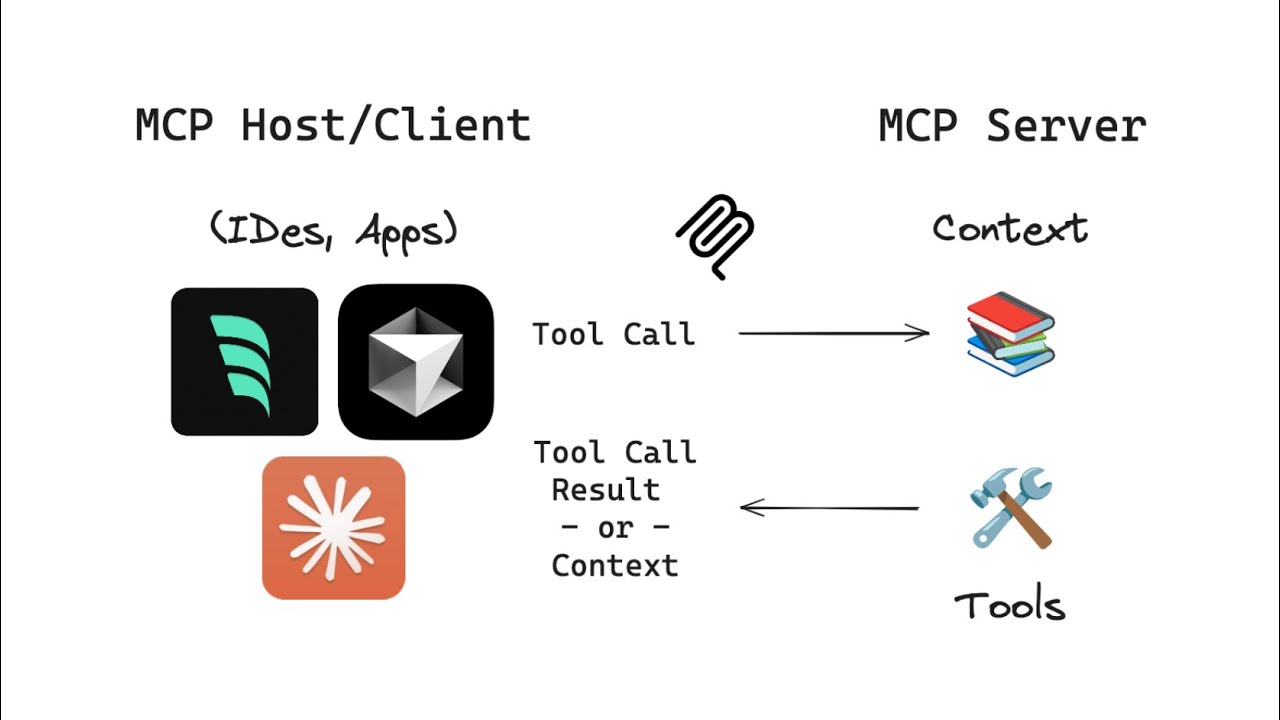
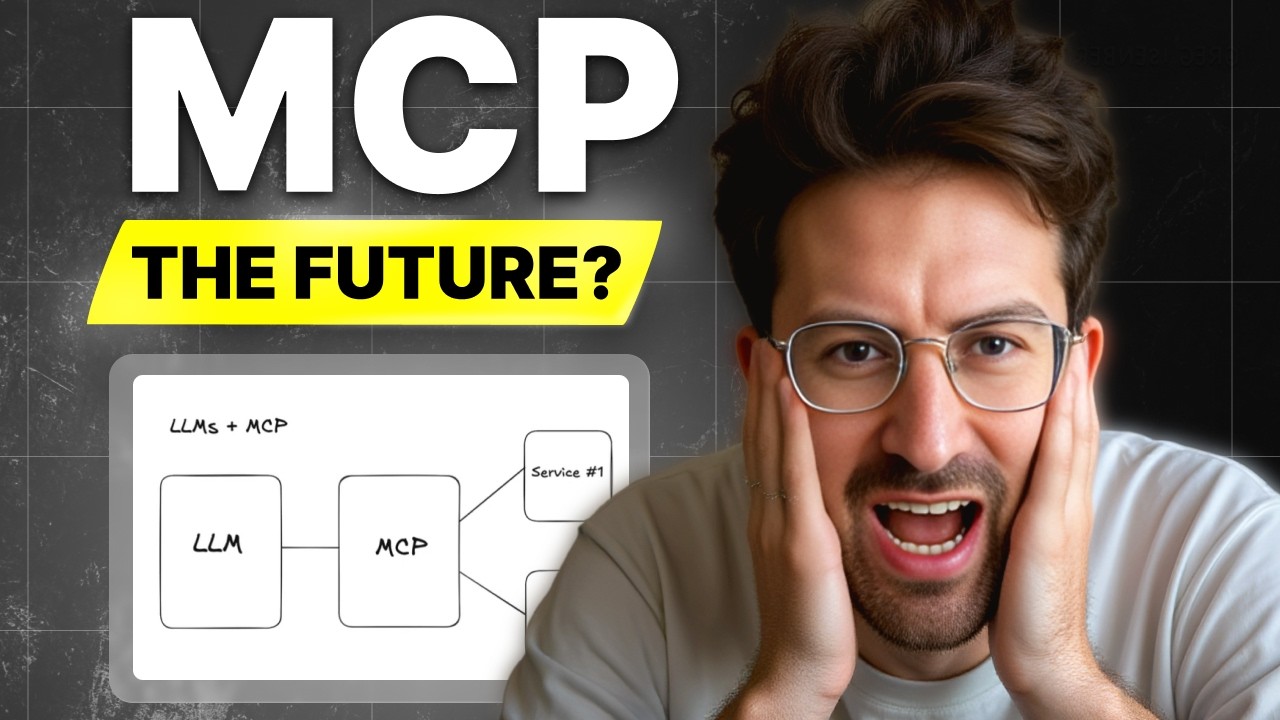
if you've ever wanted your Cloud assistant to directly interact with web content then you'll appreciate the mCP server we're going to build in today's tutorial in this tutorial we're going to build a web scraping tool for cloud desktop using the model context protocol in Python model context protocol is an open-source standard that anthropic released in late 20124 it basically lets AI models interact with external data sources through a unified interface the main thing it does is address the problem of fragmented Integrations by giving us a universal protocol for connecting AI systems with different data sources
let's talk about some real world business applications where mCP can make a big difference in customer support for example you could connect AI chat bot to a zendesk mCP server when a user asks a complex question the AI can dynamically pull knowledge-based articles to deliver precise answers or without custom coding this is huge for reducing support costs while improving customer satisfaction another common use case is internal Knowledge Management Companies struggle with employees spending excessive time searching for data with the mCP server for your database employees can use natural language commands like showq one sales in
Texas and the mCP server automatically generates the required SQL query this makes data much more accessible for everyone right now when chat gbt and Gemini browse the web they only get a limited parts of websites they might see some Snippets or summaries but they can't really process the full content of pages not ideal when you need comprehensive analysis the model context protocol helps Sol this by giving us a universal way for AI applications to talk to external systems what makes mCP really powerful is that it can connect to servers running right on your local machine
this means you can develop custom tools tailored to your specific needs and make them available to your AI assistant in our case we're going to create a web scraping tool that addresses one of the biggest limitations of chat GPT and Gemini our tool will allow Cloud to extract the entire content from websites not just Snippets or summaries this gives the AI much more comprehensive context to work with this is going to be a beginner friendly tutorial aimed at users who just want to enhance Cloud desktops capabilities by giving it the ability to extract and process
information from web pages to follow along with this tutorial you'll need Cloud desktop installed on your computer python knowledge and a code editor of your choice if you don't have Cloud desktop installed you can downloaded from cloud. and the best thing is you can run the mCP tools even if you're on a free subscription to get started launch a terminal and run the command to install mCP beautiful soup and httpx python libraries now in your code editor create a python file and name it something like my tools. P something easy to identify that indicates the
purpose of the tool set right here are my YouTube mCP tools from the YouTube server in Cloud desktop we can add multiple mCP servers to group different tools in the script import all the necessary packages the key packages here are beautiful soup and httpx to download and clean up the page content the web browser package is optional we will create an optional tool to give Cloud desktop the ability to open a URL in your browser to set up the mCP server. Cloud desktop will communicate with initialize an instance of fast mCP with a server name
and specify I the dependencies needed for the tools to function properly you can think of a server name as a group name you can create multiple mCP server with different tools attached to Cloud desktop open a URL in the browser Define a function called open page in browser that takes a URL as input and use the web browser module to launch the default browser with that URL then use the mCP tool decorator to register the function as a tool that cloud desktop can access now to extract text from web pages create another decorative function called
extract web content that handles the web scraping functionality this gives Cloud desktop the tool access to perform the web scraping task and that's all we need to write to create the functions this step is optional to test the tool in the mCP development environment on your terminal run mCP Dev command followed by the python file name in the console output look for the inspector URL and open the link click connect to connect to the mCP server on the top go to tools click list tools to expose the tools that are available in the server here
we can see that both open page in browser and extract web page context tools are listed select the extract web page content tool in the UR input enter a web address and run the tool to make sure it works do the same thing to test the open page in browser tool once all the tools are tested terminate the session to install the mCP server along with the tools to Cloud desktop type mCP install followed by the python file if there's no error that means the installation is successful restart the cloud desktop now from the available
mCP tools you should see the two tools are listed under the my tools mCP server in the cloud desktop let's try it with a page from Google Gemini's release updates and it looks like the release notes are hidden from the request call with some websites they might have antibot detection to prevent Pages being scraped let's try try a different page and this time Cloud desktop is able to use the extract web page content tool to pass the entire page content which can be used as knowledge context to enhance the model's response that concludes This Cloud
desktop tutorial I hope you find the video useful if there are any tutorial ideas you have in mind and you would like me to cover please leave them in the comments below also if you are a patreon member you can download the source code from the link in the description below and don't forget to like the video and subscribe happy coding see you in the next one