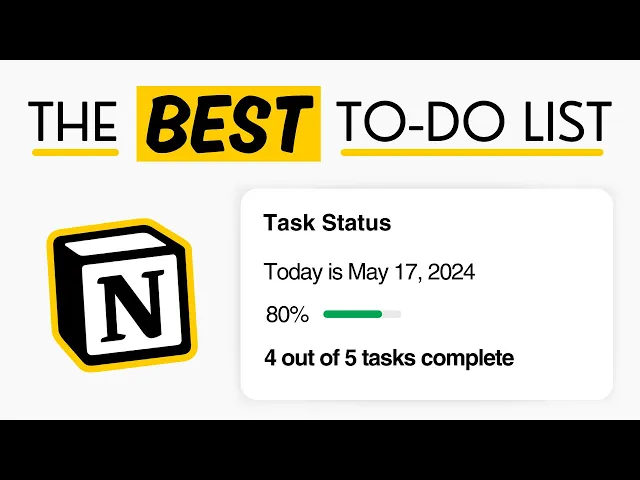
in this video I'll be showing you how to build this task manager with automatic statistics in notion so this is actually part one of two and in the second video we'll be taking this task manager even further by adding time tracking but in today's video which is part one I'm going to be showing you how to build this task manager so firstly over here we have the actual to-do list so this is the today tab which just brings up tasks that are dated as today so as you can see there's a status here so you
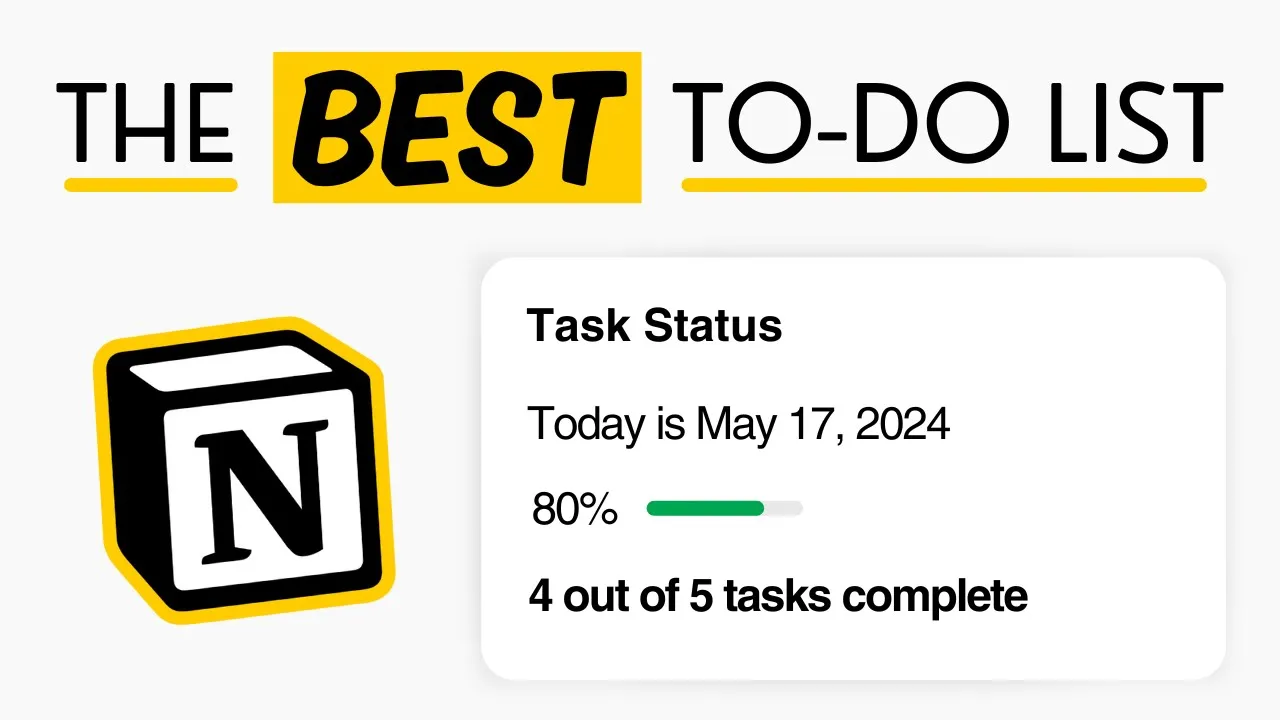
can select if it's not started in progress or done and when you change it to done the will disappear from The Today Tab and it'll move over to the complete tab so this is where you can view all of your completed tasks I've also set up this all tasks view so you can see all of your upcoming tasks as well and one of the coolest things about this entire task manager is of course this task status or statistics database that I've set up so it will give you an overview firstly of today's date this is
all automatic so you don't have to input this yourself it will automatically update this every single day and it will also show you the progress you've made on your to-do list today so it'll have a progress bar and a percentage here that shows the percentage of tasks that you've completed today and it'll also tell you how many tasks you've completed out of the total so today I had five tasks inputed into the to-do list as you can see on the complete tab I've completed two tasks today which you can see here and there are three
tasks remaining so that's five tasks in total and I've completed two so as I mentioned this is completely automatic and in the rest of the video I'm going to be showing you how to create this entire task manager including the statistics completely from scratch scratch just before we get into the tutorial I just want to mention that this entire system that I'm going to be showing you how to create today along with the time tracking that we're going to cover in part two is available on my store I have added a few bonus sections as
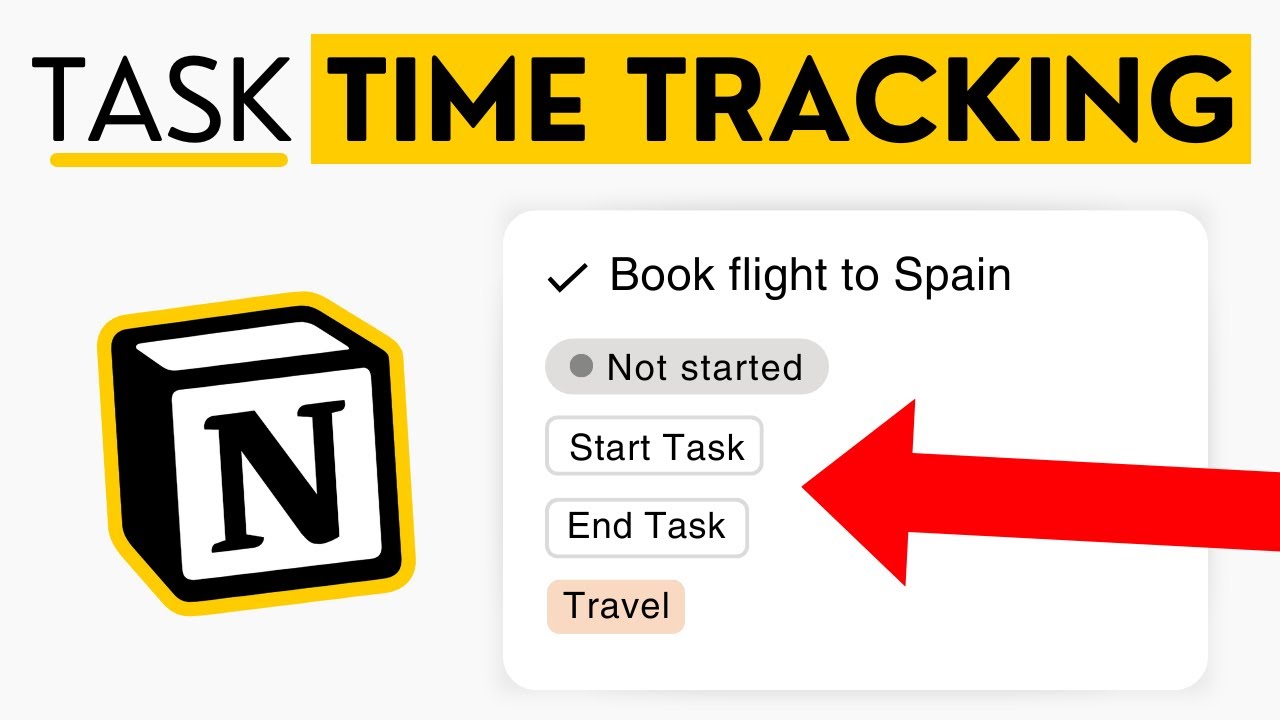
well so firstly it has these statistics that I showed you but it also will show you in total how much time you've spent on your tasks that day I've also added a couple of Handy quick action buttons on the to-do list you can use these buttons here to quickly start and end your task so this is what feeds into this total time on these statistics so it's really quick easy to use you simply just click Start task when you want to start the task that will automatically change the progress for you to in progress and
it will add a start time you then click end task when the task is finished and it will change the status here to done which is why it's disappeared from the list and that will now show here on your completed tab says I've spent zero minutes cuz I just clicked the buttons one after another but you can see here the start and end time so you can also manually update this as well if you need to so let's say it took me 2 hours as you can see that's now updated on here and it all
feeds into this task status up here as a bonus as well I've also added this project section so it allows you to track projects that you're working on and you can also connect tasks in the task manager with projects and that will display here as you can see on the card and the projects also have Project Specific pages so if you click on here it will show you just all of the tasks that you have in the task manager that are connected to this project so if you want to grab the completed template then of
course just head over to my store it will be the first link in the description box I am just asking for a small donation just cuz it does take me a lot of time time to put together these videos and templates otherwise in the rest of the video I will be showing you how to build the basic task manager so I'm just starting with a brand new blank page I've just labeled this task manager added an icon and a cover photo but that's all the first thing we're going to do is add a new database
so I'm just going to type in forward slash database and we're going to select this database inline option and we're just going to give this a name I'm just going to call mine tasks and you can also hide the title by clicking on the three dots and selecting High database title so I'm going to start by adding a few example tasks and they're going to go in this First Column here so I'm just going to add a few in and you can use this tags column here to add a tag next to each of the
tasks so this would be the area that it falls into so for example this one is a YouTube task so I'm just going to type in YouTube and hit enter and that's going to be added as a tag the next one is also YouTube so I can select the same tag for that one this one is a personal task and so on so you can actually select multiple tags if you like or just one it's completely up to you next we're going to add a date property so that we can add a due date for
each of the tasks so we're going to click on this plus symbol here and type in date and select this date property here and I'm just going to name this one due for due date you can then click on this box to select the date for the task so I'm just going to put all of these as today next we're going to add a status property so that I can see if the task is not started in progress or complete so we can click on here and I'm going to type in status and select this
status property now this one already comes populated with the option so I'm just going to leave it as is so you can click on here to change the status whenever you need to for now I'm just going to leave them all as not started so those are the first few properties we need for the actual to-do list now let's start working on our statistics database so I'm actually going to add that above this one so I'm just going to make a little bit of space and we're going to add a second database for our statistics
so I'm going to type for/ database and select database in line and I'm just going to call this one task stats again I'm also going to click on here and have the title now we're going to label the first page as task status and I'm actually going to delete these other two pages cuz we only need one page in this database so if you just highlight them here and you can delete them and we also don't need the tags property on this one so I'm going to click on here and delete that as well now
the first thing that we want to do is we actually need to connect the two databases together so we can do that using a relation property so we're going to click on this plus symbol here and I'm going to select this relation property now the first thing it's going to do is ask me which database I want to relate to so a current in the task stats database so I actually want to relate this to the tasks database so that's the one I'm going to select and you can leave these options as they are but
we do also want to show this on our tasks database down here so that's why I'm toggling this on and we're just going to click add relation now once you've done that you should see a new column appear on each of these databases and that's showing that they are connected together now to make our statistics work we actually need to relate every single one of these pages to this task status page up here now the way that you can do that is you simply click on here and this is going to bring up any many
pages that you have in the connected database obviously there's only one page which is why it's only showing this option but we do need to connect every single task to the stats so I'm going to select that in this box and then I'm just going to click on here and you can actually just drag it down so it displays in every single box now don't worry you won't have to do this every single time you add a new task we can automate this and I'll show you how to do that later but for now just
make sure that it shows up for every task and once you've done that you'll notice on the top database that each of the tasks here are now displaying next to our task status which is perfect so for our stats to work properly we need to know how many tasks in total we have for today and how many of those tasks have been completed so we're actually going to use some clever formulas and rollups to do that and don't worry I'm going to break it all down into really simple steps so let's start by working out
how many tasks we have in total for today so we're going to use a formula property to do that so I'm going to click on the plus symbol on the tasks database and type in formula and we're going to select this formula property and I'm going to call this one today with a question mark cuz this formula is simply just going to check if the task is dated as today and if it is it's going to display a tick in a checkbox so it's just an easy way for us to check if the task is
dated as today and then we can simply just add up how many check boxes we have that are checked so next you'll want to click on the formula edit button to bring up our panel and this is where we're going to type in our formula so it's really simple formula firstly we're going to grab the due date property from the database so you'll see that here and if you click on that it's going to add it into the formula and we just want to check if that is equal to so in notion formulas you do
need to write two equal signs and we just want to check if it's equal to today like this so this is the today function so in notion this simply just will pull through whatever the date is for today so this is simply going to check is the due date today and if we click done as you can see here it's now bringing up a checkbox and all of these are dated as today so they're all checked but let me just change one of these for tomorrow and as you can see it now unchecks the checkbox
if I put it for yesterday again the check boox isn't checked it's only going to be checked if the date is today so that is the first Formula that we're going to set up the next one is going to be to count how many tasks are both due today and also have been completed so let's just change one of these statuses here to done so this one is dated today and it is complete so we want a check box to be checked for this one to show that it's complete but for these ones that are
not started we want it to be unchecked so we're going to add another formula to do that so I'm going to type in formula and we're going to name this one today plus complete Complete because those are the two conditions that we're going to check again formula edit and we're going to type in our formula in here so in this case there are two conditions that we need to check if they're true so in that case we're going to use the and function like this and that essentially will just check two different conditions and both
of those conditions need to be true for the checkbox to be checked and open parentheses so the first is the exact same condition that we just checked in the previous formula is if the due date is today so I'm going to type in the exact same thing due equals equals today like this we're then going to add a comma and now we can write the second condition and this one is going to be if the status property here is set to done so we're going to firstly grab our status property from the sidebar we're going
to do equals equals and then inside two quotation marks like this we're just going to type the word done now this text needs to exactly match the text in here so if you've changed the done to something else like complete or something like that you just need to make sure that it matches and then we're simply just going to add another parenthesis at the end to close off the function so as I said this is just checking that both of these conditions are true that the due date is today and the status is done and
if I click done as you can see here is that formula so the only one that is checked is the one that is done and all of the dates are today so if I change this now to in progress the checkbox becomes unchecked if I keep it as done even if I change the date to yesterday it's unchecked because it needs to be today and done so now that we have the data that we need to make our statistics work we do need to pull this data into our stats database up here and then calculate
the total number of check boxes that are checked for each so we can actually use a rollup property to do that rollups essentially just grab data from other databases so up here we're going to click on the plus symbol and I'm going to type in rollup and grab this rollup property so firstly we want to pull through the total number of tasks that we have for today which is this property so I'm actually just going to name this roll up total tasks today now the first thing it's going to do is ask me to select
a relation so with rollups you do have to have a relation property already in place before the rollup can work now we did actually set up that relation property earlier we related these two databases together so if I click on this it's just going to bring up our tasks database because that's the only related database then it's going to ask me which property I want to grab from our tasks database so we're going to click on here and the one we're going to grab is this today question mark formula because that's this one that checks
if the due date is today so once I've selected that as you can see it's now just bringing through all of those check boxes into this database but I actually just want to calculate in total how many of them are checked so if you click on calculate it will allow you to count how many are checked and now as you can see it's just displaying the number five which is great there are five tasks in total for today and next we want to pull through the total number of tasks that have been completed for today
which is this property here so we're going to do a very similar thing I'm going to click on this symbol here type in rollup and this one we're going to name total tasks completed today again we're going to relate it to the tasks database but this time the property that we're going to pull through is our today plus complete formula and we're going to do the same thing of we're going to count how many checkboxes are checked so as you can see it's coming up with the number one because only one out of the five
tasks have been completed so now that we have the data that we need let's turn this into a progress bar so we can actually see our progress so to do that we're going to use another formula in this stats database so I'm going to click on here type in formula for and select this one and I'm going to call this one task percentage Complete because it's just going to show the percentage of tasks that I've been complete and again click formula edit so this one's quite easy all we're going to do is we're going to
grab our total tasks complete today which was this one and we're simply just going to divide it by the total number of tasks so that was the total tasks today so that is this number here 1 / 5 and we're also just going to round this off so sometimes this can come up with a really long number with lots of decimal points so we're going to add a round function firstly we're just going to isolate this inside some parentheses so I'm going to add one at the end and one at the start and then we're
going to add a round function so if you just type round at the start like this open a parentheses then we just need to multiply this by 100 now the reason we're doing that is just because it will allow you to select how many decimal points you want so in this case we want it to two decimal points which is why we're doing 100 if you wanted it to one decimal point you do 10 three decimal points would be a thousand and so on we're going to close off this parentheses and then you also just
need to divide it again by 100 so that's just how the round function works then we can click done so as you can see here it's displaying 0.2 so the only other thing we want to do is select the number format and just change it to a percent so it's going to show the percentage rather than 0.2 so now as you can see it's showing 20% Which is correct cuz it's one out of five and just here you can also select if you want to see it as a progress bar which would look like this
or you can also select a ring like this if you'd prefer I think I'm going to go go with a bar feel free to change the color here if you like I'm going to leave it as green it would also be nice if we could see how many tasks we've completed out of the total so in this case it would say something like one out of five tasks complete so we can use another formula property to do that so we're going to click on here type in formula and let's just name this one tasks complete
and click on formula edit so firstly we want to grab the total tasks completed number so I'm just going to select that here from the side menu we're going to add a plus symbol and then you you can simply just write the text that you want to follow this number inside two quotation marks like this so this number is currently one so it would say one and we want it to say out of like this now one thing you need to add in here as well is the spaces so I'm going to add one space
before and one space after so there is a space between the number and the text we then want to add our second number which is going to be the total tasks today so that is this five number here so these properties of course are Dynamic so they will change as the data changer so this should display as one out of five and then we just need to click on here and add the final bit of text which is going to be tasks complete and just remember to put the space in here I also think I'm
going to bold the text as well so to do that we firstly just need to isolate the entire thing in parentheses so I'm adding one at the end and one here at the start and to add styling to the text we can use the style function so you just want to type do style at the end open and close a parentheses and inside there we're going to add two quotation marks and then inside just a b now B just stands for bold so it's just going to bold the entire piece of text so I'm just
going to click done and as you can see this is what it looks like now as I said this is completely Dynamic so if I just come down here and change the status of this one to done as you can see it's automatically updating our progress bar and it's also changed it to two out of five tasks complete the final thing that I want to add is simply just today's date as I think it would be kind of useful to be able to see on the stats card the date for today so we're going to
add one more formula property and let's just call this one today's date and click on formula edit so we're going to start with the text that we want to display so I'm just going to add two quotation marks like this and inside we're just going to put today is and a space A Plus symbol and we're going to use the today function which we used earlier so if you just type today and then the two quotation marks this is going to automatically pull through the exact date of today now if I click done this is
how it displays so notion will pull it through with this little at symbol but if you want it to display just a text then we need to tell notion what format we want the text to display as so to do that you can simply type dot format date like this open parentheses and here you want to tell it the exact format that you want to use so this is completely up to you now the format that I'm going to use is going to be the month first then the day a comma and then the year
like this and you do need to put some quotation marks around this as well and then we'll just close off the parentheses so with this format if I click done as you can see it's bringing up the month the date and then the year you can really play around with this so if you'd rather see the day first then you can put d m's and then y's like this so it will display like this if you do two y's instead of four it will just display as 24 rather than 2024 I think I'm going to
leave it as the full year if you just put one M it will display as the number of the month rather than the actual word but I'm going to leave it with the 3 M's which is going to display it as the word may it's completely up to you but this is the format that I'm going with and that looks like this so now we have all of the properties that we need to make this database work so now let's just make it look a little bit nicer so firstly up here on our stats database
I'm going to switch it to a gallery view so to do that you want to click on the three dots here select layout and let's go with a gallery which looks like this firstly I want to hide this page cover here so this Blank Space here so I'm just going to click on card preview and we're going to select none and that's just going to get rid of all that blank space we're then just going to click back and go onto properties and now I can decide which properties I want to display on our stats
card so firstly I want to see today's date so I'm just going to click on this symbol here which is going to add it onto the card like this I also want to see the task percentage complete that's the progress bar and we also want to see our tasks complete which is the text that tells us how many tasks we've completed I also just want to change the name of this tab here to today so we're going to click on here to rename it let's just call it today and I'm also just going to change
the icon to a dashed circle like this so that is our stats card now down here on our tasks database I'm going to start by highlighting all of the tasks to add an icon so you can just highlight them like this and click on the six dots here next to them and select icons now the icon I'm going to go with is one of Notions own icons I'm just going to go with the check mark so that just looks a little bit better next we're going to add a default template so that the check mark
icon is going to be added by default and it's also going to relate each new task automatically to this task status up here so we need these to be related for these statistics to work properly so to automate it let's click on here and add a new template so we'll start by adding the icon so I'm just going to click on icons and select the same check mark icon and the other thing I want to do is just here in the property so next to the task stats we're going to click on here and relate
it to task status you can also hide a few of these properties that you don't need to see like these ones they just just need to be there in the background to make the stats work so if you click on here you can actually set the property visibility to hide so that you don't have to see them you can also hide this one as well so it just looks a little bit cleaner and then we're going to hit back next we want to set that template as default so if you click on here again here
is the template so we're going to click on the three dots and just set it as default now what that's going to do is whenever you add a new task into the system so let's add a new page enter as you can see the icon's been added and it's also been related to our task status so it's now doing that completely for as we don't have to do anything next we're going to switch the database here to a gallery view as well like we did above so I'm going to click on the three dots here
select layout and we're going to go with Gallery I'm also going to hide the card preview here as well so if I click on here select none it's going to get rid of all that space and I'm also going to set the card size to small just so it's easier to see all of the tasks we're then just going to click back and go to properties and the first thing I want to see is the tags property so we're just going to add that to the card and then let's also see the status as well
so that I can change the status straight from the card now this tab is going to be our today tab so I'm going to click on here and rename this as today and we're going to change the icon here just to a calendar like this we also need to add a filter to ensure that only the tasks dated as today show up on this page so we're going to click on here to add a filter and we're going to filter based on the due date so I'm just going to set this to this day which
just means today so that will filter out anything that is not today I also want to add a filter based on the status so I only want to see tasks that are either not started or in progress I don't want to see any done tasks on this page so I'm going to click on filter again let's add another filter and this one's going to be for our status property and I only want to see tasks that are either not started or in progress anything that's done we do not want to see so once I've added
that as you can see a couple of the tasks have disappeared and those were the completed tasks I do want to set up a couple of other views so firstly we're just going to click on here and duplicate it and this one is going to be all tasks and I'm also just going to change the icon as well let's go with this list icon here I also actually want to change the layout of this one to a list view because there might be a lot of tasks cuz this is just going to show all of
your upcoming tasks so for that reason I think it would work better as a list and this is what the list looks like now we're going to go back on here and select properties now the properties that I want to see on here are going to be the due date and let's put that above the tags property and I also want to see the status as as well so I'm going to unhide that and I'm going to put that right at the top before the name so it's the first thing you see over here now
I need to change one of the filters on here so because we just duplicated the today tab it's got this due date filter so I want to click on here and delete it because I don't want to filter by today I actually just want to see all upcoming tasks so if I just add another task for tomorrow so I've just quickly added one more task dated as tomorrow so that will show up on this tab but it will not show up on this one because of that filter I also want to add a salort so
I want needs to be sorted based on the due date so we're going to click on here and add a sort based on the due date and you just want to set that to ascending so that the tasks with the oldest date show up at the top of the list finally I want to make one more Tab and that's going to be for all of our completed tasks so we're going to click on here to duplicate this tab but let's change the name here to complete and you can also change the icon as well I'm
going to change it to this check mark in a circle so we just need to change the filter on here so the filter is currently set to only items that are either to-do or in program progress so I'm actually just going to uncheck these and instead check done so the status is done so now that we've changed that filter as you can see all of the other tasks have disappeared and we're just seeing the ones that are complete and I also just want to change this sort here to descending instead of ascending so that's just
going to ensure that the most recently completed tasks show up at the top of the list so it's handy to come on here if you accidentally check off a task you can easily just come on here and change the status back to something else to make it go back to the other tabs and that's it so that's the task manager all set up so the stats database is fully automatic so if I change the status on this one to done as you can see it updates as we go so it's fully Dynamic and it will
track your progress throughout the day so that was part one in this little miniseries on building a task manager in part two I'll be showing you how to incorporate time tracking into this time manager as well and this will allow you to Time Each task by simply clicking the start and end buttons the stats database will then automatically add up in total how much time you worked that day as soon as part two is up I will link it in the description destion box below otherwise it will be uploaded next week and remember if you
do want to grab the entire task manager template with a few bonus features then it is available on my store and I will also link that in the description box below and if you did find this video useful then I'd really appreciate if you could give the video a thumbs up and subscribe to the channel as I post new notion tutorials like this one every week