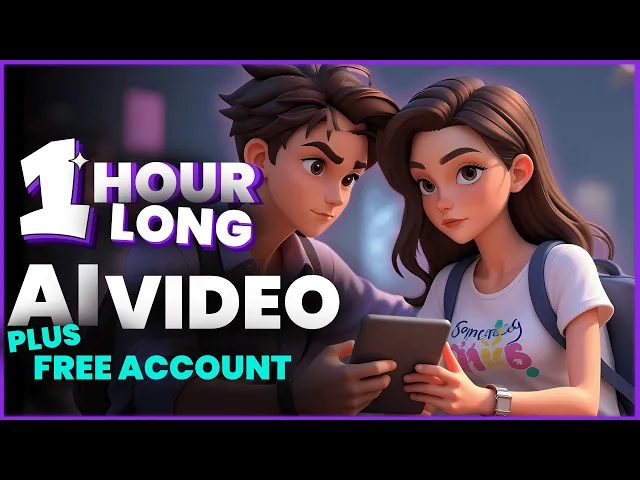
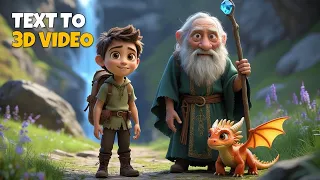
60-minute video with just one simple prompt in minutes with consistent characters. That right there, that's what I created. Every great story has a beginning and so does every great band.
I'm Felix and I'd love to share ours with you. And guess what? It was probably way easier than you think.
That entire animated piece you just saw, the characters, the scenes, the animation itself, all of it came to life using just one incredible AI tool and one single prompt. Today, I'm pulling back the curtain and showing you exactly how you can do it, too. Let's dive in.
First things first, let's head over to the Magic Light AI website. You can find the link right below in the description. Once you're in, Magic Light usually gives you free credits, so you can try out the features right away.
And the interface, super simple. You can explore what other creators have made for instant inspiration. [Music] But before we go deeper, here's a special bonus just for you guys watching this.
I'm giving away two free upgraded accounts on Magic Light. Stick around because I'll show you exactly how to enter in the final part of this video. All right, to kick things off, we're going to click on create I video.
Magic Light gives you a couple of ways to start your story. First up, smart script. If you've just got an idea, you can type a simple prompt here, and the AI will help craft a full story for you.
Pretty neat for brainstorming. Next, you'll choose your video ratio and then your visual style. Then, choose the language for your video's voice over.
Magic Light has an amazing range. 3D cartoon, Disney, anime, Giblly, cinematic, cyberpunk. For this one, I'm going with 3D kids.
Perfect for a playful, colorful vibe. Then check this out. You can also choose the video length.
Total flexibility. You can make anything from a quick 30-second scene to a full 30inut animated story. Once everything's set, just click next and you're on your way.
All right, Magic Light has cleverly broken it down into individual scenes. You can see them listed here, like a full story board, scene by scene. Each one is editable, so if something looks off or needs tweaking, you can customize it easily.
[Music] Here are your story's characters. Click autocast and Magic Light will generate them for you automatically. Here's what we've got.
If they're not quite right, no worries. You can choose from the library or create your own from scratch. I'll pick one from the library for now and show you how to customize them later.
[Music] Just like that, Magic Light has generated our visual story board. Each scene from our script now has an image complete with our characters. Let's scroll through quickly.
Every image comes from a text prompt. And here's where you get creative. You can write your own prompt or just click AI expand to add more detail automatically.
Not happy with an image? Just regenerate it as many times as you want for free. And if you want to master prompts, Magic Light even includes built-in guides right here.
[Music] Now let's animate this scene. In Magic Light, you can animate each scene individually or al together. Let's say I want to do it one by one.
First click animate, then choose your animation model. Each one gives a slightly different look or style. You can let the AI animate it automatically, which is super fast.
Or for more control, use a custom prompt to guide the motion exactly how you want. All right, let's do [Music] it. Here's what we got.
Nice and [Music] clean. Okay, now let's try out lip sync. This feature works best for shots with just one [Music] character.
Just click on voice over, pick a voice and speaker, then hit the edit icon and type in your dialogue. Once that's ready, click animate and choose the lip sync option. That's it.
Super easy. [Music] That could mean anything or more likely nothing at all. To finalize your project, just click next.
The AI will ask if you want to animate the rest of the scenes. Click animate all and it'll take care of [Music] everything. Once that's done, click next again.
Choose your cover image and subtitle font. And that's it. Here's the final result.
Fully animated, ready to review and download. Neoyoto glitters under neon lights as Aara and Jax analyze cryptic waveforms on a tablet. Ghost signal.
Seriously? Sounds more like a plain old network glitch to me. No, this is different.
I think it's a hidden message. That could mean anything. Or more likely, nothing at all.
Jax, this signal is string here. In the decaying data tunnels, Jax felt a growing unease. Suddenly, a warning [Music] [Applause] [Music] flashes.
And that's it. A full video from just one idea using Smart Script. Now, let me show you how to use your own script instead.
Just choose basic script and paste your story here. Then, just like before, select the aspect ratio, language, style, and video length and click next to get started. As you can see, Magic Light has laid out my entire script scene by scene.
Since it's my own text, the dialogue should match exactly. Just make sure the scene breaks feel natural and the wording is clear for image generation. You can edit, remove, or merge scenes to smooth out the flow.
Once you're happy with it, it's time to design your characters. Okay, for this story, I'm not using the suggested characters. I'll create them from scratch.
Start by choosing a name, gender, category, human or anthro, and age. Then describe exactly how the character should look, appearance, clothing, style, and personality traits. The more detail you give, the better the AI can match your vision.
You can also upload your own image to guide the design. Once you're happy, click confirm. And this character will stay consistent throughout your entire video.
Now, let me show you how to create your own custom character using an image. First, click AI character. Just like before, give your character a name, add some details, and pick a style.
Then, click upload image, and choose a clear picture. You can even upload a separate outfit image if you'd like. Once everything's ready, click generate.
And just like that, your custom character appears. You can edit and generate it as many times as you want until it's just right. And that's [Music] it.
Let me show you how you can win a bonus. I'm giving away two free upgraded Magic Light accounts so you can create without limits. Here's how to enter.
First, sign up on Magic Light using the link in the description and then comment your Magic Light username down below. I'll pick two winners and upgrade your account to the standard plan completely free. That's it.
Super simple. Winners will be announced in a few days, so don't miss your [Music] chance. Thanks for watching, guys.
Much love. See you in the next one.