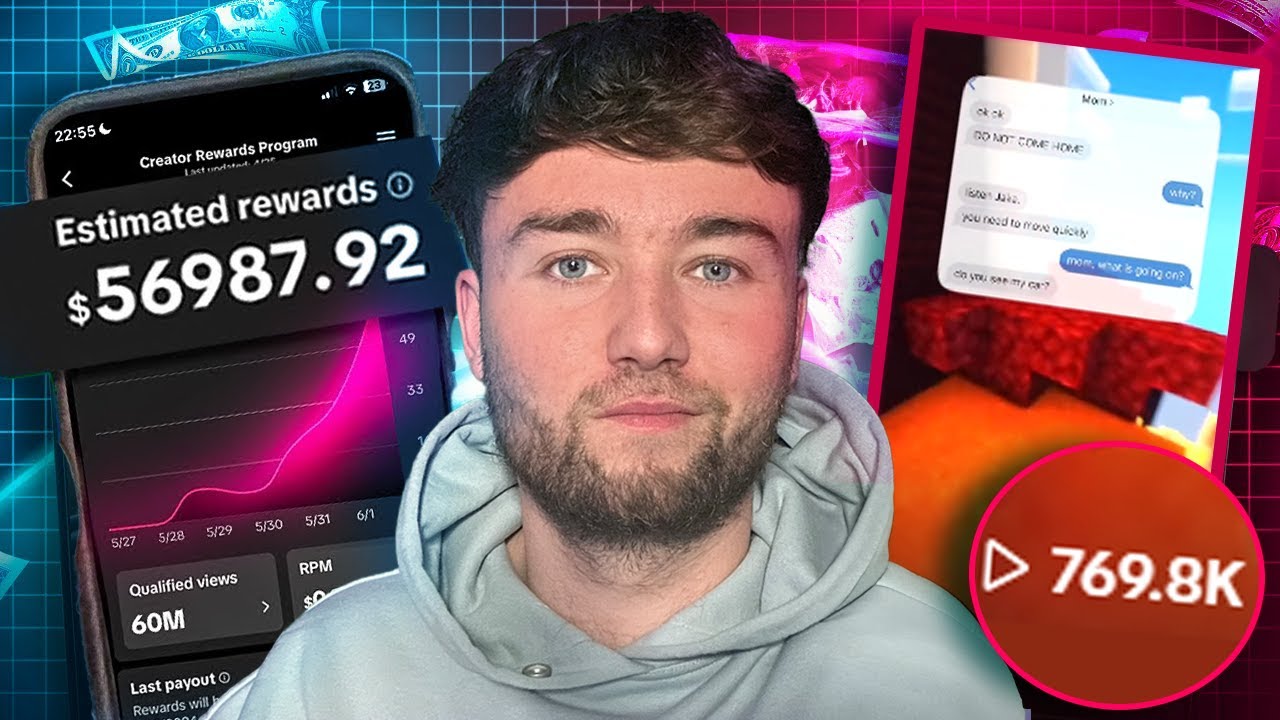
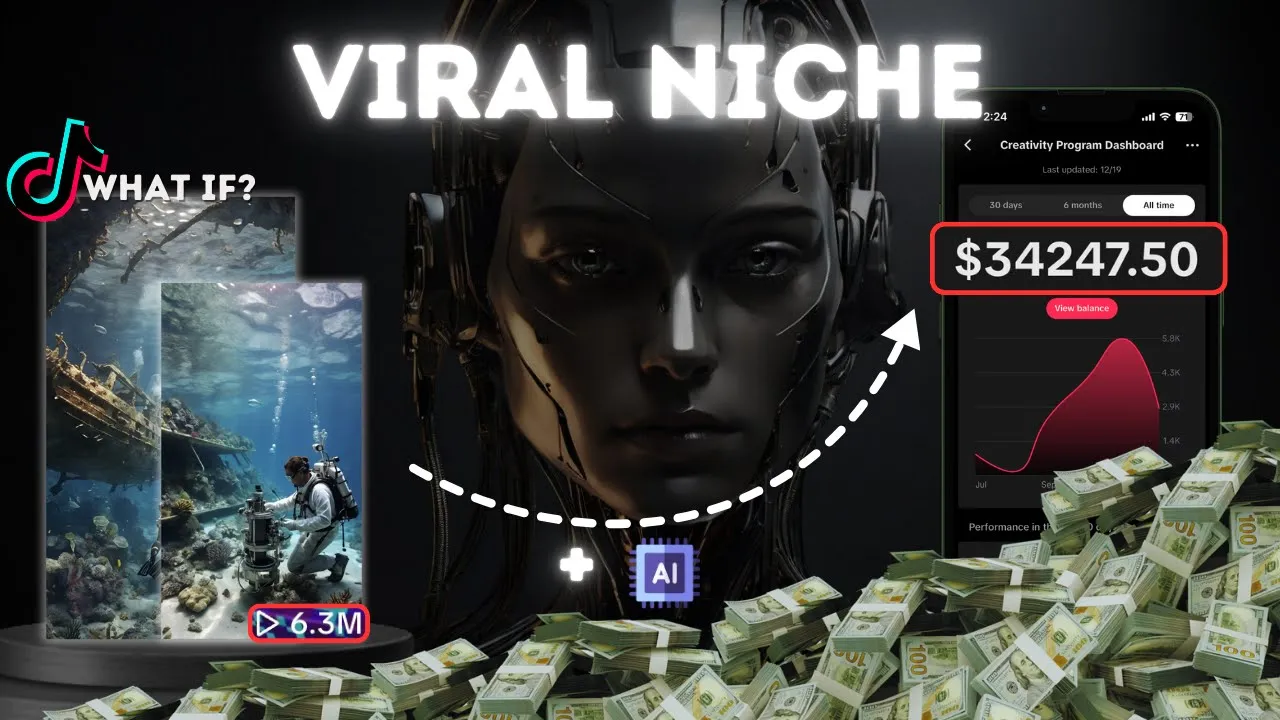
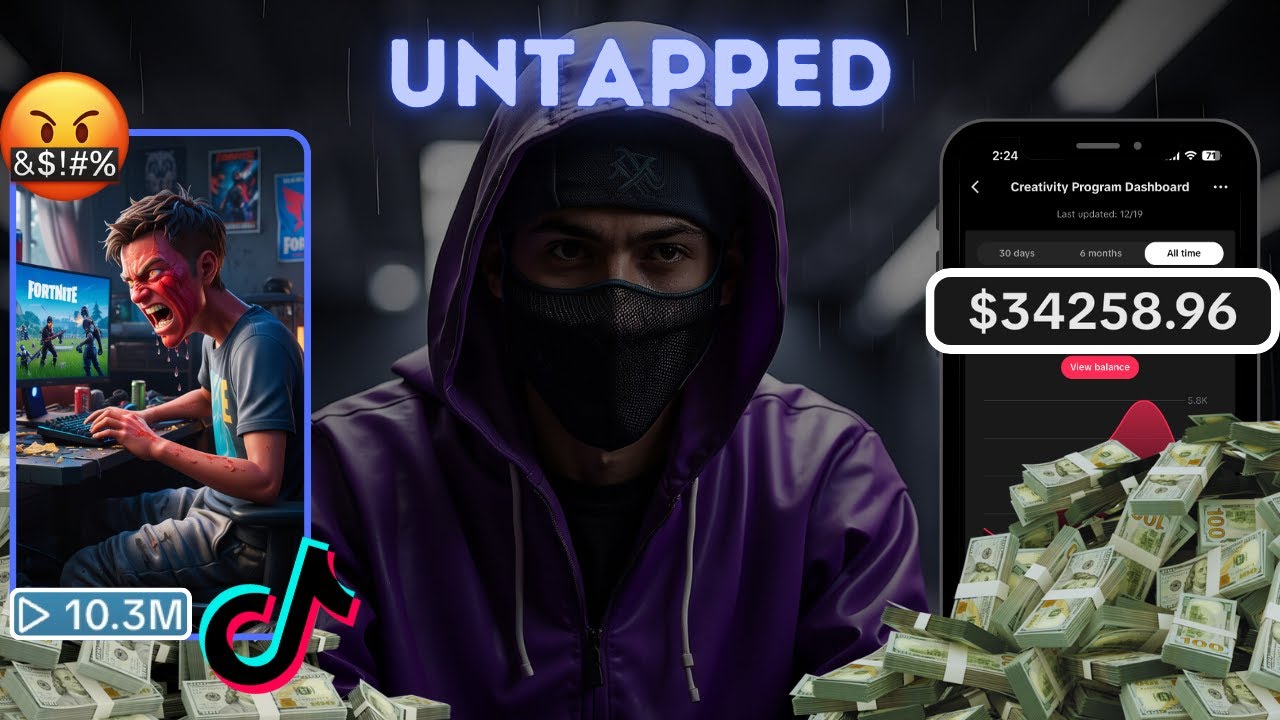
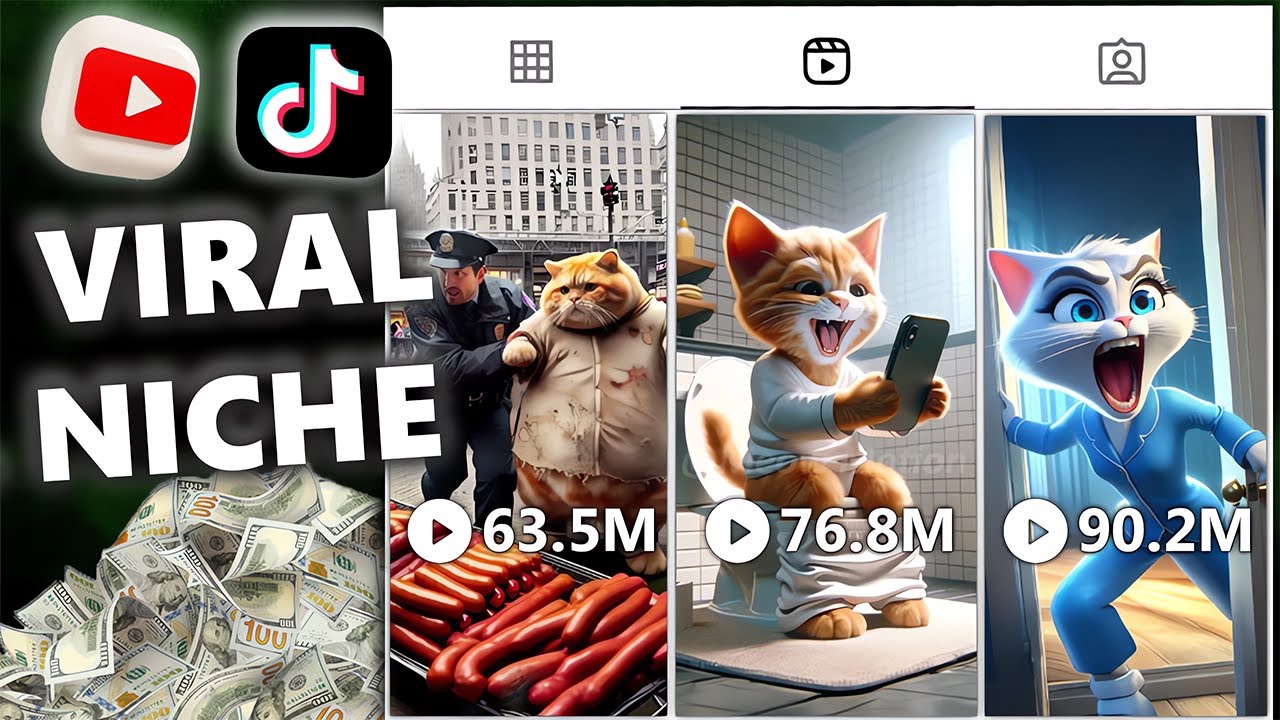
the new Gold Rush is here and it consists of making short form content for Tik Tok and YouTube the Tik Tok creativity program is making people rich and paying them more than doctors and lawyers look at this account here they're posting in this whatif Niche and they're getting hundreds of thousands of views on every single post this one video here will have made them $11,000 alone this literally could be you faster than you know so let me ask are you going to watch another video without actually doing the steps or are you actually going to
get started and have a monetized Tik Tok account before you know it people are outworking you right now so let's lock in so what exactly are these videos I'll play you a clip so you can get a better understanding what would happen if you never stopped crying after 20 minutes all the bacteria on your face dies due to the chemicals produced by Tears it's pretty self-explanatory and I'll call this the whatif niche no more talking let's get to work in this video's description you can find a Google doc with literally everything that we're going to
use in this video so open it up the first thing we need are some video ideas head to chat GPT and I'm firstly going to ask the AI for some crazy what if scenarios specifically about Humanity using chat GPT means that we can literally never run out of this sort of content and we can generate video Ideas Daily all right scroll through the list and pick out an idea that you like I'm going to pick this one about Humanity moving underwater as I think it'll make for a cool video I'm next going to copy it
and paste it back into the the AI I'm next going to ask the AI to generate me a paragraph that's 1,000 characters in length this should make it long enough for a 1 minute voice over which we need for the program all right the AI has given us back a paragraph It's okay but I think it loses sight of the what if theme I'm just going to ask it to keep it remember this isn't a fantasy Niche all right the updated script seems really good we now need to ask the AI to divide up the
script into sections and give us image generation prompts remember that all these prompts will be the Google Doc the AI has done its thing but it's only given us seven prompts and seven images won't be very engaging so I'm going to ask it for more all right we now have 12 but I still don't think this is enough I'm going to ask it for two images per scene as a way to maximize images all right our prompts are ready leave this window open and you want to scroll back up and find the original script that
we generated for this video copy it and we can move over to the next step we now want to generate voiceover with with 11 Labs 11 Labs does have a character-based system but you can always get more for super cheap once you're on 11 Labs head to voices in the top left on the next page hit Library as our Niche is kind of dark we want to add a deep voice to use for our voice over I'll search deep in the search bar try out a few by hitting sample and once you have one give
it a name so you can find it again and add it to your voice Library all right head back to speech on this next page you want to find the drop- down menu with all your voices scroll around and find the one we just added and then select it you now want to head to the main text box and paste in our script from chat GPT all right with our voice over done we can go ahead and start generating some images to use in our video head to the Google Doc and click on the link
for Leonardo once you're on Leonardo hit launch app in the top right once the next page is loaded you want to hit image Creation in the middle once we're on the next page head to the top right and toggle on this switch that says legacy mode this will save you credits once here we need to make some changes on the left make sure that you're only generating one image or you'll use extra credits next scroll down and hit this drop down under Advanced controls you then want to change the ratio to 9 by 16 with
these settings done we can start copying over the prompts from chat GPT copy them then paste them into this box up here and hit generate all right you want to go ahead and do this for all the prompts that we got from chat GPT if this is done right it should only cost four credits per image I'm going to go ahead and Skip to when all our images are done now before we download all the images you want to firstly go ahead and hit this back button in the top left once back on the main
page you then want to hit personal feed just below the back button once here you now want to scroll down and we're going to select the first image that we created once here hit this button that says image to motion on the next page you want to make sure that the strength is set to one and then hit generate now you want to repeat this process with as many images as possible in order until you run out of credits don't worry about your credits they reset each day when you're done with that head back to
image generation I'll skip to when these images are created all right you can now see that we have some moving images they look good so you want to go ahead and download everything that we've created from Leonardo the moving images and also these still images all right we've got everything so let's edit it all together for this I'm going to use cap cut once you're on cap cut import everything that we've just gathered I'm going to start with our voice over so select it and drag it onto the timeline once it's in place we need
to scan it for dead air this is these massive gaps like this that contain no audio hit B to bring up a splitting tool and then split and remove the bit in the middle this will really boost our video's engagement as no one wants to listen to silence you need to do this for your entire voice over once that's done we're now going to make ourselves some captions head to text in the top left now hit autoc captions and then hit generate it'll take a moment but you should be left with captions that look like
this I'm firstly going to drag them to the middle of the screen next head to the top right and give them a font that you like now you want to give your caption some depth so scroll down and select the boxes next to stroke and Shadow now at the top hit animation and then captions I'll go with spring our text is looking good so let's add our images start by selecting your first moving image and add it to your timeline once it's in place we need to change this video ratio hit this ratio button and
then select 9x 16 I'm now going to crop the duration of this image so that it's a little bit shorter you now want to add in all of your images one after the other try and line them up with the correct part of the voice over I've got less to save me time but you should have a full timeline full of images once your timeline looks like this I'm now going to add an adjustment to our video start by selecting adjustment in the top left now hit the plus button under custom adjustment to add it
to your track now extend the duration so that it lasts the entire video now head to the top right scroll down and increase the saturation to about about 15 this will make our video more vibrant now scroll down and increase the vignette to around 15 this will darken our Corners which I think looks really good all right we now want to make our images move select the first one and head to animation in the top right next hit combo and select one you like this will now make your image move you now need to repeat
this process for every image on the timeline don't worry this literally takes seconds once all your images have some animations I'm finally going to add some text just to make our video that bit more engaging head to text click add text and then add some default text I'm going to now make it so it lasts the duration of the voiceover reading out 2050 now I'm going to drag it and position it high up in our video head to the top right scroll down and select a template next scroll back up and select a font once
that's done I'm going to head to animation find one where the characters appear one by one all right this text looks good I'm now going to copy and paste it where the different years are revealed this helps reinforce the effect of the timeline and makes our video more engaging here's the finished result what if by 2050 rising sea levels forced Humanity to retreat into underwater cities as coastlines vanished that's all for today's video get the best digital assets in this video's description bye


![It took 2 hours to make $220,000 with this AI video [TikTok Shop Affiliate]](https://img.youtube.com/vi/VOxTHGyQzbA/maxresdefault.jpg)